
Video Converter Ultimate
 100% Secure. No Ads.
100% Secure. No Ads.
GoPro cameras are very good at recording any action, adventure, traveling, or sport-related video. Sometimes, however, raw videos may not look good at first. The videos may look unsteady, dark, flat, or noisy due to the shooting location and method. Here comes the importance of video editing. By applying some techniques and tools, anyone can turn their videos into good-looking ones, which can easily be uploaded online.
In this guide, I will introduce you to the entire process of how to edit GoPro videos. After reading this article, you will learn how to edit GoPro videos better than before.
In fact, before you begin editing your footage, the first thing you should be doing is transferring your GoPro videos to your computer. Luckily, this process is not that complicated, and there are several ways to do it based on your configuration.
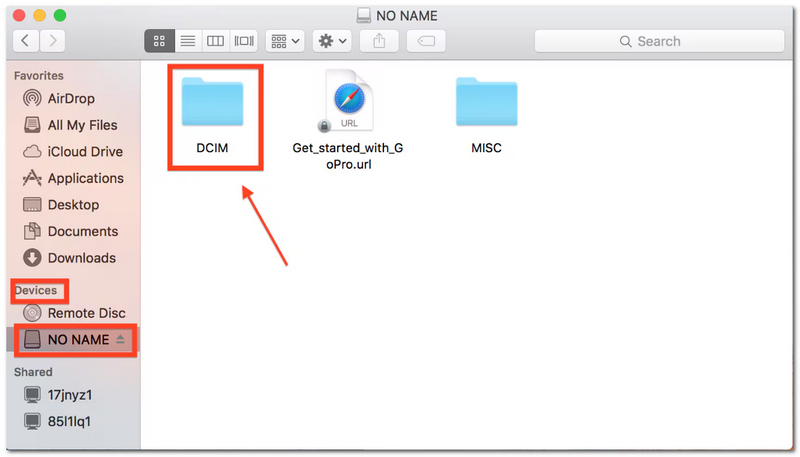
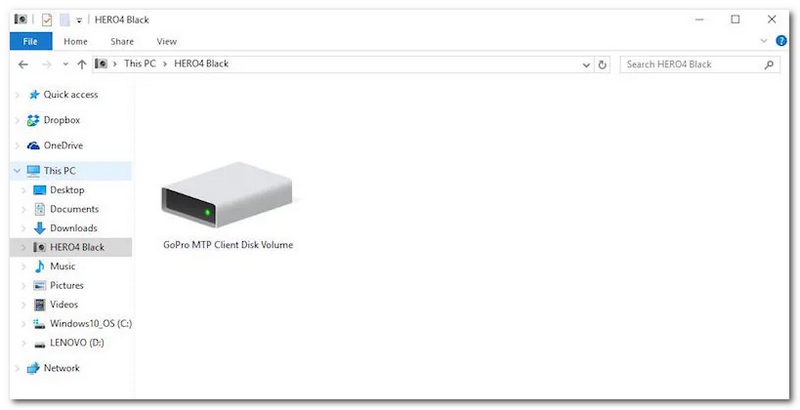
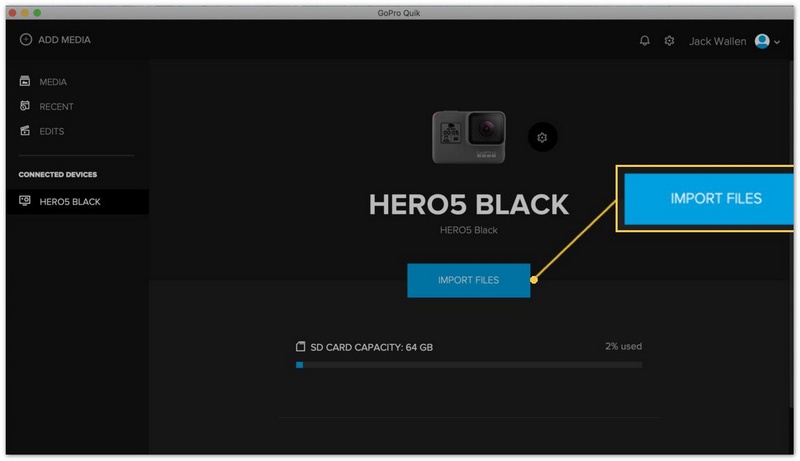
Then, after importing GoPro video to your computer, you can open a GoPro video editing software to edit it further.
If enhancing your GoPro videos sounds like a lot of work that needs you to adjust every setting manually, then you may like to try Aiseesoft Video Converter Ultimate. It is among the most user-friendly video editing programs I have used. Apart from video conversion, it is also equipped with intelligent enhancement and editing options, which can, for example, help you deal with typical GoPro video problems such as jittery footage, poorly lit scenes, dull colors, and noisy audio.
Downloads
100%
Secure. No Ads.
100%
Secure. No Ads.
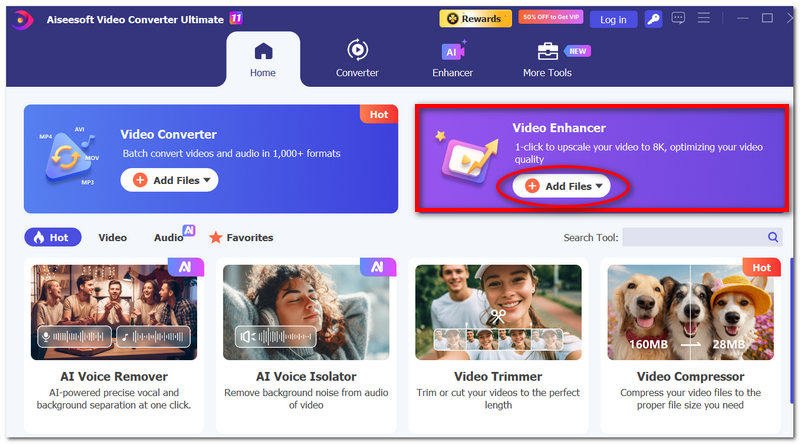
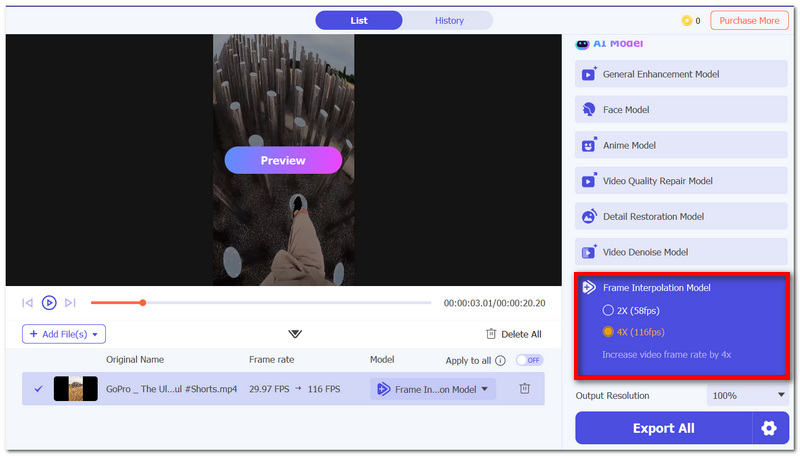
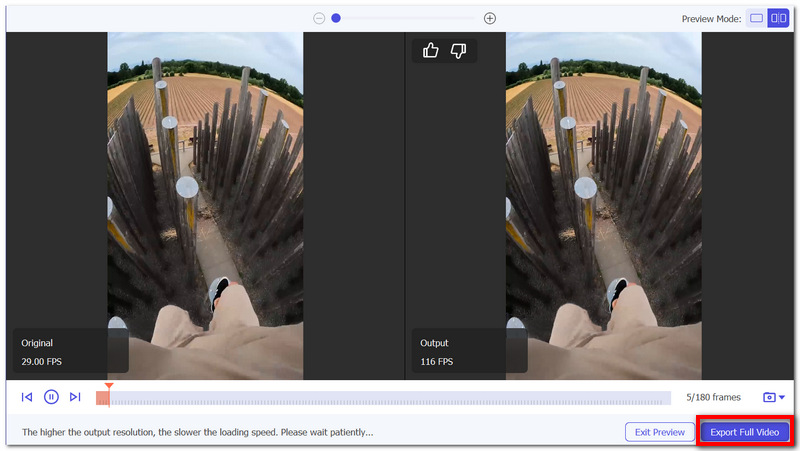
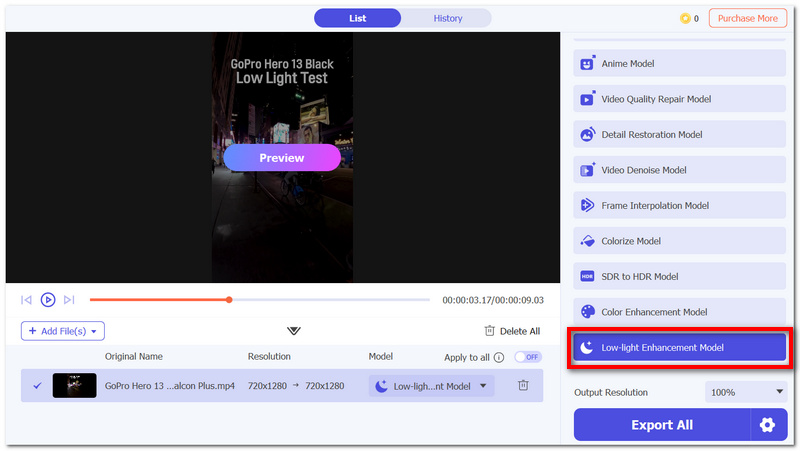
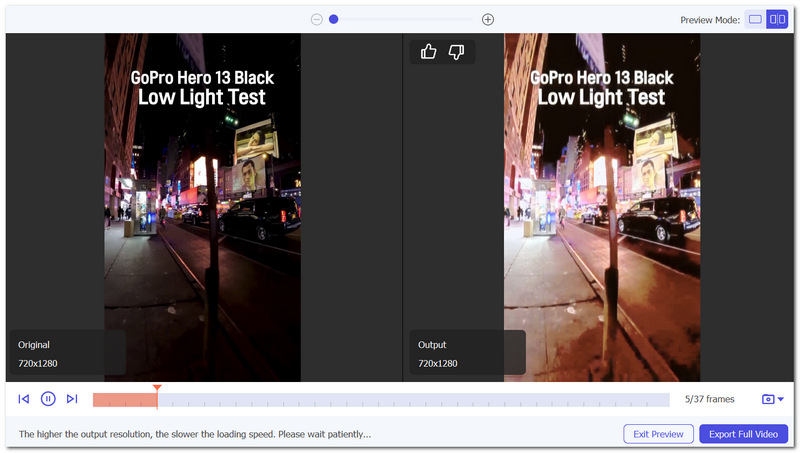
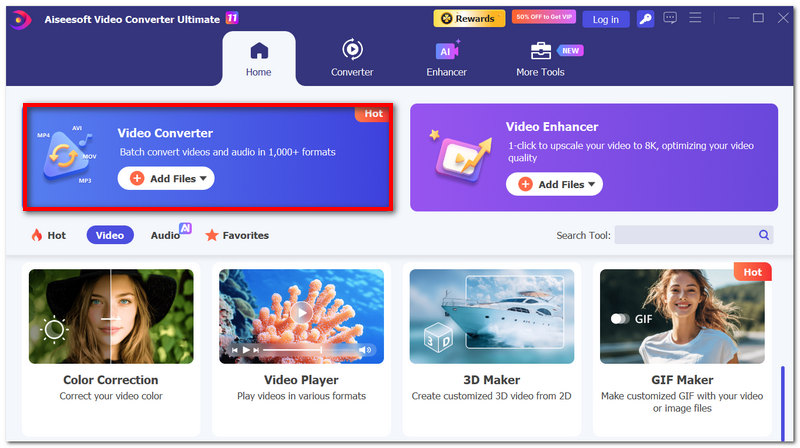
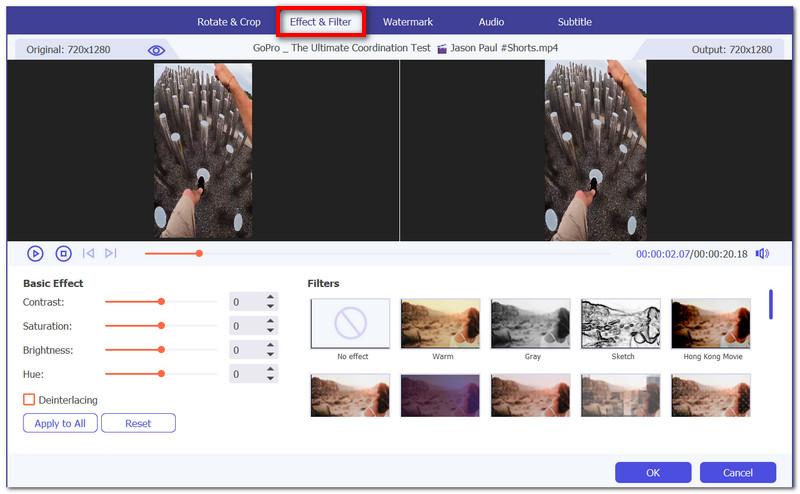
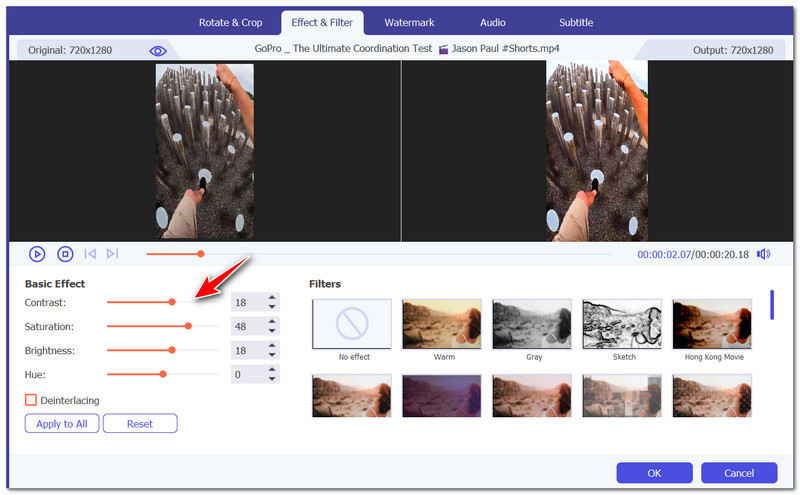
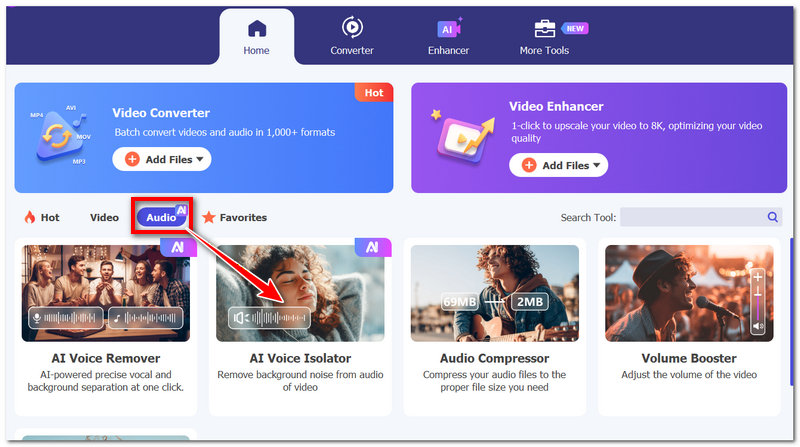
Using these tools makes editing GoPro video much easier, especially for beginners who want professional-looking results without learning complicated editing software.
Great editing begins with great footage. No matter how good your editing software is, it can't fix a clip that is blurry, shaky, or badly exposed directly. This is the key reason why knowing a few advanced shooting methods can dramatically change your results even before you start editing.
Raise the frame rate when you capture action shots
If you are recording a sports event, riding a bike, a surfboard, or other fast-moving scenes, record at 60fps or higher. This allows a very smooth motion, and you will be able to make very nice slow-motion scenes.
Enable the Stabilization feature
Almost all GoPro cameras have HyperSmooth, which is a kind of stabilization. When you turn this on, you will get fewer shakes in the recordings, and the result will be more pleasant both for the viewer and the director.
Record using a flat color profile
Choosing Flat or Natural color profiles means that more highlight and shadow details are retained. This means when you do color grading and other post-production, it will be easier to make it perfect.
Use good lighting whenever possible
GoPro cameras produce great results in brightly lit areas. To get rid of grain and noise in your video, it is better to shoot outside during the day or in places where the lights are strong.
Always keep the lens clean
An action camera comes into contact with water, dust, fingerprints, and earth more than any other camera. Doing a quick lens clean right before filming will help you get rid of the effects "blurred footage" and of light streaks, which are not wanted.
Take care when using wide angles
Wide-angle shots feel quite immersive, but too much motion in the shot can make the footage appear distorted and dizzying. To get a smooth picture, use a wide shot in combination with a stable movement of the camera.
Record Short, Organized Clips
Rather than capturing one long video, break your recording into short clips of different scenes or moments. Later on, this will make file management and editing much easier, especially if you are learning how to edit GoPro videos on pc efficiently.
What are the best export settings for social media for GoPro-captured video?
Generally, social media supports MP4 files encoded with H.264 at 1080p or 4K resolution with 30fps or 60fps. This combination typically gives a good quality and file size balance.
Why is my GoPro video choppy on my computer?
If you are dealing with 4K and high frame rate videos, your computer might have a hard time playing them, and that's what makes it seem like the video is lagging. Besides updating drivers, you can also try creating proxy files or reducing playback resolution.
Is GoPro Studio still available?
The answer is no, GoPro Studio has been officially discontinued by GoPro, and there are no new updates or support available for it.
Conclusion
To conclude, editing GoPro videos is quite easy when the transfer process is done correctly, stable video recording is done, and you have proper editing software to use. Everything from stabilizing videos to improving color quality and even audio correction can easily be done through a series of small tweaks and changes to your video editing skills. Improving your video editing skills will not only make the process quicker but also the results more appealing. Editing a GoPro video can easily turn out to be the most enjoyable experience when done right.
 2 Effective Methods to Repair Corrupted GoPro Files in 2025
You recorded a great destination, but it seems like it turns out to be a corrupted GoPro file. There are still solutions that you should know about.
 2 GoPro Comparison Chart - Best GoPro Cameras and GoPro Alternatives
Come here and get your best GoPro alternative with an affordable price. Moreover, you can see the GoPro comparison chart to find your most budget GoPro camera.
 3 Ways to Join GoPro 4K Footages into One Complete Video in Minutes
Here is a detailed tutorial to join GoPro videos together on your Windows and Mac computer. You can join, edit, and convert multiple GoPro clips into one with ease.
 Leave your comment and join our discussion
GoPro Editing
GoPro Editing Software GoPro Video Editor How to Edit GoPro Videos How to Use GoPro Studio Remove Fisheye GoPro GoPro Time Lapse How to Stabilize GoPro Video GoPro Camera
Video Converter Ultimate is excellent video converter, editor and enhancer to convert, enhance and edit videos and music in 1000 formats and more.
100% Secure. No Ads.
100% Secure. No Ads.

*Required field
*Please enter a valid email

