A Windows 11 update may sometimes lead to unexpected data loss issues. Some users complained that some folders are missing in File Explorer after updating to Windows 11. Are you facing similar data loss situations? How to recover lost files after Windows 11 update?
This article shares several effective solutions to recover lost files in Windows 11. Whether it's accidental deletion, file corruption, or system crashes, you can find the right file recovery software to find them back.
How We Tested Windows 11 Data Recovery Methods
Before trying different solutions, check which method fits your situation.
| Method | Best For | Requires Backup? | Time |
| Aiseesoft Data Recovery | Files deleted, missing, or inaccessible after update | No | Few minutes |
| Recycle Bin | Files accidentally deleted | No | Less than 1 minute |
| System Restore | System problems caused by updates | Yes | 10-30 minutes |
| File History | Recovering previous file versions | Yes | Several minutes |
Losing files after a Windows 11 update is uncommon, but it can still happen under certain conditions. Understanding the cause can help you choose the right recovery method.
During Windows 11 installation or upgrade, Windows provides options for keeping personal files, apps, systems settings. If the wrong option is selected, some files may no longer appear after the update.
Sometimes, Windows updates may temporarily affect user profiles or file locations. For example, you may find your desktop files appear empty, your documents folder is missing, and your personal files are moved to another location. In these cases, files may not actually be deleted but are simply hidden or stored elsewhere.
A failed or interrupted Windows update can damage system files or the file system. Common causes include sudden power loss during installation, insufficient storage space, corrupted update files, and software conflicts. These problems may result in inaccessible or missing files.
Some applications may not work correctly after a major Windows upgrade. Driver conflicts or incompatible programs can sometimes affect file access and system stability.
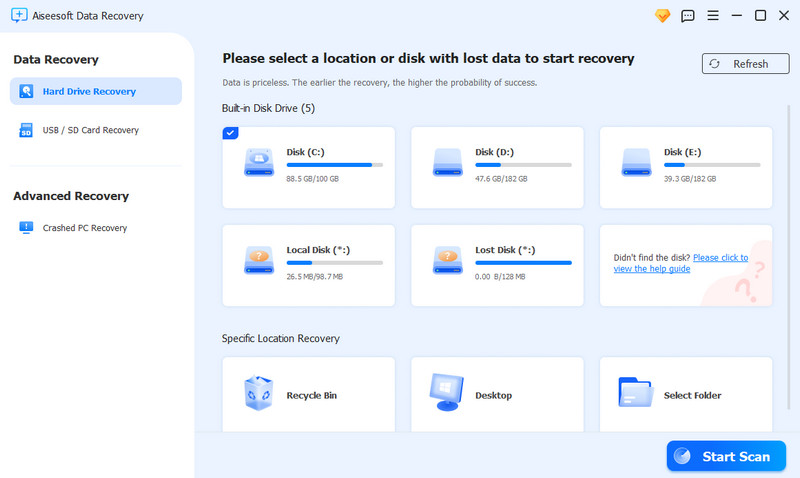
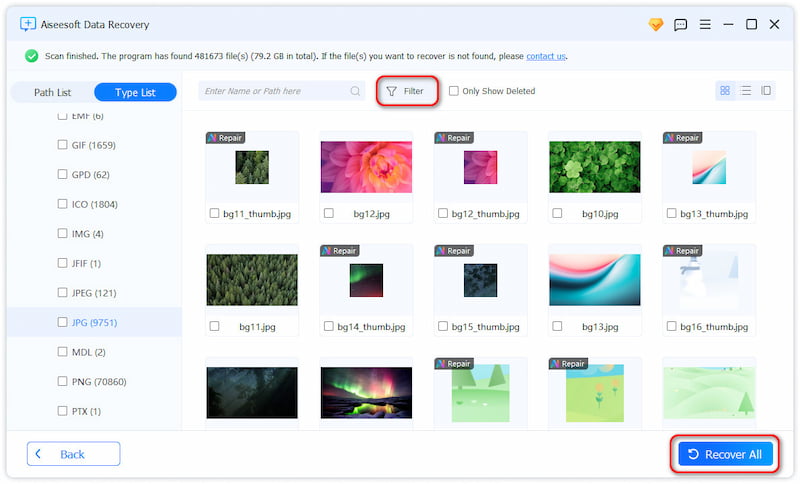
For various reasons, your files might disappear after a Windows 11 update. Whatever the reason, you can rely on the all-featured Aiseesoft Data Recovery to recover these deleted, hidden, or lost files. It is specially designed to restore data from Windows PCs, Macs, external hard drives, SD cards, and UBS devices. It offers a convenient way to retrieve all types of commonly used data types, including documents, photos, emails, audio, app messages, videos, and more.
 100% Secure. No Ads.
100% Secure. No Ads.
If you prefer not to install third-party software, Windows 11 also provides several built-in recovery options. However, these methods usually require certain conditions, such as having a backup or restore point.
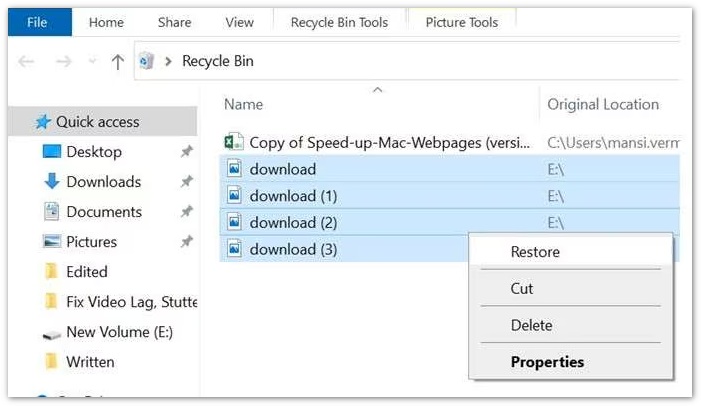
Before trying advanced recovery methods, check the Windows Recycle Bin. Sometimes files may appear missing after an update simply because they were accidentally deleted.
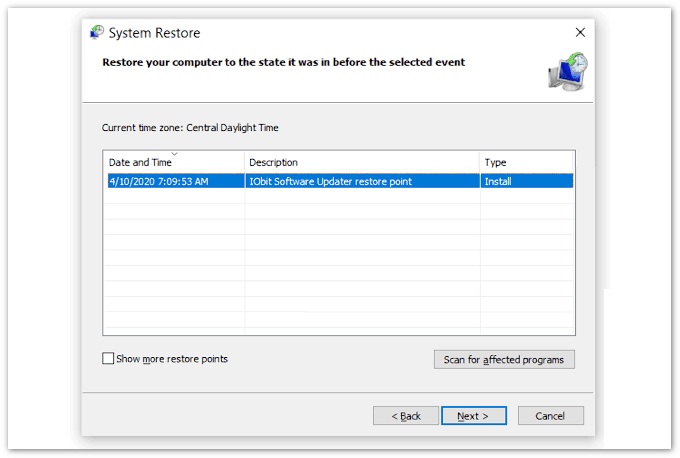
If your computer created a restore point before the Windows 11 update, you may be able to return your system to an earlier state. However, it is important to understand that System Restore mainly affects Windows system files, installed applications, and settings. It does not always recover personal files such as photos, documents, and videos.
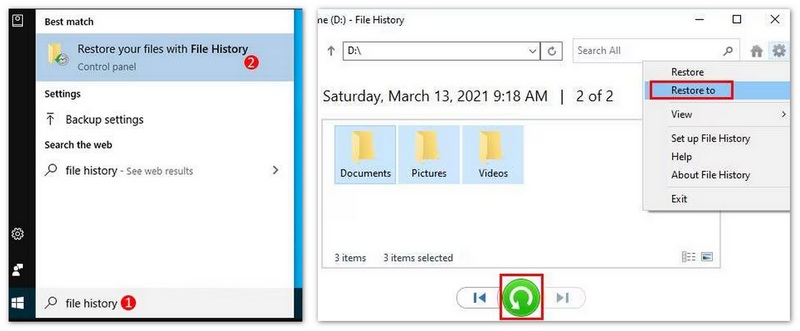
Windows File History is a built-in backup feature that can save previous versions of files. It can help restore documents, pictures, videos, desktop files, and OneDrive files. If File History was enabled before the Windows 11 update, you can restore previous versions of missing files.
Question 1. Does updating to Windows 11 delete files?
No, the Windows 11 updating operation itself does not delete files on your computer’s hard drives. During the update process, you get options to select between Keep personal files and apps or Keep only personal files. Generally, you are suggested to choose the Keep personal files and apps option. That will preserve your data, settings, and apps. However, unexpected issues may occur and lead to a failure of the Windows 11 update. In that case, some files may be erased.
Question 2. What is the best file recovery software for Windows 11?
When you select the best file recovery software for Windows 11, you should consider various factors and then choose one based on your specific needs. If you prefer a free Windows 11 data recovery, you can try using the free version of Aiseesoft Data Recovery, EaseUS Data Recovery Wizard Free, or Recuva. When you find your lost data or need more advanced functions, you can then upgrade to the paid version. When you want to restore data from a Windows 11 computer, ensure you choose a reputable data recovery software or company. When you notice some important files are lost, avoid writing any new data to the drive.
Question 3. How to enable hidden files in Windows 11?
There are two common ways to enable hidden files in Windows 11. When you want to check hidden files or folders, you can open File Explorer and go to the View tab. Locate the Hidden items in the Show/hide group and then check its box. You can also go to Advanced storage settings in Settings to enable hidden files. Click the Start menu in the bottom-left corner and then click the Settings icon. That will take you to the Windows Settings page. Choose the System option, go to Storage, and then select Advanced Storage settings. Locate Show hidden files and folders and turn it on.
Question 4. Can I recover files if Windows 11 update failed?
Yes. If a Windows 11 update fails, you can try restoring files from Recycle Bin, File History, or Windows Backup. If no backup is available, a file recovery tool may help find missing or deleted files.
Question 5. What if Recycle Bin was emptied after update?
If Recycle Bin was emptied, Windows cannot restore the files directly. However, the deleted files may still be recoverable with file recovery software before they are overwritten.
Question 6. Does Windows Backup restore lost files?
Yes, Windows Backup can restore lost files if you created a backup before the data loss happened. Without a previous backup, you may need to use a data recovery tool.
Conclusion
After reading this article, I hope you can follow these appropriate data recovery methods to find your lost files. To minimize the risk of data loss in the future, you should regularly create backups and system restore points. You can leave me a message if you still have any questions about data recovery after the Windows 11 update.
 Easy-to-perform Solutions to Recover Data from Dead Android Phone
A dead phone is not always bricked, so you should try every possible solution to recover important data from a dead Android phone or tablet that we share in this post.
 [99% Successful] Recover Permanently Deleted Files on Windows 11/10
Delete files by accident or other problems? We will show you how to recover deleted files on Windows 11/10/8/8.1/7 quickly and efficiently in this article.
 Top 10 Free Data Recovery Software Available to Windows and Mac
If you've lost some important files and don't have a backup, here are top 10 best free data recovery software that have the capacity to restore lost or corrupted files on Windows and Mac.
 Leave your comment and join our discussion
Recover Various Data
1. Free Data Recovery Software
2. Recover Deleted Files in Windows
3. Recover Deleted Files from Recycle Bin Windows
4. Recover Permanently Deleted Emails

Aiseesoft Data Recovery is the best data recovery software to recover deleted/lost photos, documents, emails, audio, videos, etc. from your PC/Mac.
100% Secure. No Ads.
100% Secure. No Ads.

*Required field
*Please enter a valid email

