
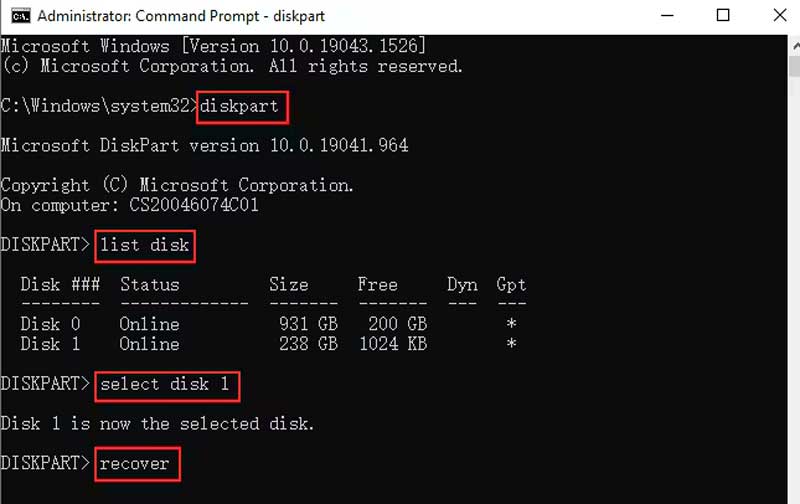
Best for: Users wanting to quickly resolve issues with their SD cards' file systems without using third-party software.
99.8% Success Rate: Windows/Mac Data Recovery
 100% Secure. No Ads.
100% Secure. No Ads.
SD cards give a convenient way to store, transfer, and manage all types of files. They are widely used in smartphones, cameras, and more. Whether you are a photographer, videographer, or just a casual user, you may have several SD cards for saving critical data.
However, despite their convenience, SD cards are prone to data loss due to accidental deletion, corruption, formatting, physical damage, and other reasons. In that case, SD card recovery software can be a lifesaver. You need a reliable one to find and retrieve recoverable files.
This article reviews 9 top SD card file recovery tools, highlighting their features, pros, cons, and ideal use cases. You can compare them and find the desired solution to recover lost data from SD cards.
How to Choose SD Card Recovery Software?
Disk Imaging Feature
The top software will let you generate a “byte-to-byte” copy of your sd card before scanning it.
File Preview Capabilities
Select software that gives you an opportunity to view an original file picture or preview a video clip of it before actually pressing "Recover."
Signature-Based "Deep Scanning"
Try to find products that use "Raw Recovery" or "Signature Scanning" capabilities in addition to reviewing the file system.
OS and File System Compatibility
It must be ensured that your software is compatible with your SD card format.
| Software | Supported Platforms | Issues It Can Resolve | Limitations | Tech Skill Level Required | Recovery Success Rate |
| CHKDSK | Windows | Fixes file system errors and repairs disk issues | Limited data recovery capabilities; may worsen damage | Basic | 30% |
| Mac First Aid | macOS | Fixes file system errors and repairs disk integrity | Limited data recovery capabilities | Basic | 30% |
| Aiseesoft Data Recovery | Windows, macOS | Recovers lost or deleted files from different storage devices | Some features require purchase of the full version | Basic to moderate | 95% |
| Recuva | Windows | Restores deleted files from hard drives, SD cards, and USB drives | Free version has limited features | Basic | 80% |
| Disk Drill | Windows, macOS | Recovers lost data from various storage devices and monitors disk health | Free version limits the amount of data recoverable | Basic to moderate | 85% |
| EaseUS Data Recovery | Windows, macOS | Recovers lost, deleted, or formatted files from multiple devices | Free version limits recovery to 2GB | Basic to moderate | 90% |
| PhotoRec | Windows, macOS, Linux | Recovers lost images and files from damaged or reformatted storage | Command-line interface may be difficult for beginners | Moderate to high | 90% |
| TestDisk | Windows, macOS, Linux | Recovers lost partitions and helps boot non-booting disks | Best suited for users with advanced technical skills | Moderate to high | 90% |
| Stellar Data Recovery | Windows, macOS | Recovers lost, deleted, or formatted files from various devices | Free version limits functionality and recovery volume | Basic to moderate | 95% |
If you faced SD card file loss or damage to the SD card file, before carrying out SD card recovery, it is essential to follow the below steps before proceeding with the SD card recovery procedure:
1. Stop Use of SD Card: Unplug from any use of the SD card in order to protect any data that may be salvaged by avoiding any writing of files or modifying any data.
2. Inspect the Card: Look at your SD card for any visible points of damage due to cracks or corrosion. Make sure there are no particles of dirt on the card’s contacts.
3. Power Off Devices: Turn off any devices that the SD card has been connected to. This could be a camera, mobile device, or a computer.
4. Assess Data Loss Reasons: Try to find out why there was data loss in order to possibly direct your recovery process.
Best for: Users wanting to quickly resolve issues with their SD cards' file systems without using third-party software.
Score:3/5
CHKDSK (Check Disk) is a Windows utility tool that checks and repairs file system errors on storage media such as SD cards. This helps ensure your data is intact by repairing any logical errors that may result from damage or improper disconnection.
PROS
Cons
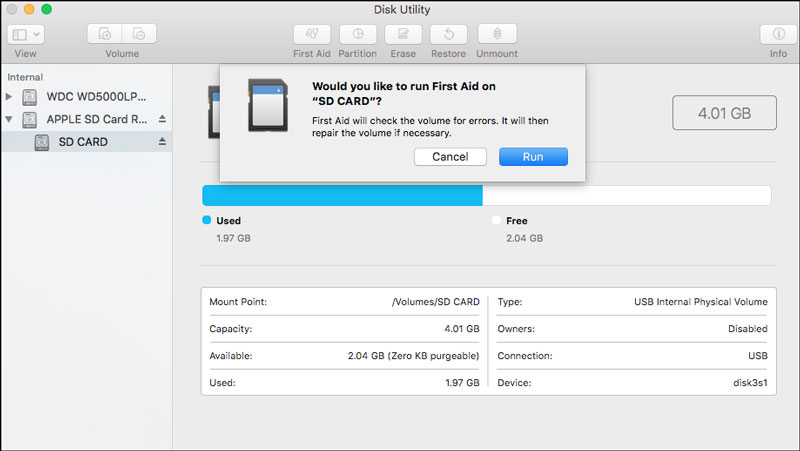
Best for: Users seeking a straightforward solution to repair minor file system issues on their SD cards with MacOS.
Score:3/5
Mac First Aid is a function of the operating system for Mac devices that checks for and corrects any discrepancies found on storage devices such as the SD cards too. The process helps in maintaining the integrity of data through correction of any file system discrepancies that might exist on the Mac devices.
PROS
Cons
Best for: Users seeking an intuitive and versatile solution to recover various file types from multiple storage devices.
Score:4.5/5
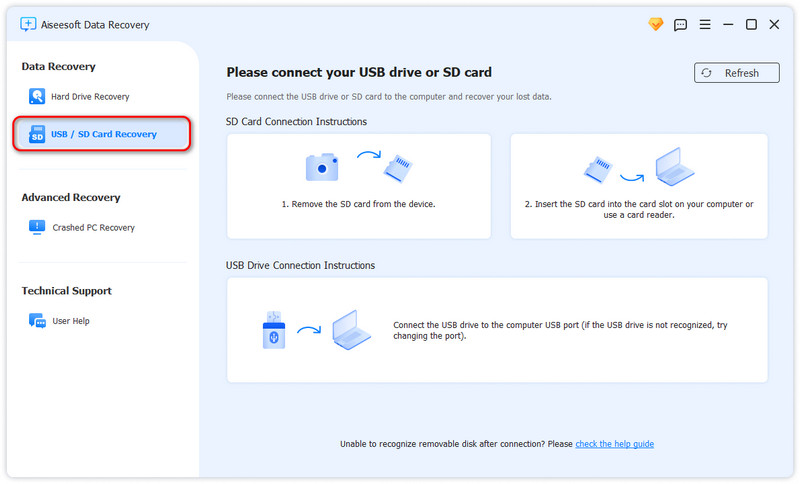
Aiseesoft Data Recovery is widely used to recover files from SD cards, hard disks, and other storage devices. It can retrieve data from SD, microSD, and other memory cards. This SD card recovery software supports various file formats and file systems. It lets you recover data from your SD card on both Mac and Windows computers. Whether you have mistakenly deleted some valuable files, formatted your SD card, or encountered corruption, it can help you recover your data.
100% Secure. No Ads.
100% Secure. No Ads.
PROS
Cons
Best for: Those looking for a free and user-friendly recovery tool for quickly restoring deleted files from Windows devices.
Score:4.5/5
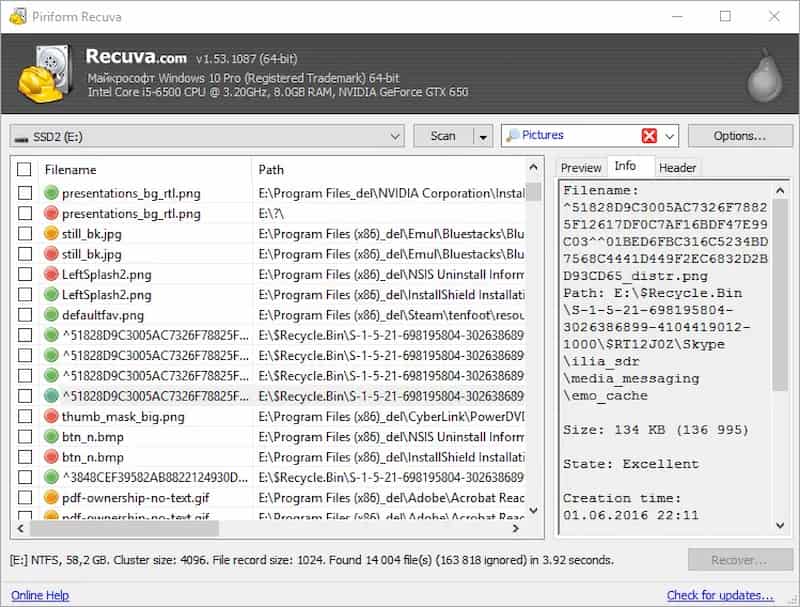
Recuva comes as a lightweight data recovery solution developed by Piriform. The software works as a freeware solution for recovering deleted files from either an SD card, computer hard drive, and USB drive. The file system supported in this software facility includes FAT32, exFAT, and NTFS file system. The software comes with limited advanced functions compared to paid file recovery software. The software presently supports recovering data from an SD card on computers running Windows 10, Windows 8.1, and Windows 7.
PROS
Cons
Best for: Users needing a robust data recovery solution with added disk health monitoring features for both Windows and macOS.
Score:4.5/5
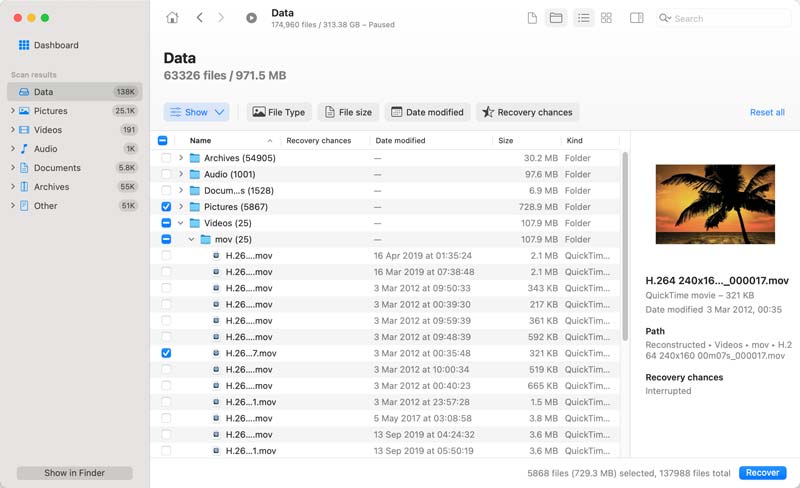
Disk Drill is a fully-featured data recovery tool developed by CleverFiles. As with other suggestions mentioned above, Disk Drill is also capable of retrieving different kinds of data stored in different storage media. It is recognized for its capability in data recovery. In addition, Disk Drill also has other features that are useful for data protection and management. This reliable SD card recovery software is compatible with SD card, microSD card, USB drives, hard drive, SSD storage devices, and more. Disk Drill has a free version that features basic data recovery capabilities. Using the software, you can retrieve data up to 500MB for free from your SD card.
Best for: Individuals wanting an easy-to-use wizard that guides them through recovering lost data from various devices.
Score:4/5
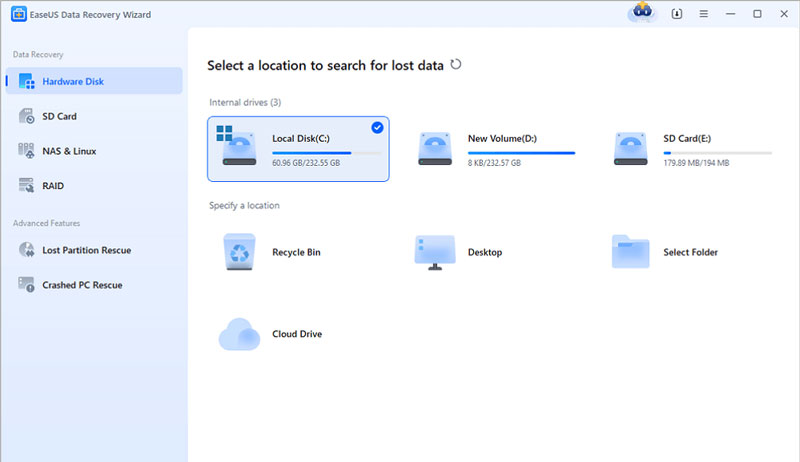
EaseUS Data Recovery Wizard software is a very efficient data recovery software that provides a step-by-step process for the recovery of lost, deleted, or formatted data from several storage devices, such as memory cards, hard drives, and external USB drives. Its friendly wizard interface makes the process of recovery very smooth and easy for the clients, who can get the data back with just a few clicks of the mouse. EaseUS data recovery software also supports many file systems and types for recovery, which makes it very versatile for the clients. Additionally, the company also provides a free version of this software that can recover a data of 2GB for free of charge.
PROS
Cons
Best for: Tech-savvy users looking for a powerful, open-source tool focused on recovering images and videos from storage media.
Score:4/5
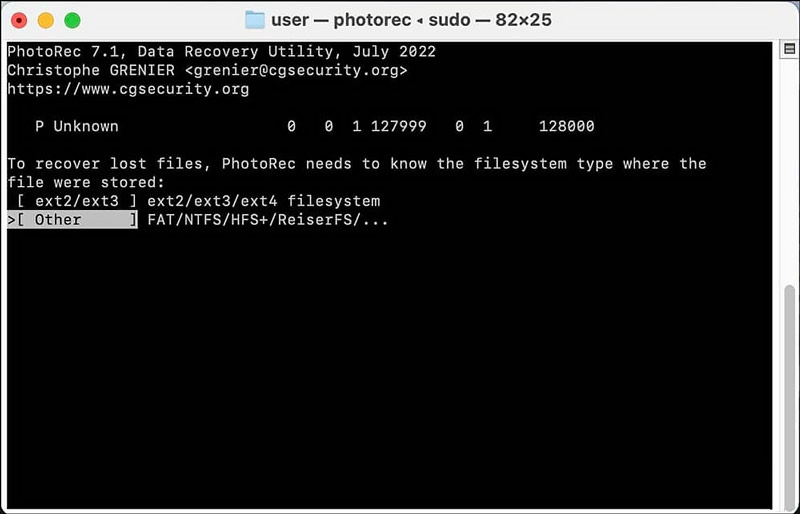
PhotoRec comes with an open-source feature which makes it free to use for recovering files from an SD card. Using PhotoRec, you can recover images, videos, music files, and documents from an SD card after deletion. The freely available software comes with a high percentage of successfully recovered data from an SD card. The downside of using PhotoRec might be pronounced for new users, as it comes with a command-line interface. PhotoRec does not contain a preview facility to examine recoverable files in advance of recovery.
PROS
Cons
Best for: Experienced users who need a reliable solution for recovering lost partitions and repairing disk issues in complex scenarios.
Score:3.5/5
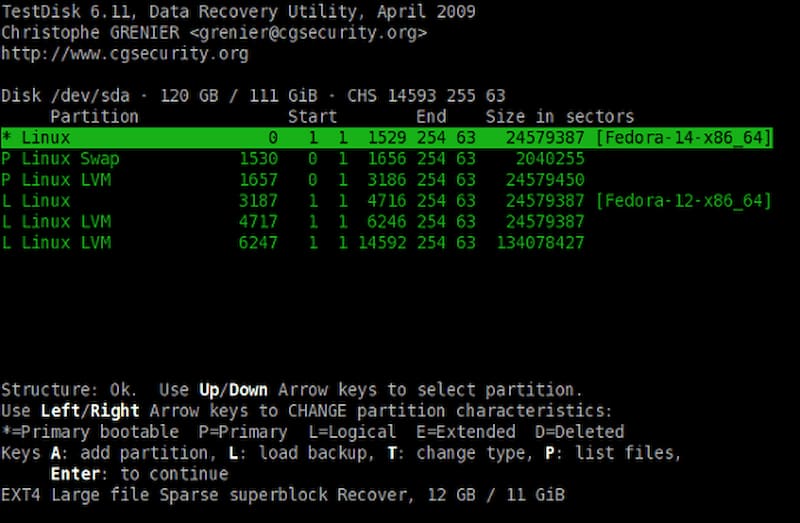
TestDisk is an open-source, lightweight file recovery tool that can recover lost partitions and repair corrupted file systems. It is often used alongside PhotoRec for file recovery. It is compatible with regular file systems like FAT32, exFAT, NTFS, and more. Like PhotoRec, it has a command-line interface to perform the SD card file recovery. Similarly, TestDisk doesn’t allow you to preview files.
PROS
Cons
Best for: Those who require a comprehensive data recovery software that supports a wide range of file types and advanced recovery modes.
Score:4/5
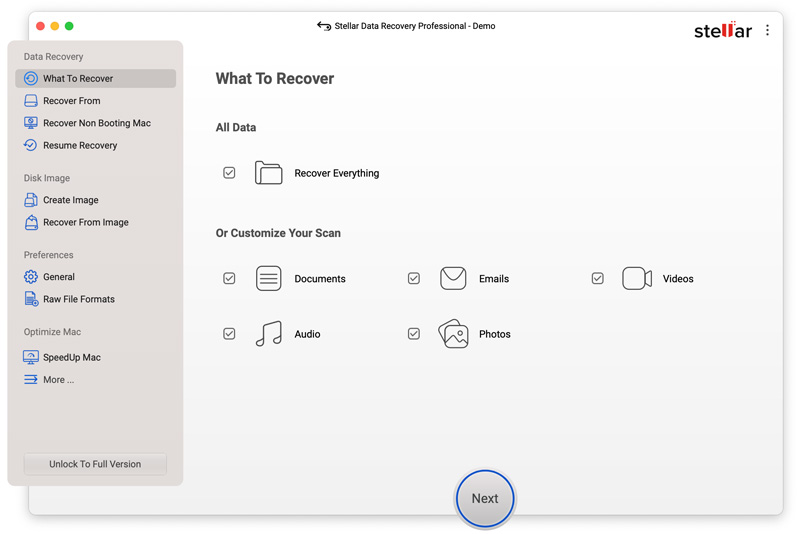
Stellar Data Recovery is another professional-grade program designed for recovering lost or deleted files. It adopts advanced recovery algorithms to restore data from hard drives, SD cards, and other storage devices. This software greatly supports common file types and systems. It allows a deep scan for complex recovery tasks. Stellar Data Recovery promises a very high recovery success rate with SD cards. You can use its Demo version to recover up to 1GB of SD files for free.
PROS
Cons
Is there free SD card recovery software for Mac?
Yes, there are several free SD card recovery software options available for Mac. You can try using open-source data recovery tools like PhotoRec or TestDisk to recover erased and lost SD files on your Mac for free. Moreover, some professional recovery programs for Mac also offer their free version to restore limited data. You can use the trial version of the recommended Aiseesoft Data Recovery, Disk Drill, Recoverit, EaseUS Data Recovery Wizard, or Stellar Data Recovery to recover data from SD cards, USB drives, and other storage devices. They often have limitations on the amount of SD data you can retrieve.
How do you fix an SD card that won't read?
If your SD card doesn't read, you should first check and make sure it is properly inserted into the card reader or slot. Try reading the SD card on another computer, camera, or card reader. Check if it can be recognized normally. Some SD cards are designed with a physical lock switch on the side. Check the lock switch and ensure it is in the unlocked position. To troubleshoot an unreadable SD card, you can clean it to remove any visible dirt, dust, or damage. You also need to check the SD card reader and USB ports. After that, you should check for driver and system issues. Last, you can reformat the SD card to bring it back to normal condition. If possible, backup any critical data from the SD card before reformatting.
How to tell if an SD card is corrupted?
To determine if an SD card is corrupted, look for these common signs, such as unreadable files, error messages, disappeared files or folders, the SD card can’t be detected and recognized, SD card connection errors, slow performance, and more. Also, you should check for visible physical damages like cracks, bends, or broken connectors. Try using the CHKDSK on your Windows computer or the Disk Utility on a Mac to check and repair the SD card. If the card is accessible but corrupted, formatting it may fix the issue.
Why is my SD card data lost?
Data loss on an SD card may occur for a variety of reasons. You often use it among different devices. Your improper ejection can corrupt the file system and make some data inaccessible. Moreover, a power failure, accidental deletion, overwriting, physical damage, and even virus or malware may lead to data loss on your SD card.
Conclusion
Losing data from your SD card can be frustrating, mainly when it contains essential photos, videos, or documents. If you are dealing with a simple data loss case or recovering a small amount of files, you can start with free recovery tools or the trial version of some professional programs. However, a paid SD card recovery tool is generally better for critical data loss or recovering files from a complex scenario.
 How to Fix Corrupted SD Card Easily without Data Loss
Don’t worry if your SD card is corrupted or damaged. This tutorial is a detailed guide about repairing corrupted SD card to restore its data.
 7 SanDisk Recovery Tools to Retrieve Photos and Other Files
Can I recover deleted photos from my SanDisk memory card? How do you retrieve files from a SanDisk SD card? Check the detailed SanDisk card recovery guide.
 [Updated] 2025 Top 5 Hard Drive Recovery Software
This article provides the best 5 hard drive recovery tools in 2025. Check our post and discover the most appropriate one to recover your data from hard drives.
 Leave your comment and join our discussion
Recover Various Data
1. Free Data Recovery Software
2. Recover Deleted Files in Windows
3. Recover Deleted Files from Recycle Bin Windows
4. Recover Permanently Deleted Emails
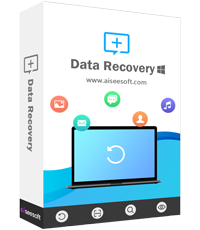
Aiseesoft Data Recovery is the best data recovery software to recover deleted/lost photos, documents, emails, audio, videos, etc. from your PC/Mac.
100% Secure. No Ads.
100% Secure. No Ads.

*Required field
*Please enter a valid email
