
iPhone Data Recovery
 100% Secure. No Ads.
100% Secure. No Ads.
Can you recover recently deleted photos on an iPhone?
These high-definition 4K photos on your iPhone can quickly fill up storage space. When you manage iPhone photos and try to free up space, you may accidentally delete one or more important or cherished photos. In some cases, software glitches, app bugs, or other issues caused images to vanish. How to recover recently deleted photos on iPhone? This guide shares three reliable methods for retrieving deleted photos on your iPhone.
How We Test the 3 Photo Recovery Ways
To ensure these three recovery methods are accurate and effective, we rigorously tested them across different iPhone models (iPhone 13 Pro Max, iPhone 17 Pro, iPhone 6, and iPhone 8) running iOS 12-26. We deleted around 200 pictures across various scenarios.
We intentionally deleted several pictures and screenshots in the Photos app. They could be easily found and restored from the “Recently Deleted” folder. We tested multiple iOS data recovery tools after emptying the folder. The recovery success rate of permanently deleted photos can range from 75% to nearly 100%.
Where can I find recently deleted photos on my iPhone?
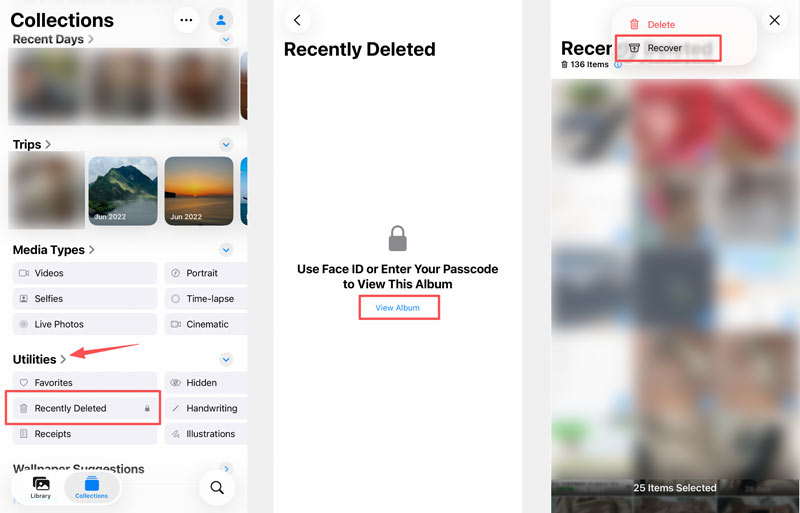
You should know that photos you delete from your iPhone’s camera roll are not immediately erased. The iOS file system has a temporary holding folder (the Recently Deleted album) for images and videos that are accidentally deleted. You have 30 days to restore them with ease. During the grace period, deleted photos remain on your iPhone and continue to take up storage space.
After 30 days, the iOS device will automatically delete them to free up storage. In that case, they are considered permanently deleted. You cannot recover them from the Recently Deleted folder. Before being overwritten, you can use iOS photo recovery tools to rescue them.
In this section, we will share three methods for retrieving your iPhone photos. You can check a quick comparison table first.
| iPhone Photo Recovery Method | Best For | Success Rate (Tested) | Time Required | Requires Computer? |
| Recently Deleted Album | Within 30 days | 100% | 1-3 minutes | No |
| Aiseesoft FoneLab | Permanently deleted photos (>30 days), with no backup | 95%-100% for recently-deleted photos, before overwritten | 10–30 minutes | Yes (PC or Mac) |
| Hidden Album | Photos are not deleted, just mistakenly hidden | 100% | 1-5 minutes | No |
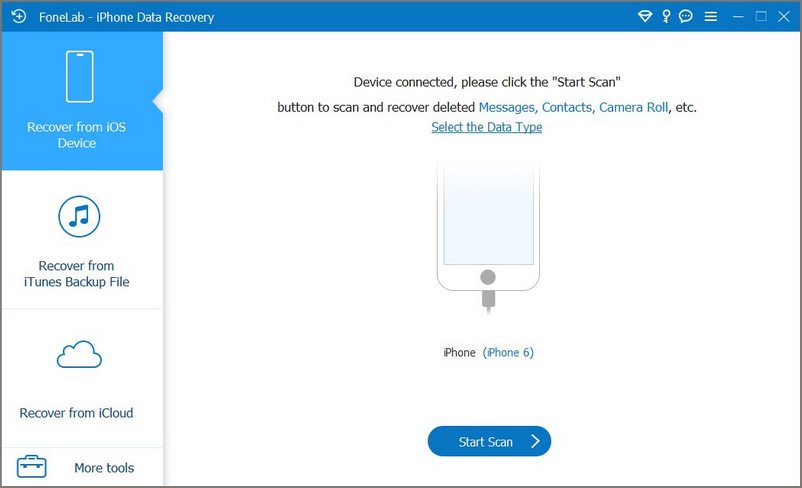
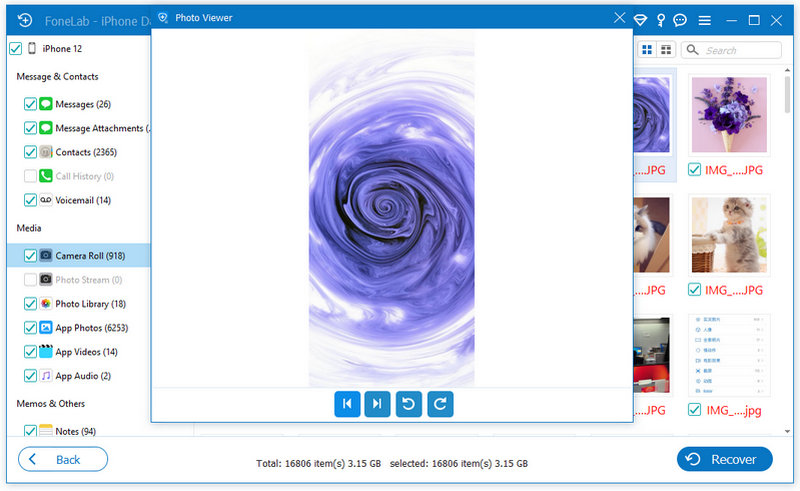
What if you have manually emptied the “Recently Deleted” folder, or these photos have been deleted for more than 30 days? For this scenario, a dedicated data recovery software like Aiseesoft FoneLab iPhone Data Recovery is required.
100% Secure. No Ads.
100% Secure. No Ads.
Sometimes, your iPhone photos are not actually deleted. Instead, they are stored in a specific “Hidden” album. Hidden photos will disappear from the main sections, such as camera roll, widgets, or standard albums. You may consider that they have been permanently erased. You can check the album to find these “deleted” photos.
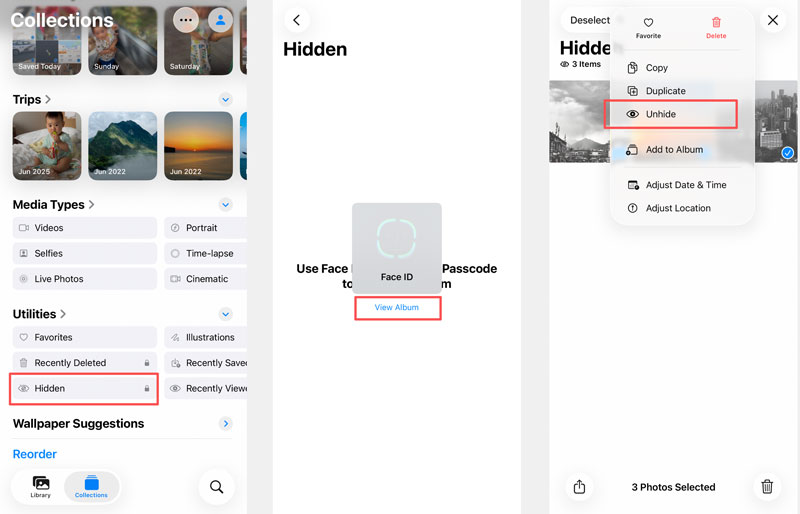
Can you recover deleted iPhone photos without a backup?
Yes, you can recover deleted iPhone photos even if you don’t have a suitable iCloud or computer backup. For recently deleted photos within 30 days, you can go to the dedicated album to restore them. For permanently deleted images, try using the reputable Aiseesoft FoneLab to rescue them.
Are recently deleted iPhone photos gone forever?
No. After you delete a photo, it will be moved to the “Recently Deleted” folder and will stay there for 30 days. Your deleted iPhone photos are not permanently deleted right away. However, if you manually emptied that folder or these pictures have been deleted for longer than 30 days, you can still retrieve them before they are overwritten. If the data has been overwritten by daily use, you cannot restore it even with a professional recovery tool. In that case, your deleted iPhone photos are gone forever unless you have a backup.
Why do some recovered photos look blurry?
If the source high-resolution iPhone photo has been overwritten by new data, recovery software may only be able to access and restore its low-resolution “thumbnail” version. In that case, a smaller, blurry photo is retrieved.
Conclusion
You can learn three standard methods to recover recently deleted photos on an iPhone. In most cases, you can find lost images in the Recently Deleted and Hidden albums. However, if you are outside that 30-day window, turn to a trusted third-party tool like Aiseesoft FoneLab. Once you notice some important pictures are missing or erased, stop using your iPhone and start the recovery immediately.
 How to Recover Data from a Broken iPhone Without Backup
Has your iPhone been damaged or broken? Learn how to recover data from a dropped, dead, or broken iPhone with or without any backups.
 Photos Disappeared from iPhone Suddenly? 7 Proven Fixes Here
My photos disappeared from my iPhone. Why? Read this post and learn how to fix the issue of photos disappearing on iPhone (new iPhone 17 series included).
 9 Easy Ways to Transfer Photos from iPhone to Computer
Learn how to quickly transfer photos from your iPhone 15/14/13 to your computer (Windows 11 or macOS Ventura) using different methods.
 Leave your comment and join our discussion
The best iPhone data recovery software ever, allowing users to safely recover lost iPhone/iPad/iPod data from iOS device, iTunes/iCloud backup.
100% Secure. No Ads.
100% Secure. No Ads.

*Required field
*Please enter a valid email

