
Aiseesoft Data Recovery
 100% Secure. No Ads.
100% Secure. No Ads.
You've spent hours working on an important Excel spreadsheet, only to have Excel suddenly crash, your computer restart unexpectedly, or the file close before you click Save. When you reopen Excel, your latest changes are missing, and you may wonder: Can I recover an unsaved Excel file?
The answer is usually yes.
Microsoft Excel includes built-in recovery features that automatically save temporary copies of your workbook. If those options fail, you can still try checking Excel autosave locations, temporary folders, cloud version history, or using professional data recovery software to restore unsaved Excel files. Just follow us to learn the four effective ways to recover unsaved Excel files on Windows and Mac.
How We Tested Excel Unsaved File Recovery Methods
Before starting, choose the recovery method based on how your Excel file was lost.
| Situation | Recommended Method | Difficulty | Recovery Chance |
| Excel crashed or stopped responding | Excel Document Recovery / AutoRecover | Easy | High |
| You closed Excel without saving | Recover Unsaved Workbooks | Easy | Medium to High |
| You use Excel on Mac | Check AutoRecovery folder and temporary files | Medium | Medium |
| File was deleted or temporary files disappeared | Data recovery software | Easy | Depends on disk condition |
You can use the built-in AutoRecover feature to recover an unsaved Excel file quickly. AutoRecover is designed to save a backup copy of your workbook automatically. It can create backup versions of your Excel file at regular intervals, like 5 or 10 minutes. When you close Excel without saving, your computer shuts down unexpectedly, or the software crashes suddenly, you can use this feature to find and restore an unsaved Excel file with ease.
If Excel crashes, you should restart the application. Generally, a Document Recovery pane will automatically appear on the left side after a crash or unexpected closure. You can see one or several recovered files in the Document Recovery pane. These unsaved files are usually labeled as Original or AutoRecovered.
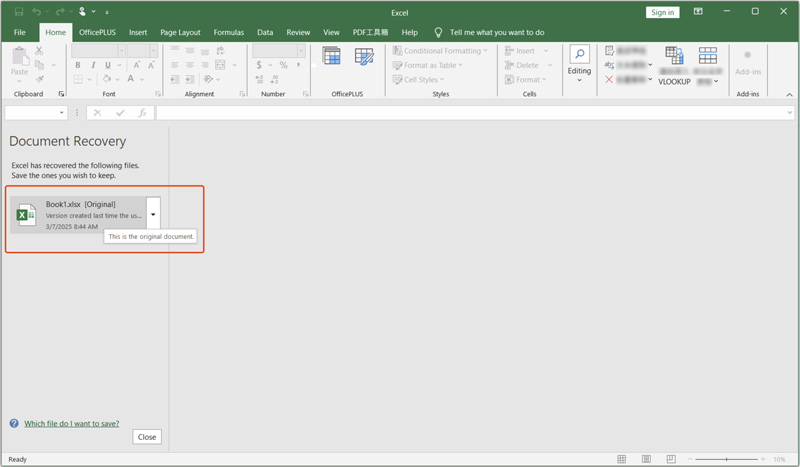
You can simply click the target file to open it in a new window. Once the Excel document is open, save it by clicking File and then the Save As button. Select a suitable location for the recovered file.

If the Document Recovery pane does not appear after you reopen Excel, you can manually search for AutoRecover files. Click Open on the left-hand panel and then click the Recover Unsaved Workbooks button. In some Excel versions, you need to click File in the top-left corner of Excel, choose Info on the left, and then select Recover Unsaved Workbooks.
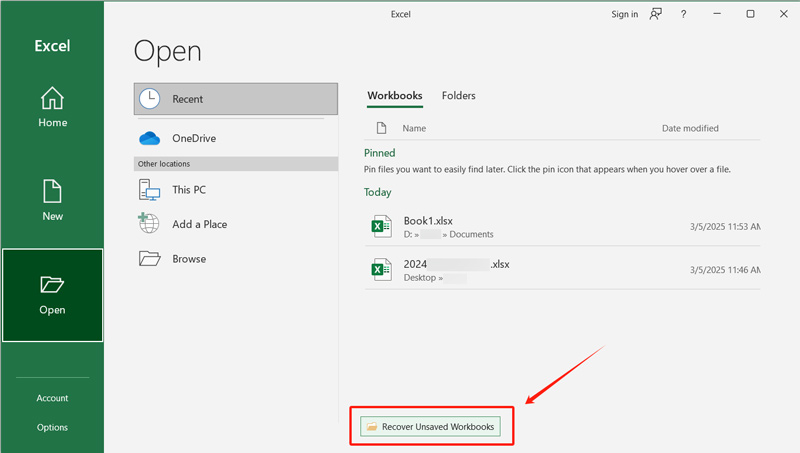
Look for the file you want to recover in the pop-up window. Unsaved Excel files in this folder are usually named with a timestamp or a generic name like Book1. Highlight the file and then click Open. When the unsaved file is opened in Excel, you can edit and save it as normal.
When you accidentally close an unsaved Excel file on your Mac and want to recover it, you can rely on its AutoRecover function. You may also be able to retrieve it from the temporary folder or autosave location.
Open Finder on your Mac and type tmp in the search box. Press Enter to check the default location where Excel stores temporary and autosave files on a Mac. Look for files with names like Unsaved Workbook.xlsx or similar.
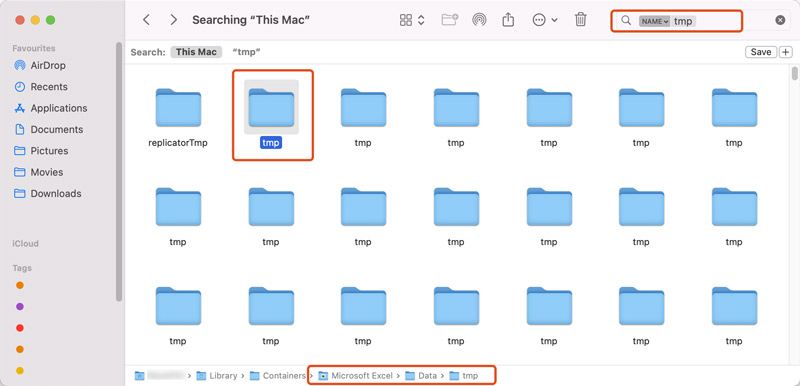
If you fail to find unsaved Excel files through the above path, try searching for autosave files from the following path:
~/Library/Application Support/Microsoft/Office/Office AutoRecovery/
Check these files with .xlsx or .xls extensions. These may be your unsaved or autosaved Excel files. Also, you can directly search for .xlsx or .xls in Finder to locate your unsaved Excel files on the Mac.
If none of the above methods work, you can use third-party data recovery tools to retrieve unsaved Excel files. These tools scan your computer for lost data. They can help you find unsaved Excel documents and other temporary files. Aiseesoft Data Recovery can recover deleted or unsaved files on Mac and Windows computers. Download it and follow the steps below to rescue your Excel data.
100% Secure. No Ads.
100% Secure. No Ads.
Open this file recovery software and check the Document to restore. You can choose the specific hard disk to search for your unsaved Excel files. Click Scan to start the scanning process.
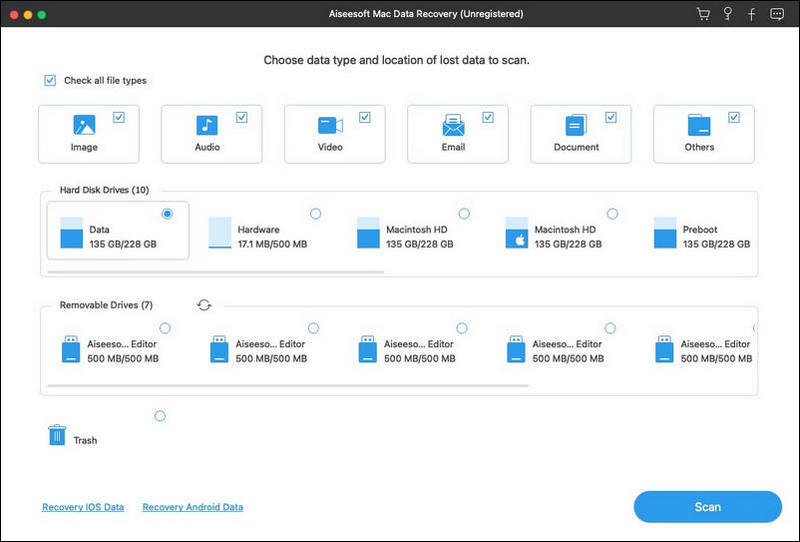
Aiseesoft Data Recovery will perform a Quick Scan first. If the unsaved Excel file isn’t found, proceed to a Deep Scan for a more thorough search.
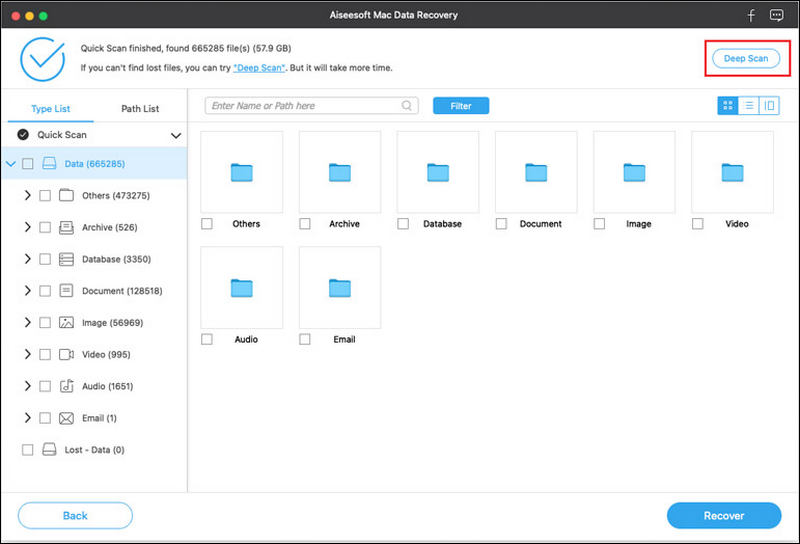
You can see various recoverable files after the scan. Look for the target Excel document by the file format or path. You can also use its built-in search or filter function to locate the results. For instance, search for files with .xlsx or .xls extensions. Preview the Excel files to confirm they are the ones you want to recover. Select the unsaved Excel file(s) and click the Recover button.
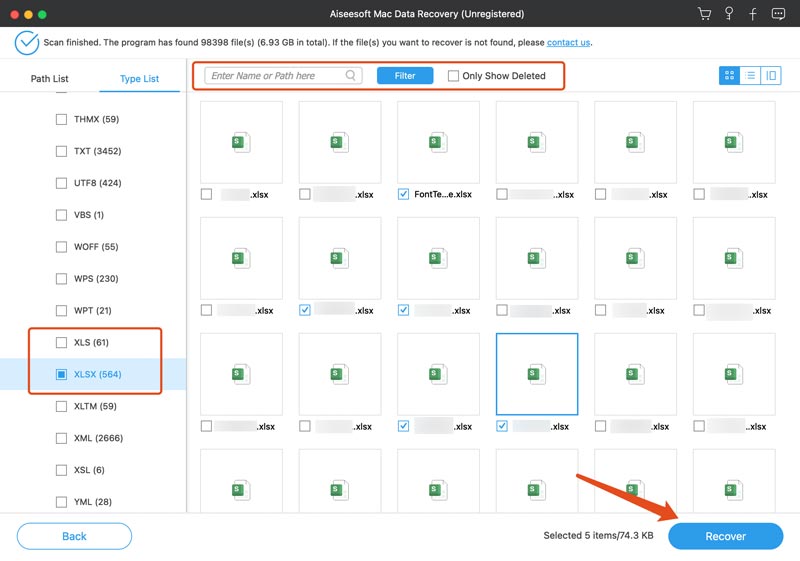
Use a safe location to store the recovered file(s). After recovery, you should go to the location where you saved the restored Excel document. Please open the file in Microsoft Excel to ensure it is usable.
Although Excel provides several recovery options, prevention is always better than recovery. Here are some ways to protect your Excel work:
Make sure AutoRecover is turned on. You can go to “Excel"> “File"> “Options"> “Save”. Here, enable “Save AutoRecover information every X minutes"and “Keep the last AutoRecovered version if I close without saving”. Furthermore, reducing the AutoRecover interval from 10 minutes to 5 minutes can help minimize data loss.
Use “Ctrl + S"on Windows or “Command + S"on Mac to save regularly and prevent losing large amounts of recent work.
If you use Microsoft 365, saving Excel files to OneDrive enables AutoSave, Version History, and Cloud backup, and this provides additional protection against accidental data loss.
Where are temporary unsaved Excel files stored?
Based on the specific Excel version you are using, temporary unsaved Excel files may be stored in different locations. If you use Excel 2010 or a later version on Windows, you can try searching for unsaved Excel files from the path C:\Users\
Does Excel have a save history?
Excel does not have a built-in save history for you to track every save action in detail directly. However, you can restore previous versions of your workbook if you have enabled AutoRecover. This feature will periodically save temporary copies of your work. If there is an unexpected shutdown, you can handily recover the unsaved file. Moreover, if you use Excel with OneDrive, its AutoSave will automatically save your changes as you work.
Can I disable the AutoRecover feature in Excel?
Yes, you can disable the AutoRecover feature in Excel if you don’t want to use it. To turn off AutoRecover on the Windows version of Excel, you can go to Options, click Save on the left-hand panel, find the Save AutoRecover information every X minutes option, and then uncheck its box. If you use Excel on a Mac, you should go to Preferences, choose Save, and then uncheck the Save AutoRecover info box. After you disable it, Excel will no longer automatically save your work. You must manually save your file regularly.
What if Excel AutoRecover did not save my file?
If AutoRecover did not create a backup copy, Excel may not be able to restore your unsaved changes. You can try checking temporary folders, searching for .xlsx files on your computer, or using a data recovery software.
Does Windows Backup restore lost Excel files?
If Windows Backup or File History was enabled before the file was lost, you may be able to restore an earlier version. Go to Control Panel > System and Security > File History > Restore personal files. Then choose the Excel file version you want to restore.
Conclusion
Losing an unsaved Excel file can be frustrating, especially after spending hours creating important data. Fortunately, there are several ways to recover unsaved Excel files on Windows and Mac. Start with Excel’s built-in AutoRecover and Document Recovery features. When it fails, professional data recovery software can scan your computer for lost Excel documents and temporary files.
To avoid losing your work again, keep AutoRecover enabled, save files regularly, and consider storing important Excel documents in OneDrive for automatic backup. With the right recovery method, you have a good chance of restoring your unsaved Excel workbook and getting back to work quickly.
 Step-by-Step Guide (with Images) to Encrypt and Recover Excel 2007/2013/2010/2016/2019
This tutorial shows you how to encrypt your Excel file to protect your worksheet and restore the file without password, even it is deleted or lost, and you could still restore it in this page.
 How to Recover Lost and Unsaved PowerPoint Files [2025]
In this guide, we will show you 6 of the most effective methods to recover PowerPoint files. Whether it’s deleted or unsaved, you can find a method here.
 How to Repair a Damaged PDF File: 99% Effective
What should you do when your PDF file is damaged or corrupted? Don’t worry. This post will share 10 effective methods to fix your damaged PDF file in no time.
 Leave your comment and join our discussion
Recover Various Data
1. Free Data Recovery Software
2. Recover Deleted Files in Windows
3. Recover Deleted Files from Recycle Bin Windows
4. Recover Permanently Deleted Emails

Aiseesoft Data Recovery is the best data recovery software to recover deleted/lost photos, documents, emails, audio, videos, etc. from your PC/Mac.
100% Secure. No Ads.
100% Secure. No Ads.

*Required field
*Please enter a valid email

