Contents
There are times when you need to transfer contacts between devices, and the process is always much smoother when both devices use the same operating system. Changing from an iPhone to an Android is a bit of a different story.
If you're in that position and not sure what to do, this guide should assist you in making the transition. You no longer need to enter every name, number, and address in by hand. You can transfer contacts from iPhone to Android quickly, simply, and securely using trustworthy tools. Read on as we show you the best approaches to transferring contacts without any hassle, data loss, or formatting mess.

When you want to move contacts from iPhone to Android with cloud methods, you often have to deal with incomplete data sync, missing contact avatars, or inverted first and last names. Is there a way to directly migrate iPhone contacts to Android without formatting errors?
Yes, you can achieve this with the professional Aiseesoft FoneEase. Unlike cloud syncing, which can freeze when handling large contact lists, FoneEase ensures a 100% success rate with a stable, wired connection.
 100% Secure. No Ads.
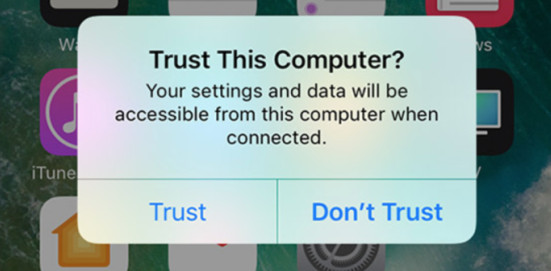
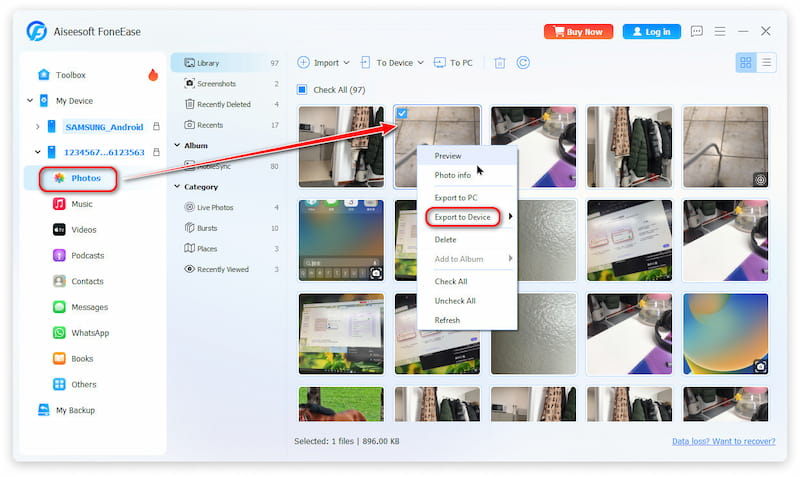
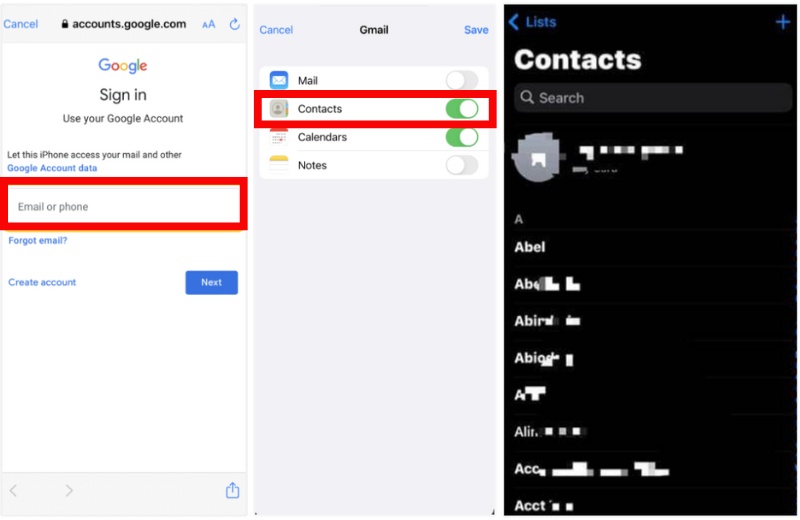
Transferring contacts from iPhone to Android is simple and convenient using Google Sync. However, many users run into the “missing contacts” issue because their contacts are often stored across different accounts on iOS, such as iCloud or Outlook instead of just one place.
⚠️ Important Pre-Check: Before syncing, go to iPhone “Settings” > “Contacts” > “Accounts”. Check where your contacts are actually stored. If they are linked to iCloud or Outlook rather than your local phone memory, turning on Google Sync on your iPhone won't upload those specific contacts.
If you want a faster and more complete solution that avoids missing contacts or dealing with multiple accounts, you can also use Aiseesoft FoneEase.
100% Secure. No Ads.
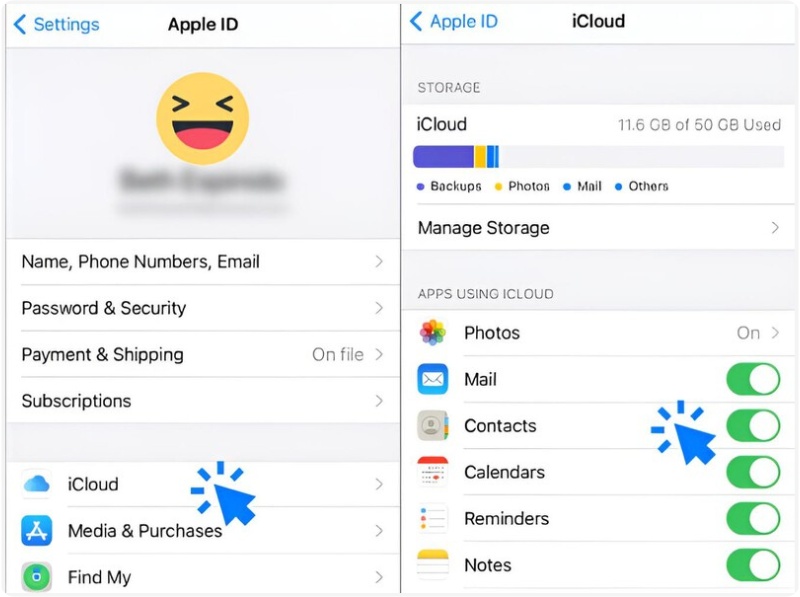
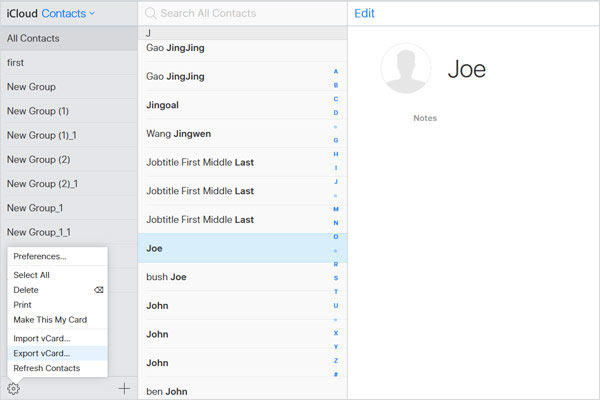
To move contacts from iPhone to Android without a Google account on your iOS device, iCloud Sync is another viable option. This involves creating and exporting a vCard (.vcf) file.
💡 Troubleshooting Tip for Large Address Books: If your contact list is very large (over 1,000 contacts) or contains high-resolution profile pictures, sending and opening the .vcf file directly on your Android phone might cause the phone's native Contacts app to freeze or crash.
The Fix: Always import the file on a PC via the web version of Google Contacts, then let it cloud-sync down to your phone automatically.
If you want a fast and official way to move contacts from iPhone to Android without using a computer or third-party desktop software, the best option is Google’s Switch to Android tool. This official migration method allows you to transfer your data wirelessly or via cable during the Android setup process, making it simple and beginner-friendly.

Depending on your Android brand, you may also use other official migration tools such as Samsung Smart Switch, which offers similar device-to-device transfer functionality with additional brand-specific features.
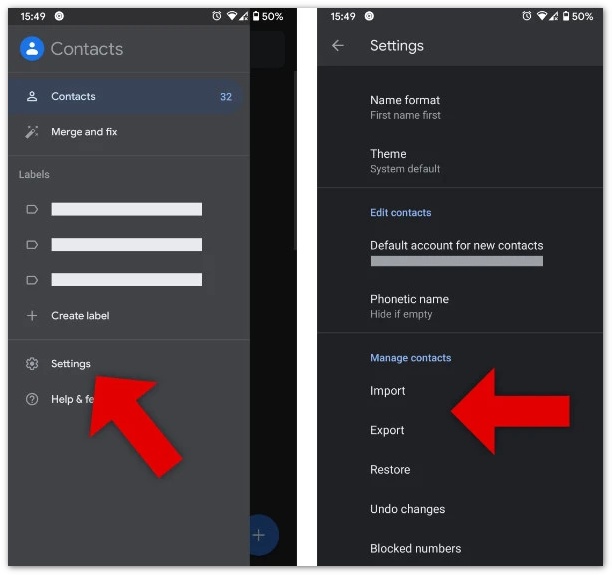
If you prefer a completely offline solution without using cloud services or third-party desktop tools, you can manually transfer contacts by exporting them as a VCF (vCard) file and importing it to your Android device.
This method is simple, private, and works without internet access, making it ideal for users who want full control over their data.
Can I transfer contacts if my iPhone is broken or not working?
Yes, if your iPhone can still back up data to iCloud or iTunes, you can extract the contacts and import them to Android.
Can I transfer contacts from multiple iPhones to a single Android phone?
Yes, by syncing each iPhone to the same Google Account or importing multiple vCard files, you can combine contacts on one Android device.
Will my contact photos and custom ringtones transfer too?
Contact photos may transfer with vCard or Google Sync, but custom ringtones usually do not transfer and must be set manually on Android.
Can I copy my iPhone contacts to a SIM card and insert it into Android?
No. Due to iOS security restrictions, the iPhone does not support writing or exporting contacts directly to a SIM card. You can only import contacts from a SIM card to an iPhone, not the other way around. To move your data, please use FoneEase or Google Cloud methods.
Conclusion
In this post, we reviewed the most reliable techniques to transfer contacts from iPhone to Android, including automated Google Sync, iCloud vCard exporting, official mobile transfer apps, and professional desktop software like Aiseesoft FoneEase.
100% Secure. No Ads.
While cloud methods are free, they often struggle with large files, scatter data across accounts, or invert contact names. If you want a seamless, one-click experience that cleans up duplicates and guarantees no data loss, FoneEase remains the most efficient and stress-free solution for your switch.
 Top 4 Methods to Transfer Contacts from Android to Android
How to transfer contacts from Android to Android? Look for an easy method to back up your Android contacts to another Android phone? Read this post to get it.
 4 Quick Methods to Transfer Contacts from iPhone to Computer
How to transfer contacts from iPhone to computer? You will find the best solution to transfer contacts from iPhone to computer in this post.
 How to Easily Transfer Contacts from iPhone to iPhone
Want to transfer contacts from old iPhone to new iPhone? This article will show you how to export contacts from iPhone to another iPhone in 4 ways.
 Leave your comment and join our discussion
Facebook Related
1. Search for People on Facebook 2. Facebook Cover Photos/Videos Maker 3. Recover Deleted Facebook Messages on iPhone 4. Recover Deleted Contacts 5. Recover Deleted Facebook Videos 6. Recover Deleted Photos from Facebook 7. Use New Facebook Notes 8. Best Facebook Messenger Call Recorder 9. Record Facebook Video Chat
*Required field
*Please enter a valid email

