
Best for: users who want the fastest, highest-quality batch conversion plus light editing.
Video Converter Ultimate
 100% Secure. No Ads.
100% Secure. No Ads.
Quick Answer
To convert AVI to MP4, the fastest and most reliable way is a dedicated converter.
Aiseesoft Video Converter Ultimate: batch support, hardware acceleration, and light editing
HandBrake for free and batch conversion,
Online converter for a single file.
AVI is a highly slightly compressed video audio format which is supported by many media players. But not all players can play AVI files. Some hot devices can't support to play AVI files, such as iPhone, iPad, iPod, PSP and many Android devices. It is annoying for Mac users because Mac doesn't support playing AVI files. To make sure you can play back AVI files on these devices and on Mac, the first thing you should do is to convert AVI to MP4 format, because MP4 is the most popular and most widely supported video format. It is supported by any player.
In order to help you out of converting AVI files to MP4, here, you can find several methods to convert easily.
| Method | Platform | Free | Batch | Best for |
| Aiseesoft Video Converter Ultimate | Windows / Mac | Paid (free 5-min) | Yes + HW accel | Fastest, highest quality + editing |
| VLC Media Player | Win / Mac / Linux | Free | Basic | One-off if you already have it |
| HandBrake | Win / Mac / Linux | Free (open source) | Yes | Free batch conversion |
| Free Video Converter | Windows / Mac | Free | Yes | Budget desktop option |
| Aiseesoft Online Converter | Web browser | Free | No | No-install, occasional use |
Best for: users who want the fastest, highest-quality batch conversion plus light editing.
To convert AVI to MP4, you can choose to use a stable and lossless AVI to MP4 Converter which is the best AVI to MP4 converter. Besides AVI to MP4, it can convert almost any video format to MP4 on Windows or Mac, and it supports over 1000 video and audio formats. The instructions are below.
112,378 Downloads
Aiseesoft Video Converter Ultimate
100% Secure. No Ads.
100% Secure. No Ads.
You can download the AVI to MP4 Converter from the official website. Please choose the right version (Windows or Mac) according to your computer system.
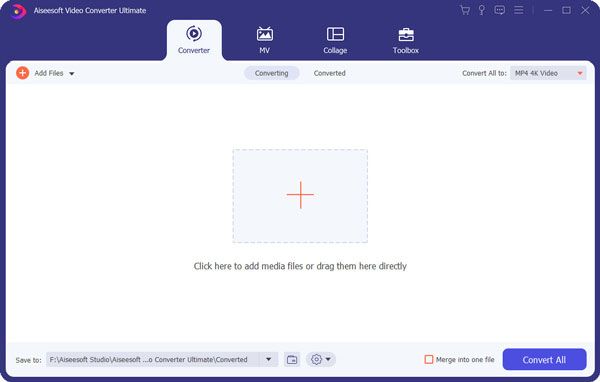
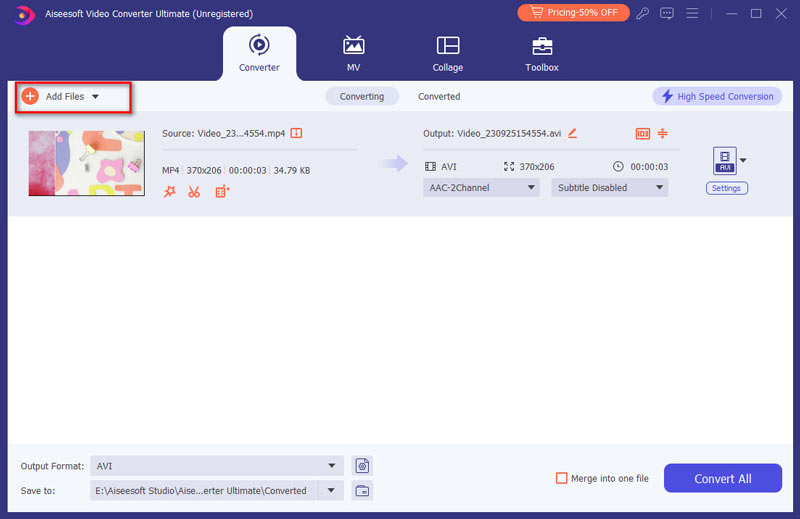
After installing this AVI to MP4 Converter, launch it and click "Add File" and load the AVI file(s) you want to convert. If all the videos you want to convert are in a folder, you can add the whole folder by clicking "Add Folder".
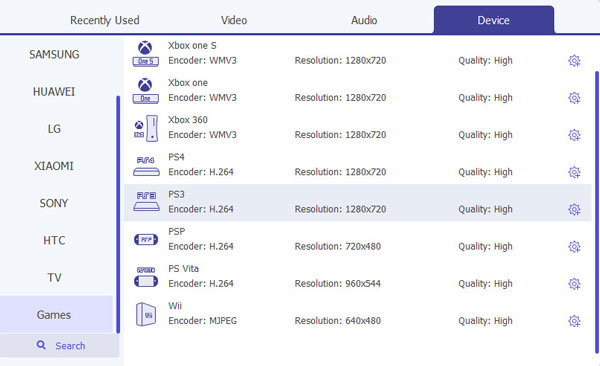
Click the drop-down button on the right of "Profile", input "MP4" in the quick search box, all the MP4 formats will be quickly filtered. You can quickly find the right one. Or you can move your mouse above General Video and find MP4 format on the right.
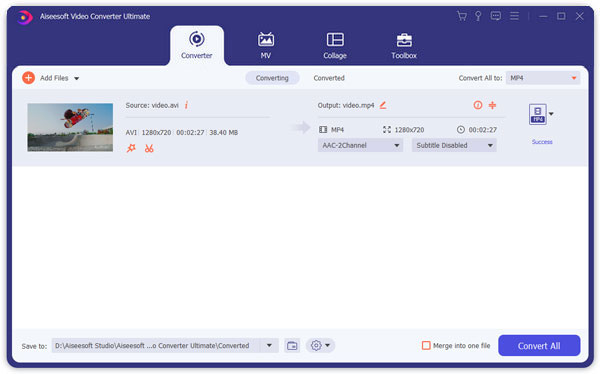
Click "Convert" button. After a few minutes' waiting, the conversion from AVI to MP4 will be completed with excellent video quality.
100% Secure. No Ads.
100% Secure. No Ads.
When you use this MP4 Converter, you should note 3 tips below:
Best for: users who already have VLC installed and need a quick one-off conversion.
VLC Media Player is a popular and powerful player, and you can also use it to convert your videos. It supports Windows, Mac, Linux and Android. This free software has a clean interface so you can learn to use it quickly. You can use it to convert various video formats such as MP4, AVI, MKV, MOV, etc. It also allows you to stream online. It is best for people who are seeking a comprehensive converter. Here are the steps to convert AVI to MP4 with VLC.
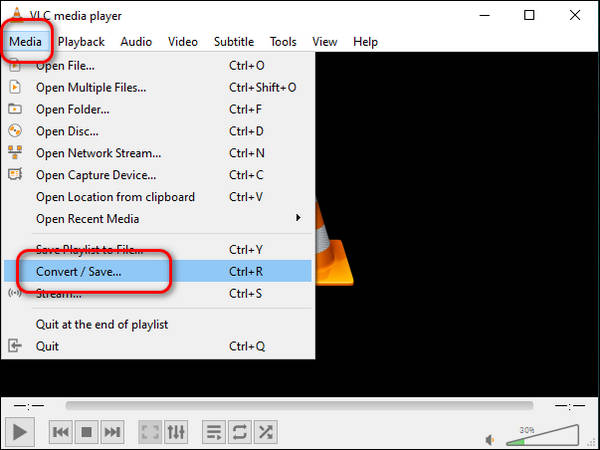
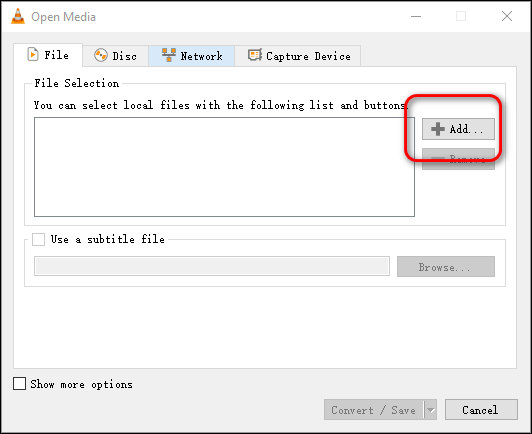
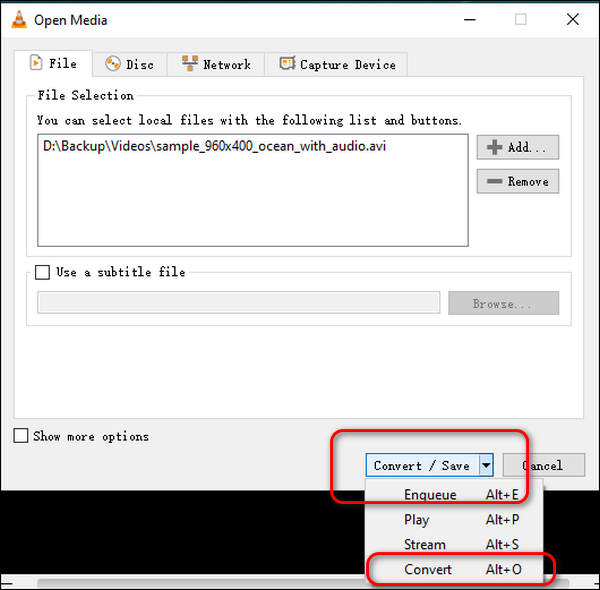
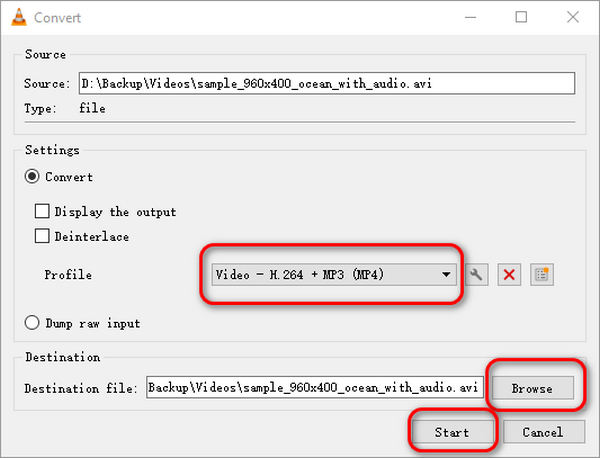
But it only supports you to convert to 9 video formats and one audio format, including MP4, Webm, OGG, etc.
Best for: users who want a free tool and need to batch-convert multiple files.
HandBrake is a free and open-source transcoder to help you convert various video formats, including MP4, AVI, MKV, WebM and more. It is available on Windows (10 and later), mac OS(10.13 and later) and Linux. As a powerful transcoder, it also enables batch video conversion. So, if you want to convert multiple videos simultaneously, HandBrake is best for you. Here are the steps to convert AVI to MP4 using HandBrake.
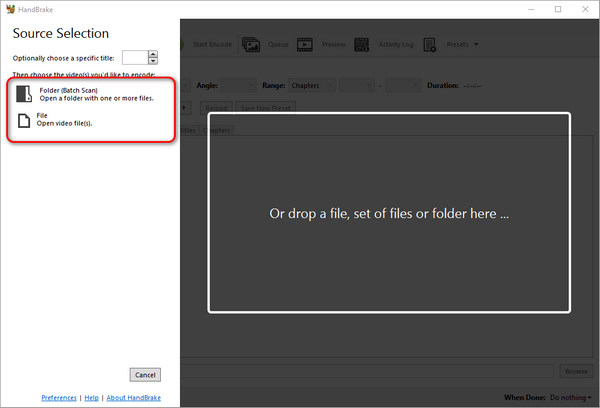
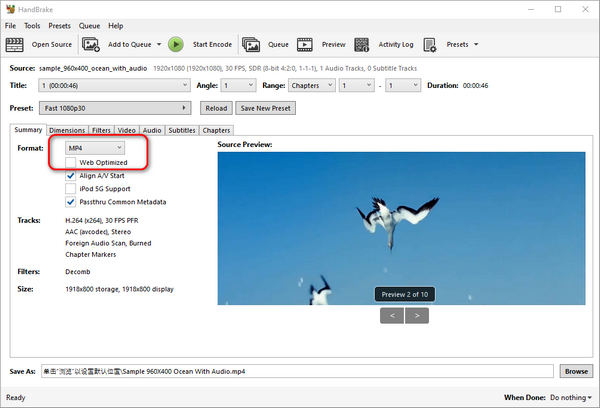
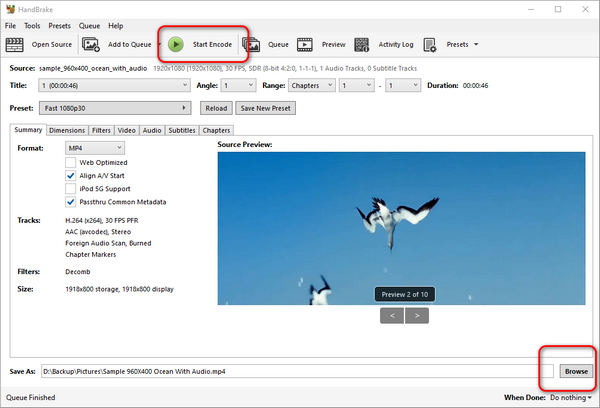
However, it isn’t as easy to use as Aiseesoft Video Converter Ultimate and it took me some time to find the button used to convert.
Best for: users who want a free desktop option with basic editing.
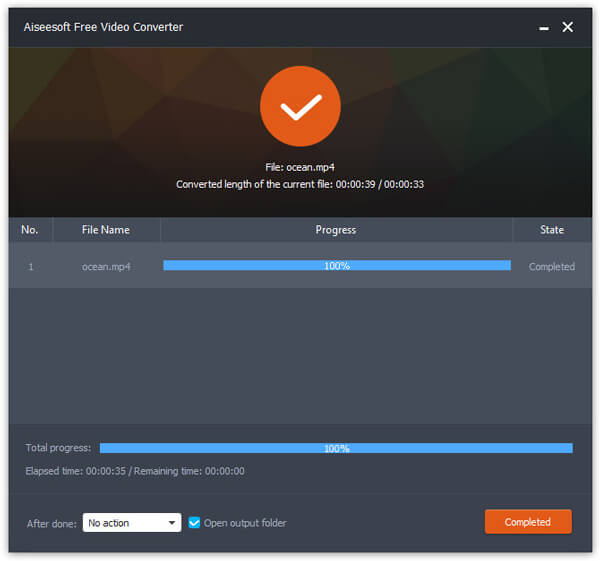
Besides the way above, you can also convert AVI to MP4 free with the Free Video Converter. This is a free tool to convert almost various videos and audio formats, including MP4, AVI, MKV, FLV, MOV, MP3, etc. You can download it on Windows and Mac. Now we will see the specific procedures:
100% Secure. No Ads.
100% Secure. No Ads.
After downloading the Free Converter Software, you can install and run it on your computer. Then you can click the "Add File" to import the AVI file on the program.
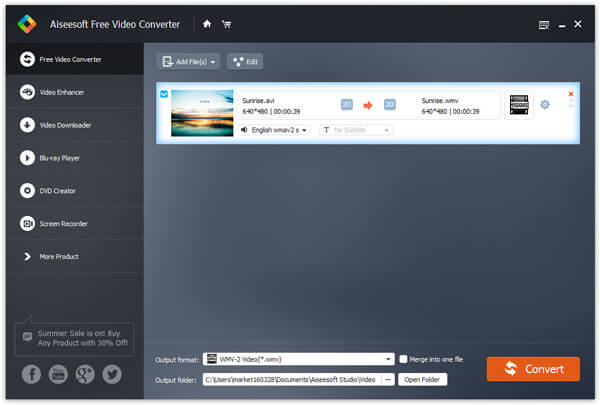
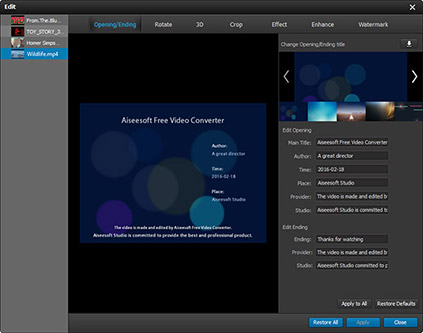
For getting the customized video before converting, you can click "Edit" to do more. Here, you are able to rotate video, enable 3D settings, add watermark, crop video area size, clip and merge video, and set video /audio effect.
In this step, you can click the dropdown button of "Profile" to choose the target video format. Here, you can just choose MP4. Then you can click "Convert" to make conversion of the video with one click.
Best for: a single, no-install conversion when you do not want to install software.
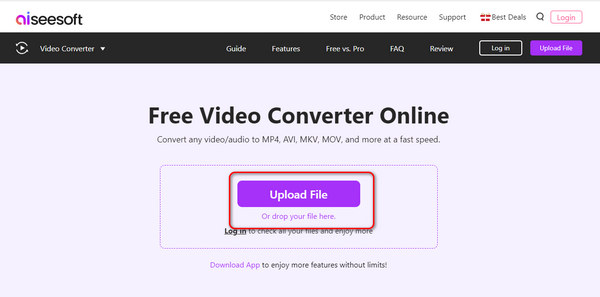
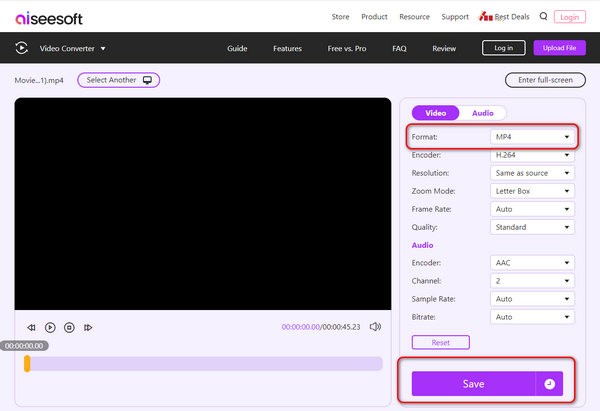
Aiseesoft Online Video Converter is best for users who don’t want to download additional converters to transfer AVI to MP4. It is simple to use and very convenient. You can use it as long as you have a browser. It supports multiple media formats, including MP4, AVI, MP3, AAC, AC3, WMA, WAV, etc. Here are the steps to use this great online tool.
Does converting AVI to MP4 affect quality?
There is a slight quality loss when you convert AVI to MP4, but it is negligible. Furthermore, the converter tools you use also affect your video quality.
Will the subtitles be saved during the conversion?
Most converters are defaulted to preserve the subtitles during the conversion. But if you want to make sure nothing goes wrong, check the settings before you start to convert.
Does MP4 work on all players?
MP4 is one of the most widely used video formats and generally can be played on all players you can find in the market.
Conclusion
In this article, we recommend various tools to help you convert AVI to MP4 or vice versa. You can achieve conversion using powerful converter software like Aiseesoft Video Converter Ultimate, or simply using an online tool. These converters can help you convert almost all media formats to what you need. What are you waiting for? Just try them now.
 How to Convert MP4 to XviD
Have problems when converting MP4 to XviD? This article will give you solution about it on Windows/Mac.
 How to Convert 3GP to MP4
How can I view 3GP movies from my smart phone on my computer or MP4 player? Here, you can find the answer.
 How to Convert MOD/TOD to WMV/AVI
If you want to convert TOD /MOD to AVI, WMV, MPEG and other video format, a professional MOD Converter helps you do that.
 Leave your comment and join our discussion
Convert AVI
1.1 AVI Converter
1.3 AVI to MP4
1.4 AVI vs MP4
1.5 AVI to WMV
1.6 AVI to MOV
1.7 AVI to MPEG
1.8 AVI to 3GP
1.9 AVI to XviD
1.10 AVI to MP3
1.11 AVI to WMA
1.12 AVI to iTunes
1.13 AVI to DVD
1.14 AVI to iPhone
Video Converter Ultimate is excellent video converter, editor and enhancer to convert, enhance and edit videos and music in 1000 formats and more.
100% Secure. No Ads.
100% Secure. No Ads.

*Required field
*Please enter a valid email
