


Getting Started
Introduction
Aiseesoft Android Unlocker enables you to unlock your Android devices without a passcode or bypass the Google Account Lock with ease. Without any hassle, it will help you remove PIN codes, fingerprints, Face recognition or pattern lock, etc. Now, let us learn how to use this great tool to unlock your phone.
Part 1. Remove Screen Password
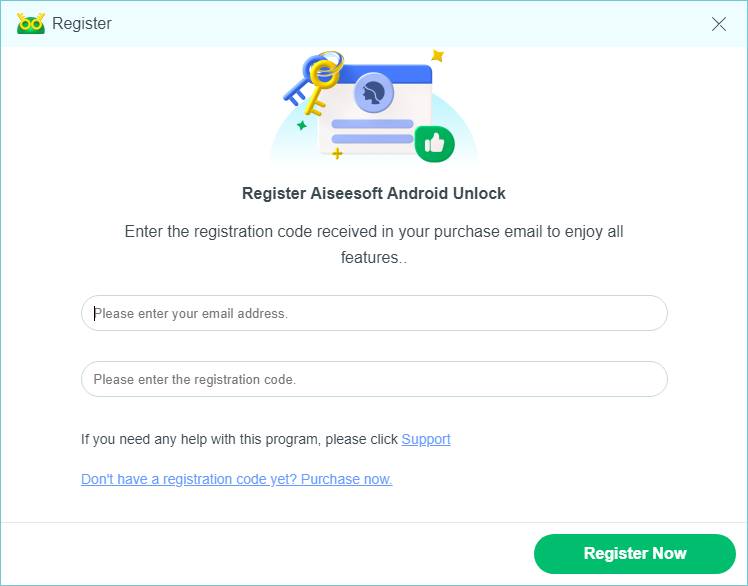
Step 1 Launch Aiseesoft Android Unlocker on your computer and Click the Menu button to register it with the registration code you received in your email. After registration, you can enjoy all features of this tool.
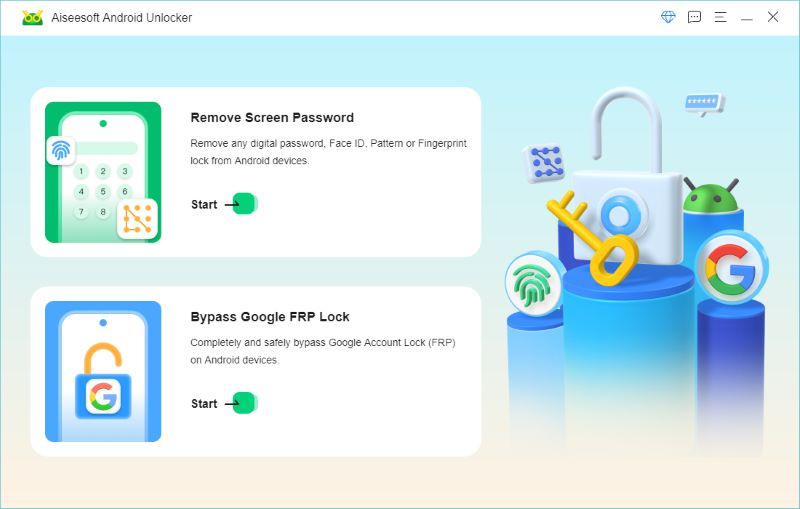
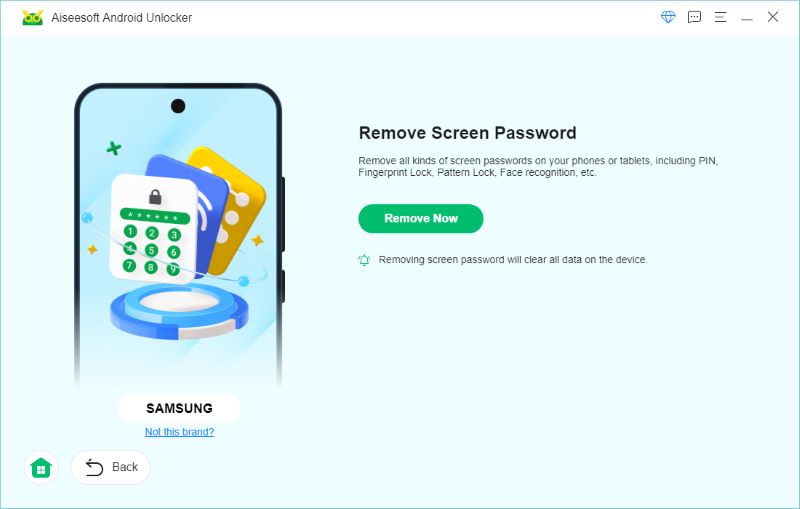
Step 2 Back to the interface of Aiseesoft Android Unlocker and choose Remove Screen Password to open the screen password removal screen.
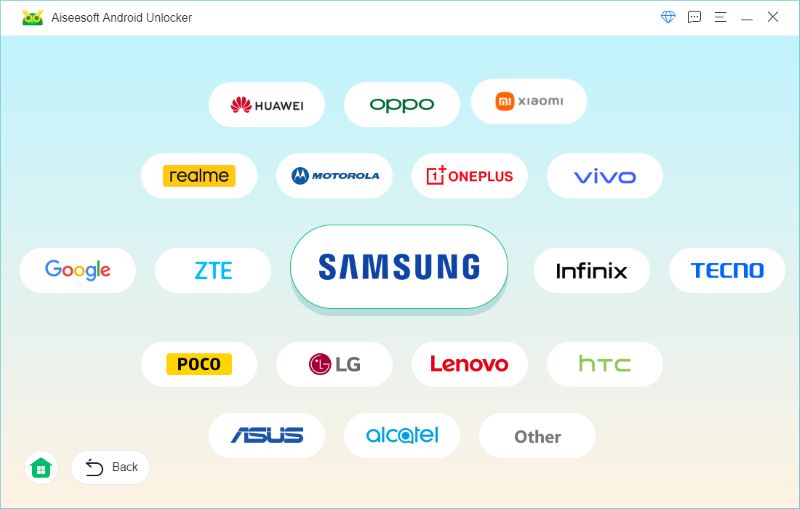
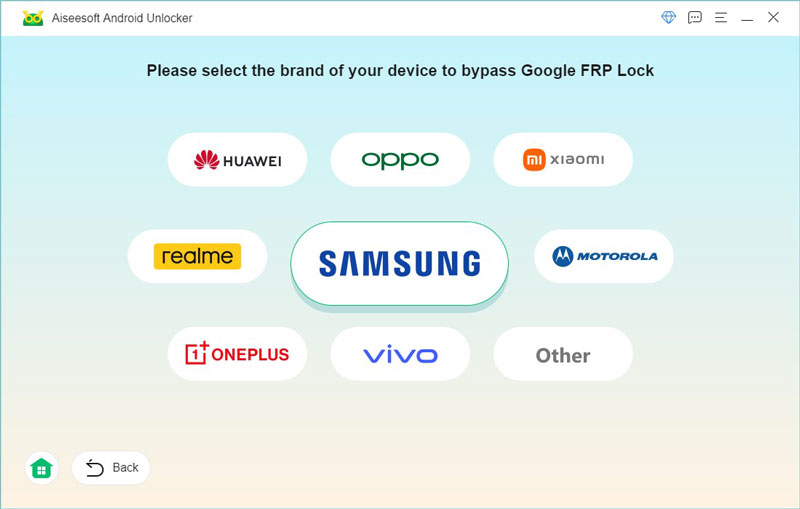
Select the brand of your device.
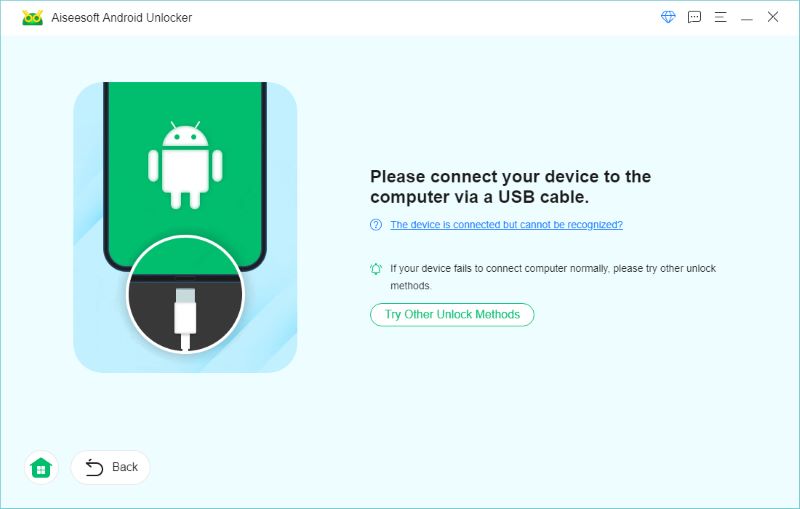
Step 3 Connect your device with the computer via a USB cable. If you don’t have a USB cable in reach or if the device doesn’t work properly with the USB connection, click Try Other Unlock Methods and follow the instructions we provide to remove the password.
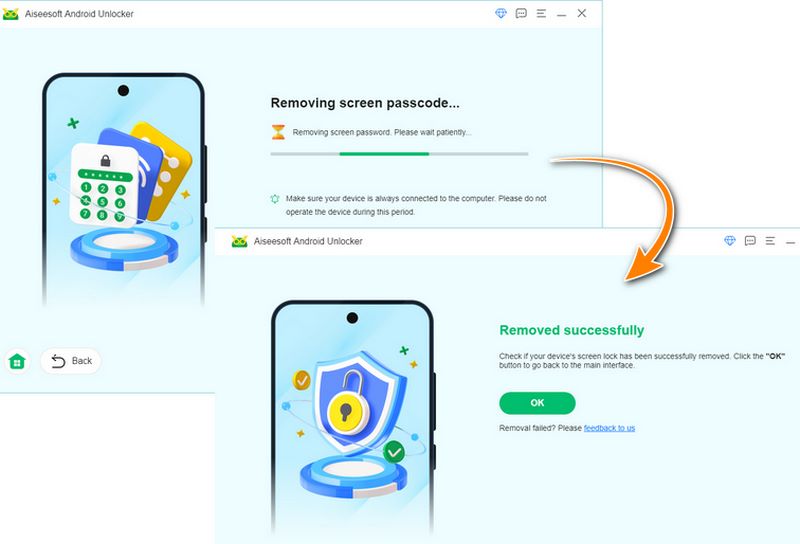
Step 4 After successfully connecting your device to the computer using a USB cable, you can click Remove Now in the interface to remove the password in one click.
Note: This will clear all the data on your phone.
You’ll see the password removed successfully in just a few seconds.
Part 2. Bypass the Google Account Lock
Bypass Google FPR Lock on All Samsung Models (including Android 11/12/13)
Step 1 Connect your device to the computer using a USB cable. And click Bypass Google FRP Lock on the main interface to select this mode.
Step 2 Select the Samsung brand in the middle and start.
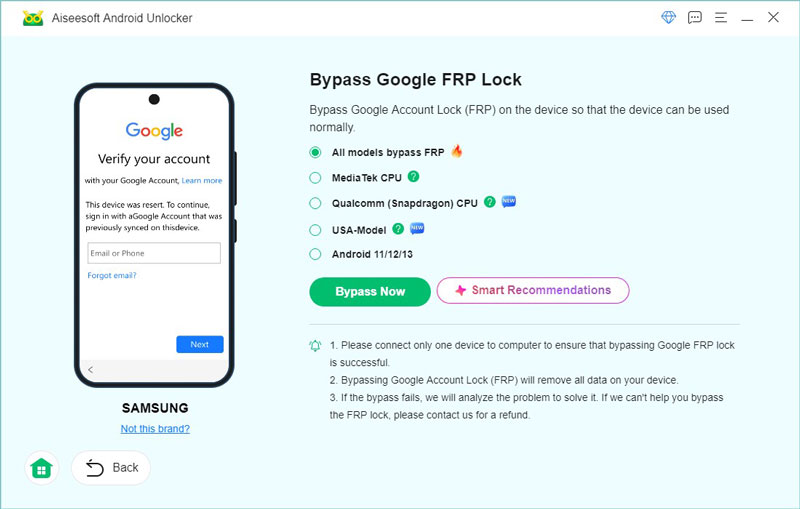
Step 3 Click All models bypass FRP if you don't know your Android OS and mobile model. This method can help you to remove Google FRP Lock easily and quickly.
Step 4 Follow the on-screen instructions as guided. Look for the Emergency Call button on your Android and tap on it. Type *#0*# or *#*#88## to open the Samsung secret menu. Then, click Next on your computer screen.

Step 5 There will be a USB debugging window pop-up window on your Samsung device, please tap Allow to continue.

Step 6 Then, you can see FRP Lock is being removed from your Samsung devices.
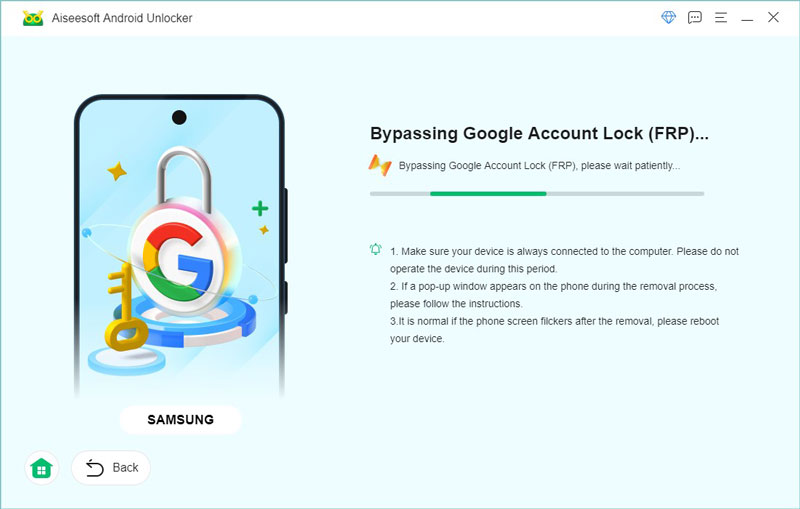
Once it's finished, click OK on the suceess notification page and return to main interface.
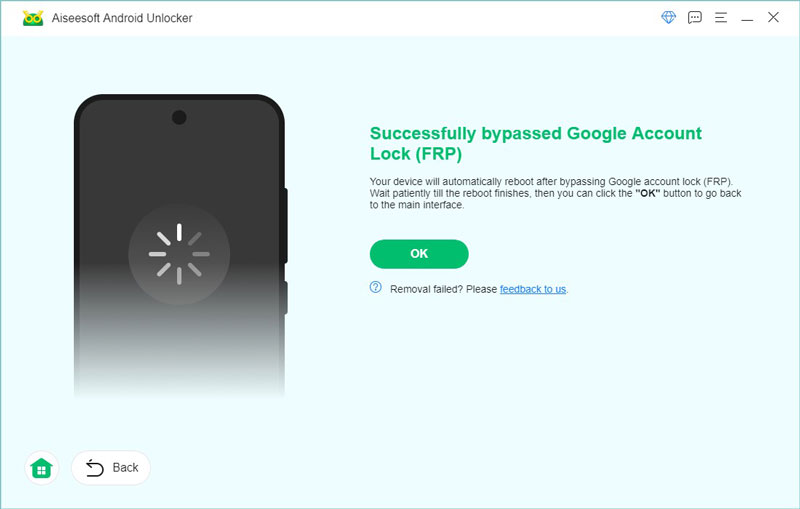
Bypass Google FPR Lock on All Samsung Models with MediaTek CPU
If your Samsing device are with MediaTek CPU, here is also a exlusive method fotr MediaTec CPU with high sucess rate.
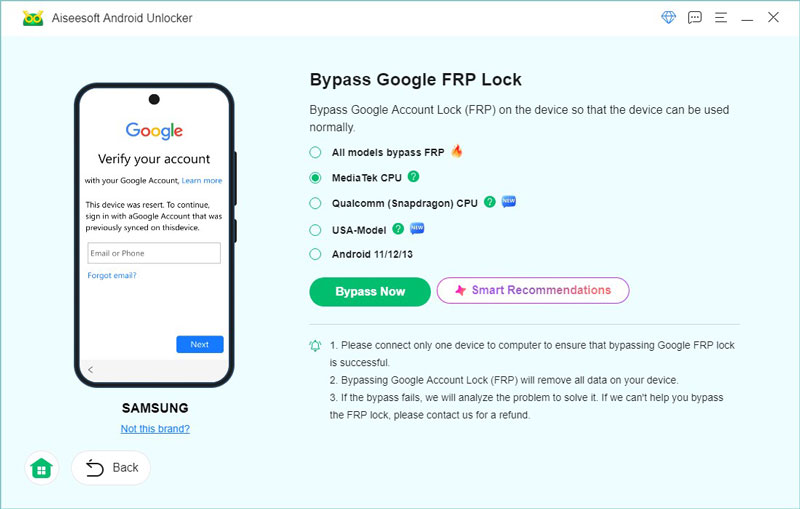
Step 1 After conneting you device and choosing Samdung brand. Choose MediaTek CPU on unlock model page, you can click the ? Button to see the full model list supported. Then, click Bypass Now to start.
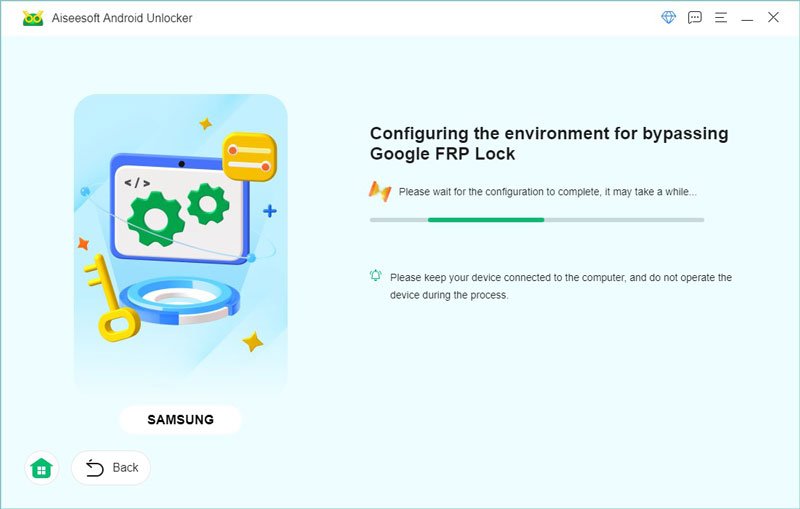
Step 2 Android unlock will automatically start to configure the enviroment for bypassing Google FRP Lock, please wait for a while and do not operate the device during the process.
Step 3 Follow the instructions on the screen and operate on your device. Disconnect and power off your device completely. Then, press and hold both Volume Up and Volume Down buttons at the same time for about 3 seconds and connect your device to the computer immediately.
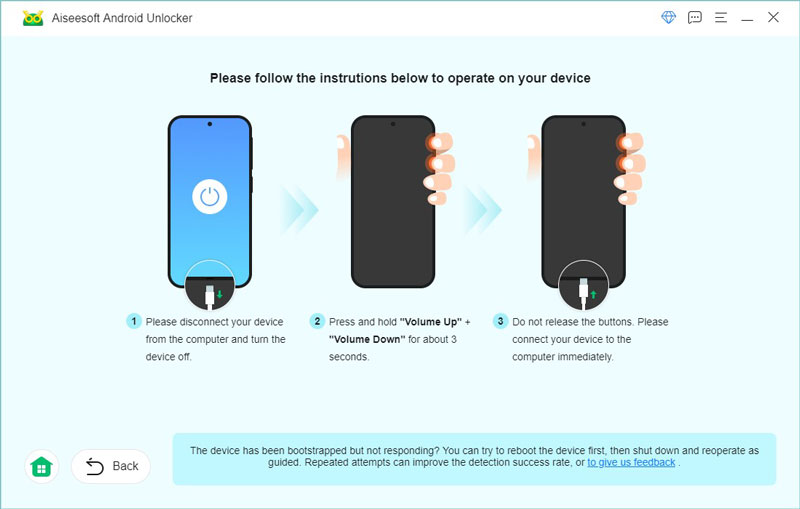
Step 4 Then, the FRP Lock on your MediaTek CPU Samsung device will be removed suceessfully.
Use EDL Engineering Cable to Bypass FRP Lock on Samsung Snapdragon
EDL (Emergency Download Mode) is a low-level recovery mode used on Qualcomm devices. It enables users to force the device into a download state - typically through a specially designed EDL cable - when the phone cannot boot, the system firmware is corrupted, or the device is locked. Here is a detailed guide to help you use the EDL cable.
Tip: Make sure you have a Samsung EDL engineering cable ready before starting. You can easily purchase one from Amazon or eBay.
Step 1 Install and launch Aiseesoft Android Unlocker. Choose the Bypass Google FRP Lock mode.
Step 2 Choose Samsung, and if your device is correctly connected, our program will automatically detect your device’s brand, which you can see in the bottom-right corner. Then, click Bypass Now.
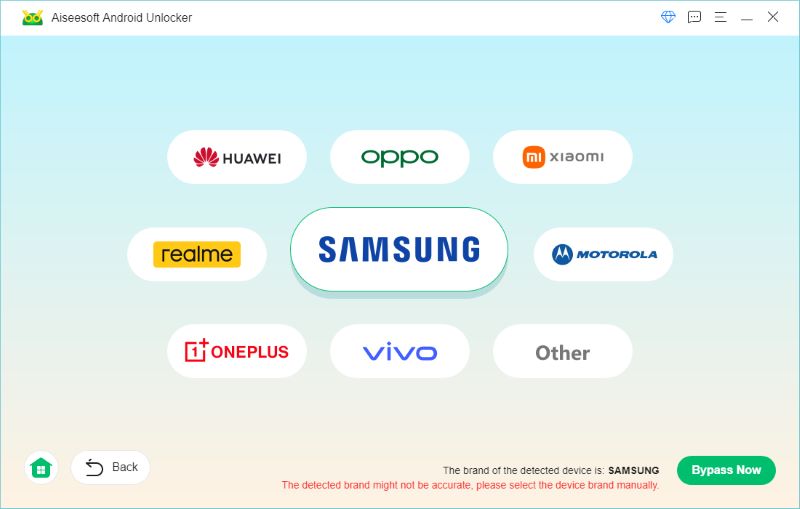
Step 3 If your device is a Samsung with a Qualcomm chipset, select the bypass method - Qualcomm (Snapdragon), and click Start.
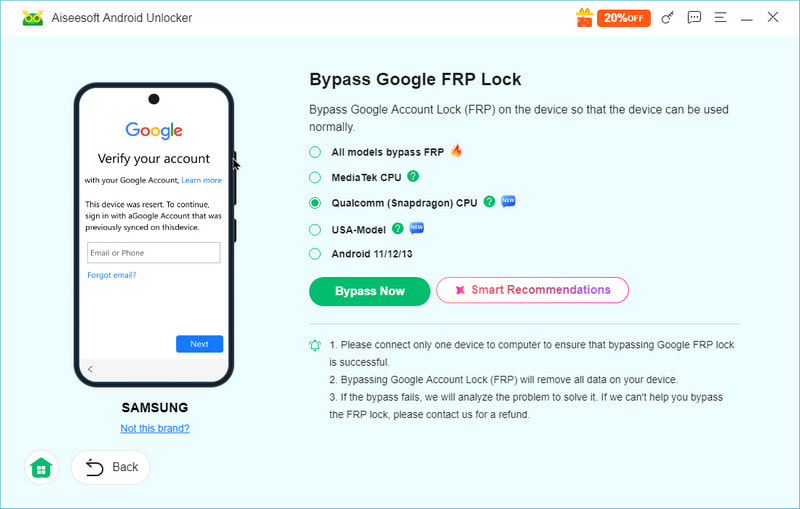
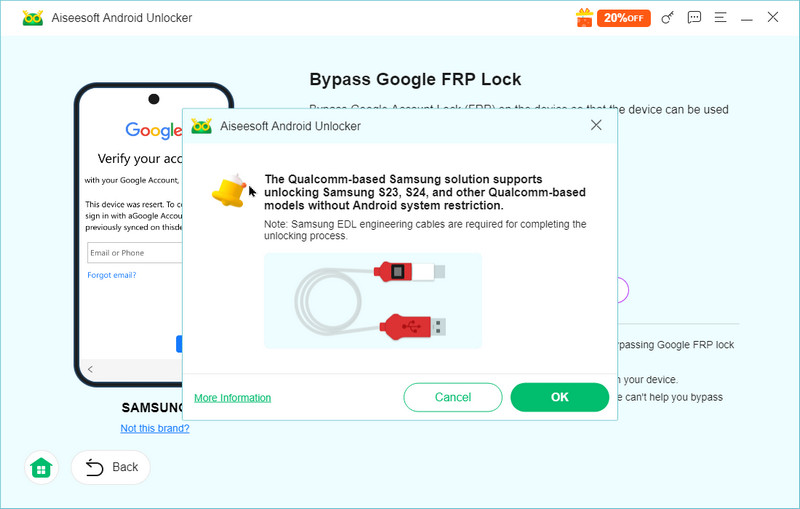
The program will prompt to prepare the EDL Engineering Cable. Read the note carefully and click OK to go on.
Step 4 Next, the necessary Android firmware will be configured on your device for FRP lock bypass.
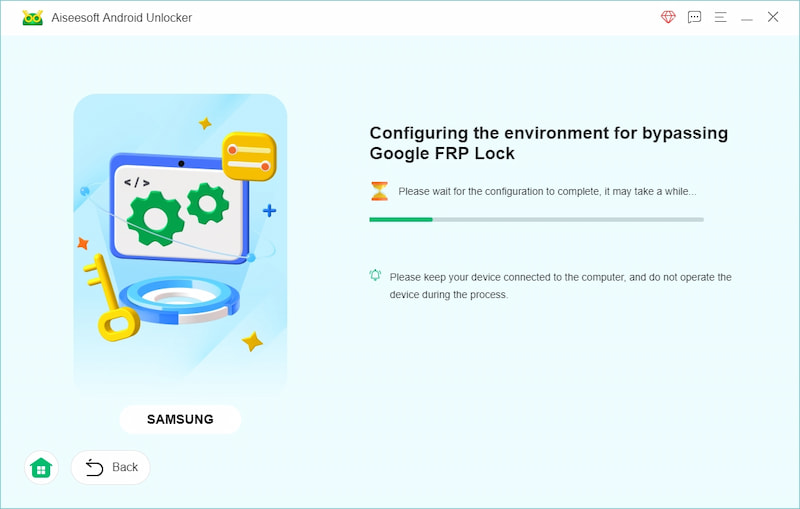
Step 5 After installing the firmware, you need to operate your device and edl cable according to the on-screen guide. This action aims to put your Samsung device into a specific mode suitable for bypassing FRP.

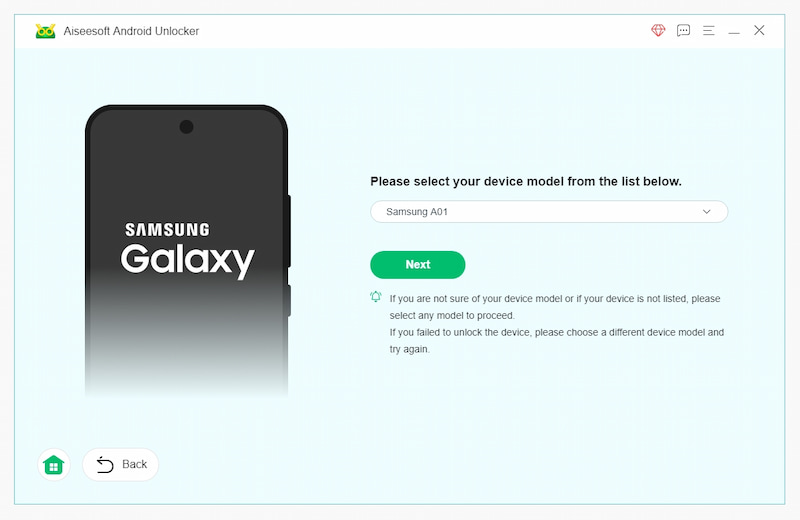
Step 6 Then, choose your device model from the list. Click Next, and Aiseesoft Android Unlocker will begin to remove the FRP lock. This process takes some time, and please wait for it patiently.
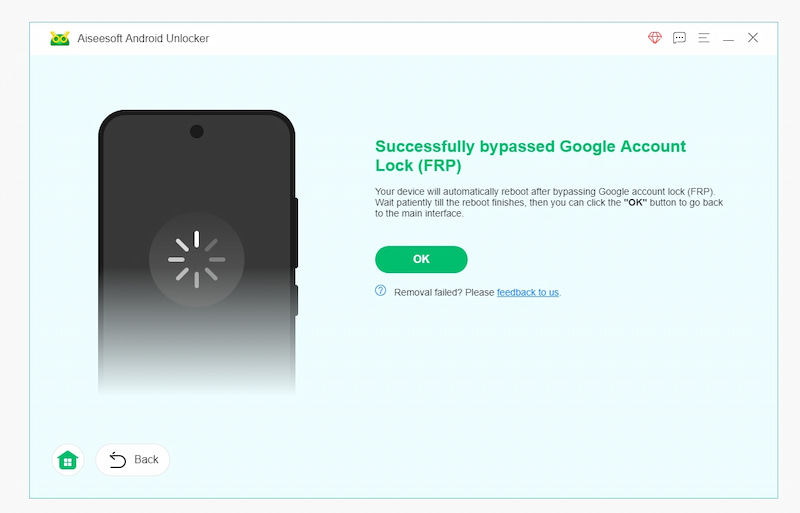
Step 7 Finally, your Samsung device will be free from Google account FRP lock. You can restart your device and use it without FRP.
Bypass Google FPR Lock on All Samsung Models with USA-Model
Step 1 USA Model enables you to unlock US Samsung models with simple clicks. Just connect your device to computer via USB and select USA-Model to continue.
Step 2 You can see the progress of FRP Lock removing. Please wait for a while.
After successfully removing, click OK to return to the home page.
Remove Google FRP Lock on Most Android Devices
Step 1 Connect your device to the computer using a USB cable. And click Bypass Google FRP Lock on the main interface to select this mode.
Step 2 Select the brand of your device. If you have your device correctly connected, you’ll see a detected brand hinted at the right bottom corner.
Step 3 Click Bypass Now to confirm.
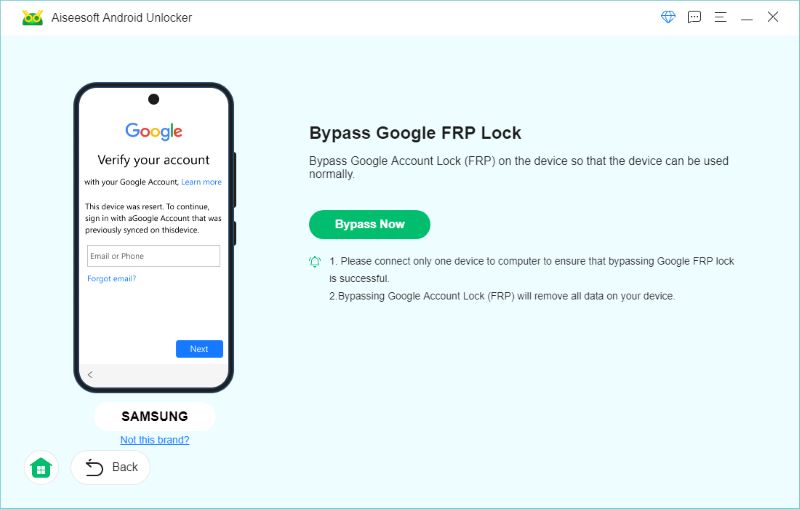
Step 4 If your device is a Samsung product, please follow the instruction to turn on the USB debugging mode.
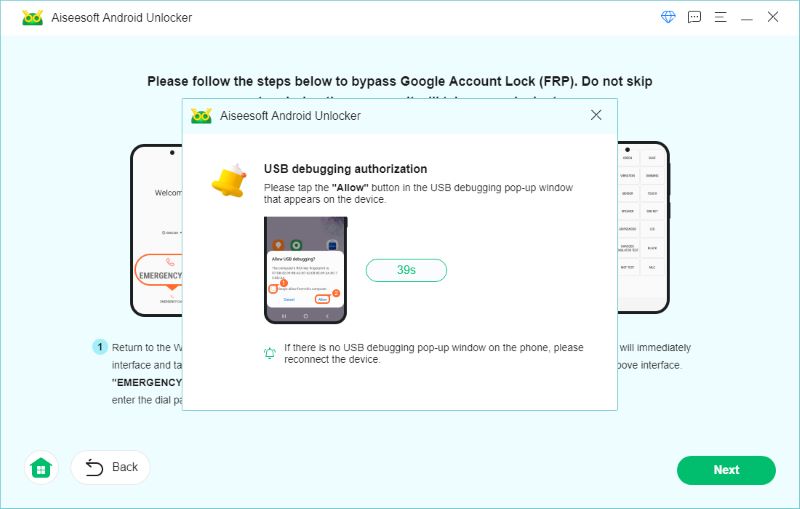
Note: Some brands also have a guide page for you to manually set the device ready for the bypass. You should follow the give instruction if there is any.
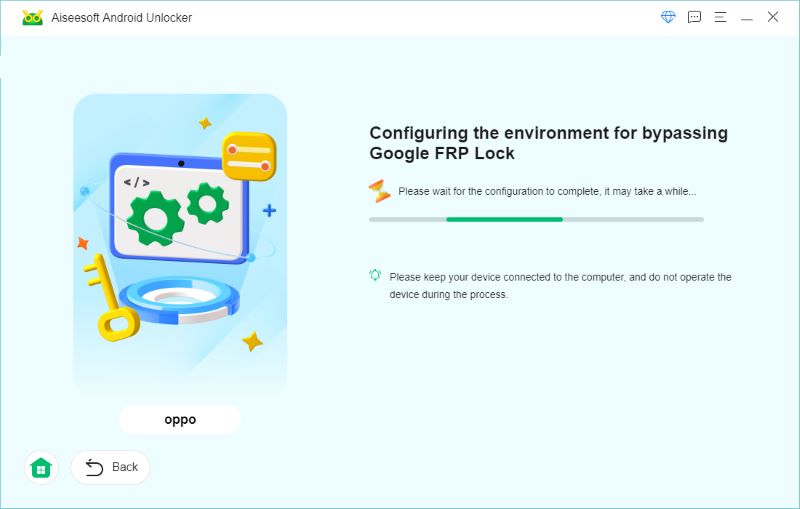
If the device is of a brand that requires no settings change, the needed environment configuration will start automatically, please wait patiently for the process to complete.
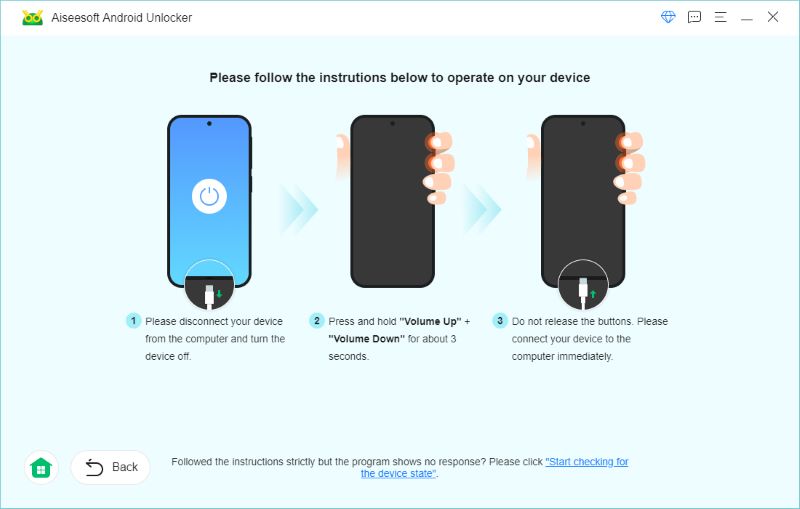
After the environment configuration, you’ll need to follow the instructions to activate it.
Unlocker will check if the device is ready, and if it is, you can proceed to the next step.
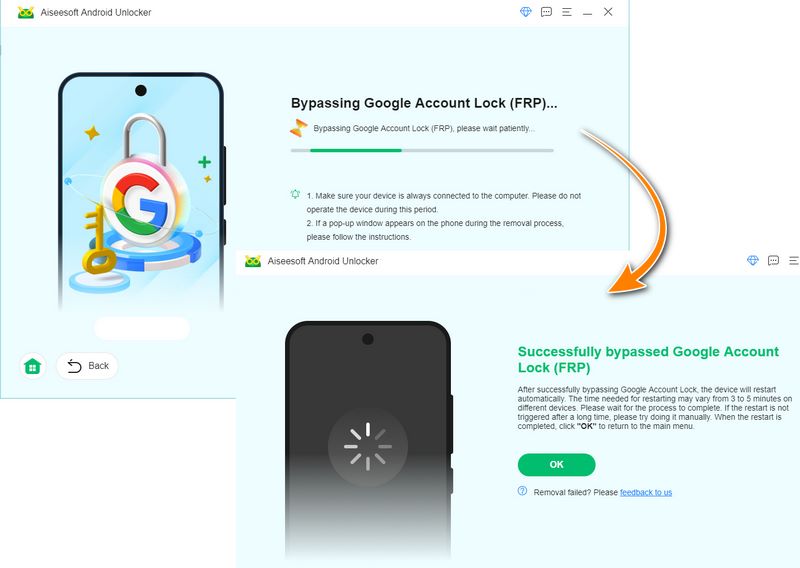
Step 5 Wait for the removal to be finished in seconds.
-
How to Unlcok iCloud without Downloading
This article will help you to unlock the iCloud lock with iCloud unlocker in two different methods, and do not miss it if you are interested with it.
 Posted by Louisa White | 07.07.2017
 -
How to Unlock Android Phone to Bypass Forgot ten Password, PIN or Pattern Lock
How to unlock android phone? This tutorial can help you bypass forgotten Android password, PIN or lock screen pattern.
 Posted by Amanda Brown | 07.07.2017
 -
How to SIM Unblock Samsung Galaxy S4/S5/S6 For Free
Want to know how to unlock Samsung Galaxy S4/S5/S6? This article tells you the simple methods to get Samsung Galaxy S4/S5/S6 unblocked. Start to learn now.
 Posted by Iris Walker | 07.07.2017
 -
How to Unlock Samsung Galaxy S6/S5/S4/Note 4 without Password
Want to get Samsung Galaxy S6/S5/S4/Note 4 unlocked? You can check this article and find the suitable solution. Also, a reputable Broken Android Data Recovery is recommended here.
Posted by Iris Walker | 28.03.2017 -
Full Guide on Samsung Bootloader Unlock
What is bootloader? How to unlock the bootloader on a Samsung Galaxy phone? Learn from this article about Samsung bootloader unlock.
Posted by Iris Walker | 01.04.2017 -
Free Unlock Codes - Unlock your mobile phone
How to unlock codes for SIM card on cell phones like Samsung, LG, Nokia, iPhone, etc. for free? Read through this post to unlock SIM with free codes for your phone.
Posted by Iris Walker | 13.07.2017 -
Top 4 Free Cell Phone Unlock Code Generators
The passage introduces you with top 4 free cell phone unlock code generators to help you to unlock the primary service provider.
Posted by Iris Walker | 26.12.2017 -
Get SIM Network Unlock PIN for Free to Unlock Samsung Galaxy S6/S5/S4/Note 5/4/3 and More
Want to get a free SIM network unlock pin for AT&T or T Mobile? Read this post and learn to unlock your Samsung Galaxy S6/S5/S4/S3, HTC One with SIM network unlock PIN. It is very useful.
Posted by Iris Walker | 24.10.2016 -
iPhone Activation Lock & Permanent Unlock iPhone Lock Removal
Get detailed solutions of frequently asked questions of iPhone activation lock, to add on thief protection. And bypass iPhone locked in activation lock in an easy and fast way.
Posted by Louisa White | 24.10.2017 -
5 Best iPhone Backup Unlocker Software (Free and Paid)
iPhone Backup Unlocker tools allow you to restore iTunes backups when you forget passwords. We will introduce you top 5 iPhone backup unlocker software (free and paid) to help you decrypt your iPhone backup password.
 Posted by Nicole Jones | 17.08.2018
 -
How to Unlock Your Verizon Phone for Using with Another Carrier
Verizon prefer to lock smartphones for the initial days after purchase. We shared several ways to help you unlock a Verizon iPhone or Android phone in order to use another carrier.
Posted by Nicole Jones | 14.08.2019 -
4 Effective Ways to Unlock iPod touch without Password
How to unlock iPod touch? This post shows 4 effective solutions to unlock iPod touch 6/5/4/3, iPod Classic, iPod nano when you forget iPod screen unlock code.
Posted by Iris Walker | 07.07.2017 -
Top 3 Android Unlocker to Unlock iPhone Locked in Cricket Wireless
Fail to unlock Cricket iPhone 6 USA? Cheer up! Here are top 3 Android Unlockers, to remove Cricket restrictions easily and get permanent SIM-free device with reasonable prices.
Posted by Louisa White | 07.07.2017 -
[Solved] 4 Easy Ways to Bypass iPhone Locked to Owner
How to remove iCloud lock on iPhone 6s/6/5s/7/8/X/4? Still stuck on the iCloud login? Learn how to bypass or remove iCloud activation lock on iOS 12/11/10/9 from this page.
Posted by Louisa White | 27.04.2015 -
How to Bypass or Unlock iCloud Lock for iOS 8/9/10
iCloud lock for some reasons? Bypass or remove iCloud lock to get a new use for your iPhone or iPad.
Posted by Louisa White | 18.10.2016


