
Aiseesoft Blu-ray Player
 100% Secure. No Ads.
100% Secure. No Ads.
4K resolution (4096 × 2160 or 3840 × 2160 pixels) offers four times the detail of 1080p HD, delivering sharper images and vibrant colors. While streaming platforms like YouTube and Vimeo have popularized 4K content, many users still struggle to watch these high-quality videos locally on their computers.
Ideally, watching 4K should be immersive. However, users often face issues like stuttering playback, audio-video desync, or black screens. This is usually due to incompatible media players or insufficient hardware.
This guide will show you exactly how to play 4K videos on PC and Mac using the best software solutions and how to fix common playback issues.
| Feature | VLC Media Player | 5KPlayer | MPC-HC | Aiseesoft Blu-ray Player |
| Best For | Universal Compatibility | AirPlay & Streaming | Low-End / Older PCs | Cinema-Grade 4K/Blu-ray |
| 4K Playback | Good (can lag at 60fps) | Excellent (GPU Accelerated) | Smooth (Ultra Lightweight) | Superior (Optimized for UHD) |
| Blu-ray Support | Limited (Basic) | Basic (Unprotected only) | Restricted (No Encryption) | Full Support (AACS/BD+) |
| Hardware Acceleration | Manual Configuration | Automatic | Requires Codec Pack | One-Click Intelligent Accel. |
| HDR10+ / Dolby | Basic Support | Support | Basic Support | Lossless Audio & Visuals |
| User Interface | Classic / Simple | Modern & Sleek | Minimalist | Clean & Intuitive |
Before downloading software, ensure your computer meets the minimum requirements to handle the heavy processing load of 4K (HEVC/H.265) content:
Monitor: A 4K Monitor is essential to see the actual difference in resolution.
Processor (CPU): Intel Core i7 (7th Gen or later) or AMD Ryzen 5 equivalent.
Graphics Card (GPU): NVIDIA GeForce GTX 1050 / AMD Radeon R9 or better (Video card with hardware decoding is preferred).
RAM: At least 8GB (16GB recommended).
If your hardware is ready, you need a player that supports 4K codecs. Here are the most popular free tools and the steps.
VLC is the most compatible open-source player. It supports playing 4K videos smoothly thanks to its extensive codec library. However, for huge 4K files (like 60fps raw footage), VLC might occasionally lag unless you tweak the "Hardware-accelerated decoding" settings.
Pros: Open-source, supports almost all formats.
Cons: Interface looks dated; 4K 60fps might require manual configuration to avoid lag.
Quick Steps: After launching VLC, simply drag and drop your 4K file into the interface.
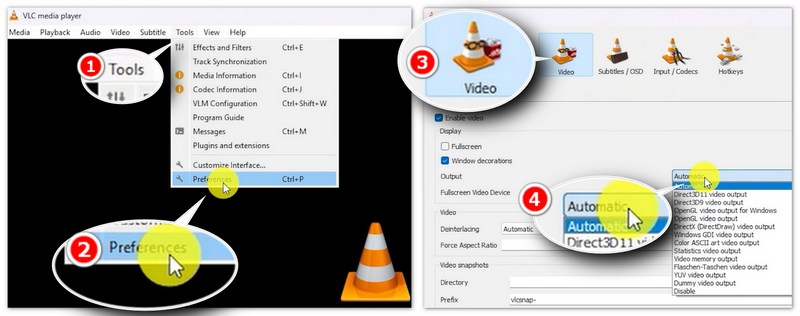
Note: If playback is choppy, go to “Tools” > “Preferences” > “Input / Codecs” and ensure "Hardware-accelerated decoding" is set to “Automatic”.
Designed specifically for high-definition content, 5KPlayer renders 4K UHD videos excellently on both Windows and Mac. It supports AirPlay and DLNA, making it a versatile choice for home theaters.
Pros: Native support for AirPlay; sleek interface.
Cons: Contains advertisements/promotions within the software.
Quick Steps: Click the "Video" icon on the main interface to browse your local 4K files.
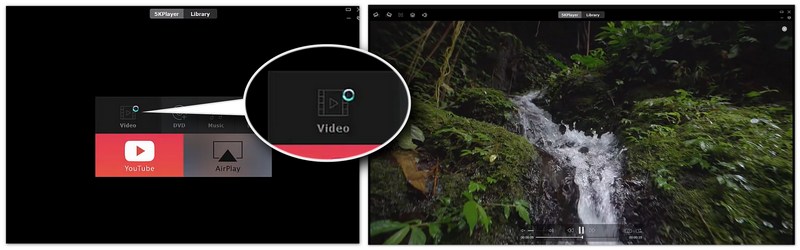
Note: It automatically activates NVIDIA/AMD hardware acceleration to ensure smooth 4K/8K rendering without extra setup.
While the original Media Player Classic stopped development years ago, the clsid2 fork is actively maintained and remains the most lightweight player for Windows. It is the go-to solution for users who want to play 4K videos on older laptops without exhausting RAM or CPU. MPC-HC is incredibly lightweight, using very little RAM, meaning it can often play 4K videos on slightly older computers where heavier players might freeze.
Pros: Extremely low CPU/RAM usage.
Cons: Development has officially stopped (though still works); Windows only.
Quick Steps: Right-click inside the player, select "Open File," and choose your UHD movie. Or you can directly drag your videos onto its interface.
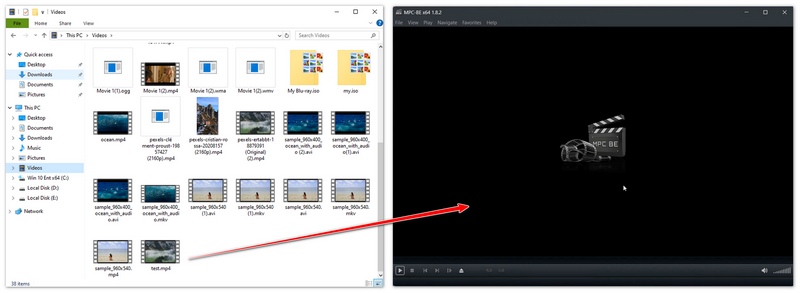
Note: We recommend installing the K-Lite Codec Pack alongside it to ensure the latest 4K decoders are available for older Windows versions.
While VLC and 5KPlayer handle basic 4K files, they often fail when it comes to commercial 4K Blu-ray discs (with encryption), HDR10+ color mapping, or lossless Dolby Atmos audio. If you are looking for a true "home theater" experience without the headache of manual codec updates, a professional dedicated 4K player for Windows and Mac is the way to go.
While free tools are great, they often lack specialized support for encrypted 4K Blu-ray discs and advanced H.265 encoding optimizations. If you want a cinematic experience with zero lag, we recommend Aiseesoft Blu-ray Player. Unlike standard players, Aiseesoft Blu-ray Player is optimized to fix common bugs like stuttering, fast-forwarding, or fuzzy images. It fully supports 4K, 1080p HD, and lossless audio (DTS-HD Master Audio, Dolby TrueHD). When facing encrypted DVDs or Blu-rays that are also region-locked, you can still use Aiseesoft Blu-ray Player to view them without limits.
How to Play 4K Files with Aiseesoft Blu-ray Player:
100% Secure. No Ads.
100% Secure. No Ads.
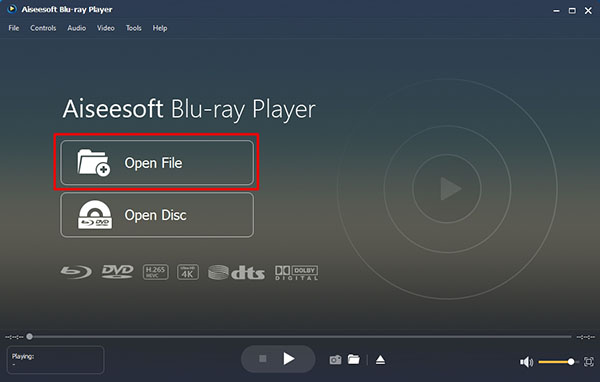
For Digital Files: Click "Open File" and select your 4K MP4, MKV, or MOV file.
For Discs: Insert your 4K Blu-ray disc into an external drive and click "Open Disc".
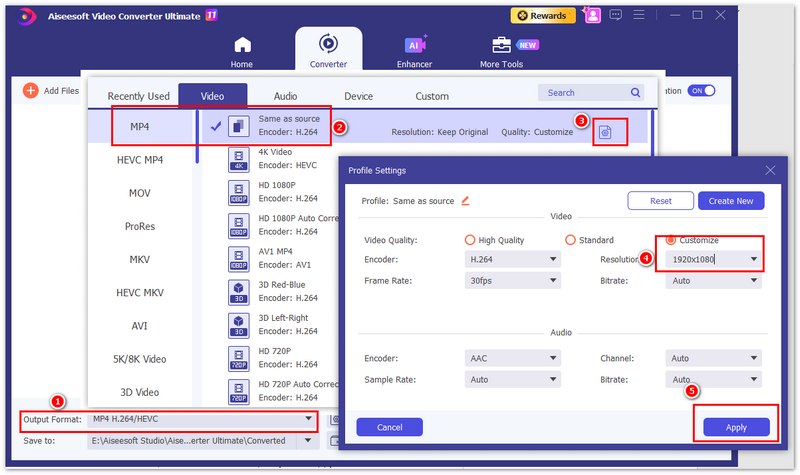
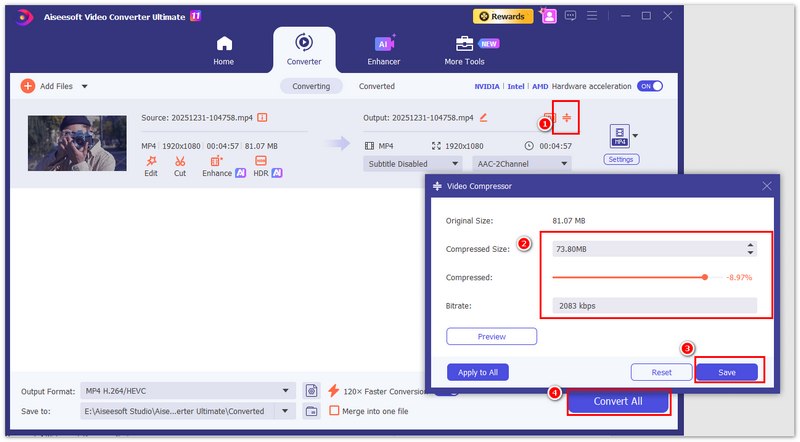
If your computer freezes when playing 4K videos regardless of which player you use, your hardware might be the bottleneck. The best solution is not to buy a new PC, but to convert the video into a compatible one. You can use Aiseesoft Video Converter Ultimate to compress 4K video, downscale 4K to 1080p, or change the codec from heavy HEVC (H.265) to the widely compatible H.264, ensuring a smooth experience on any old laptop or mobile device. Here are the steps:
100% Secure. No Ads.
100% Secure. No Ads.
For Digital Files: Click "Open File" and select your 4K MP4, MKV, or MOV file.
For Discs: Insert your 4K Blu-ray disc into an external drive and click "Open Disc".
Do I need a special HDMI cable for 4K video playback?
Yes. To play 4K at 60Hz, you need at least an HDMI 2.0 cable. Older HDMI 1.4 cables only support 4K at 30Hz, which may result in a choppy feel during fast-motion scenes or gaming.
Why does VLC struggle with some 4K files?
VLC is a great general-purpose player, but it may lag with high-bitrate 4K 60fps videos if the File Caching or Hardware Decoding settings aren't optimized. For a more stable experience with encrypted 4K Blu-ray discs or heavy files, a professional tool like Aiseesoft Blu-ray Player is often more reliable.
Can I play 4K videos on a 1080p monitor?
Yes, you can. However, you won't see the actual 4K resolution. The player will downsample the image to fit your screen. While the image might look slightly sharper than a native 1080p file due to higher bitrates, a 4K monitor is required to experience true Ultra HD clarity.
Conclusion
Watching 4K videos is the new standard for entertainment. Whether you choose free tools like VLC or a professional solution like Aiseesoft Blu-ray Player, ensure your hardware is up to the task. For incompatible devices, converting 4K to a more friendly format is your best backup plan.
 How to Convert Video to 4K
Here provides you the easiest way to convert your 1080P video to 4K. With only 4 steps and a few minutes, you can get the converted video with ease.
 5 Top 4K AI Video Upscaler: Features, Pros, Cons, and More
There are 5 most frequently used 4K AI Video Upscalers. Does it fit everyone? We have everything you want to know about that. Let's check it out!
 How to Burn iMovie to DVD
It is no longer available to export iMovie to DVD with iMovie 10. The article shows an easy way to burn iMovie to DVD without iDVD.
 Leave your comment and join our discussion
Video Player
Video Player 4K Video Player HTML5 Video Player Slow Motion Video Player Torrent Player Android Video Player Video Player for Android Tablet Android Media Player
Blu-ray Player is a powerful player that can play Blu-ray disc, Blu-ray folder, DVD disc/folder/ISO file, acting as common media player for any HD/SD video files.
100% Secure. No Ads.
100% Secure. No Ads.

*Required field
*Please enter a valid email

