
Windows/Mac Data Recovery
 100% Secure. No Ads.
100% Secure. No Ads.
Contents
Many people store important videos on their Windows computers, such as family memories, travel clips, and work projects. Losing these files due to accidental deletion or system errors can be frustrating.
If you’re looking for how to recover deleted videos on Windows, the good news is that modern recovery tools make the process simple and efficient. In this guide, we’ll show you step-by-step methods to recover deleted or permanently lost video files on Windows 11/10/8/7 quickly and safely.

Losing essential videos can be frustrating, especially when it happens unexpectedly. In most cases, video files don’t disappear without a reason. Below are the most common causes of video loss on Windows computers:
• Accidental Deletion
Videos may be deleted unintentionally when you click Delete, use shortcuts like Ctrl + D, or permanently remove files using Shift + Delete without realizing it.
• System Crash or Reinstallation
A sudden Windows crash, a failed update, or a reinstall of the operating system can erase video files stored on the system drive.
• Virus or Malware Attack
Viruses and malicious programs may hide, corrupt, or delete your video files, making them inaccessible or unreadable.
• Emptied Recycle Bin
After clearing the Recycle Bin, previously deleted videos are no longer visible, making them appear permanently deleted.
| Method | Best For | Works When | Skill Level | Limitations |
| Recycle Bin Restore | Recently deleted videos | Videos were deleted normally, and the Recycle Bin is not emptied | Very Easy | Won’t work if the Recycle Bin was emptied or files were permanently deleted |
| File History (Windows 11/10) | Recovering older versions or backups | File History was enabled before video loss | Easy | Useless if the backup was not turned on |
| Aiseesoft Data Recovery | Permanently deleted or lost videos | Recover Videos deleted via Shift + Delete, system crash, formatted drive, virus attack | Easy | Needs installation (must NOT install on the same drive being recovered) |
| Windows File Recovery Windows 11 | Advanced recovery without third-party tools | Recycle Bin is empty, and users are familiar with commands | Advanced | Command-line only, lower success rate, no preview |
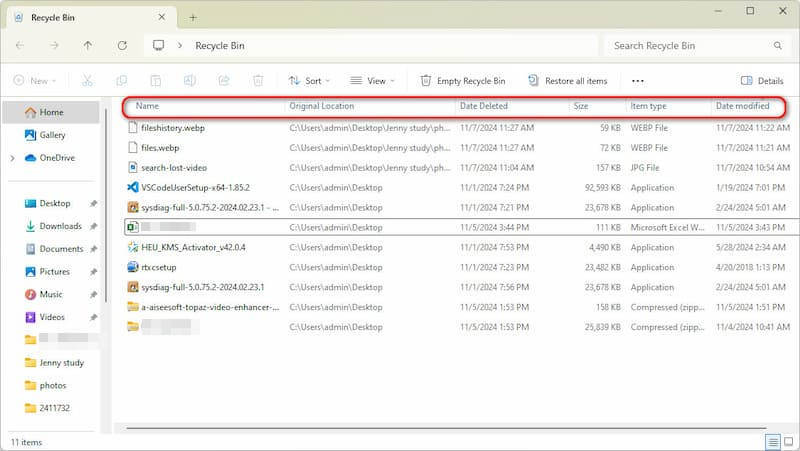
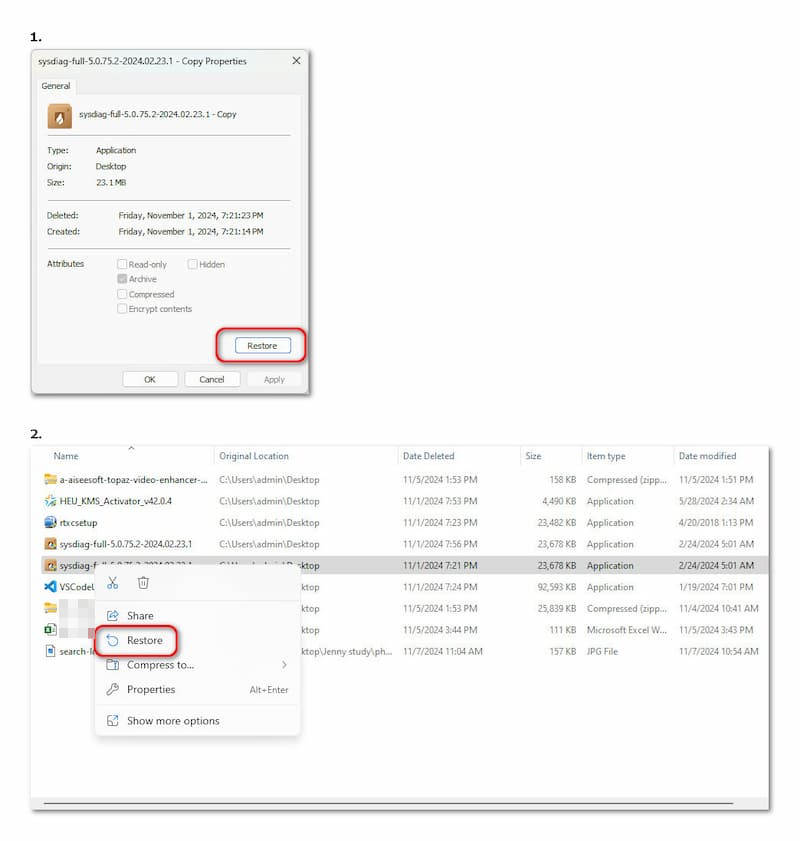
Deleting a video from a Windows computer does not generally result in its instant removal. If the Recycle Bin is not emptied, the file is essentially preserved there temporarily, thus facilitating an easy recovery. This is the fastest and most secure way to deal with the videos that have been deleted recently. However, if the Recycle Bin has already been cleared, you may need more advanced solutions on how to recover deleted videos from the recycle bin in Windows 10.
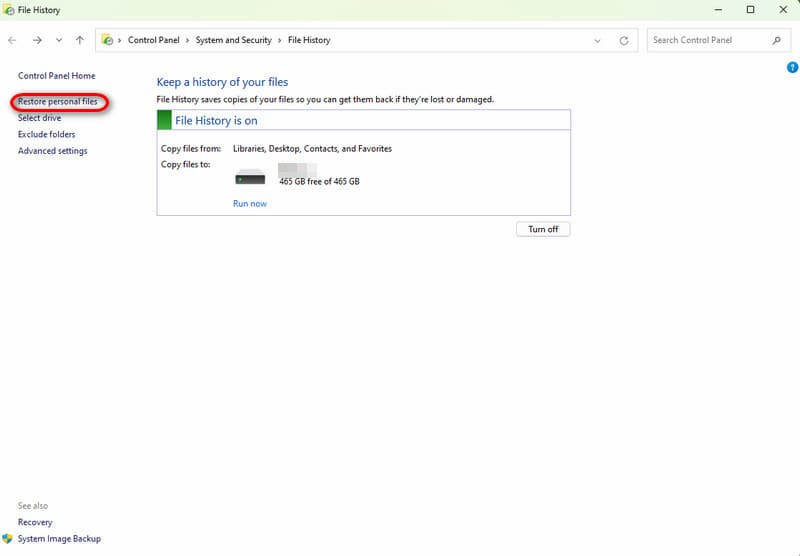
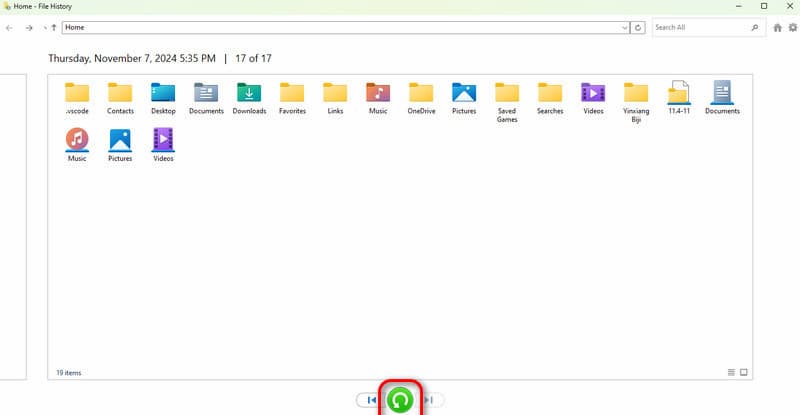
If you have enabled File History on your Windows 11 or Windows 10 computer and backed up the files earlier, you might be able to get back deleted videos without resorting to third-party tools. File History maintains duplicates of your personal files so that you can revert to the previous versions in case of data loss. This built-in feature is especially useful before trying advanced solutions for how to recover permanently deleted videos in Windows 10. Below are the steps to recover deleted videos using File History.

A lot of people assume that videos that have been deleted permanently are unrecoverable, but this is only partially true. After deleting a video with Shift + Delete or deleting it after emptying the Recycle Bin, what Windows does is remove only the file index, not the real data itself. Therefore, if the storage space has not been overwritten, it is still possible to recover the videos. In this situation, Aiseesoft Data Recovery becomes a reliable solution for recovering permanently deleted videos on Windows. This tool covers the most common video formats and also supports high-resolution videos, so you can use this tool for the recovery of your casual clips as well as professional footage.

143,182 Downloads
100% Secure. No Ads.
100% Secure. No Ads.

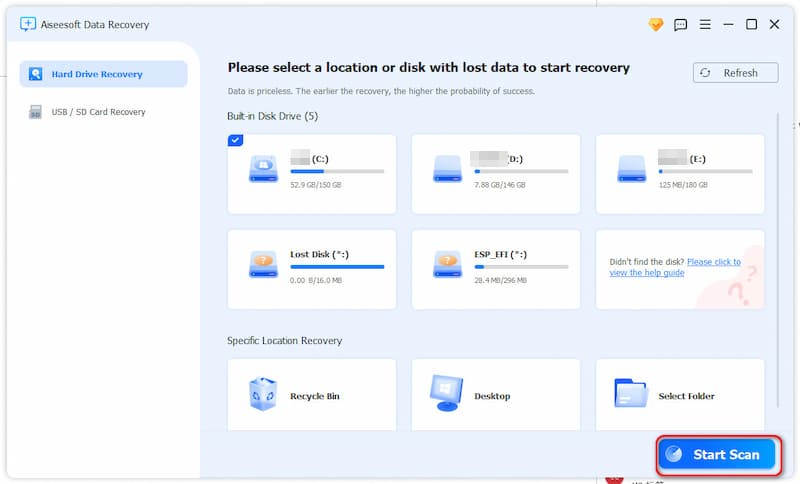
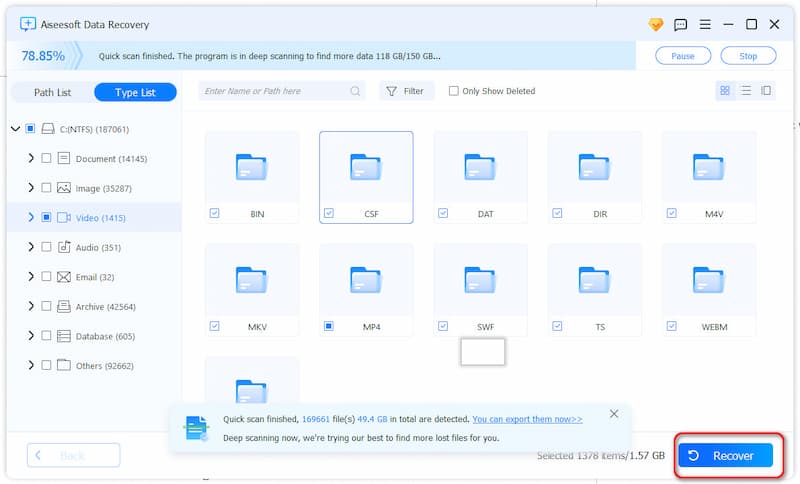
To maximize the recovery success rate, make sure not to install the recovery software on the same drive where the videos were lost, as this may overwrite the deleted data and reduce the chance of recovery.
If your videos got deleted for good and you are on Windows 11, there is a command-line tool pre-installed by Microsoft called Windows File Recovery. This way is pretty much only for power users who are comfortable with typing commands, since Windows File Recovery doesn't have a graphical interface. It can recover deleted videos from the local storage of devices, such as an internal drive, USB flash drive, and memory cards. Here’s how to use Windows File Recovery on Windows 11:
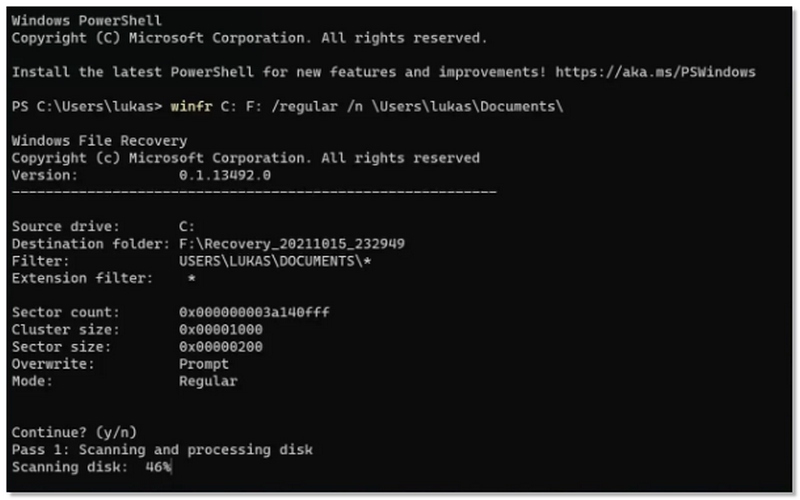
winfr source-drive: destination-drive: /mode /switches
winfr C: D: /regular /n *.mp4
To prevent overwriting lost video data, which could lower recovery success, always store recovered files to a different drive.
How do I recover the permanently deleted videos?
Generally speaking, the Recycle Bin cannot retrieve permanently deleted videos. You can try to get them back through File History if you have a backup of the videos. You can also use Aiseesoft Data Recovery to solve this problem with ease. Operate as the guide above.
Is there free video recovery software for Windows 11?
Yes, there is. You can try the Windows File Recovery (command-line interface, average performance) to recover video files directly.
Can Aiseesoft Data Recovery restore the image or audio?
Yes. Aiseesoft Data Recovery can restore files in all formats, including images, audio, email, documents, etc. Moreover, it can fix damaged pictures with AI, making your photographs more explicit.
Conclusion
After reading this post, you now know how to recover permanently deleted videos in Windows 10. You can try different methods depending on your situation. The methods are powerful, and support videos, images, audio, and documents. If your friends or family face similar issues, sharing Aiseesoft Data Recovery with them can be a helpful solution.
 [2024] Top 5 Tools to Recover Data from Hard Drive Effortlessly
This article provides the best 5 hard drive recovery tools in 2024. Check our post and discover the most appropriate one to recover your data from hard drives.
 The Best 5 Free Data Recovery Software for SSD of 2024
Check our post and discover the best tool to recover data from Solid State Hard Drive. Find the perfect solution for you and retrieve data effortlessly.
 Guide to Quickly Recover Deleted Photos on Windows & Mac Using 8 Ways
Not an expert in recovering deleted photos on Windows and Mac? No need to worry because this article completes all the ways to do so and is ready to teach you.
 Leave your comment and join our discussion
Recover Various Data
1. Free Data Recovery Software
2. Recover Deleted Files in Windows
3. Recover Deleted Files from Recycle Bin Windows
4. Recover Permanently Deleted Emails
Aiseesoft Data Recovery is the best data recovery software to recover deleted/lost photos, documents, emails, audio, videos, etc. from your PC/Mac.
100% Secure. No Ads.
100% Secure. No Ads.

*Required field
*Please enter a valid email

