Is there a built-in tool for file recovery in Windows? If you have deleted important files, this article will guide you through the next steps. Many users don't know that there is a built-in solution to recover lost data in Windows, and just knowing how to use Windows File Recovery Windows 11 can make a difference when disaster strikes. In the sections ahead, you’ll discover what this tool can do, when to use it, and the steps to get started. Continue reading to find a straightforward method for recovering files you thought were lost forever.

Microsoft has developed a command-line application called Windows File Recovery to help users recover deleted or lost files in Windows 10 and Windows 11. In contrast to classic recovery software that has a graphical interface, this software utilizes user commands which more directly gives customers control of the recovery process. The software is compatible with multiple file systems: NTFS, FAT, exFAT, and ReFS. This software is suitable in recovering files stored on a local hard drive, USB stick, SD card, or other types of storage devices. When files are permanently deleted, the Recycle Bin is emptied, a drive is formatted, or data becomes corrupted, Windows File Recovery can scan the storage device and attempt to restore your documents, photos, videos, or other file types.
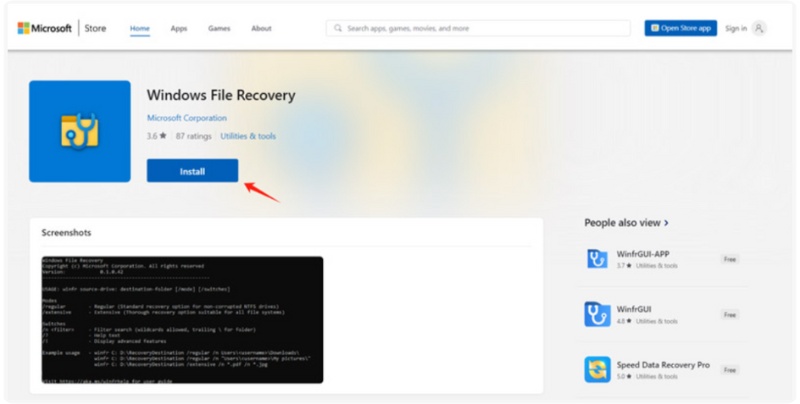
Follow these steps to install the tool from the Microsoft Store:
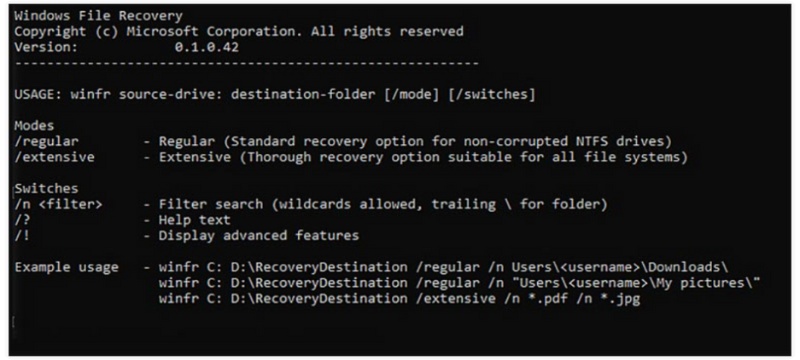
Due to its command-line interface, Windows File Recovery may look intimidating. To make the process easier, this section walks you through each step. Before starting, prepare a separate drive (internal or external) to store recovered files. Never save restored data on the same drive from which you're recovering, as it may overwrite the lost files.
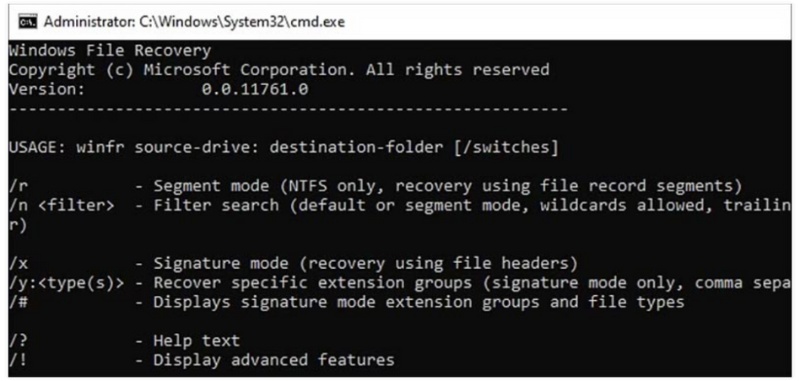
• Regular Mode – best for recently deleted files on NTFS drives
• Extensive Mode – suitable for severe data loss or non-NTFS drives
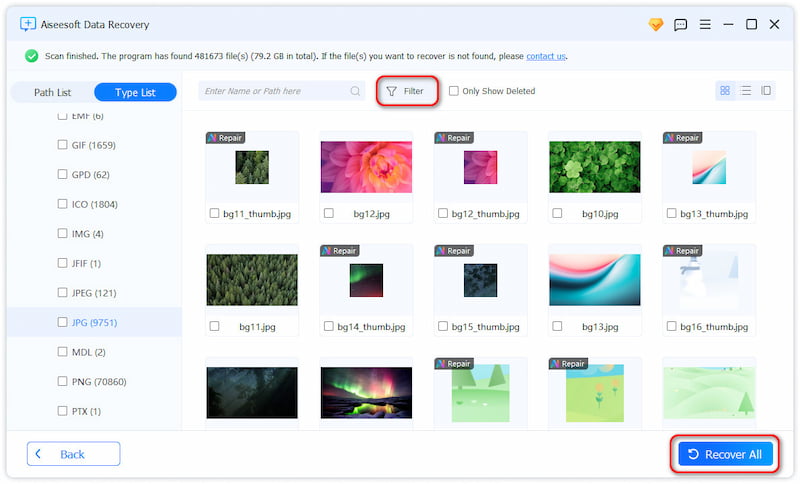
If Windows File Recovery fails to restore your files or you prefer a tool without complex command-line inputs, Aiseesoft Data Recovery is a strong alternative. It offers a clean, intuitive interface and supports all common file types, including photos, documents, videos, audio, emails, and more. Aside from Windows 10 and 11, it also works smoothly on Windows 8 and 7. The application helps recover any deleted or missing data from internal hard drives, external HDDs or SSDs, memory cards, USB flash drives, and more. One major difference between Windows File Recovery and other file recovery tools is that it offers an intuitive graphical user experience and provides two different options for lost data recovery (Quick Scan and Deep Scan) to help retrieve data in various data loss scenarios. You may also have the option to preview files before recovering them! It also offers AI-powered file repair.
 100% Secure. No Ads.
100% Secure. No Ads.
Can Windows File Recovery recover Recycle Bin deleted files in Windows 11?
Yes, Windows File Recovery can be used to restore files that have been deleted from the Recycle Bin in Windows 11. Once you empty the Recycle Bin of your computer, all files stored there will be removed and seem to be permanently deleted. In fact, they are not immediately erased from your storage device. Before being overwritten, you can use Windows File Recovery or a third-party recovery tool like Aiseesoft Data Recovery to scan your Windows 11 PC and restore various files. Follow the steps above to use Windows File Recovery in Windows 11.
Can Windows File Recovery restore a corrupted file?
No, Windows File Recovery can’t repair corrupted files. It is primarily designed to recover deleted data on Windows 11 and 10 PCs. When Windows File Recovery restores a corrupted file, it will still be in a usable state. You must rely on dedicated file repair tools to repair your documents, photos, or videos.
Does Windows Recovery erase all files?
Windows Recovery generally does not delete all files on your PC. You can use System Restore to revert your system files, settings, and installed programs to a previous point in time. This operation won’t remove your personal files. When you select the Reset this PC feature, you are allowed to keep all your personal files or erase everything, depending on your needs. If you choose Remove everything, all data on your Windows device will be deleted. It's recommended to back up data before performing any Windows Recovery operation.
Conclusion
Windows File Recovery is a free tool designed to help recover lost data on Windows 11 and Windows 10 operating systems. If you enter the proper command syntax, recovery modes, and switches, you will be able to recover deleted files. If you prefer a more streamlined and effective option to command lines, consider the suggested alternative tool. It offers a more user-friendly approach compared to learning how to use Windows File Recovery Windows 11, making data recovery easier and more accessible.
 Recover Data from Dead Hard Drive with 3 Easy & Efficient Ways
How do you recover data from a failed or damaged hard drive? This post shows you the best damaged hard drive recovery software to retrieve deleted or lost files.
 [99% Successful] Recover Permanently Deleted Files on Windows 11/10
Delete files by accident or other problems? We will show you how to recover deleted files on Windows 11/10/8/8.1/7 quickly and efficiently in this article.
 How to Fix Corrupted SD Card without Losing Data [4 Ways Included]
Don’t worry if your SD card is corrupted or damaged. This tutorial is a detailed guide about repairing corrupted SD card to restore its data.
 Leave your comment and join our discussion
Recover Various Data
1. Free Data Recovery Software
2. Recover Deleted Files in Windows
3. Recover Deleted Files from Recycle Bin Windows
4. Recover Permanently Deleted Emails

Aiseesoft Data Recovery is the best data recovery software to recover deleted/lost photos, documents, emails, audio, videos, etc. from your PC/Mac.
100% Secure. No Ads.
100% Secure. No Ads.

*Required field
*Please enter a valid email

