“I get a new iPhone 17 Air, and also keep my old iPhone 13 Pro for mass music in it. Can I share music on my iPhone 13 with the new device? I do not want to give up my favorite music collection in the old phone?”
“I have purchased lots of songs from Apple Music, and I want to share those songs with my friends. Is there any iPhone music transfer tool that can do that?”
The above two questions are from Apple Discussion. Due to iOS’s closed system, iPhone users have a hard time sharing music files between iOS devices (iPhone, iPad, and iPod) like the two users above. But it is still possible to share music files between iPhones. In this article, we will tell you four ways to share iPhone music with another iPhone.
To directly transfer selected songs from your old iPhone to the new one, you can rely on the dedicated iOS data transfer, Aiseesoft FoneTrans. It lets you share music between any iPhones, iPads, and iPods. More than file sharing between the iPhone family, it also enables you to transfer music between iOS devices and Mac/PC. Now, free download the iPhone music-sharing tool to your computer and follow the steps to share songs.
 100% Secure. No Ads.
100% Secure. No Ads.
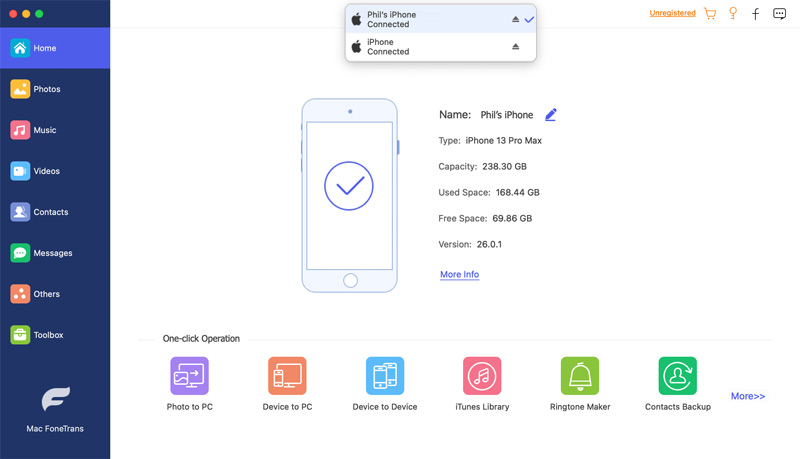


In this way, you could also choose “Export to iTunes” to transfer iPhone music to iTunes. Similarly, you can select contacts to copy contacts to a Mac or Windows PC for backup.

1. This iPhone sharing app enables you to transfer music from PC/Mac to iPhone, and convert the music file format to be compatible with iPhone automatically, as well as videos.
2. It lets you transfer other app data (contacts, photos, and more) among iOS devices or between an iOS device and a PC/Mac, so that you can erase music from your iPod for more space for new songs imported.
3. Not only iPhones, this software also supports iPod and iPad. You can easily share music between an iPhone and an iPod.
4. More efficient ways are updated here for sharing music between iPhones.
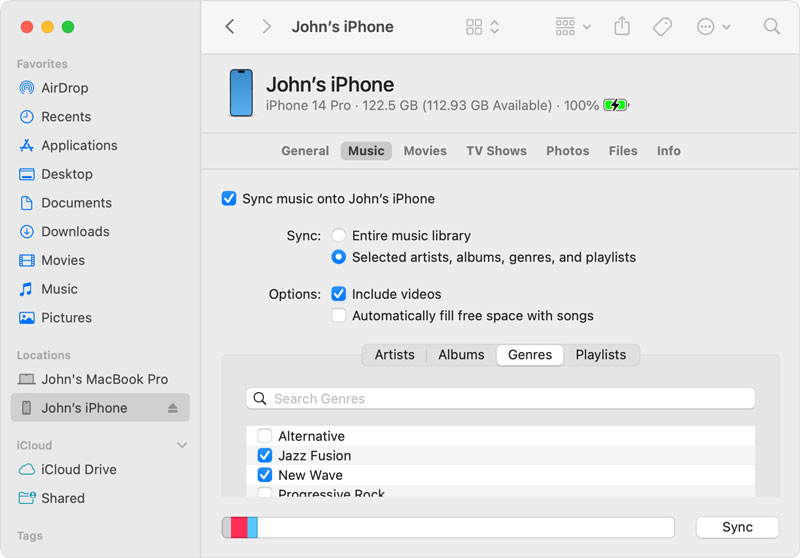
You can share music between iPhones using iTunes or Finder on your computer. This method is for syncing songs from your computer’s media library to your iPhone.
Learn to Remove Your Apple Music Duplicates.
To share music between iPhones using Finder or iTunes, you should ensure all the music you want to share is in your library. If you have your own music files, you should add them first.
If you need to quickly send a few music files from your new iPhone to a nearby iPhone or iPad, use AirDrop.
AirDrop functions similarly to Bluetooth. Unlike iTunes Home Sharing, this method requires that you have iPhones with Bluetooth and Wi-Fi enabled, Apple Music running iOS 8.4 or later, and an iPhone with iOS 7 or later.
Version is limited as follows:
iPhone 5 or later
iPad Pro, iPad (4th generation) or later, iPad mini or later, iPod touch (5th generation) or later.
Mac with OS X Yosemite or later
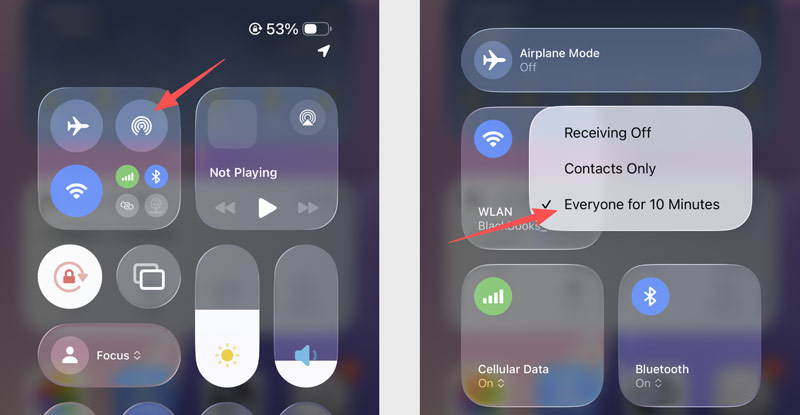
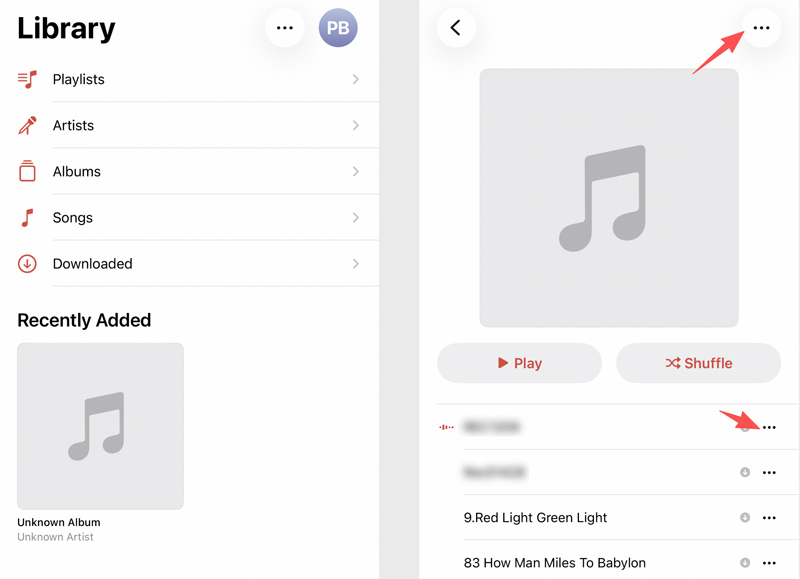
Apart from music, you could also share contacts, photos, and more. In this way, you could get free music on your iPhone from your old iPhone. However, AirDrop only works for DRM-free songs. You cannot transfer entire playlists.
If you use Home Sharing to share music between iPhones, make sure that iPhones running iOS 8.4 or earlier are on the same Wi-Fi network. Follow the steps below to get iPhone-to-iPhone sharing with iCloud.
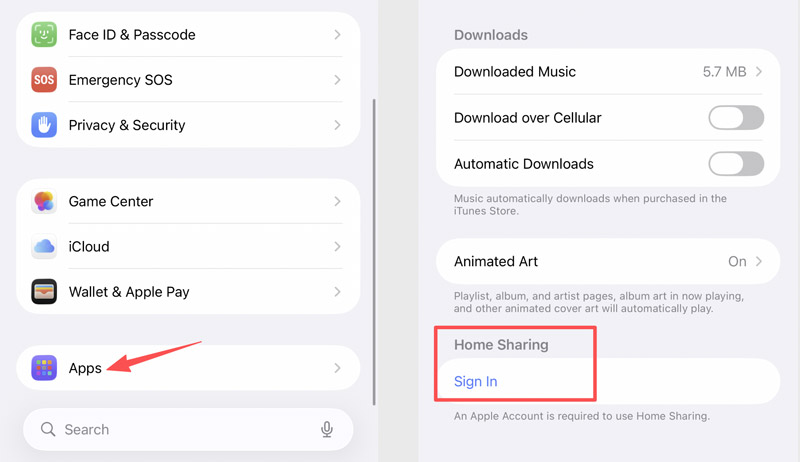
This way will take minutes to copy music from one iPhone to another iPhone, but not stream, which is what you should keep in mind. Home Sharing also gets you to share videos for free.
Question 1. Can I send music through AirDrop?
Yes. If you have subscribed to Apple Music, you can send music using AirDrop to people who have subscribed to Apple Music too. Just select the song in Apple Music, tap Share Song, then tap the receiver to share it via AirDrop.
Question 2. How do I share music with family sharing?
On your iPhone, tap Settings > [your name] > Family Sharing. If you are using iOS 10.2 or earlier, tap Settings > iCloud > Family. Under Shared Features, you can tap Purchase Sharing. You need to enable Share My Purchases and make sure your information is correct.
Question 3. How do I share an iTunes playlist with another phone?
Find a song in Apple Music, and tap the three dots button. Then tap Share to share an iTunes playlist with friends via Messages, Mail, Twitter/X, Facebook, or AirDrop.
Conclusion
This article shares four helpful methods to share music between iPhones. Use the reliable FoneTrans if you prefer a straightforward way to transfer your iPhone music, especially when you don’t want to sync or copy all songs. If you have enough iCloud storage space, you can also turn on iCloud for Music. Your linked Apple devices will be synced with the same music files.
 Learn 3 Easy Ways to Transfer Music from iTunes to iPhone
Can I transfer songs from iTunes to iPhone without a cable? How do you download and sync iTunes music to an iPhone? Learn to transfer music from iTunes to iPhone.
 How to Solve Apple Music Not Sharing with Family in 4 Ways
You want to enjoy your music, but suddenly, Family Sharing Apple Music is not working! You can still solve this with these simple hacks. Click the read here.
 Elevate Video Experience by Adding Music to iMovie Project Like a Pro
Whenever you want to engage diversified audiences adding music is essential since it creates impact. Learn how to add music to iMovie with ease.
 Leave your comment and join our discussion
Transfer data from iPhone/iPad/iPod to your computer or reversely.
100% Secure. No Ads.
100% Secure. No Ads.

*Required field
*Please enter a valid email

