Aiseesoft iKnockin iPhone Unlocker
 100% Secure. No Ads.
100% Secure. No Ads.
Contents
“Recently, I keep getting logged out and then locked out of my Apple ID account, how to unlock my Apple ID?” As the identity of iPhones, iPad, Mac computers, and other Apple devices, Apple ID is essential to access Apple's online services and features on your device. However, you will be locked out of your Apple ID if something abnormal happens to your account. Therefore, this guide intends to tell you the actionable methods to unlock your account in various situations.
How We Test
We tested all five unlocking methods on real devices to give you accurate, actionable recommendations.
How we simulated the lock: Each device was repeatedly logged out and locked using incorrect Apple ID credentials. We also tested across different states — with and without Two-Factor Authentication, with and access to trusted devices.
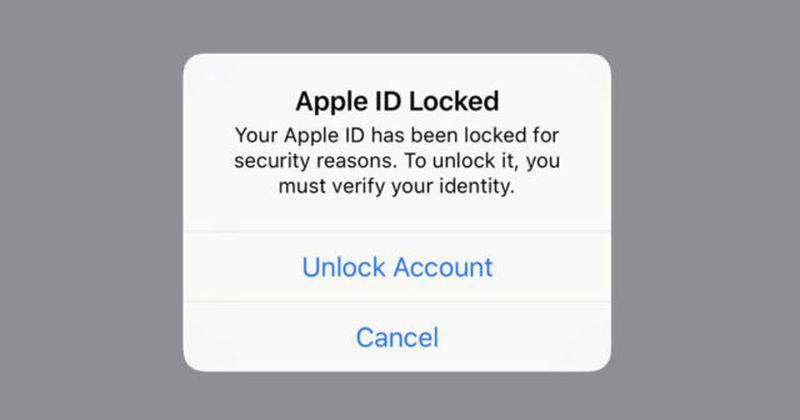
According to our research, users may receive a message or mail said This Apple ID has been disabled for security reasons, You cannot sign in because your account was disabled for security reasons, or This Apple ID has been locked out for security reasons when an Apple ID is locked. There are many causes and the main reasons include:
No matter why your Apple ID is locked, it is annoying and can seriously affect your work and life. Fortunately, you have multiple solutions to unlock your Apple ID and make your Apple device work normally.
| Requirement? | Unlocking Speed | Success Rate | Best for | |
| Reset Password | Passcode | Fast (Seconds) | High | Users who still remember device passcode |
| Apple Website | Trusted phone number/email | Medium | Medium | Users with access to trusted phone/email |
| Apple Support | Another iOS device | Fast | Medium | Users with access to another iOS device |
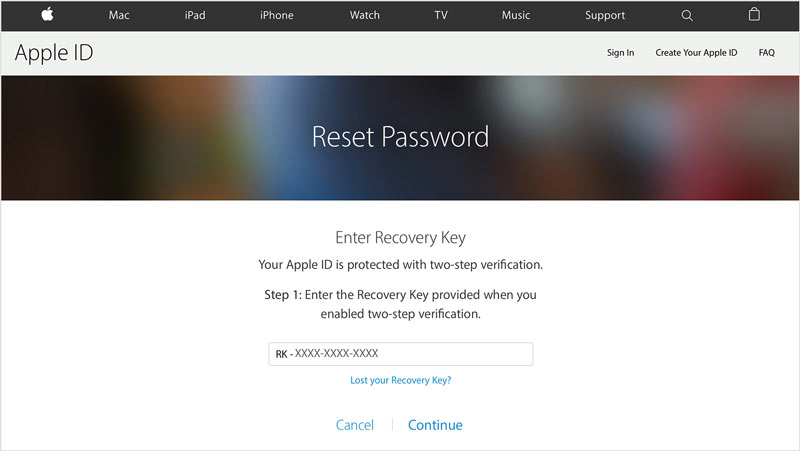
| Recovery Key | Generate in advance | Fast | High | Users who generated a key in advance |
| Apple ID Remover | Windows/Mac computer | Fast (Minutes) | Highest | Users who want a quick solution without official requirements and passcode |
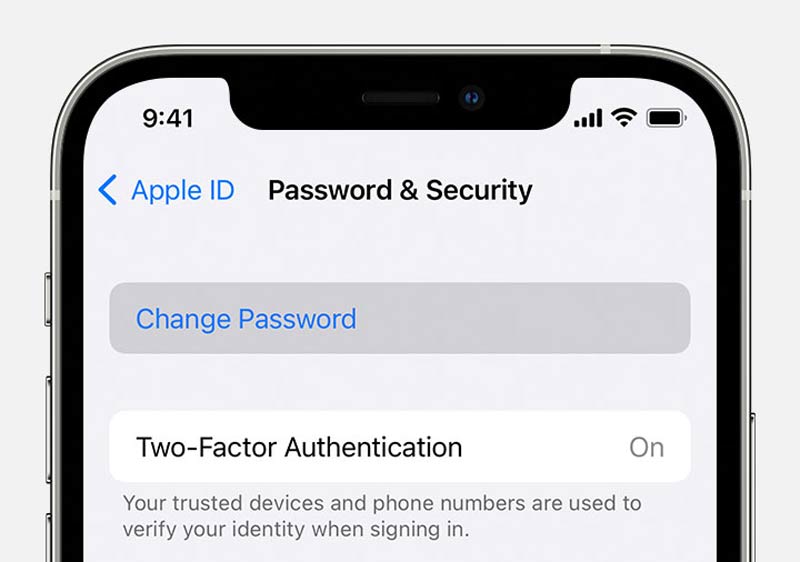
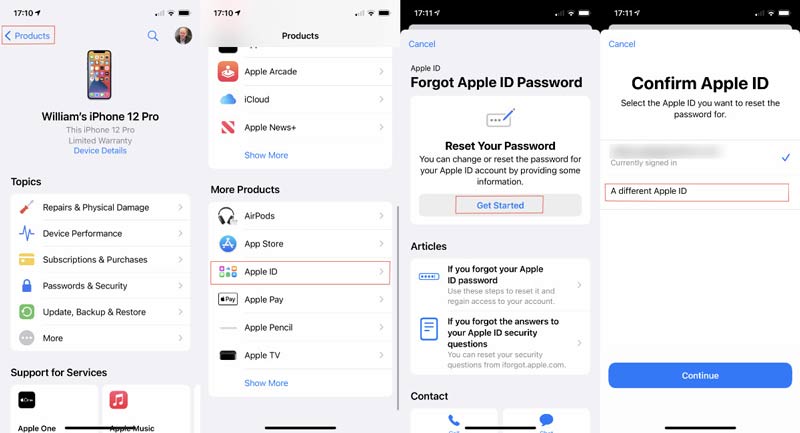
If you still remember the passcode, you can reset the password of your Apple ID and unlock it directly. This is the easiest solution and can be done on either your iPhone or your Mac computer.
On your iPhone:
On your Mac:
Remember to sign out and re-sign in your Apple ID with the new password on all your Apple devices.
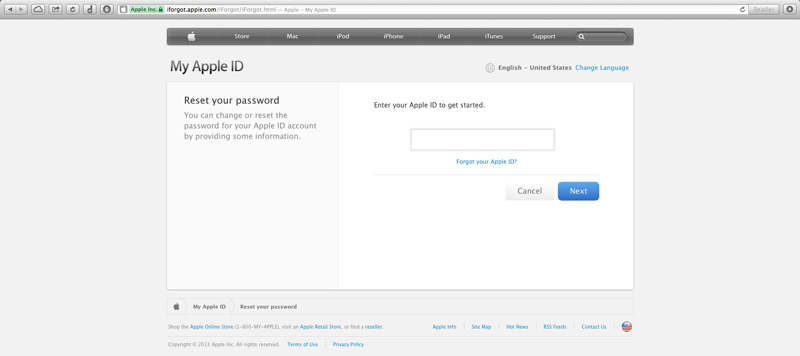
Then you will be taken to the System Preferences dialog on Mac. Click Reset, enter your passcode, and enter the new password to unlock your Apple ID.
Tap Allow on the Use this phone to reset password if you are using your iPhone. Then follow the on-screen instructions to reset your password and unlock your Apple ID.
Everyone has to sign in to an Apple ID account on their iPhones. However, it is terrible if the Apple ID is locked due to a variety of reasons. The good news is that Aiseesoft iKnockin iPhone Unlocker can help you remove Apple ID from your iPhone without a password. So that you can sign in to a new account and keep using your device normally.
Downloads
Aiseesoft iKnockin iPhone Unlocker - Best Apple ID Remover
100% Secure. No Ads.
100% Secure. No Ads.
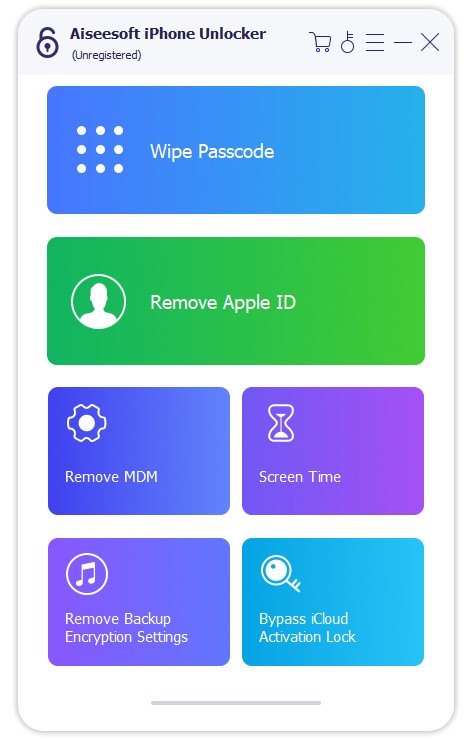
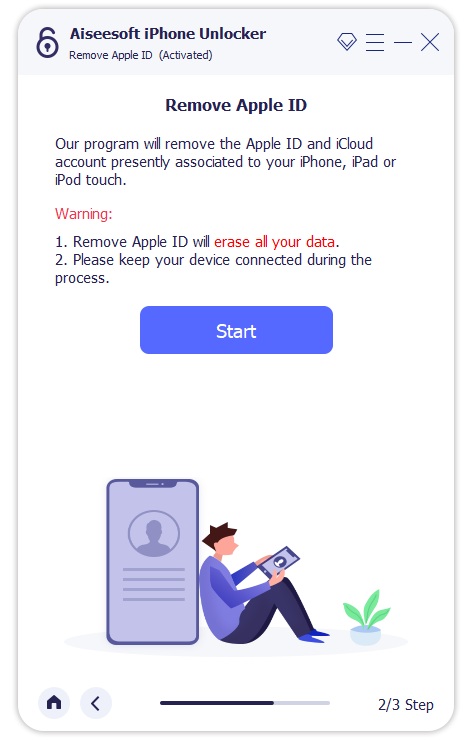
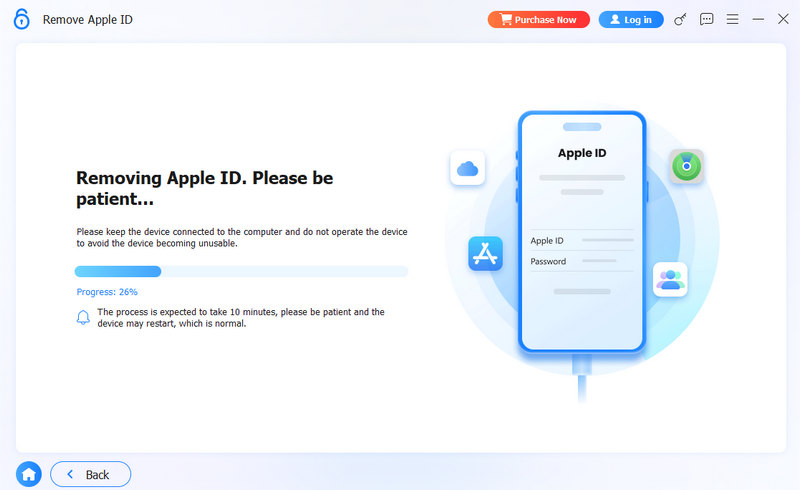
Note: Using a third-party Apple ID Remover may wipe all data on your iPhone/iPad. Please ensure you have a recent backup in iCloud or iTunes before proceeding. Additionally, if Find My is enabled, you will need to bypass the Activation Lock after the removal process.
Is it possible to unlock an Apple ID on a locked iPhone?
No, you need to unlock your iPhone in Recovery Mode, with iCloud, or using a third-party tool. Then reset the password of your Apple ID, and unlock your account.
What happens when my Apple ID is locked?
As long as your Apple ID is locked, you cannot access Apple's online services on either your iPhone or Mac, such as iMessage, FaceTime, App Store, and more.
Can Apple unlock my Apple ID?
Yes, you can go to the Nearest Apple Store and ask the support team to help you unlock your Apple ID. That may require your Recovery Key, associated phone number, email, and other information too.
Conclusion
This guide talked about how to unlock your Apple ID after it is locked due to security or other issues. Generally speaking, you can get the job done once you reset and change the password of your Apple ID and update your information. If you encounter other problems about this topic, please feel free to leave a message below this post and we will reply to it as soon as possible.
 4 Ways to Create a New Apple ID on iPhone/iPad/iTunes/Web
Come here and get 4 easiest methods to create new Apple ID. Moreover, the article also lists most some questions you may meet during creating new Apple ID.
 How to Remove Apple ID from iPhone? Check 4 Methods Here
Want to remove Apple ID from stolen or locked iPhone? Read this post to delete your Apple ID account on iPhone or iPad without password.
 Actionable Methods to Sign out of Your Apple ID without Data Loss
If you need to sign out Apple ID on your iPhone, iPad, Mac, or Apple Watch, you are lucky since this guide shows everything you should know about the task.
 Leave your comment and join our discussion
Apple ID Removal
Remove Apple ID
Unlock iOS Screen
Manage Apple ID
To fix iPhone screen locked, wiping password function can help you a lot. And you also can clear Apple ID or Screen Time password easily.
100% Secure. No Ads.
100% Secure. No Ads.

*Required field
*Please enter a valid email

