Many of us rely on SD cards to store our cherished images, videos, and files, but it's disconcerting and frustrating to encounter the message “SD card corrupted" when you're certain your files are secure. Fortunately, the situation can often be fixed and data retrieved without losing anything. This article explains why SD cards can be corrupted and describes several simple, proven methods to restore corrupted SD card files and repair the card. This post will help you revive your SD card so it's functional again, whether you're using a computer, phone, or camera.
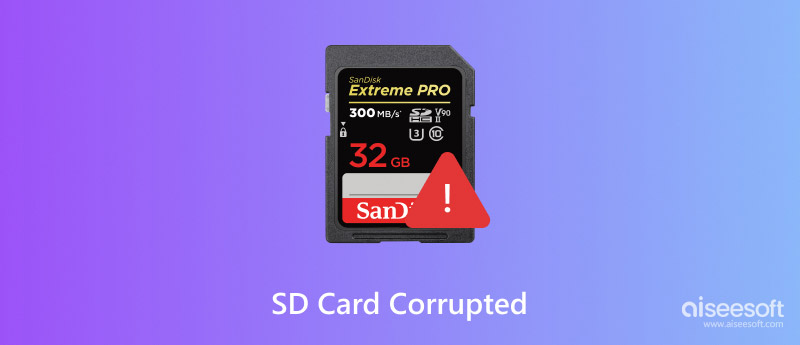
SD card stands for Secure Digital Card. It is compact and low-electricity-consuming, so it is widely used in many portable devices, such as digital cameras, mobile phones, and action cameras etc. However, sometimes, SD cards become corrupted. The following are six common situations of SD card corruption. You can look through them and judge whether your SD card has something wrong.
• There doesn’t appear SD card after you insert it into your device.
• Some files in the SD card are missing, but no one deleted them.
• SD card displays as RAW.
• There is an error message warning of a read-write issue.
• The speed of data transfer by SD card becomes very slow.
• There appears a warning of reformatting.
The above are common indications that your SD card is corrupted or damaged. When you meet these symptoms, pay attention and take action to fix your SD card!
If your SD card is corrupted, repair it immediately to avoid further loss. Follow the methods below.
Exterior problems lead to SD cards being unreadable sometimes. So, when an SD card cannot work well, we must try this method first. The steps are as follows:
Step 1. Change another SD card reader, insert the SD card into it, and reconnect it to a computer.
Step 2. Change the USB port and reconnect the SD card to a computer.
Step 3. Connect the SD card to another computer.
After these steps, if your SD card can work, that means it is fine. If your SD card is still unreadable, you need to try other fixing methods to repair corrupt SD card on the go and restore its normal function.
Connect your SD card to the computer. If you cannot see the drive letter of your SD card in Disk Management, that means its drive letter is conflicted with other drives. In this case, the computer will not recognize the SD card. Changing to a new drive letter can often help fix a corrupted SD card and make it readable again. Change a new drive letter by the following steps:
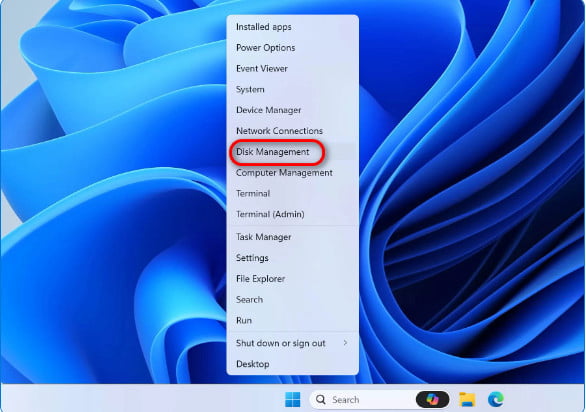
Step 1. Press Win + X and select “Disk Management”.
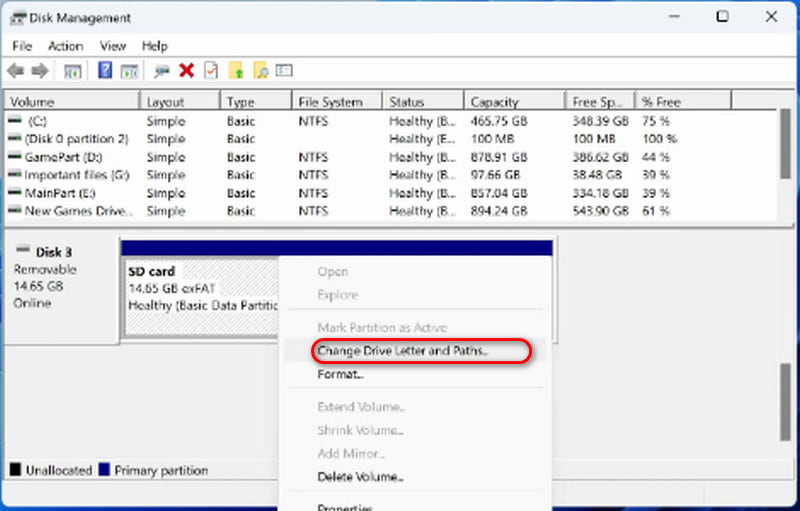
Step 2. Right-click on your SD card, and choose “Change Drive Letter and Paths”.
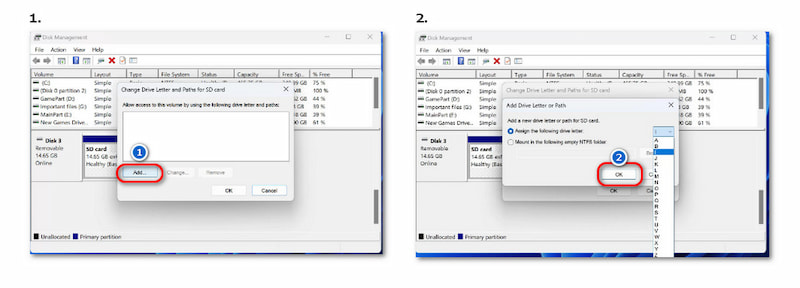
Step 3. Click "Add" and select a new drive letter for the SD card. Then click "OK."
If the above methods don’t work well and you tend to solve various data loss issues absolutely, I recommend a powerful software, Aiseesoft Data Recovery. Don’t worry about its operation; it is simple to handle. You can fix a corrupted SD card and restore its data with ease using this data recovery software for corrupted SD card. What is more, files of all types and formats can be recovered easily.
136,561 Downloads
 100% Secure. No Ads.
100% Secure. No Ads.
How to fix a corrupted SD card and restore the data? The steps are as follows:
Step 1. Download, install, and run Aiseesoft Data Recovery on your computer.
100% Secure. No Ads.
100% Secure. No Ads.
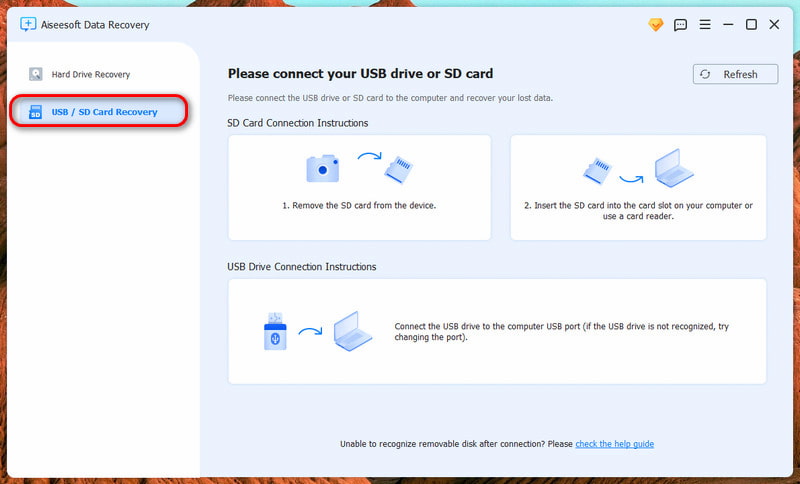
Step 2. Select the “USB/SD Card Recovery” at the left of the top.
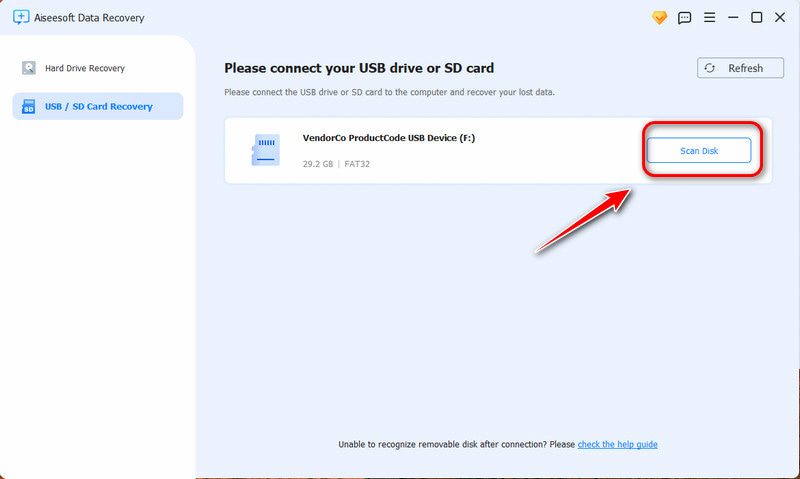
Step 3. Insert the SD card into the computer and click the “Scan Disk” button at the top right.
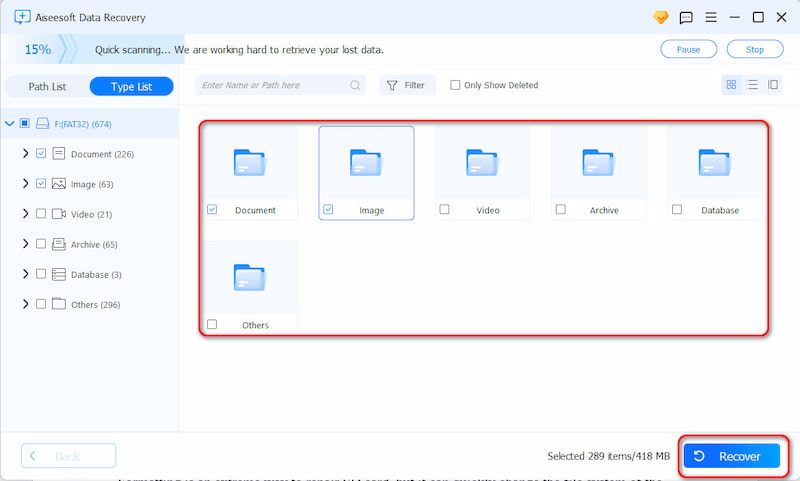
Step 4. Select the data you need to recover, and click the blue button “Recover”.
Formatting is an extreme way to fix corrupted SD card, but it can quickly change the file system of the SD card. The steps of formatting are as follows:
Step 1. Connect the SD card to your computer and open File Explorer.
Step 2. Right-click on the damaged SD card, and choose "Format".
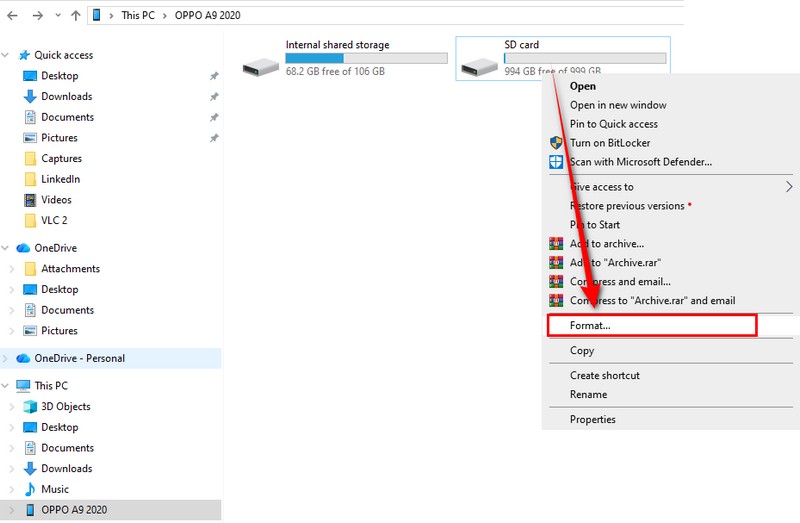
Step 3. Select a suitable file system from NTFS, FAT32, or exFAT.
Step 4. Tick "Quick Format" and click "Start".
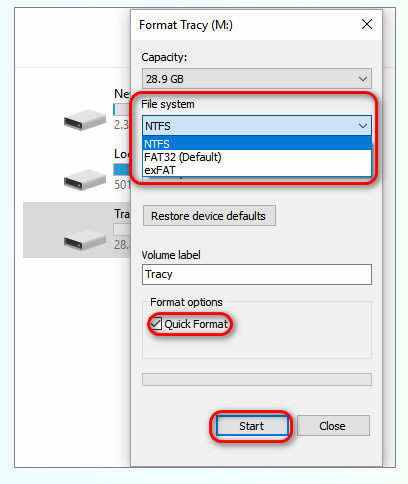
However, this method may lead to data loss. You need to find it back by data recovery software, like Aiseesoft Data Recovery.
If your SD card becomes unreadable or starts showing errors, running the CHKDSK command is one of the simplest ways to detect and repair system errors. This built-in Windows tool scans your SD card for bad sectors or file system issues, helping to restore corrupted SD card functionality without formatting it. Here’s how you can do it:
Step 1. Make sure that you have a card reader to attach your SD card to the computer.
Step 2. Press Win + S, type cmd, then right-click on Command Prompt and choose Run as administrator.
Step 3. Put the following command in the Command Prompt window and hit Enter:
chkdsk X: /f /r
Note: Replace “X” with your SD card’s drive letter.
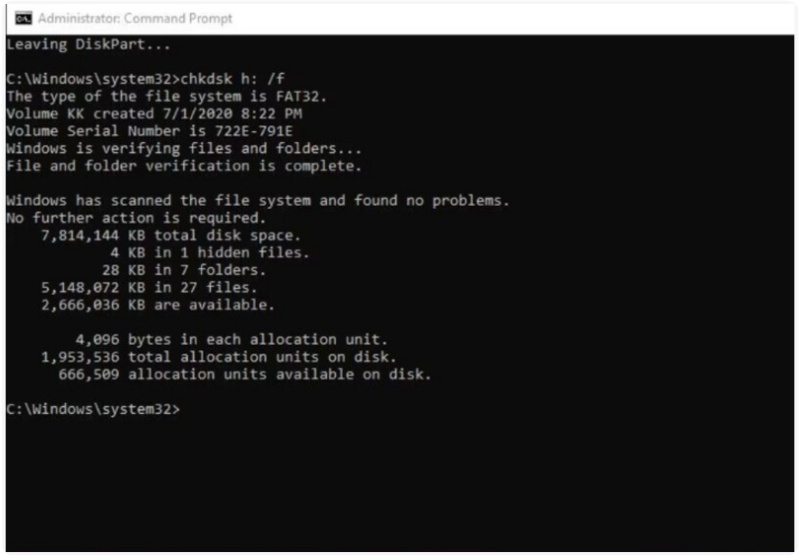
Step 4. Wait for the process to complete. Windows will automatically scan and repair any detected file system errors. Once done, safely eject and reconnect your SD card to check if it’s working properly again.
On occasion, the issue is not the SD card, but the driver needed for your computer to recognize the SD card. A missing, corrupt, or outdated driver can render the SD card unreadable or indicate that it's been corrupted. Reinstalling your SD card driver is often an easy and effective fix for this problem and can help your computer restore corrupted SD card access. Try this:
Step 1. After attaching your SD card to your PC, open Device Manager by pressing Win + X.
Step 2. Expand the Disk drives or Portable Devices section to find your SD card.
Step 3. Right-click your SD card, then select Uninstall device.
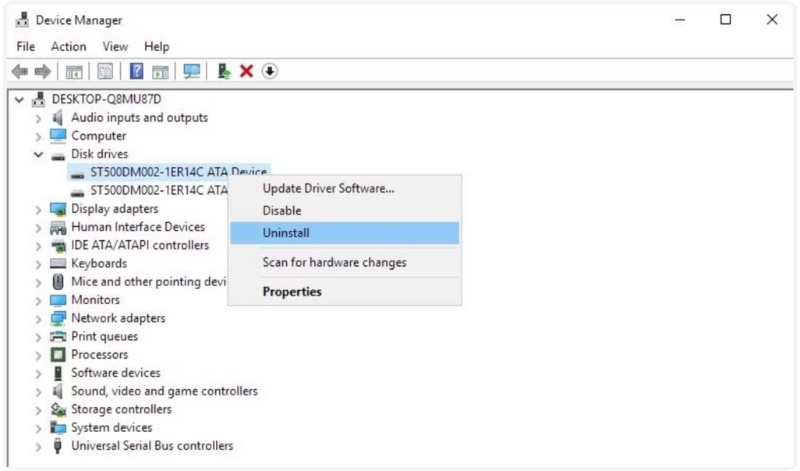
Step 4. Disconnect the SD card and restart your computer. After that, reconnect the SD card. The Windows will automatically reinstall the correct driver.
After doing this, check if your computer can now read the SD card properly. This method often resolves recognition issues and helps restore your SD card to normal.
If your SD card is corrupted, Windows has a built-in repair feature that can automatically notice nd fix errors on your drive. It’s one of the easiest ways to troubleshoot without needing any third-party software. Here’s how you can use it:
Step 1. Get your card reader and simply put your SD card into it to attach it to your PC. Open File Explorer and locate your SD card under “This PC”.
Step 2. Right-click the SD card and choose Properties.
Step 3. Click Check in the "Error-checking" section after selecting the Tools tab.
Step 4. If prompted, select Scan and repair drive and wait for the process to finish. Once the scan is complete, Windows will automatically repair detected issues and improve your card’s functionality.
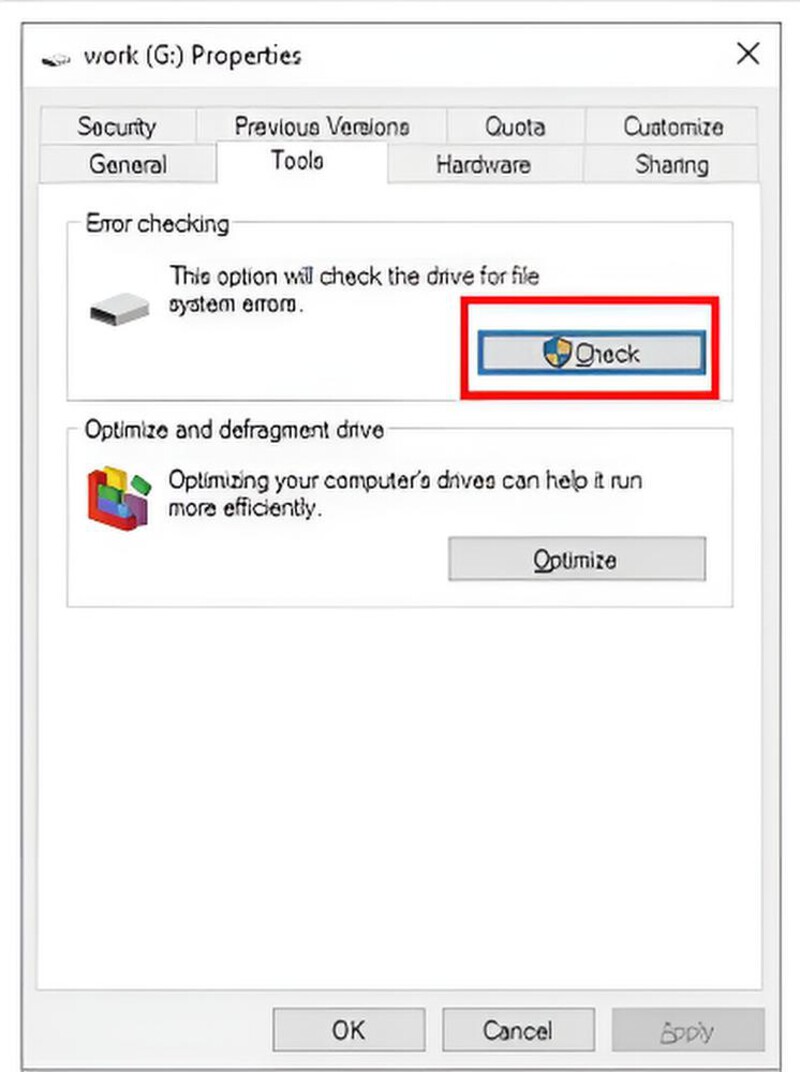
This simple tool can be a quick fix to restore your corrupted SD card files to working order.
Is SD card the same as Memory card?
Memory cards include different types of flexible, portable data storage. SD or secure digital memory cards have a high data transfer rate and low battery consumption.
How do I recover photos from a corrupted SD card?
Connect the SD card to your computer, download and install Aiseesoft Data Recovery, then follow the steps above. You will recover your photos from SD card easily.
Can I format the damaged SD card to fix it?
It is popssible to repair the damaged SD card. However, formatting SD card will not be very helpful if the SD card is physically damaged.
Conclusion
After reading this post, you have learned how to fix the corrupted SD card. Try four methods by yourself, and you can choose different ways based on your needs. If your problem is not from the SD card, you can try changing the SD card reader, USB port, or the computer. If assigning a new drive letter takes effect, or you can accept the drastic method—formatting, you can use these two ways. If you need to repair SD card in a more complicated situation, you can download Aiseesoft Data Recovery. I hope the four methods will help you cope with your difficulties. Therefore, when your friends or family meet the same difficulty as yours, please share these methods with them. They must be thankful for your sincere and helpful suggestions!
 Learn 5 Methods to Fix Your Damaged or Corrupted SD Card
Can I fix a corrupted SD card on my Samsung Android phone without a card reader? You can learn five helpful ways to fix broken, corrupted, or damaged SD cards.
 9 Solutions to Repair and Recover Corrupted Memory Card
When your memory card is corrupted (not detected/formatted/read, etc.), this post can help you exactly. 9 solutions are available for you to repair and recover the memory card corruption.
 7 Solutions to Fix Memory Card Error [2025 Updated]
To handle SD card error like not detected, keep reformatting, locked, not reading, unsupported filesystem, etc, this guide offers 7 solutions to fix easily.
 Leave your comment and join our discussion
Recover Various Data
1. Free Data Recovery Software
2. Recover Deleted Files in Windows
3. Recover Deleted Files from Recycle Bin Windows
4. Recover Permanently Deleted Emails
Aiseesoft Data Recovery is the best data recovery software to recover deleted/lost photos, documents, emails, audio, videos, etc. from your PC/Mac.
100% Secure. No Ads.
100% Secure. No Ads.

*Required field
*Please enter a valid email

