It may really cause a lot of headaches to lose WhatsApp photos and videos if they are the ones that carry your personal memories and also important files. If you are asking how to recover deleted photos from WhatsApp Android, the truth is that in most cases, recovery is possible. WhatsApp keeps the media in your phone's Gallery, and it also has some internal folders like WhatsApp Images and WhatsApp Video. Even if the files are no longer visible in the gallery, they may still be there in the storage. Backups are very important too, because WhatsApp locally stores data and also uses Google Drive. Knowing about these storage systems will give you a better understanding of how media restoration can be done successfully using the methods that we are going to discuss.
In case you didn't back up your WhatsApp via Google Drive, local backup would still be a way for you to restore WhatsApp media. Local backup is a file located on your phone that WhatsApp uses to save chat and media backup in your internal storage automatically on a daily basis. Then these backup files can be used for the purpose of recovering deleted files. This method is a very dependable one for those how to recover deleted images from WhatsApp on Android type of queries that refer to doing so without being connected to the internet.
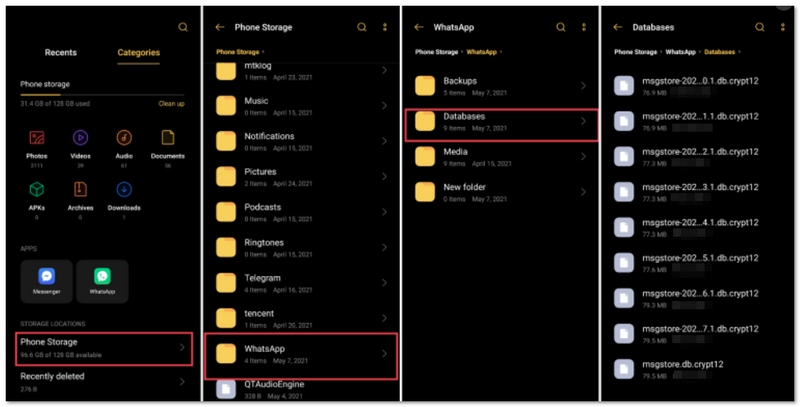
This method helps you retrieve deleted WhatsApp images and videos as long as they were included in the selected backup file.
If you previously enabled Google Drive backups, this is one of the easiest and most effective ways to restore your Android from Google. By reinstalling the app, you can trigger the restore option and recover your photos and videos along with your chats. This method is ideal for users looking for how to recover deleted pictures from WhatsApp on Android without manually searching through files.
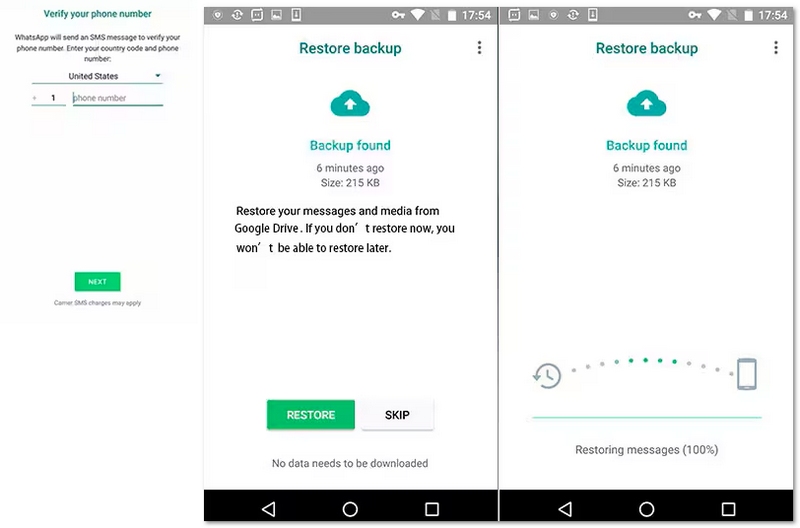
This method works best if your backup is recent and includes the media files you want to recover.
Occasionally, WhatsApp pictures or videos might seem like they'd be deleted at the very least, but they could still be lingering in some kind of hidden folders on your device storage, particularly the ones that you have sent to your contacts. This neat little thing will let you locate the missing media in no time without needing to resort to restoring backup, thus it will certainly be a very handy tip for those who are looking on how to recover deleted photos from WhatsApp on Android.
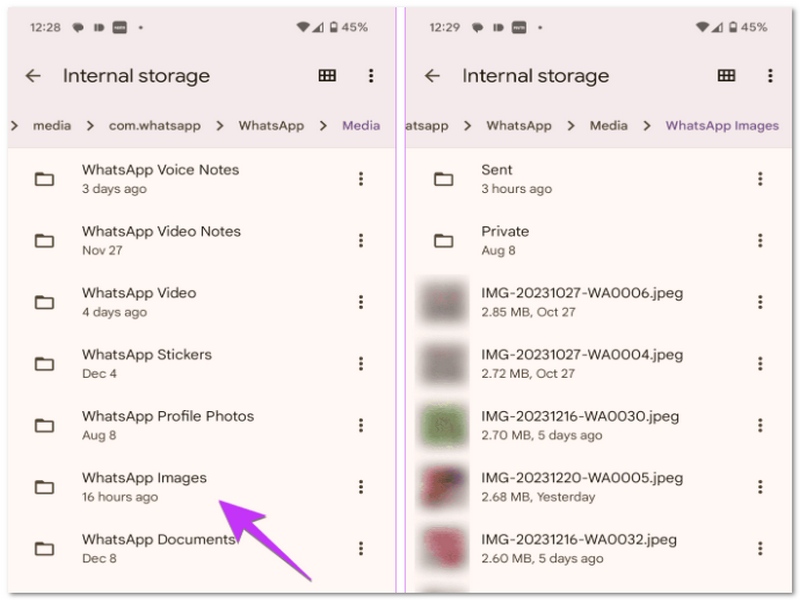
Since WhatsApp frequently retains copies of media even after they are deleted from chats, this strategy is most effective for media you have already sent.
In case backups are not there or partially available, the best way to go is a professional tool like Aiseesoft FoneLab Android Data Recovery. It is a special program that, by connecting to your device thoroughly, will restore deleted WhatsApp photos, videos, texts, and any other data, even without backups. This will be a good choice for those who want to know how to recover deleted files from WhatsApp on Android with a better success rate.

Downloads
 100% Secure. No Ads.
100% Secure. No Ads.
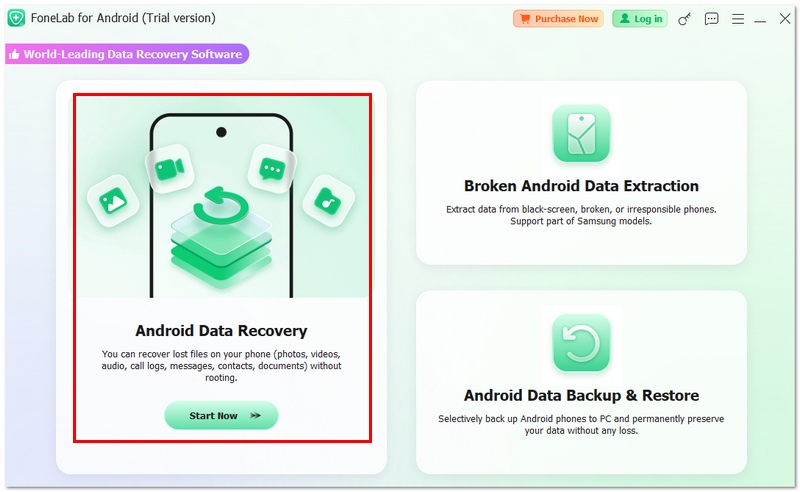
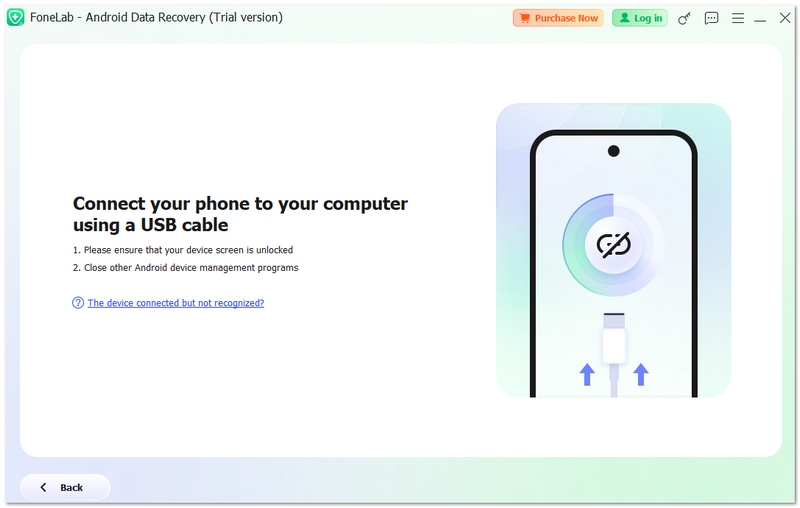
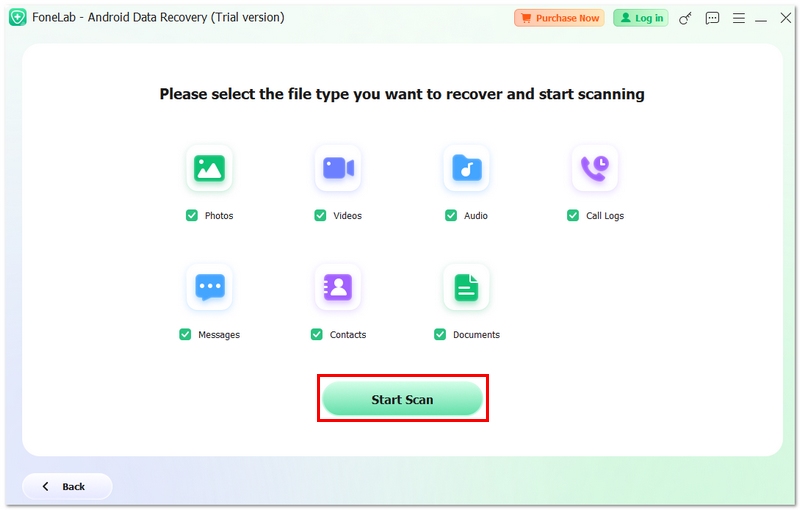
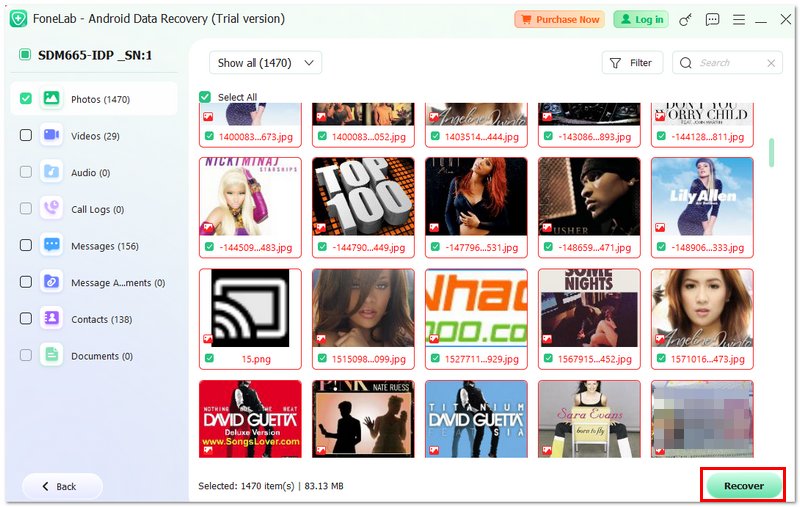
This method is especially useful when standard recovery options fail, giving you another chance to retrieve important WhatsApp media.
Why are my WhatsApp images missing from the gallery but still in chats?
If files are hidden or media visibility is disabled, this is one of the main reasons that pictures won't show up in the gallery, though they will still be available in the chats. However, WhatsApp pictures could still be stored in the internal files of the app.
Does clearing WhatsApp cache delete my photos and videos?
No, when you clear the cache, you are simply deleting temporary files located in the cache memory of the device. This action will not touch your private media and conversations.
Do WhatsApp backups include videos by default?
Not always. Video backup must be enabled in WhatsApp settings; otherwise, videos may not be included in backups.
Conclusion
In my opinion, it can be quite upsetting to lose WhatsApp photos and videos, but you shouldn't consider it as the ultimate disaster. Actually, there are quite a few ways to restore those files by using local backups, Google Drive, hidden folders, or trustworthy recovery tools. It mainly depends on which one of the methods suits your particular case best, and the sooner you do it, the better, as data may get overwritten.
Another thing I realized is that if you have backups enabled, it really helps you a lot, allowing you to save time and effort eventually. So, if you want to know how to recover deleted images from WhatsApp on Android, just keep in mind that with the correct steps and tools, restoration is usually achievable.
 How to Add Contacts to WhatsApp on iPhone and Android Phone
How to add contacts to WhatsApp on your mobile device? This article will show you the methods to add contacts on an iPhone and an Android mobile phone.
 Get How to Download Contacts from Your WhatsApp Group
How can I save contacts from a WhatsApp group? Does WhatsApp offer an option to download group contacts? Learn 3 ways to download contacts from WhatsApp group.
 Learn to Backup WhatsApp Messages on iPhone and Android
How do you backup old chats in WhatsApp? Can I back up all WhatsApp messages? Check the simple guide to backing up your WhatsApp chats to a computer and drive.
 Leave your comment and join our discussion
Recover WhatsApp
WhatsApp Recovery Recover Deleted WhatsApp Messages Recover Deleted WhatsApp Chat Recover WhatsApp Messages Android Recover WhatsApp Chat History Samsung Recover WhatsApp Videos/Images Android Restore WhatsApp Messages on New iPhone Restore WhatsApp from Google Drive to iPhone WhatsApp Backup and Restore Restore WhatsApp from iCloud
The best Android Data Recovery software to recover deleted files like SMS, contacts, call logs, documents, etc. from Android phone/SD card/tablet on Windows/Mac.
100% Secure. No Ads.
100% Secure. No Ads.

*Required field
*Please enter a valid email

