Have you ever accidentally erased very important WhatsApp messages or attachments on your Android phone? It's actually a very commonplace issue that a lot of WhatsApp users encounter, especially when they, for example, manage their chats or clear storage. No matter if they are personal conversations, working messages, or shared media, their loss is always a bit of a problem.
So, how do I recover deleted WhatsApp messages on Android? Fortunately, there are a couple of trustworthy methods you can use to work them out. In the article, we are going to show you the best ways of restoring your deleted WhatsApp messages and attachments. You will be able to recover your data using backups, and also have a chance to get back your messages without having a backup, depending on your particular case.
You should always act quickly before any recovery methods. There would be a permanent loss of data. The first thing you have to do is to turn off your Wi-Fi or mobile data immediately. This will prevent WhatsApp from syncing and may cause the deleted messages to be overwritten in your local database or cloud backup.
Then, try WhatsApp Web or the desktop app on your PC. Sometimes, message deletion might not be reflected immediately, and you can still see those messages in WhatsApp Web or the desktop app. This trick is very helpful, especially when you want to recover deleted WhatsApp messages without resorting to a recovery tool.
If you’re wondering, can you recover deleted WhatsApp messages on Android? The answer depends on how fast you act and whether your data has been overwritten. Taking these precautions increases your chances of successful recovery.
If you have deleted WhatsApp conversations by mistake, there is still a good chance that you can get them back. WhatsApp makes backups of your conversations either on your phone or on Google Drive. This means you can get back the conversations you lost as long as you have the right backup settings. People often ask How can I restore WhatsApp messages? The steps below will show you how to get back your WhatsApp messages from backups, previous backups, or backups that are stored in the cloud. This way, you can get back your lost WhatsApp conversations safely and effectively.
This technique is the fastest and simplest if you have recently deleted WhatsApp messages and want to recover them. WhatsApp by default generates a local backup file on your Android device, generally every day, which enables you to restore conversations that have been deleted since the last backup. Therefore, this is a dependable method to recover deleted WhatsApp messages on Android without the requirement of external tools.
Steps to Recover from Recent Backup
If your messages got deleted before the backup, you can still get them back. You can use backup files on your Android phone to restore them. This way helps you recover lost WhatsApp messages on Android. You do this by picking a backup version. WhatsApp messages, on Android, can be recovered this way.
Steps to Restore from Previous Backups
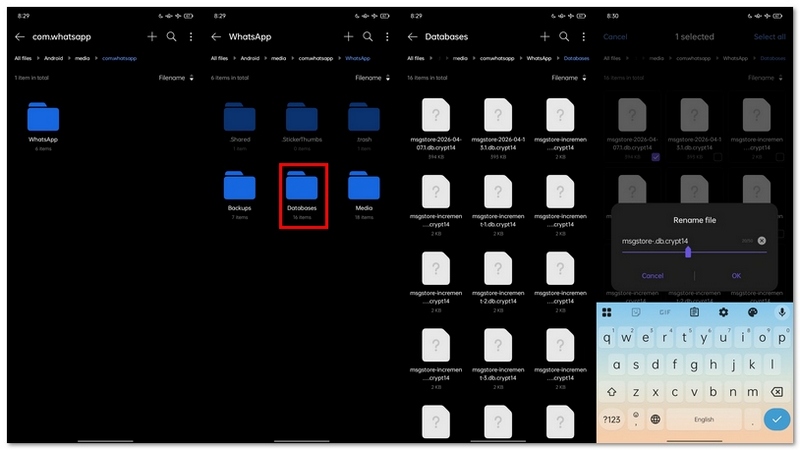
This will replace your current chats with the older backup version.
You may quickly recover deleted WhatsApp messages from the cloud if you have activated Google Drive backup. This is the most common and reliable method to recover deleted WhatsApp messages on Android, especially when switching devices or reinstalling the app.
Steps to Restore from Google Drive Backup
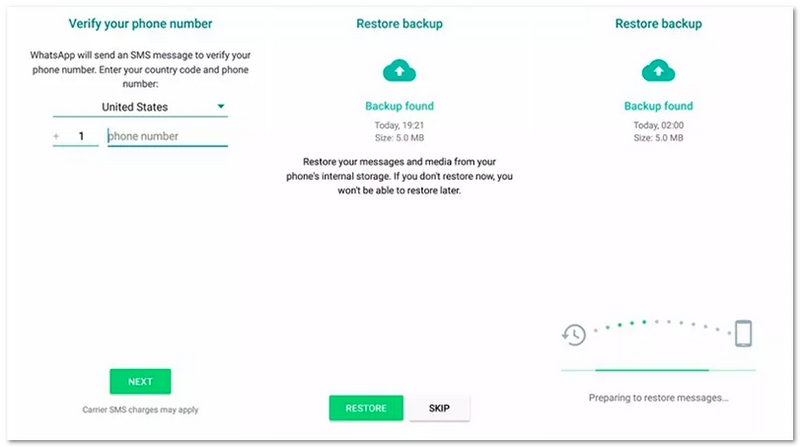
If you don’t have a backup available, you can still try alternative methods to recover deleted WhatsApp messages directly from your Android device.
It is a pity that you have no backups saved in your WhatsApp. But you can take advantage of Aiseesoft Android Data Recovery to recover your deleted chat history on WhatsApp. With this Android data recovery, you can retrieve not only deleted messages, but also lost WhatsApp photos, contacts, and other files easily and conveniently. It is a reliable software to recover deleted WhatsApp messages on Android when no backup is available.
Aiseesoft Android Data Recovery
 100% Secure. No Ads.
100% Secure. No Ads.
Steps to Recover Deleted WhatsApp Messages without Backup
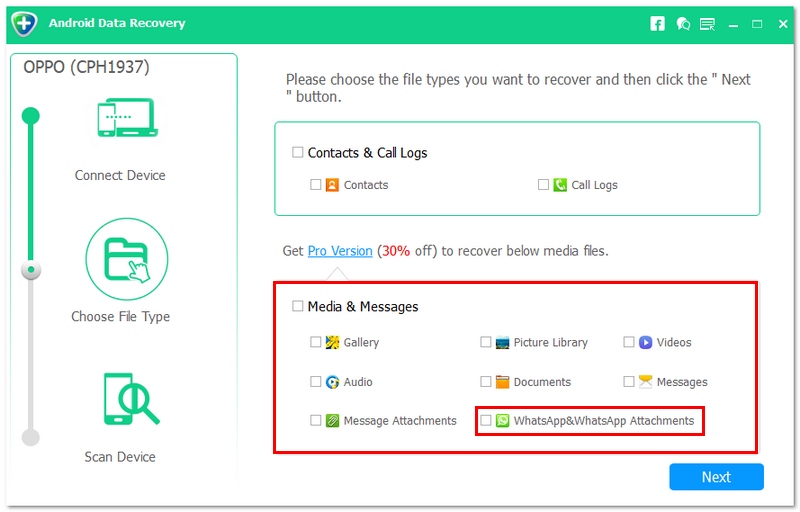
When the recovery process is done, WhatsApp messages are recovered to your computer, and you can get them back to your Android phone or perform other operations as you like. Still, if you also own an iPhone and run WhatsApp on your iPhone, you could also recover whatsapp messages on iPhone.
This method will exploit the notification log of your Android device to access the WhatsApp messages you have just received, even if they are deleted later. However, it won't be able to completely restore the conversation, but it might help you figure out the deleted messages if you had notifications on before.
Steps to Recover via Notification History
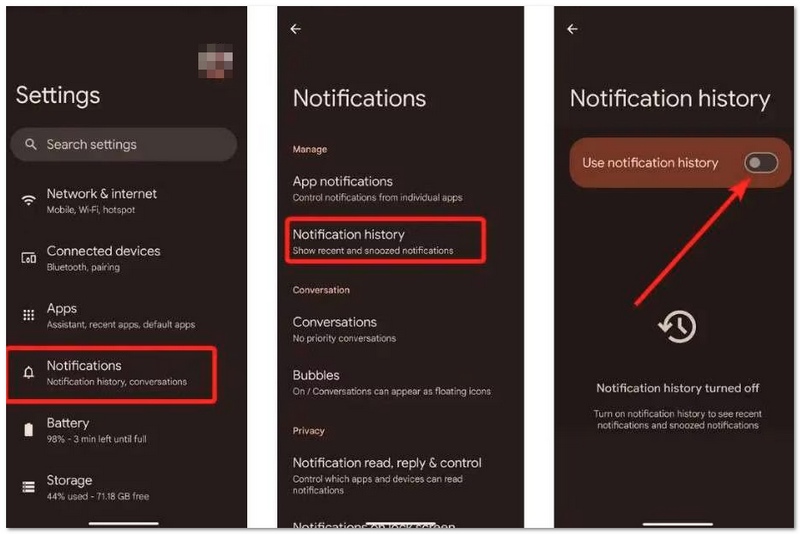
Alternative (if Notification History is not available):
How far back can I recover deleted WhatsApp messages on Android?
It depends on your backup settings. Google Drive backups may store older data, while local backups usually keep the last 7 days. Without backup, recovery depends on whether the data has been overwritten.
Why can’t I find the Restore option on WhatsApp?
This usually happens if no backup is detected or if you’re using a different phone number or Google account than the one used for backup.
Can I recover WhatsApp messages from a broken or lost Android phone?
Yes, if you have a Google Drive backup linked to your account. You can perform an online free WhatsApp data recovery by logging into WhatsApp on a new device using the same number and Google account.
Conclusion
In this post, we mainly talk about how to recover deleted WhatsApp messages on Android from your device. If you have accidentally deleted important chats and don’t know how to get them back, you can try the recommended methods above to restore your WhatsApp data. If you have any other solutions to recover lost WhatsApp messages, feel free to leave us a message.
 A Detailed Guide to Using WhatsApp Without a Phone Number
Can I use WhatsApp without a phone number? Can you use a Google Voice number for WhatsApp? Learn four effective ways to use WhatsApp without a phone number.
 Learn to Import and Sync WhatsApp Contacts Between Devices
Wondering why your WhatsApp contacts aren’t syncing? Learn how to fix sync issues, merge contact data, and import contacts on Android and iPhone.
 Delete WhatsApp Images on iPhone and Android with 5 Solutions
Learn how to delete WhatsApp photos from your iPhone or Android gallery. Follow us to manage storage and clear chat media on your device.
 Leave your comment and join our discussion
Recover WhatsApp
WhatsApp Recovery Recover Deleted WhatsApp Messages Recover Deleted WhatsApp Chat Recover WhatsApp Messages Android Recover WhatsApp Chat History Samsung Recover WhatsApp Videos/Images Android Restore WhatsApp Messages on New iPhone Restore WhatsApp from Google Drive to iPhone WhatsApp Backup and Restore Restore WhatsApp from iCloud
The best Android Data Recovery software to recover deleted files like SMS, contacts, call logs, documents, etc. from Android phone/SD card/tablet on Windows/Mac.
100% Secure. No Ads.
100% Secure. No Ads.

*Required field
*Please enter a valid email

