When you lost your iPhone, what is the first thing to do? Launch iPhone Lost Mode to find your iPhone certainly. How to unlock the Lost Mode on iPhone when you find your iPhone? Check this tutorial to learn more about this issue.
iPhone are popular throughout the world for many reasons. One of its reasons is Find My iPhone. In this feature, you can make your lost iPhone in Lost Mode, and track its location to find your iPhone. In this page, we will discuss the issue about iPhone Lost Mode, so you can make it clear when you suffer from this situation.
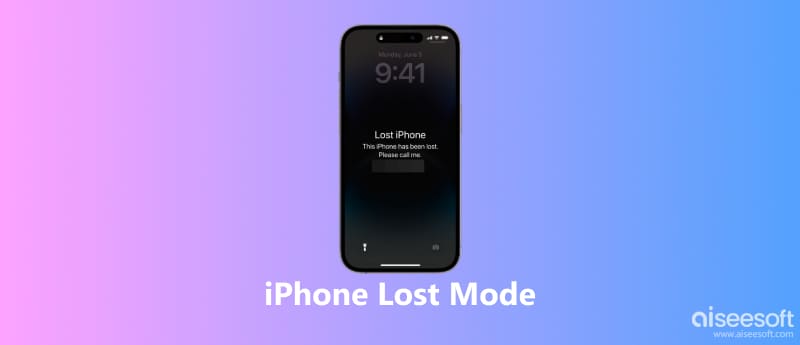
iPhone Lost Mode will lock your device with a passcode so that others who get your lost iPhone or iPad cannot access your personal information.
When you put your iPhone in Lost Mode, you can do the following things:
1. Display a custom message on your iPhone screen to indicate that the device is lost or how to contact you.
2. Your iPhone will not display alerts or make noise when you receive calls, messages, or notifications, etc.
3. Any credit or debit card set up for Apple Pay on your device will be suspended. After you unlock the Lost Mode, you can resume using the suspended cards on your iPhone.
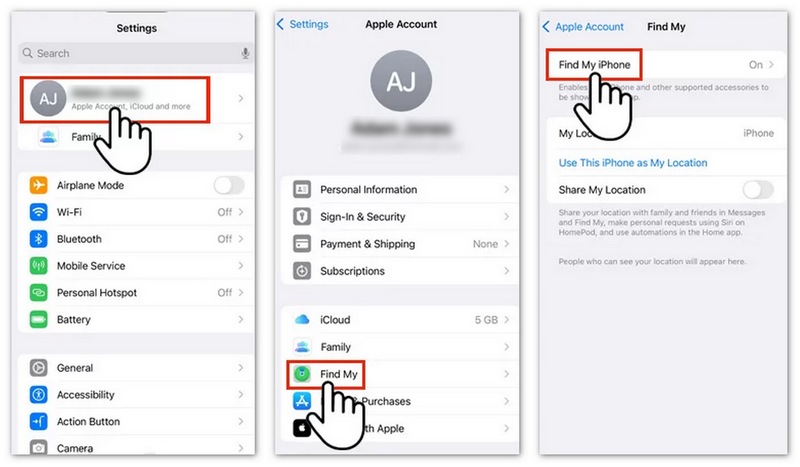
Lost Mode is a feature of Find My iPhone that helps you protect your device when it is lost or stolen. To use Lost Mode, you need to enable Find My iPhone first.
Go to "Settings" > tap your name > "Find My" > "Find My iPhone", then turn it on.
Lost Mode is available on iPhones running iOS 6 or later. Make sure your device is updated to the latest iOS version for better security and compatibility.
If your iPhone is lost or stolen, you should enable Lost Mode as soon as possible. This feature helps lock your device, protect your personal information, and display a custom message or phone number on the Lock Screen.
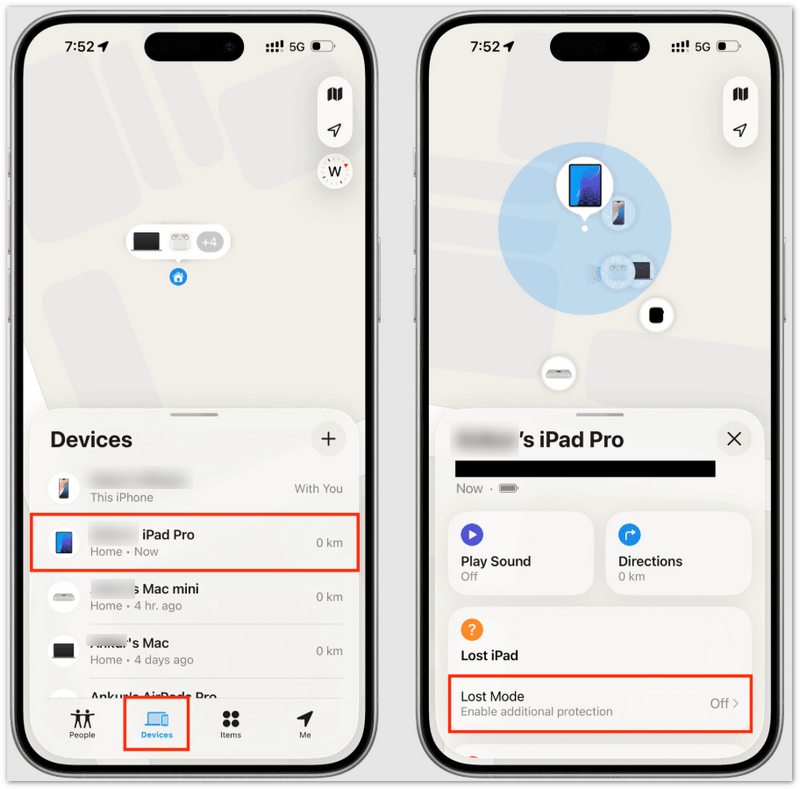
Notes About Lost Mode:
1. If you cannot access Find Devices, your iPhone may not have Find My enabled before it was lost.
2. If your iPhone already has a passcode, it will remain active. If not, you can create one remotely when enabling Lost Mode.
3. The message and phone number you provide will appear on your iPhone's Lock Screen.
4. After Lost Mode is enabled, you can lock your lost iPhone or track its location through Find My when the device is connected to the internet. If it is offline, you may only see its last known location.
If you find your lost iPhone, you can turn off Lost Mode and start using your device again.
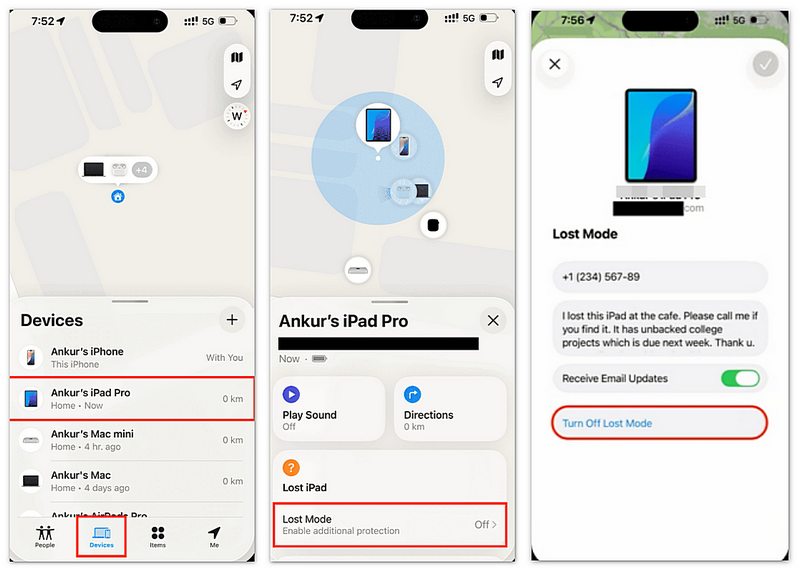
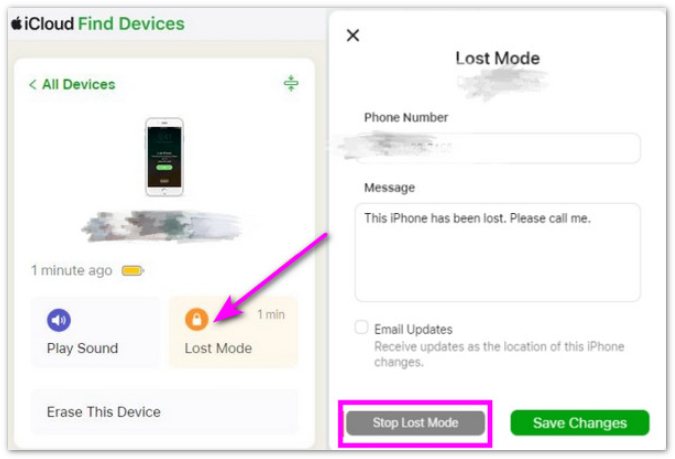
After the command is received, your iPhone will exit Lost Mode and return to normal use.
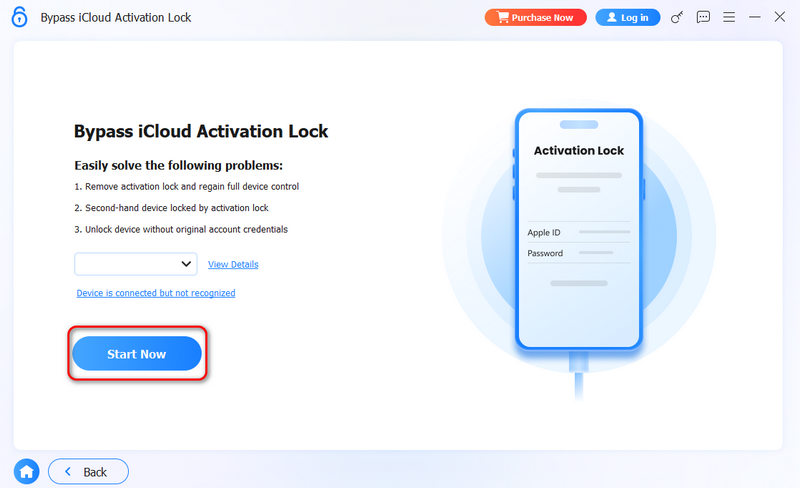
If your iPhone is in Lost Mode and linked to an Apple ID, the device will be iCloud Activation Locked, and you can use the method given above to turn off the lock or try a professional iPhone unlocker to bypass the activation lock.
Aiseesoft iKnockin is such a professional iPhone unlocker that removes various iOS locks, including iCloud Activation Lock, screen passcodes, Screen Time passcodes, and MDM restrictions. It supports all iPhone models and all iOS versions.
 100% Secure. No Ads.
100% Secure. No Ads.
Sometimes, your iPhone may remain in Lost Mode even after you try to disable it. The following solutions may help.
Your iPhone needs to connect to the internet to receive the command to turn off Lost Mode. Connect your device to Wi-Fi or mobile data and wait a few minutes.
A simple restart can fix temporary system problems that prevent your iPhone from updating its status.
An outdated iOS version may cause system errors. Check for available software updates and install the latest iOS version.
If your iPhone is still locked, you can restore iPhone using iTunes on Windows or Finder on Mac.
Note: Restoring your iPhone will erase all existing data on the device.
Does Lost Mode erase my iPhone?
No. Lost Mode only locks your iPhone and protects your information. It does not delete your data.
How long does iPhone stay in Lost Mode?
Your iPhone will stay in Lost Mode until you manually turn it off through Find My.
How do I unlock an iPhone stuck in Lost Mode?
First, try turning off Lost Mode through Find My. If your iPhone is still locked or disabled, you can restore your iPhone or use an iPhone unlocking tool to regain access.
Conclusion
iPhone Lost Mode is an important security feature that helps protect your device when it is lost. By using Find My iPhone, you can lock your device, display contact information, and track its location.
When you find your iPhone, you can easily turn off Lost Mode through Find My. If your iPhone remains stuck in Lost Mode or cannot be accessed because of a lock issue, Aiseesoft iKnockin can help you restore access to your device.
 Learn 3 Quick Ways to Reset an iPhone Without iTunes
How do you factory reset an iPhone without a computer? How do I reset my iPhone without a password? Learn three easy methods to reset an iPhone without iTunes.
 Actionable Ways to Turn off Location Service on iPhone and iPad
To turn off location on iPhone for privacy protection or other purposes, you can read our comprehensive guide and follow the steps to get it properly.
 Where to Repair Your Broken iPhone Screen and How Much Does It Cost
iPhone screen is broken? Fix it or replace the broken screen. Also, you could try to unlock iPhone with crack screen to extract data from it.
 Leave your comment and join our discussion
iPhone/iPad/iPod Mode
iPhone DFU Mode Put iPhone in DFU Mode iPhone Recovery Mode Put iPhone in Recovery Mode Get iPhone out of Recovery Mode iPhone Safe Mode iPhone Lost Mode iPhone Burst Mode iPad Recovery Mode Enter/Exit iPad Recovery Mode iPod Recovery Mode
To fix iPhone screen locked, wiping password function can help you a lot. And you also can clear Apple ID or Screen Time password easily.
100% Secure. No Ads.
100% Secure. No Ads.

*Required field
*Please enter a valid email

