Aiseesoft iKnockin - iPhone Unlocker
 100% Secure. No Ads.
100% Secure. No Ads.
Forgetting the iPhone passcode can be a common issue, especially for the previous lock screen password set on an old device that hasn’t been used for a long time. For different reasons, you charged the old iPhone and want to use it again. However, you are locked out of the device by the iPhone Unavailable message, due to multiple failed password attempts. What does iPhone Unavailable Try Again mean?
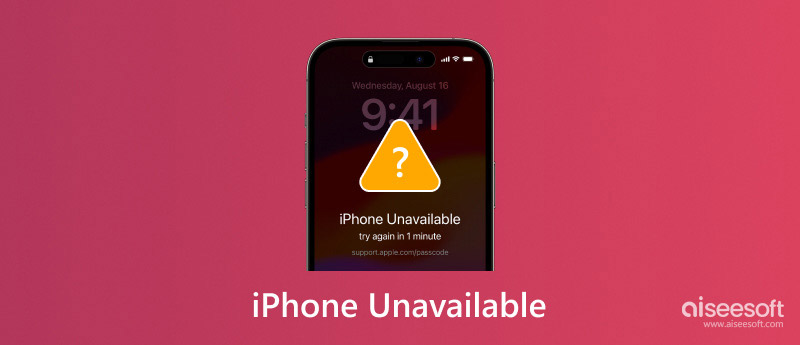
This article tells what to do when your iPhone says unavailable on the lock screen. You can get seven helpful methods to easily get rid of the problem. Moreover, I would like to share several tips to avoid the iPhone Unavailable or iPhone is disabled situation.
iPhone Unavailable typically means that the iOS device is locked. It is a security feature to prevent unauthorized access to your iPhone. The iPhone Unavailable Try Again message generally appears on the lock screen due to repeated incorrect passcode attempts. First, you will be prompted to try again in 1 minute. That means your iPhone is temporarily locked. You may see a timer showing how long you need to wait before trying again. Another wrong passcode input will cause your iPhone to be locked for 5 minutes, 15 minutes, 1 hour, and finally permanent lock.

If you continue to enter incorrect passcodes, your iPhone will be permanently locked. In that case, the iPhone Unavailable message will turn to iPhone is disabled. You must erase and reset your iOS device to unlock it. If you are trying to enter the correct passcode on an old iPhone like iPhone 6 or iPhone 5s, you will see the iPhone is disabled and try again in x minute message instead. Through my tests on an iPhone 6 that runs iOS 12.5.7, it will display the iPhone is disabled message after 7 fail incorrect attempts. After that, the duration will increase to 5 minutes, 15 minutes, and then an hour.
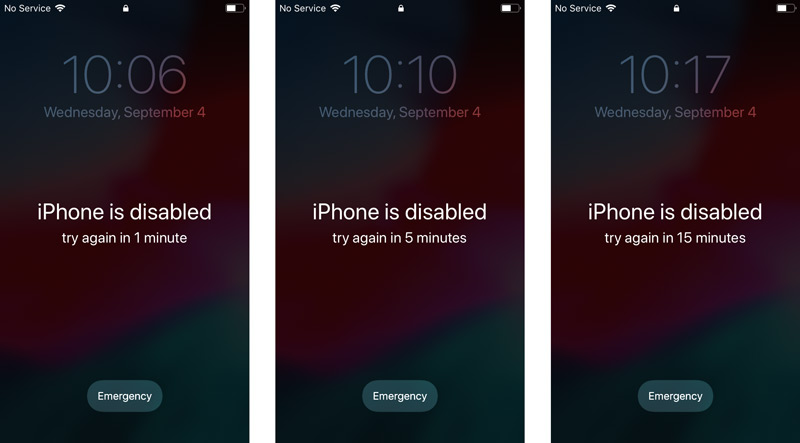
You should note that, when your iPhone says unavailable on the lock screen, you are not allowed to use your Face ID or Touch ID to unlock it. You must enter the correct iPhone passcode to get rid of the screen first.
When you encounter the iPhone Unavailable message, you can wait for the timer to finish and then try entering the correct passcode again.
Make sure you enter the correct digits carefully. If you still remember possible passwords, you may try them one by one before the device becomes fully disabled.
However, if the iPhone is already fully locked, you can use the following methods to fix the issue.
This method is the official on-device reset option (available on newer iOS versions). It allows you to erase and reset the iPhone directly from the lock screen using Apple ID.
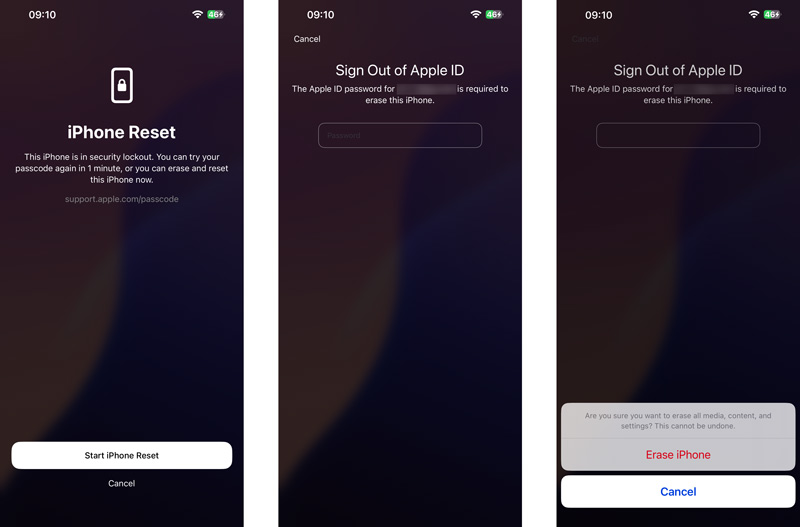
This option is available for iOS 15.2 and later (labeled as 'Erase iPhone' in older versions).
Aiseesoft iKnockin – iPhone Unlocker is specially designed to deal with various password-forgotten issues. It offers a convenient way to quickly remove different lock screen passcodes, including 4-digit, 6-digit, Touch ID, Face ID, Apple ID password, Screen Time passcode, and more.
Downloads
Aiseesoft iKnockin - iPhone Unlocker
100% Secure. No Ads.
100% Secure. No Ads.
100% Secure. No Ads.
100% Secure. No Ads.
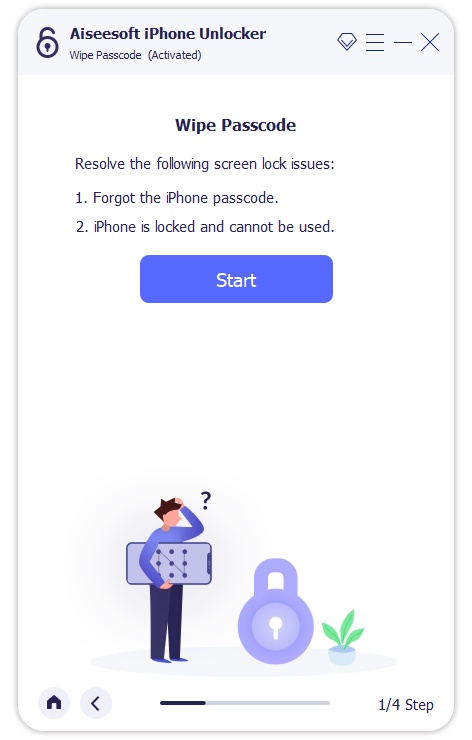
Once your iPhone is recognized, check and confirm the device information displayed. Then, the Aiseesoft iKnockin - iPhone Unlocker will download a related firmware package based on the device model and iOS version to erase your lock screen passcode.
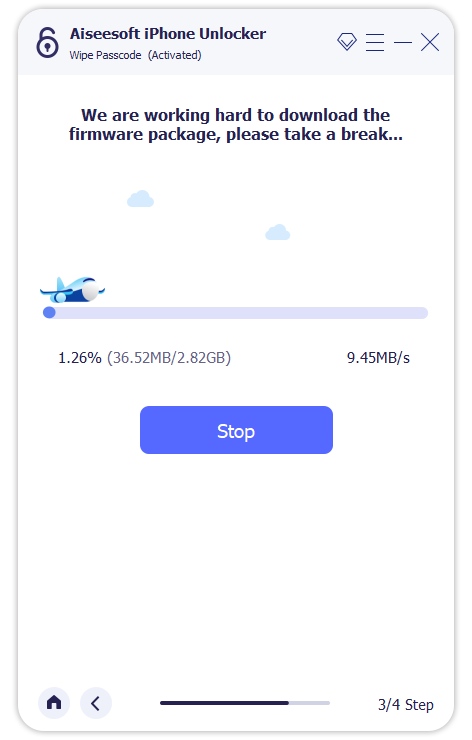
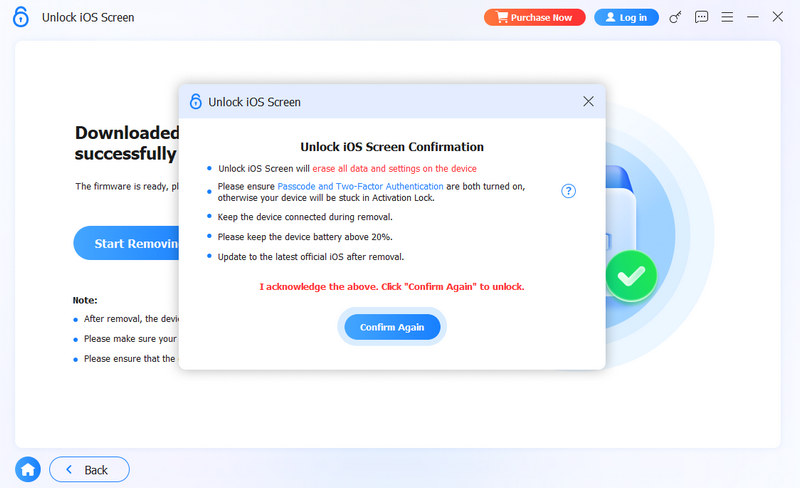
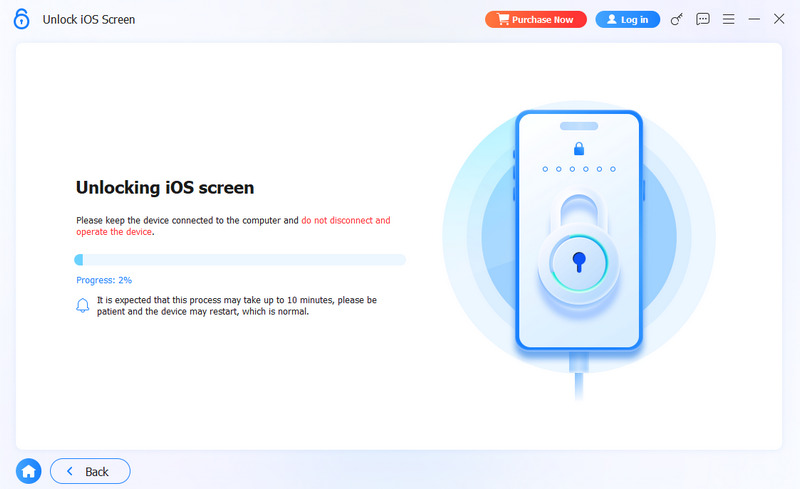
After that, you can handily get into the disabled device without a password.
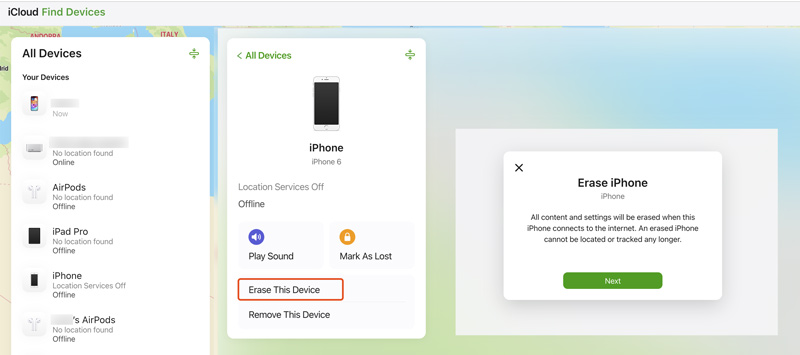
If your iPhone is disabled due to too many incorrect passcode attempts, and you don’t have an erase option to directly factory reset it, you can navigate to the official iCloud website to get rid of the iPhone Unavailable problem.
To fix iPhone Unavailable without a computer, you can go to the Find My app on an iOS device like an iPad or another iPhone.
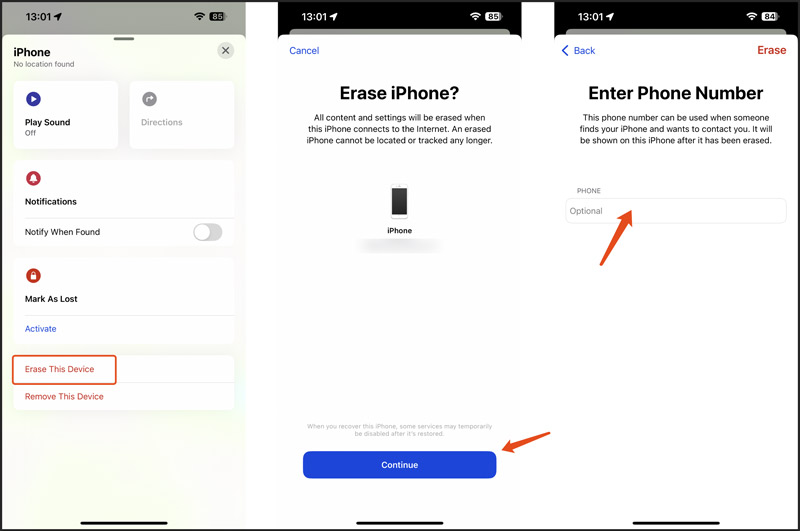
Once the process is finished, the unavailable iPhone will be unlocked.
If your Mac runs macOS Catalina or later, you can choose to restore your unavailable iPhone using Finder.
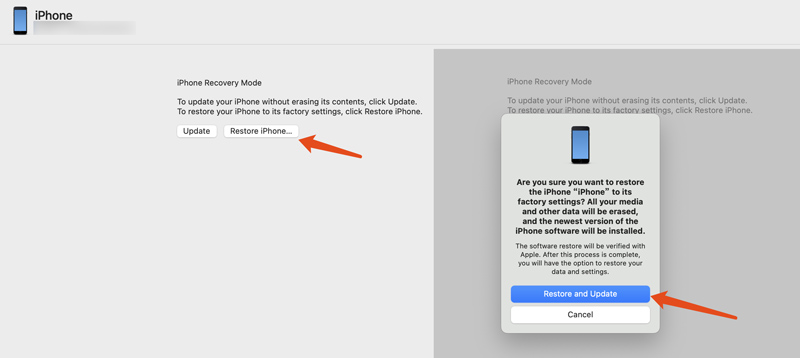
Once it is restored to factory status, you can unlock your iPhone without a passcode.
If your iPhone is stuck on the Recovery Mode screen or you encounter any issues during the restoration process, you can try restarting your Mac and iPhone, and then repeat the steps.
To get rid of the iPhone Unavailable lock screen on a Windows PC, you can turn to the iTunes restoring solution.
If you are unable to resolve the iPhone Unavailable issue with the above methods, it’s time to contact Apple Support for further assistance.
To avoid the iPhone Unavailable screen and prevent other password-forgotten issues from happening in the future, you should enable Touch ID or Face ID on your device. These biometric authentication features offer a more convenient and secure way to unlock your iPhone. When you are not sure about the current lock screen passcode, you can use the Touch ID or Face ID to access it. After that, change the passcode with another strong one you can remember. Do not repeatedly input possible passwords when you are unsure.
Besides the incorrect passcode attempts, some other reasons may cause your iPhone to show the unavailable screen, such as a software glitch, third-party app, hardware problem, and more. Considering that, you should turn on the iCloud auto-backup function or often manually back up data. A recent backup ensures all the important data can be recovered.
How long does iPhone Unavailable last?
The iPhone Unavailable message will appear on the screen after you input incorrect passwords several times. So, the specific duration of the iPhone unavailable prompt depends on how many incorrect passcode attempts have been made. As mentioned above, your iPhone will be locked for 1 minute when you repeatedly enter the wrong password for 5 times. If you keep using an incorrect passcode, the amount of time before you can try again will increase. Your iPhone will be permanently locked after 10 incorrect attempts. In that case, you must reset the iOS device to unlock it.
How to fix iPhone Unavailable without timer?
Generally, when you see the iPhone Unavailable message on the screen without a timer, that means your iPhone is locked permanently. You don’t have any chance to unlock it with a lock screen passcode. Instead, you should bypass the iPhone Unavailable screen by resetting your iOS device. Tap Erase iPhone and follow the steps to proceed with the process. Some iOS versions don’t display an Erase iPhone option on the lock screen. In that case, you should connect your iPhone to a computer and restore it to the factory condition. This operation will erase all the existing data on your locked iPhone.
How to fix iPhone Unavailable without a computer?
When you get the iPhone Unavailable issue without a computer nearby, you can choose to get rid of it through iCloud. Open the Find My app on another trusted Apple device, sign into your Apple account, and tap the Devices tab. Choose the locked iPhone and tap Erase iPhone. That will reset your iPhone and remove all your iOS data from it.
Does fixing 'iPhone Unavailable' delete my photos?
Yes. Most methods used to fix “iPhone Unavailable” (like restoring via iTunes/Finder or iCloud erase) will delete your photos unless you have a backup in iCloud or on a computer.
Conclusion
After reading this article, I hope you can find the right solution to fix iPhone Unavailable. As mentioned above, the unavailable or disabled message may appear due to various reasons, not just be caused by incorrect passcode entries. Again, ensure you have enabled the Back Up This iPhone in iCloud and always have a recent backup.
 How to Change Your Country and Location on Spotify
Why can't I change country on Spotify? How do you trick your location on Spotify? This post tells how to change Spotify location as a free and Premium account.
 3 Best iPhone Location Changers to Fake Your Location [2026]
How can I change my location on an iPhone? Is there a free GPS spoofer app for iOS? Check the 3 best iPhone location changers to switch your location quickly.
 How to Recover/Restore Deleted Apps and App Data on iPhone/iPad
Upset when you deleted apps from your iPhone without saving the data? Read this article and learn how to recover recently deleted apps and data on iPhone.
 Leave your comment and join our discussion
iOS Unlock Tips
Unlock iOS Screen
Bypass iOS Activation Lock
Recover iOS Data
To fix iPhone screen locked, wiping password function can help you a lot. And you also can clear Apple ID or Screen Time password easily.
100% Secure. No Ads.
100% Secure. No Ads.

*Required field
*Please enter a valid email

