
99.8% Success Rate: Windows/Mac Data Recovery
 100% Secure. No Ads.
100% Secure. No Ads.
Contents
Key Takeaways
If the message persists, try restarting your iPhone. If the problem continues, contact Apple support for further assistance.
To free up space on the computer, we may need to delete unwanted files. But sometimes, we may delete the file by mistake. In the past, you could not recover deleted files on Windows after you clicked on the Delete button. Fortunately, Microsoft realized this demand and introduced the Recycle Bin feature to Windows in 1995. From then on, deleting a file by accident has not been a problem anymore.
However, this handy feature only works if the bin folder has not been emptied manually or automatically. Plus, some files won't go to the Recycle Bin after the deletion. In that case, is there any way to restore deleted files?
In this tutorial, we are going to tell you all the knowledge you should know about how to recover deleted files in Windows. No matter if it’s an image, document, audio file, etc. you can easily retrieve them all.
| Recovery Method | Success Rate | Time Required | Best For... |
| Recycle Bin | 100% | 1 Minute | Files deleted normally via the "Delete" key. |
| File History | High (if enabled) | 3 Minutes | Recovering older versions of overwritten documents. |
| Previous Versions | Medium | 2 Minutes | Restoring entire folders to an earlier state. |
| Cloud Drive | 100% (if enabled) | 5 Minutes | Overwrite all data to the previous version. |
| Aiseesoft Recovery | 99% | 5 Minutes | Shift-deleted files, emptied Recycle Bins, and corrupted drives. |
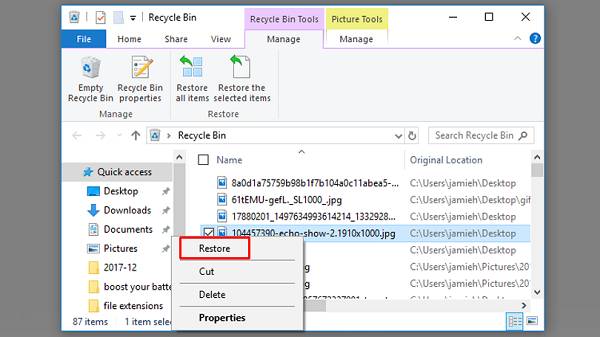
First of all, the answer of how to recover deleted files from PC is various depending on your situations. As mentioned, if you just select a file and press the Delete button, it will be very simple to get back your file.
Go to the Recycle Bin folder from your desktop, right-click on the deleted file and hit Restore. Congratulations! The deleted file is back to the original directory.
If you don’t want any installation on your computer, Windows also offers you built-in tools to solve this problem by using free backup and restore. It’s great for text file recovery. This part is about the previous version's feature. Check the following steps according to your Windows OS.

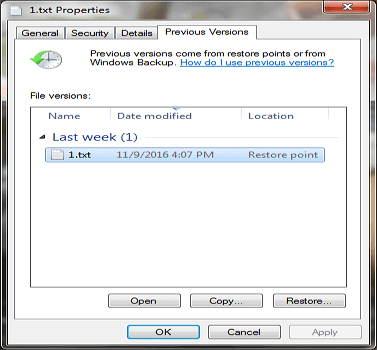
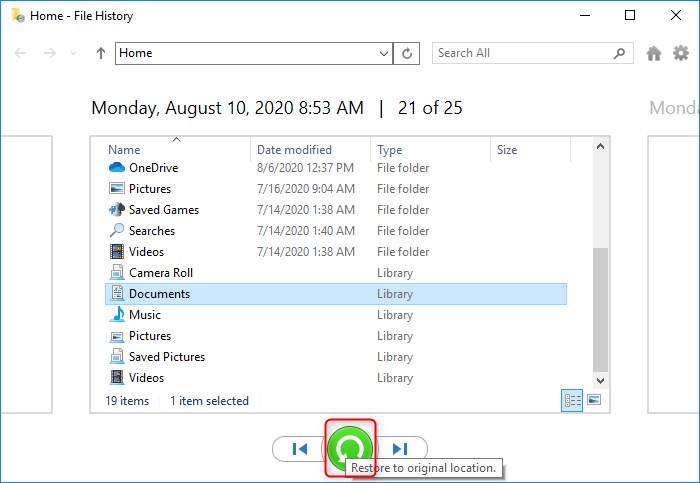
Note: This recovery feature often has drawbacks in data integrity, limited storage space, and even data corruption.
The other one is Windows free backup, here is the step-by-step guide.
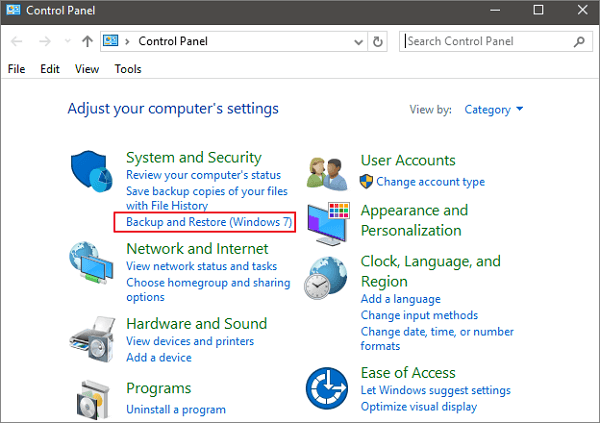
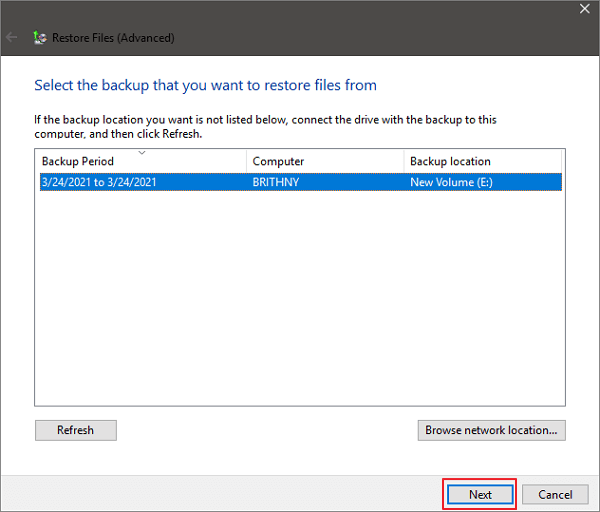
Note: This fix is useful for only specific folder backups and may slow down the PC with heavy workloads.
Google Drive is a convenient medium for Windows users to back up and store files regularly. If you are a G suite user, you can retrieve your files after the 30-day trash limit. Here is the guide.
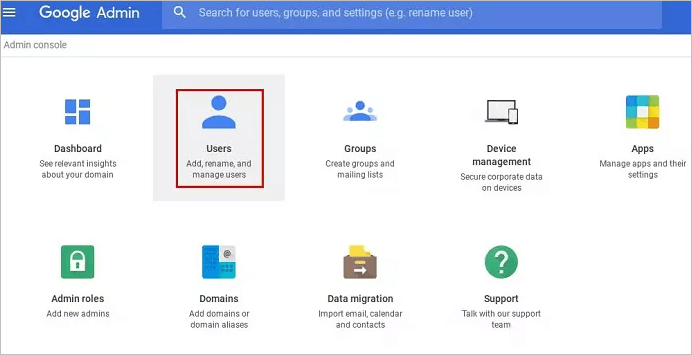
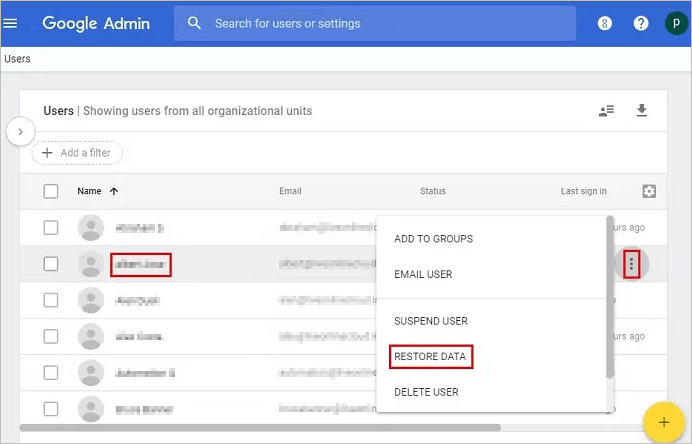
Note: This feature is only applicable with G suit users. And in some cases, only parts of a file can be recovered.
As for Windows finding deleted files, the best method is to get yourself a powerful data recovery tool with various recovery scenarios and a high success rate.
Aiseesoft Data Recovery is one of the best professional file recovery software for Windows. Its key features include:
1. Recover deleted emails, photos, videos, music, documents, and other files in Windows.
2. Work for digital camera, flash drive, memory card, and other removable drives, in addition to local hard drives.
3. Undelete files that removed by accident, formatting, Recycle Bin emptying, system crashing or other problems.
4. Perform deep scan if you cannot find the desired files in quick-scan result.
5. Preview the thumbnails of the deleted files and decide to recover all of them or certain files.
6. Scan specified data types and disk faster utilizing the hardware acceleration technology.
7. Available to Windows 11/10/8.1/8/7/Vista/XP.
100% Secure. No Ads.
100% Secure. No Ads.
Step 1 Install the best undelete software on your computer
Access the official website, download the latest version of Data Recovery, double-click on the installer file and follow the onscreen instructions to get it installed on your PC. Then launch it from your desktop and you will be presented the concise home interface.
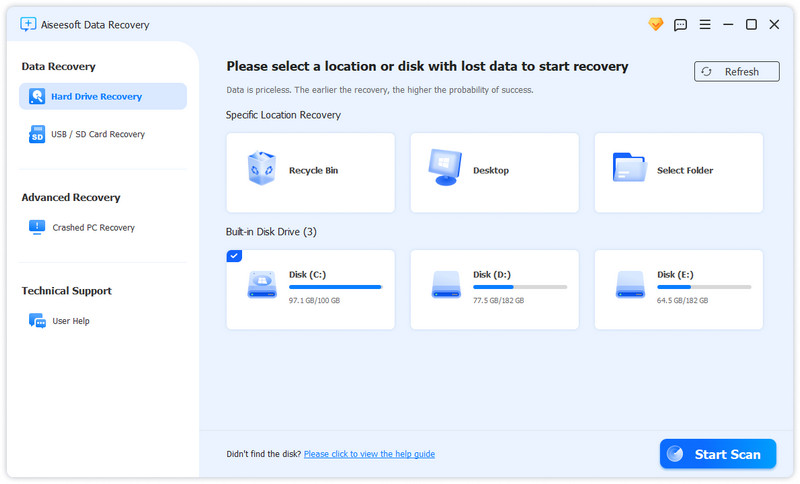
Step 2 Scan your disk to find the delete files
Select where you store the deleted files. If you need to recover files from flash drive, plug it into your computer and the software will recognize it. Hit the Start Scan button to perform scan.
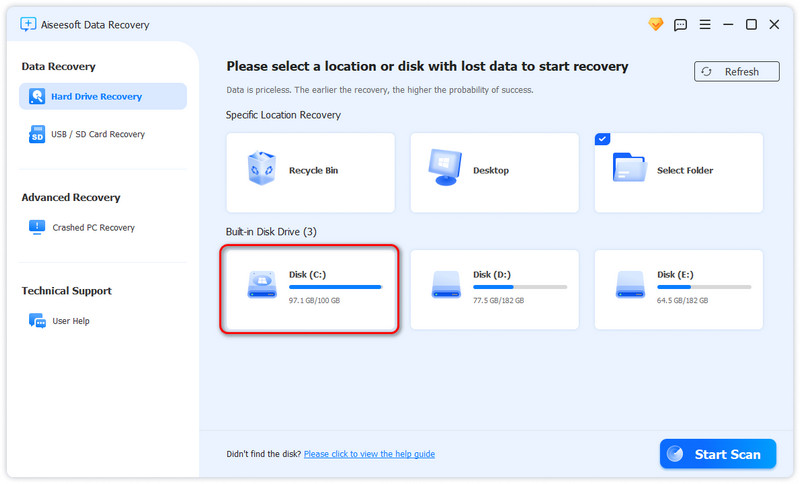
Step 3 Restore data in a single click
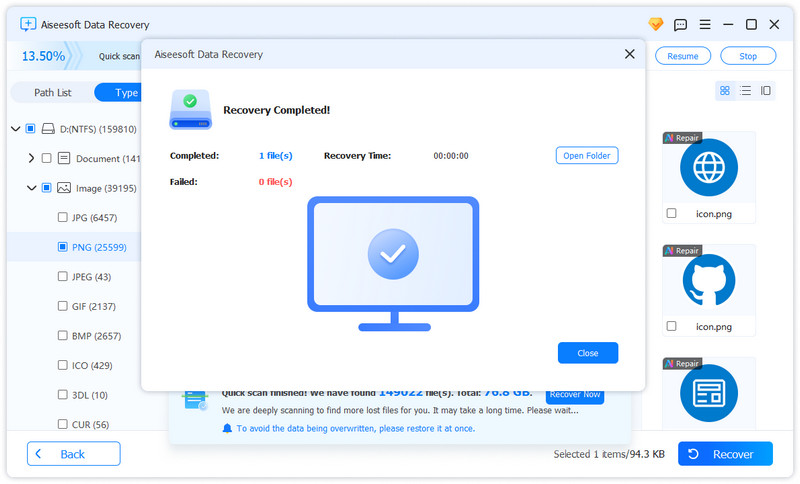
When you are taken to the result window, click the desired data type on the left side column, and then you can look at the deleted files on the right detail panel organizing by formats.
Now, your data has successfully recovered.
Try it now to restore your photos, audio, documents, and more in Windows!
Sometimes you don’t delete these files actually, but your PC crashes and you can’t find them all. This may be one of the most complicated recovery scenarios. But don’t worry, there also are feasible tools for you to retrieve files from crashed PCs or PCs stuck with some bootable problems. Let’s keep on using Aiseesoft Data Recovery as an example, it can help you find various file types including images, audio files, documents, emails, etc. with its special Crashed PC Recovery mode. Here are some simple steps to conduct this.
100% Secure. No Ads.
100% Secure. No Ads.
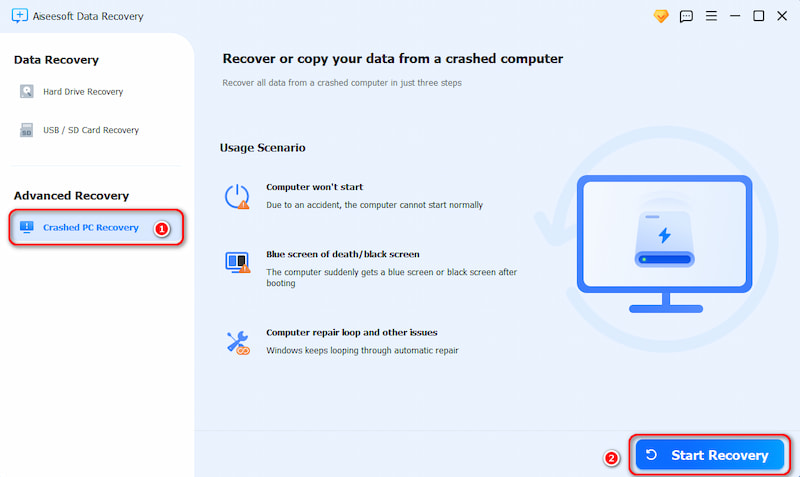
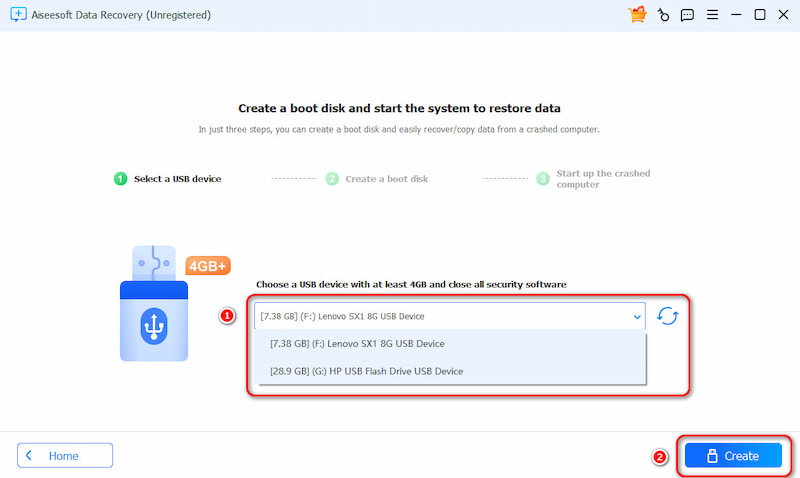
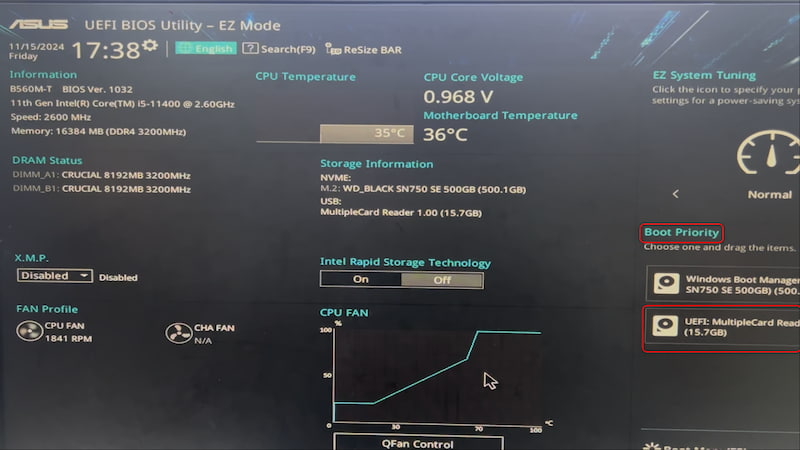
Note: This method can only work on Windows computers.
1. Create Regular Backup
No matter which recovery software you use for Windows 11/10/8/7, there are some tips that can maximize the chances to effectively recover deleted files.
2. Stop Using this PC
All the activities on your computer will produce some new data and store it on the hard drive, such as opening a document and writing down some words, or viewing a video with your media player. If it overwrites the physical space that saved the deleted files, they will become more difficult to get back.
3. Set Recycle Bin Properties
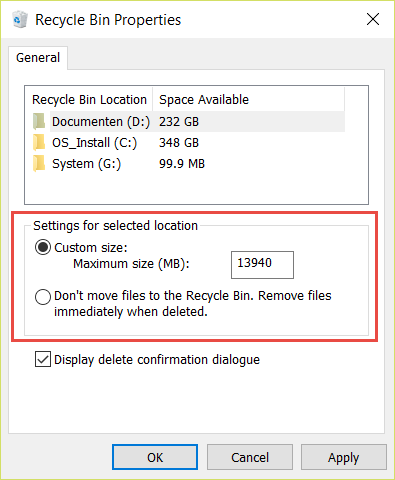
Windows will empty it automatically when the Recycle Bin is full. But you can change the Properties to stop the Recycle Bin from emptying. Right-click on your Recycle Bin, choose Properties to open the popup dialog, select Custom size, and input 1,000 in the box beneath. Hit the OK button to confirm it.
4. Choose Suitable Recovery Tool
Select the proper tool to recover deleted files on Windows 8 and other versions. We have shared the reviews of the top three file recovery programs. You can pick the most appropriate one based on your situation.
A stop-working computer or dead hard drive exhibits extra trouble when restoring the recycle bin on Windows 11/10/8//8.1/7 or recovering deleted files. But if you use a powerful tool, such as Aiseesoft Data Recovery, it is still possible to get back what you want.
Where do permanently deleted files go Windows?
Usually, the deleted items are put into Recycle Bin, you can directly access to it on your desktop. Any storage device connected to your Windows computer will give a certain percentage of its storage space to the Recycle Bin.
Does Windows permanently delete files?
On Windows 11/10 devices, you can press Shift + Delete to entirely delete target files. This method can bypass the Recycle Bin to delete files permanently. By the way, Aiseesoft Data Recovery can also retrieve permanently deleted files in Windows if you press Shift + Delete mistakenly.
How to restore file history?
First, you need to plug in your external hard drive to your PC. Then, type File History in the Start menu and choose File History Settings. At last, click Restore personal files in the left panel.
Conclusion
In this post, we have discussed how to recover deleted files in Windows. Apparently, the first place to find the deleted files on a Windows computer is the Recycle Bin. There are some cases where your files may be erased permanently, such as when the Recycle Bin has been empty. But don't panic and this is not the end of the world. We have identified five solutions and multiple tips for you to wipe out these worries.
If the deleted files are very important, we suggest you try Aiseesoft Data Recovery. It is not only easy to use, but also able to restore almost all deleted files from your device efficiently. We hope that our sharing is helpful to you.
 Top 10 Free Data Recovery Software for PC & Mac in 2025
If you’ve lost some important files without backup, here are the top 10 free file recovery software can retrieve files on PC and Mac. Pick your favorite!
 How to Use Windows File Recovery in Windows 11 and 10
How do you recover a permanently deleted file in Windows 11? Can Windows File Recovery recover Recycle Bin deleted files? Learn to use Windows File Recovery.
 Learn to Recover Deleted Excel Files Using 7 Proven Methods
Where can I find unsaved Excel files on my Windows 10 PC? How do you restore an Excel file that was deleted by mistake? Learn to recover deleted Excel files.
 Leave
your comment and join our discussion
Leave
your comment and join our discussionRecover Various Data
1. Free Data Recovery Software
2. Recover Deleted Files in Windows
3. Recover Deleted Files from Recycle Bin Windows
4. Recover Permanently Deleted Emails

Aiseesoft Data Recovery is the best data recovery software to recover deleted/lost photos, documents, emails, audio, videos, etc. from your PC/Mac.
100% Secure. No Ads.
100% Secure. No Ads.

*Required field
*Please enter a valid email

