“Recently, I gave up my old iPhone 8 and switched to a new iPhone 17. But I want to transfer all the apps from my old iPhone to the new one because some of them were purchased. Can anyone help?”
Such scenarios are quite typical while upgrading to the newest model of the iPhone. Most of the time, among the biggest worries when people change their gadgets is transferring their apps and important app data without losing the previous purchases or settings. As iPhones operate on a closed system, a lot of users are left wondering how to transfer apps from iPhone to iPhone, which is both safe and efficient. Apple and some other third-party tools offer trustworthy solutions that will facilitate the task. With this post, we reveal 5 working techniques for app transfer from iPhone to iPhone that will help you relocate your apps to a new device quickly and without any hitches.
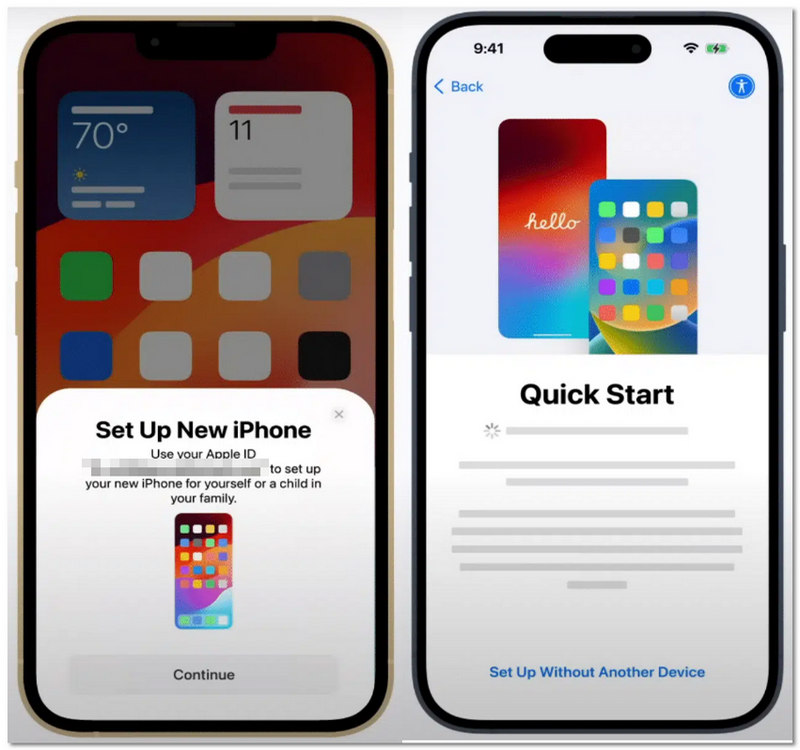
If you are curious about how to transfer apps from iPhone to another iPhone, Quick Start makes it easy. Just pair both phones close together. They both need recent iOS versions. Now, the setup will hand over apps, settings, and data. No computer needed. It works smoothly as long as they are near each other. So it seems like the simplest way to switch devices. Probably saves a lot of time and hassle. Plus, it keeps everything exactly as it was.
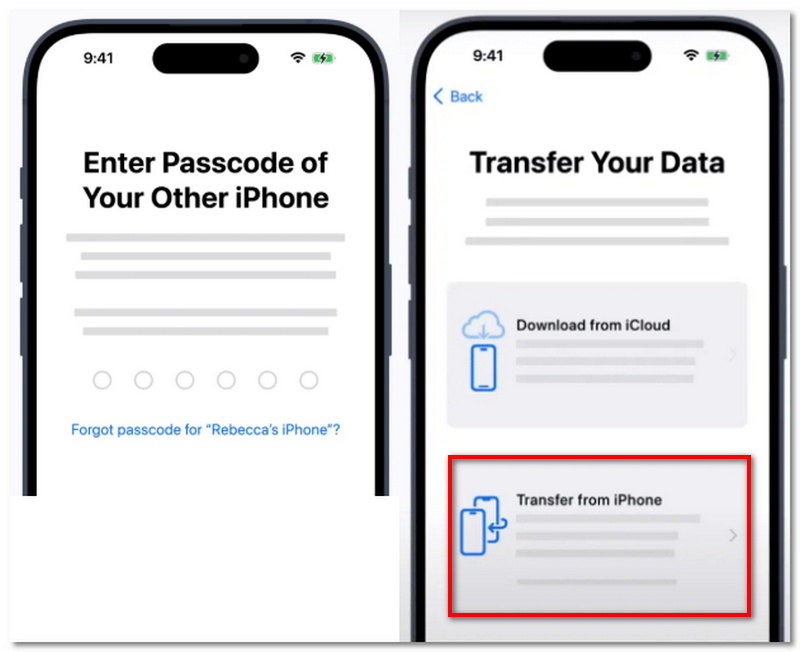
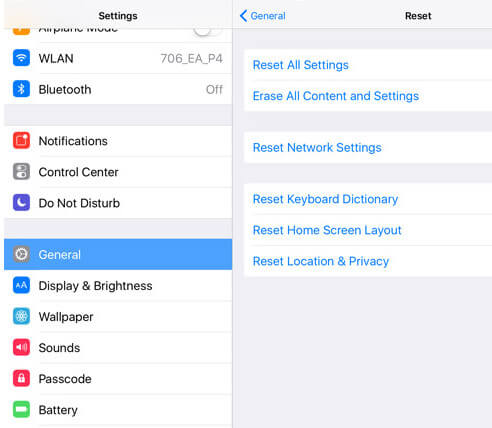
As Apple claims that iCloud backs up purchase history from Apple services like music, movies, apps and books. So if you’ve backed up your iPhone, then you could easily move apps from one iPhone to another iPhone with iCloud.
Firstly, you need to back up your iPhone to iCloud. Here, if you know the steps, then you could skip this part. Otherwise, you should read this part to backup iPhone to iCloud.
Here, you need to run your new/target iPhone.
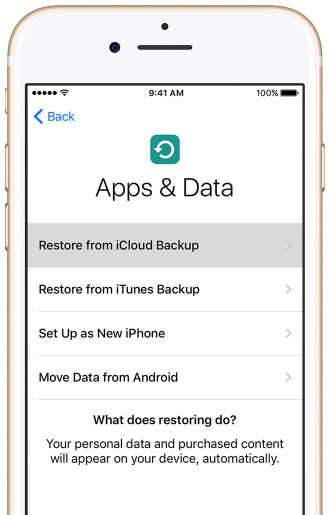
Also, like iCloud, iTunes also can be used to back up your iPhone data. It will back up your apps (purchased and free download) from iTunes and App Store. So you could use iTunes to help you work as the app mover.
Here, you will need to operate your another iPhone
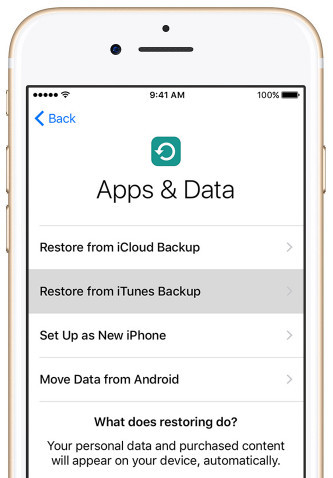
Then you just need to take time to wait for the restoration process and check your target iPhone to confirm the apps.
In this part, all the operations are on your target iPhone, not the original iPhone.
Here you must make sure the Apple ID is the same as the original iPhone on which you installed the apps.
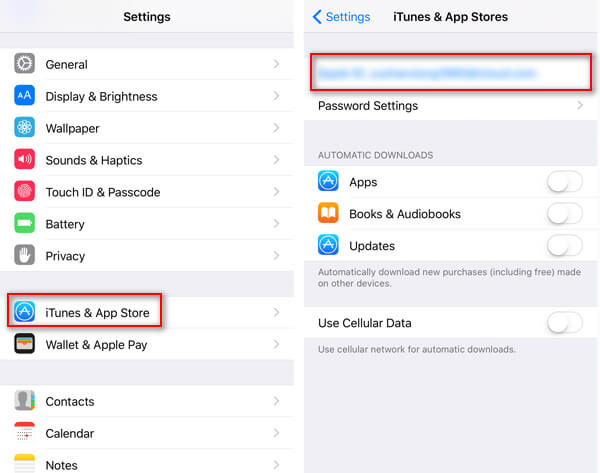
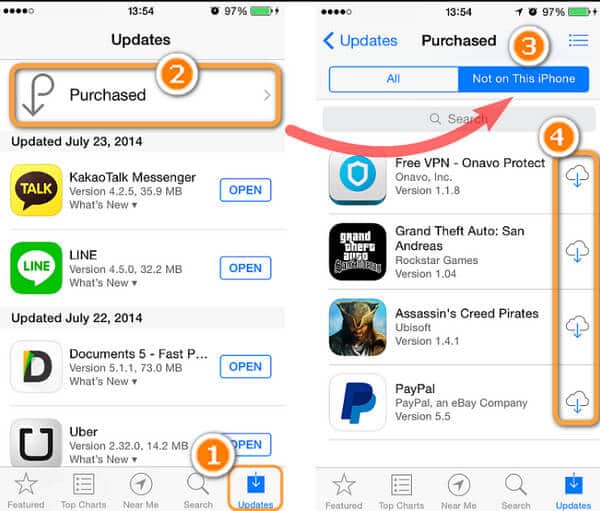
The above ways show you how to move apps from iPhone to iPhone. When you switch to a new iPhone and want to move app data from iPhone to iPhone, then you need the iPhone data transfer software, FoneTrans, to help you. Want a simpler way to move apps and files?
FoneTrans works well for that. You can switch data between iPhones without fuss. It handles apps, contacts, photos, music, videos, and more. Plus, it's handy when copying data between two iPhones without using iCloud or iTunes. Seems like a smart pick for most users. Tends to run smoothly with little trouble.
117,006 Downloads
 100% Secure. No Ads.
100% Secure. No Ads.
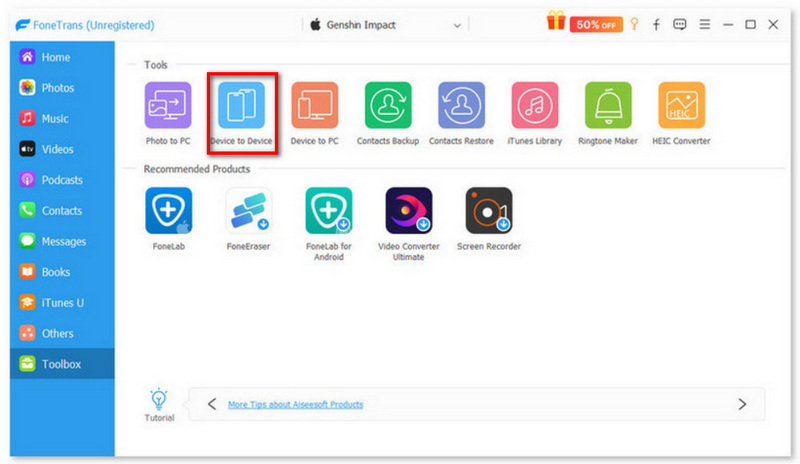
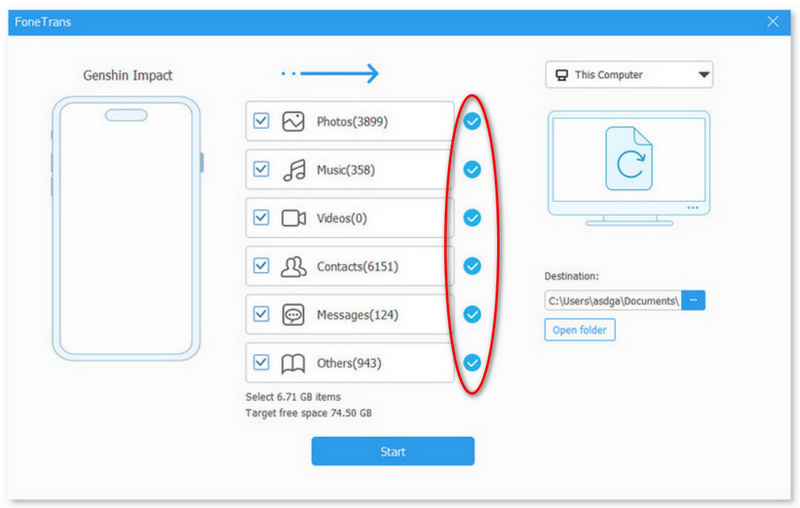
Read this post to learn how to use FoneTrans to transfer photos from iPhone to iPhone.
Why are some apps disappearing after I transfer to a new iPhone?
Apps may not be showing on the new iPhone because they have been removed from the App Store or are not compatible with the latest iOS version. In this situation, you may have to go to the App Store and manually download substitutes for these apps.
Can I transfer apps between iPhones using AirDrop?
Unfortunately, AirDrop does not allow you to transfer complete apps directly. On the bright side, it can share the App Store links, which enable the recipient to download the very same app quickly.
What can I do if the app transfer process is stuck?
First of all, you could confirm your Wi-Fi connection is working fine, restart both iPhones and make sure the two devices are running compatible iOS versions. Then, if needed, restart the transfer.
Conclusion
Moving apps from your old iPhone to a new one can be a straightforward task. Using tools such as Quick Start iCloud, iTunes, App Store, and FoneTrans, you are able to transfer your apps and data in a fast and secure way. These options have different pros and cons depending on your requirements. With the help of this article, you will know how to transfer apps from iPhone to another iPhone without any problem and decide on the most suitable method for yourself.
 How to Transfer Text Messages from iPhone to iPhone
For text messages on old iPhone, you are able to sync to new iPhone in this post.
 2 Ways to Transfer Contacts from Android to iPhone X/8/7/6/5/4/3GS
When you give up an old iPhone, the important contacts on old iPhone should be moved into the new iPhone.
 The Easiest Way to Transfer Music from iPad/iPod to iPhone
Want to share music files on your different iOS devices? Just copy the songs from your iPad or iPod to your iPhone.
 Leave your comment and join our discussion
Transfer from iPhone to iPhone
Transfer Data from iPhone to iPhone Transfer Photos from iPhone to iPhone Transfer Apps from iPhone to iPhone Transfer Contacts from iPhone to iPhone Transfer Music from iPhone to iPhone Transfer Messages from iPhone to iPhone Transfer Voicemail from iPhone to iPhone Transfer Notes from iPhone to iPhone Transfer Ringtones from iPhone to iPhone Transfer WhatsApp from iPhone to iPhone Transfer Videos from iPhone to iPhone
Transfer data from iPhone/iPad/iPod to your computer or reversely.
100% Secure. No Ads.
100% Secure. No Ads.

*Required field
*Please enter a valid email

