Upgrading to a brand-new iPhone 17 or iPhone 16 is always exciting, but the real headache begins when you realize you have years of precious WhatsApp chat history, essential business documents, and unbacked-up family photos stuck on your old device. Nobody wants to lose their memorable conversations or encounter a blank chat screen after setting up a new phone. While Apple and WhatsApp provide general backup solutions, they often get stuck or throw annoying storage errors halfway through. In this comprehensive guide, we will break down 5 practical and verified methods to transfer your WhatsApp messages to your new iPhone seamlessly and safely.
Before spending hours downloading utilities, here is a quick guide to help you find the absolute best way to transfer your data:
Looking for a dedicated tool with a 100% success rate, no storage limits, and direct device-to-device local transfer? Go straight to Aiseesoft WhatsSync to instantly sync all texts and media.
Want a free, cable-free solution and have plenty of iCloud space? Use the native WhatsApp Chat Backup.
Only need to save 1 or 2 critical conversations for text references? Use the Email Export method.
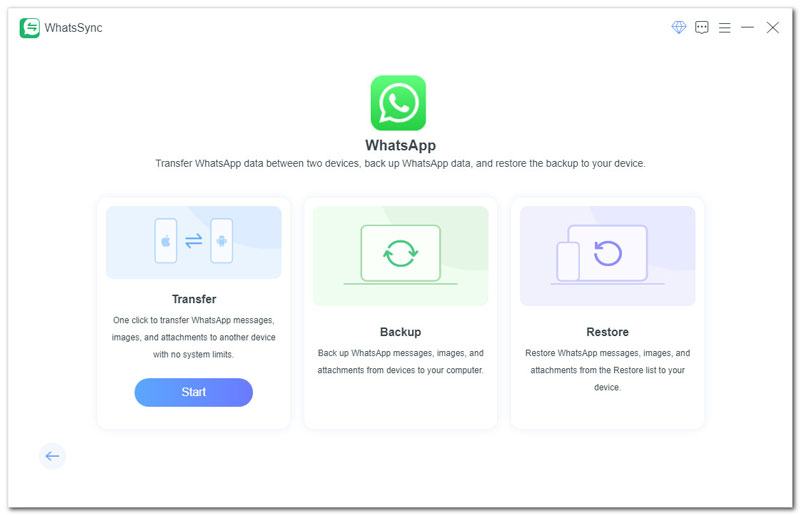
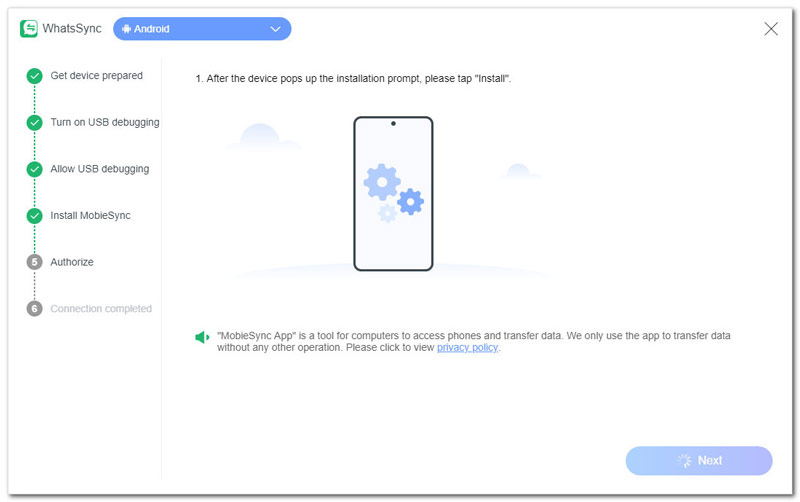
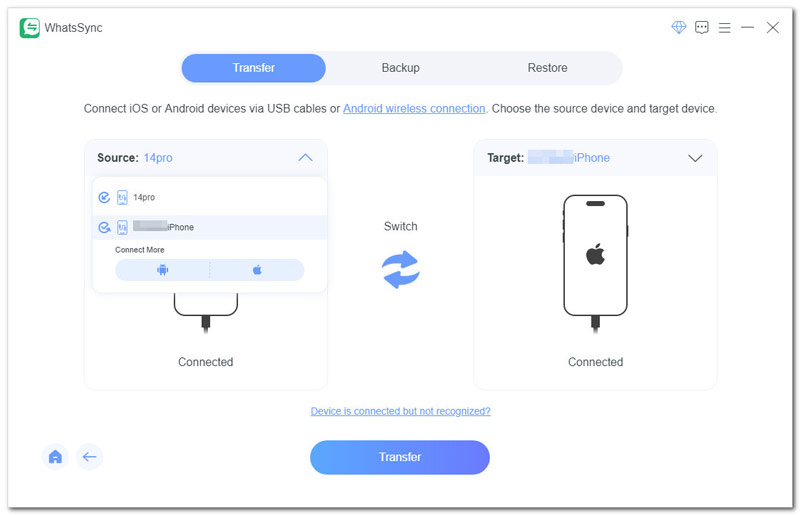
If you are carrying massive media attachments, high-definition videos, and crucial chat logs spanning several years, official cloud backups can easily fail due to network disconnection or full storage limits. Aiseesoft WhatsSync stands out as an expert utility specifically engineered to handle WhatsApp database migrations across devices. It bypasses any cloud storage fees and directly transfers your whole WhatsApp infrastructure from your old device to the new one. It handles texts, voice notes, photos, documents, and emojis without any compression or data loss.
Step-by-Step Guide to Transfer WhatsApp via WhatsSync:
 100% Secure. No Ads.
WhatsApp provides its own specialized backing mechanism linked directly to your Apple iCloud account. It is fully wireless and doesn't require a desktop client. However, you must ensure you have at least 2.05 times the available space in both your iCloud account and your internal iPhone storage relative to the actual size of your chat history.
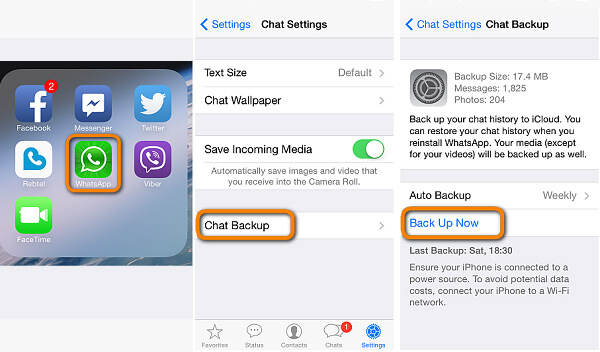
As an old iOS users, you may frequently have the need to transfer files between different devices, especially when you buy a new iPhone. We all know that iCloud can help you back up all types of iOS data on its cloud service. When you upgrade to a new iPhone, you can use iCloud to sync all data from old iPhone to new one. So the first method will show you how to transfer WhatsApp messages from iPhone to iPhone with iCloud.
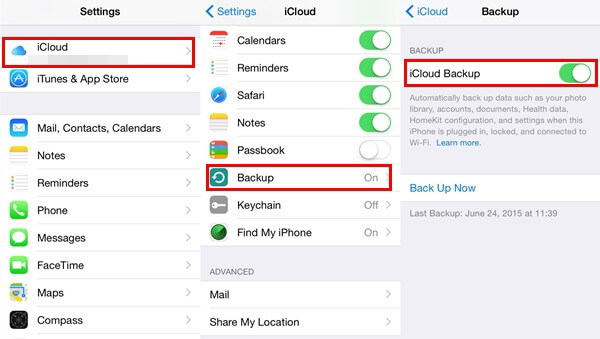
With this method, you can transfer WhatsApp from iPhone to new iPhone. However, you need to sync all iCloud backup to your new iOS device. If you only want to restore WhatsApp messages to new iPhone, it's not the best choice.
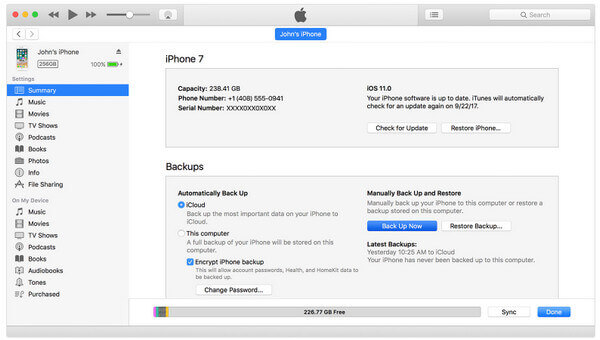
Using a local desktop backup is an excellent alternative if you don't have internet access or hate paying for iCloud monthly subscriptions.
Crucial Notice for Modern Mac Users: Please note that Apple has officially retired iTunes on macOS Catalina and subsequent versions. If you are operating on a modern Mac, use native "Finder" sidebars instead of iTunes. Windows users can still download and use the official iTunes desktop client.
Warning & Limitation: This method is an emergency workaround and is strictly best for saving 1 or 2 short conversations only. It merely generates a raw .txt file for reading in an email inbox. You cannot import this text file back into your actual WhatsApp chat application on your new iPhone. So, if you want a more convenient solution, you can try Aiseesoft WhatsSync.
100% Secure. No Ads.
Or you can follow the steps below to export WhatsApp history to your iphone via email.
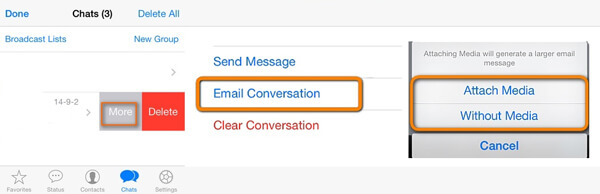
You can also transfer WhatsApp from iPhone to Android in this way.
1. Can I have two WhatsApp accounts on one iPhone?
Usually, you can only have one account on one iPhone, as you only have one phone number. Even if your iPhone has dual-SIM, you still need to pick one phone number to set up WhatsApp.
2. Can I use the same WhatsApp account on two different iPhones?
You cannot use WhatsApp with the same account on two phones at the same time. And if you frequently switch your WhatsApp account between different devices, you may get blocked.
3. How to backup WhatsApp chats from my iPhone?
If you want to back up your important WhatsApp messages, you can also rely on WhatsApp Transfer for iOS to help you with that. With this backup tool, you can save each backup file safely and separately without worrying that your data may be overwritten.
Conclusion
We mainly talk about how to transfer WhatsApp to new iPhone in this tutorial. We show you 5 ways to copy WhatsApp messages from iPhone to new iPhone. You can pick any one of them to get the job done. Hope you can easily transfer WhatsApp to new iPhone after reading this post. Of course, if you have any better method or still have some questions, you can leave us a message.
 How to Back Up iPhone WhatsApp Chat
This post show you four ways to back up WhatsApp chat messages with iCloud, AirDrop, Mail and WhatsApp Extractor.
 How to Transfer Videos from iPhone to PC
Learn how to transfer videos from iPhone to PC easily. This guide covers the best ways to import videos from iPhone 17 to iPhone 4.
 How Recover Deleted WhatsApp Chat in 2 Ways
This article shows you how to recover deleted WhatsApp chat history using Android Data Recovery and Google Drive.
 Leave your comment and join our discussion
WhatsApp Tips
Add Contacts to WhatsApp Block Unblock Someone WhatsApp WhatsApp Messenger Backup & Restore WhatsApp Android Record WhatsApp Calling WhatsApp Not Working Check Hide Whatsapp Last Seen Transfer WhatsApp Chats between iPhone and Android Backup WhatsApp Chats to Google Drive View Old WhatsApp Backup Save Photos from WhatsApp Export WhatsApp Chat Send Long Videos on WhatsApp Save Stickers on WhatsApp Save Videos from WhatsApp See Deleted Messages on WhatsApp Backup WhatsApp on iCloud Save PDF from WhatsApp in iPhone Save WhatsApp Audio Backup WhatsApp Message on iPhone
An efficient WhatsApp transfer tool that quickly backs up and syncs all WhatsApp chats, video/audio, files, stickers, and more across iOS/Android devices and online cloud services.
100% Secure. No Ads.

*Required field
*Please enter a valid email

