The prerequisites for transferring WhatsApp from an Android device to an iPhone are a new iPhone that hasn't been activated or one that has been factory reset. But as we all know, a factory reset will erase all the information on your Android phone. It is daunting, isn't it? So, is there any way to help you transfer WhatsApp from Android to iPhone without a factory reset? You can get answers in this article.

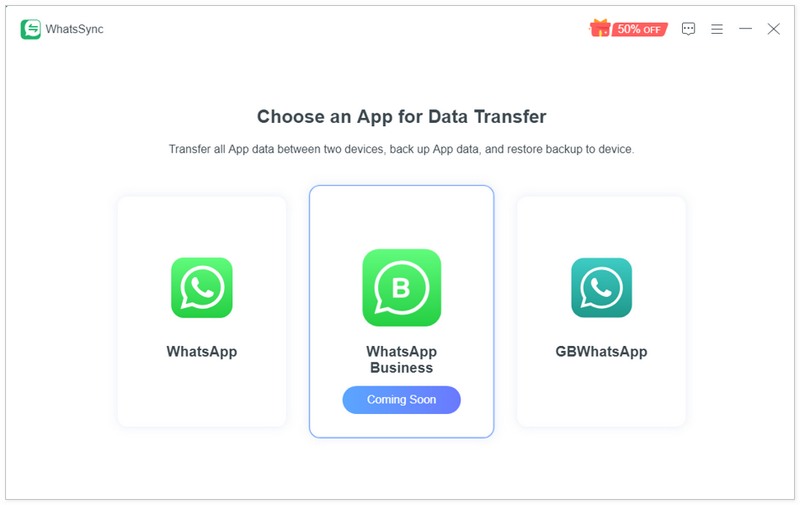
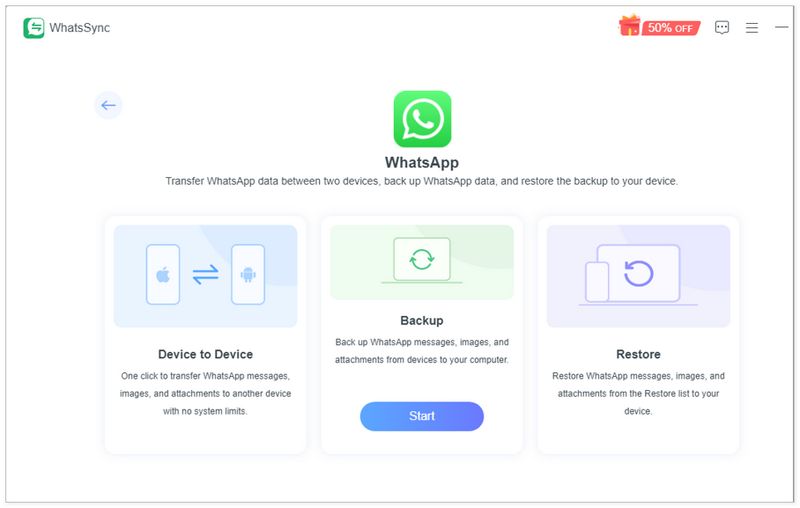
WhatsSync is a powerful third-party program that helps you transfer all WhatsApp chat data between Android and iOS devices. This dedicated WhatsApp data transfer tool allows you to move or copy WhatsApp conversations, chats, documents, and various attachments from an Android phone to an iPhone and from an iPhone to an Android device easily.
Downloads
 100% Secure. No Ads.
Below are the detailed steps on how to transfer WhatsApp from Android to iPhone without a factory reset using WhatsSync.
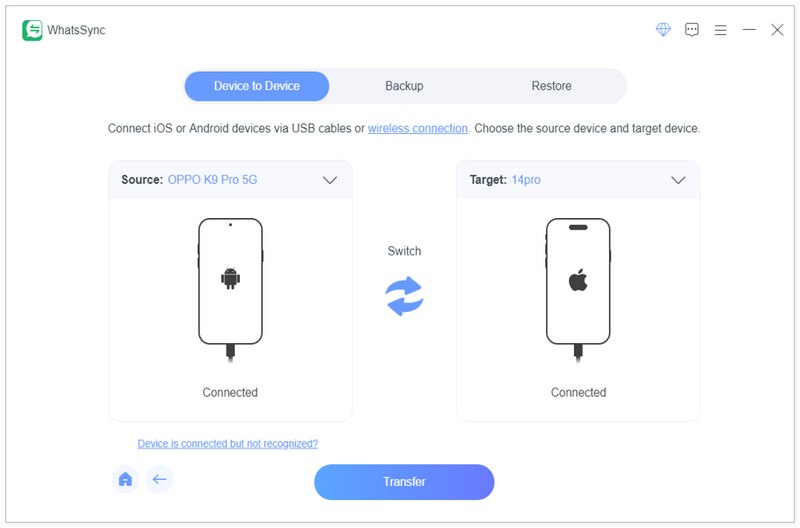
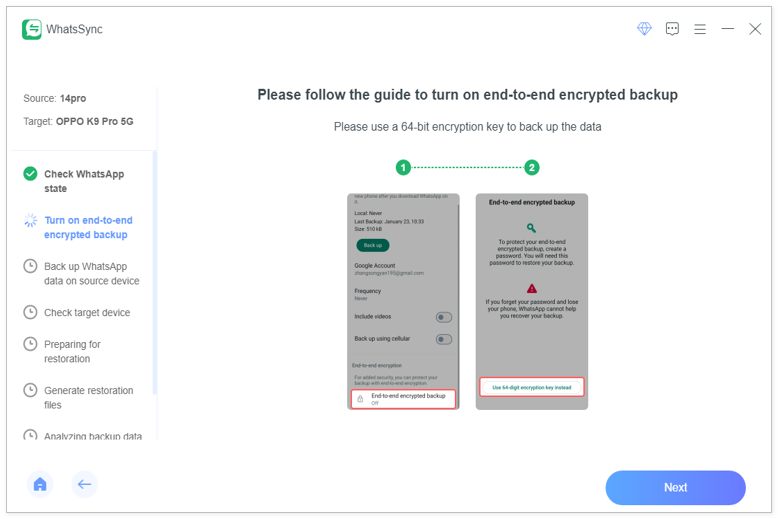
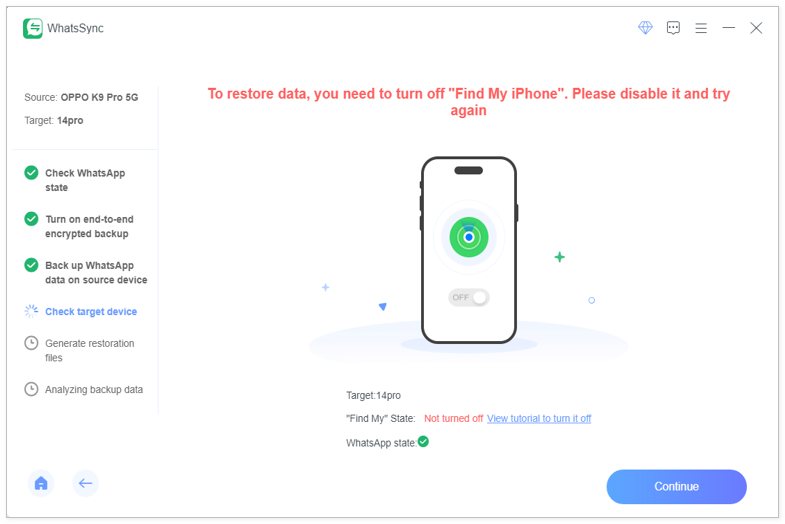
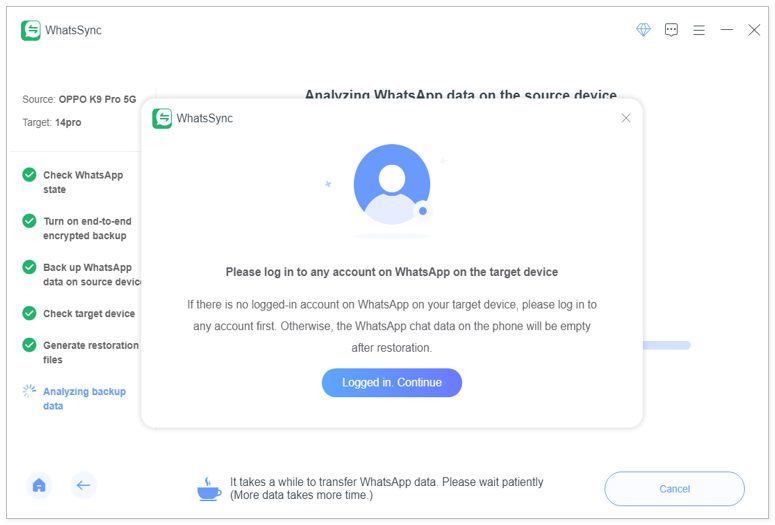
In addition to using WhatsSync to transfer WhatsApp to a new iPhone, you can also use the Move to iOS application. You can access and download it from the Google Play. This app will transfer your data, but not see or share it, so that you can feel safe to use it.
So, how do you migrate WhatsApp from Android to iPhone? Please refer to the steps below.

Pros
Cons
In addition to the two methods above, you can take advantage of Google Drive to transfer WhatsApp chats and messages from Android to iOS without a factory reset. Just back up WhatsApp from your Android phone with Google Drive and then restore the data to your iPhone using it again.
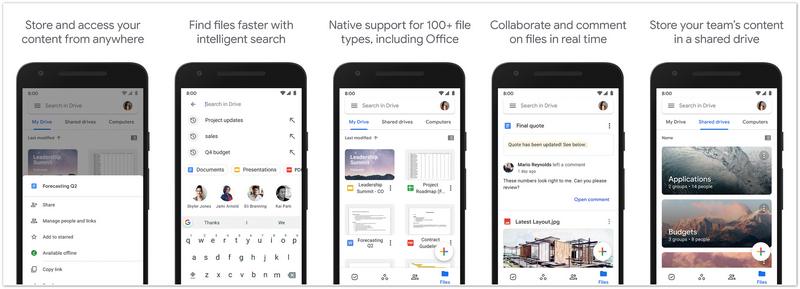
Follow the steps below and use Google Drive to transfer WhatsApp from Android to iPhone.
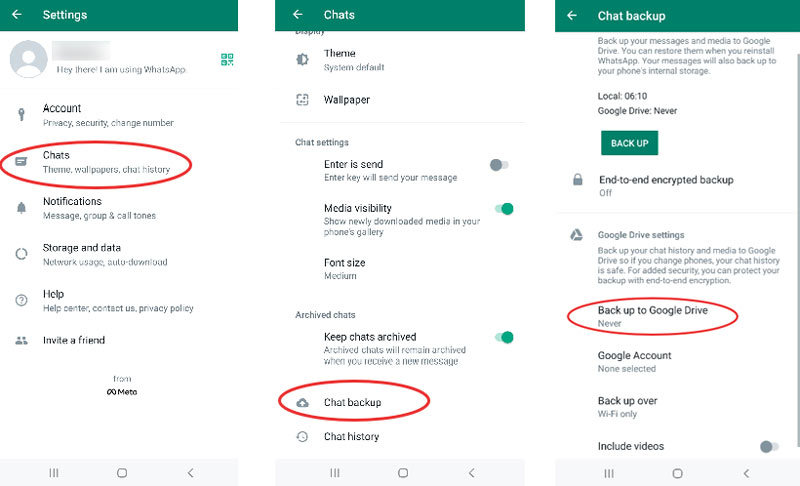
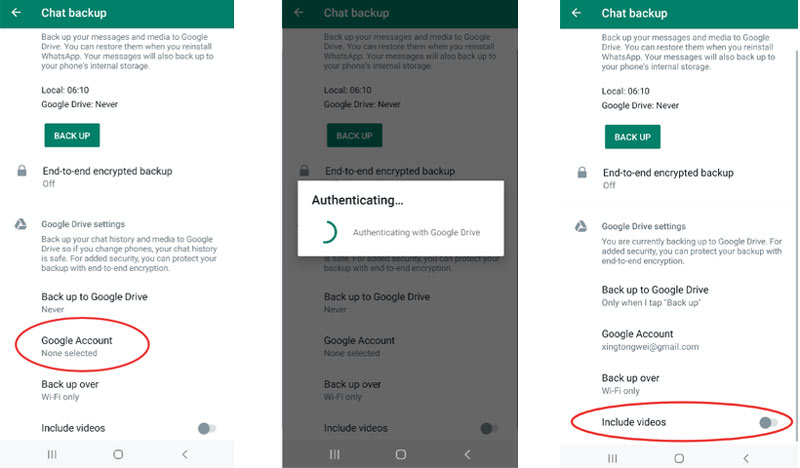
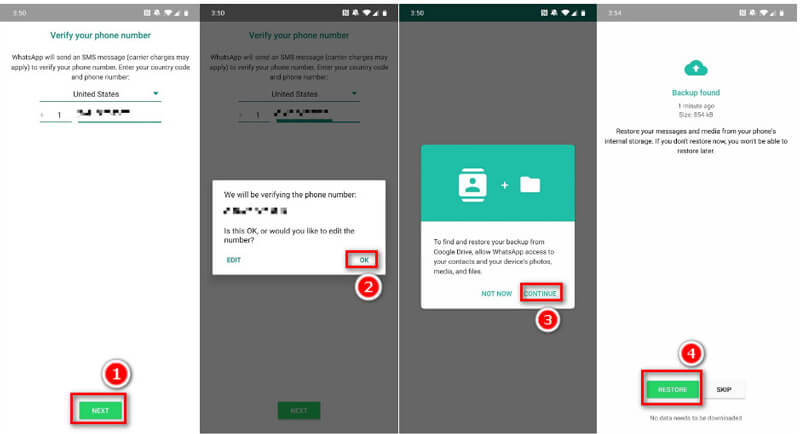
Pros
Cons
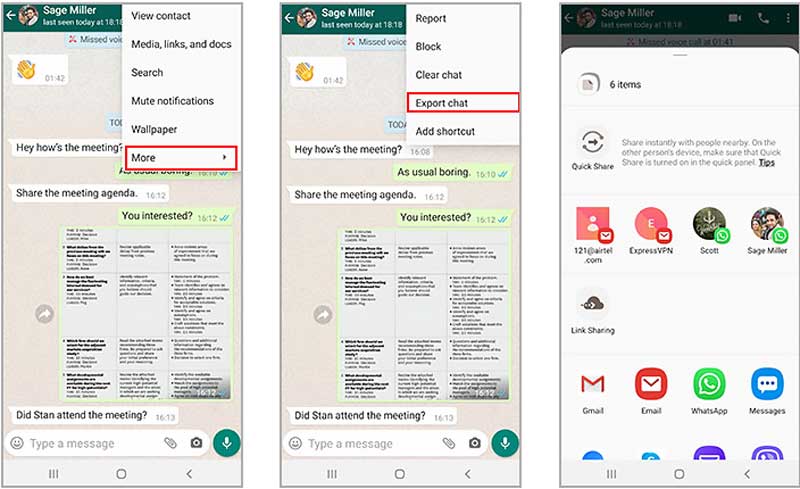
There is a built-in “Email Chat” feature in WhatsApp that allows you to quickly transfer your conversations, photos, documents, and videos. If you only need to copy a few important text conversations from your Android phone to an iPhone, use this method.
Pros
Cons
How do I restore WhatsApp chats from Google Drive backup on an iPhone?
Open WhatsApp and find Settings in it on your old device. Select Chats and choose Chat Backup. You can choose to back up to Google Drive and enter your Google Account. After backup, you can open WhatsApp on your iPhone and enter the same phone number you used on your old device. Follow the instructions to restore the data you backed up.
Why is my WhatsApp transfer not working?
It might be because your Android and iPhone devices are connected to different Wi-Fi. Furthermore, turning on the live location might also lead to a failed transfer.
Will factory reset delete WhatsApp messages?
Yes, it will. Factory reset not only erases all your previous messages in WhatsApp but also deletes messages in other apps on your Android or iPhone devices.
Conclusion
The official method to transfer WhatsApp data requires you to factory reset your target phone, which can lead to data loss for other apps. But using the ways we recommended above, you can transfer WhatsApp from Android to iPhone without a factory reset. The most effective tool is to use WhatsSync But if your computer isn’t available, you can also try the other three methods.
 Learn to Backup WhatsApp Messages on iPhone and Android
How do you backup old chats in WhatsApp? Can I back up all WhatsApp messages? Check the simple guide to backing up your WhatsApp chats to a computer and drive.
 WhatsApp iCloud Backup - How to Backup WhatsApp on iCloud
Why I can't backup my WhatsApp to iCloud? How do I access WhatsApp on iCloud? How to backup WhatsApp on iCloud? This post shares 3 simple ways to create a WhatsApp iCloud backup.
 Online Free WhatsApp Data Recovery on iPhone and Android
How can I bring back deleted chats from WhatsApp? How do you retrieve deleted WhatsApp messages? Figure out if you can recover WhatsApp data online for free.
 Leave your comment and join our discussion
Recover WhatsApp
1.1 WhatsApp Recovery 1.2 Recover Deleted WhatsApp Messages 1.3 Recover Deleted WhatsApp Chat 1.4 Recover WhatsApp Messages Android 1.5 Recover WhatsApp Chat History Samsung 1.6 Recover WhatsApp Videos/Images Android 1.7 Restore WhatsApp Messages on New iPhone 1.8 Restore WhatsApp from Google Drive to iPhone 1.9 WhatsApp Backup and Restore 1.10 Restore WhatsApp from iCloud
An efficient WhatsApp transfer tool that quickly backs up and syncs all WhatsApp chats, video/audio, files, stickers, and more across iOS/Android devices and online cloud services.
100% Secure. No Ads.

*Required field
*Please enter a valid email

