A few days ago, I went to play a video on my iPhone 15 and… nothing. No sound on iPhone, not even a whisper. The speaker icon showed volume was up, the ringer switch was off, but my phone had gone completely silent. After trying several different fixes, I finally got it working. Here is every solution I found - tested, ranked, and ready for you to try.
How We Tested These Methods
We reproduced the “no sound” issue on 5 different iPhone models (17 Pro, 15 Pro, 14, 13, SE) running iOS 18, 17, and 16.
No sound on iPhone is a common issue across Apple devices, regardless of iPhone model or iOS version. It may happen under different situations. Recently, I have received messages from iPhone users saying there was no sound on iPhone videos after removing headphones or installing third-party apps. Sometimes, your iPhone speaker does not work, even though you do not do anything about it. Before delving into specific solutions, the first section will discuss three main symptoms of the iPhone’s no sound issue.
When someone calls you, your iPhone plays its standard ringtone, but if you open a game, a social media app, or YouTube, you hear nothing through the speaker. In that case, music, videos, or app sounds are silent.
Fix for: No sound in apps, calls work → Solution 2/5/7
There is no sound on your iPhone at all for calls, music, videos, or apps. Your iPhone has completely turned into a silent device. Whether you listen to music, play a movie, or try to make a phone call on speakerphone, it remains dead silent.
Fix for: Complete silence → Solution 1/4/5/6/7
Your iPhone does not detect that you have unplugged your headphones. This is a common problem because iOS sometimes fails to detect when you disconnect your audio device, especially with third-party accessories. When your iPhone is stuck in headphone mode, it will not play any sound.
Fix for: No sound after removing headphones → Solution 3/7
If your iPhone suddenly stops making any sound, try the following 5 quick solutions to resolve the issue.
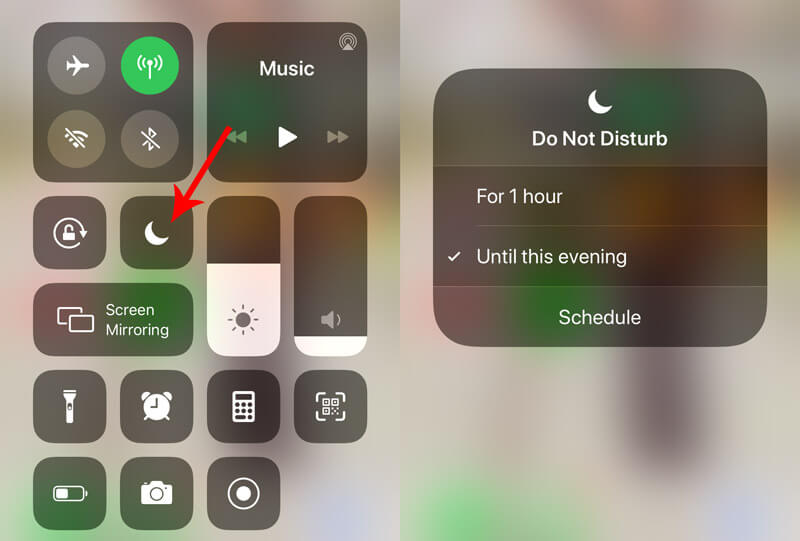
Do Not Disturb (often part of the wider Focus modes) is usually used in meetings, workplaces, or cinemas. If it was accidentally enabled after an iOS update, or you turned this feature on unintentionally, your iPhone will remain entirely mute.
To turn it off, you can go to your Control Center and then simply tap the crescent moon icon. Tap it to ensure it is grayed out and disabled. For iOS 26/18/17/16 users, swipe down from the top-right corner to open the Control Center. Swipe up from the bottom of your screen on older iPhone models.
If your iPhone Do Not Disturb is not working, you can click here for some solutions.
If there is no sound in one iPhone app, try another media app. Sometimes, compatibility issues or an outdated app cache can cause a video or music app to not work well on certain iPhone models. For instance, the YouTube app makes no sound, but Spotify plays sound perfectly.
Make sure you have disabled the Silent Mode. You can find the silence key next to the volume buttons. Try adjusting the volume in all music and video apps on your iPhone. If you have set the sound volume to zero in one app, other apps will be influenced too.
Third-party headphones that do not match your iPhone will not play audio. If you cannot hear any sound through your headphones, remove them or replace them with original Apple accessories.
I noticed that a bit of dust in the port was making my iPhone think headphones were still plugged in. A quick clean and reconnect worked wonders.
This one caught me off guard. My iPhone 15 was actually playing audio through my living room smart speaker the whole time.
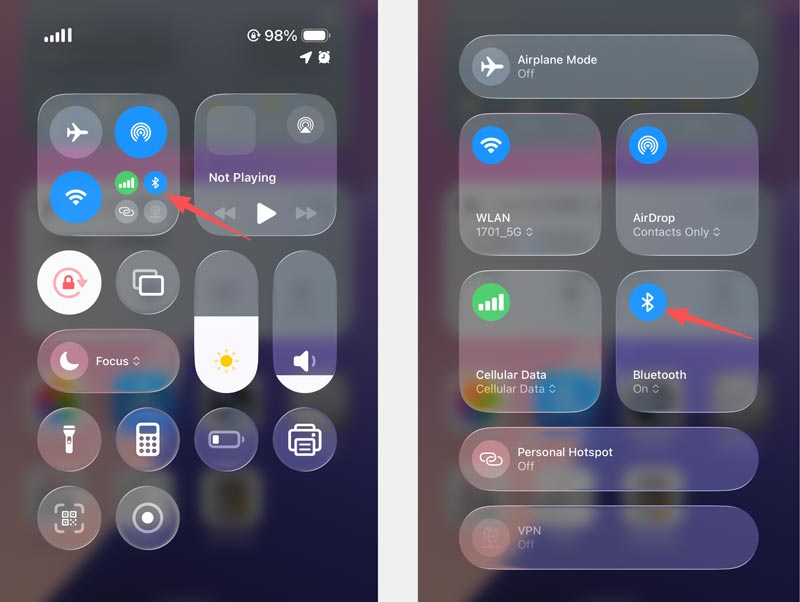
If the Bluetooth is enabled on your iPhone, it may be connected to another device, such as an external speaker, your AirPods, or Apple TV. The iPhone sound will be transmitted to that device. So, you should check and turn off Bluetooth when there is no sound on your iPhone. Display the Control Center, then tap the Bluetooth icon to turn it off.
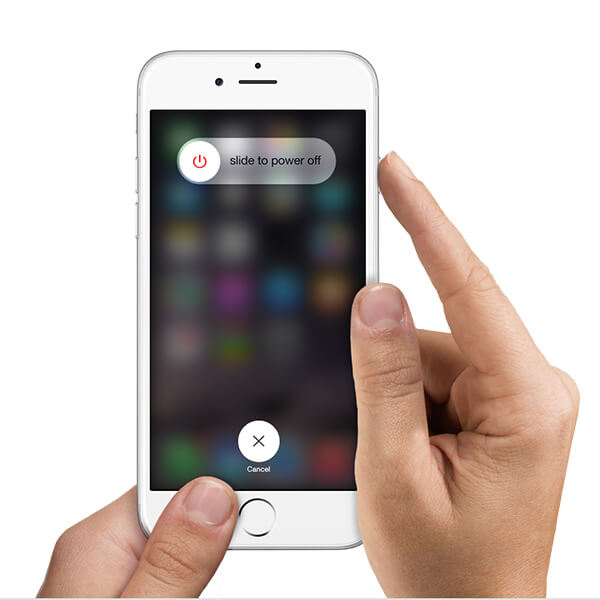
In case of a sudden software glitch, a simple restart could clear temporary system errors and make your iPhone sound work normally again. To restart an iPhone, hold the Power and Volume Up (or Home) buttons at the same time until you see the slide to power off option. Once your phone is powered off, wait for a few minutes, then press the Power button to restart it.
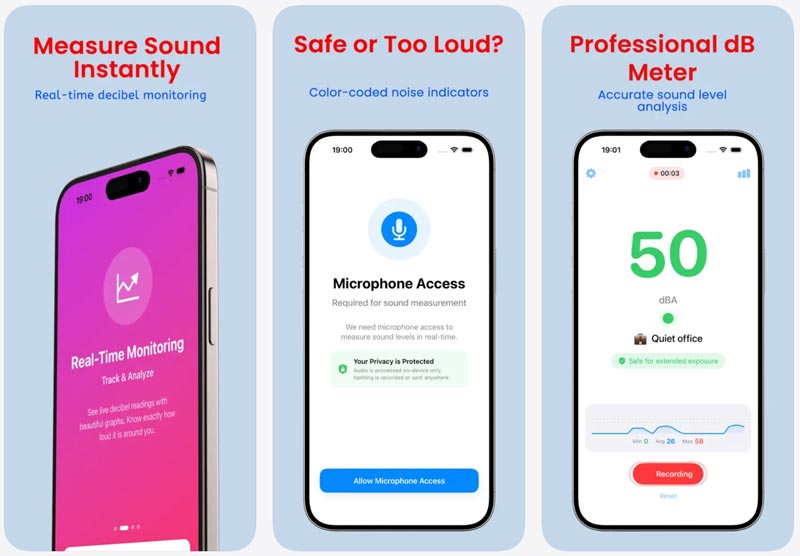
Before moving on to advanced solutions, try using a third-party Sound Analyzer app. It can visually measure the frequency response to help you determine whether your iPhone speaker hardware is completely broken or the software is just malfunctioning.
When the basic troubleshooting steps fail to fix your iPhone’s no audio issue, it is time to move on to more professional solutions.
Through my test on an iPhone 14, doing a full reset gave it a completely fresh start.
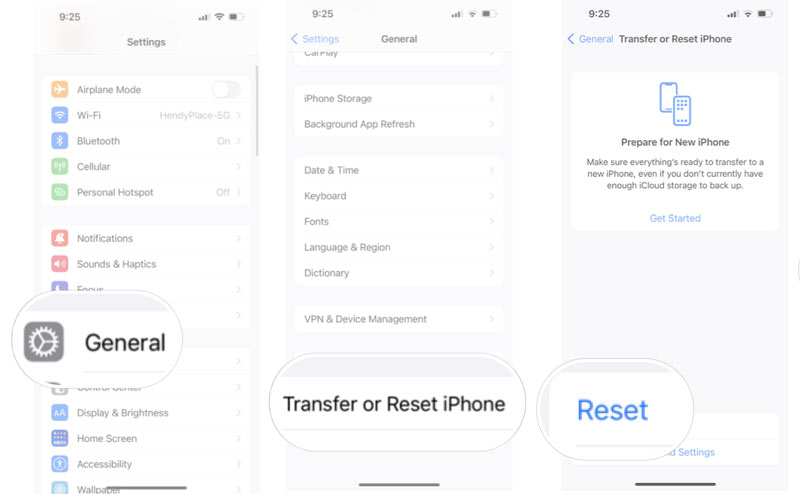
You can start with the Reset All Settings option. Go to Settings > General > Transfer or Reset iPhone > Reset > Reset All Settings. This operation wipes your custom configurations and potentially unmutes your audio drivers.
If the no sound on iPhone issue persists, you need to factory reset your iPhone. Choose Erase All Content and Settings and confirm your action.
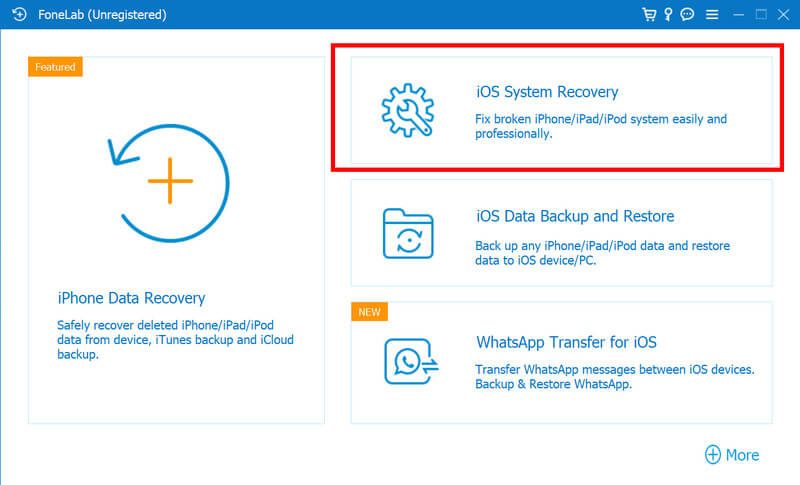
In some cases, your iPhone is stuck in headphone mode. That’s why there is no sound on your device when you put on headphones. If the solutions above do not work, you can turn to the reputable FoneLab iOS System Recovery. The software was the ultimate lifesaver for my heavily bugged iPhone 15 Pro. It fixed the deep system errors without deleting any files. If the iPhone’s no sound issue persists or it remains completely stuck, we highly recommend using a professional iOS System Recovery service.
Key features include:
1. It has the capacity to solve the various factors that may cause no sound on iPhone, like iPhone stuck in headphone mode, iPhone is frozen, blue screen, or locked out of iPhone.
2. You can choose to repair your iPhone in Recovery mode or DFU mode based on your situation.
3. This iOS recovery tool works on all iPhone models and iOS versions.
4. It works seamlessly on both Windows and macOS.
5. iOS System Recovery is safe and secure during iPhone repair. It uses a USB cable to connect the iPhone to the computer.
6. Even beginners can grasp this iPhone recovery tool, for it allows you to repair your iPhone in one click.
 100% Secure. No Ads.
100% Secure. No Ads.
FoneLab can deal with over 50 system-related issues on your iPhone and iPad. To troubleshoot no sound on an iPhone, start with Standard Mode. As you can see, the software also provides an Advanced Mode to handle more serious problems.
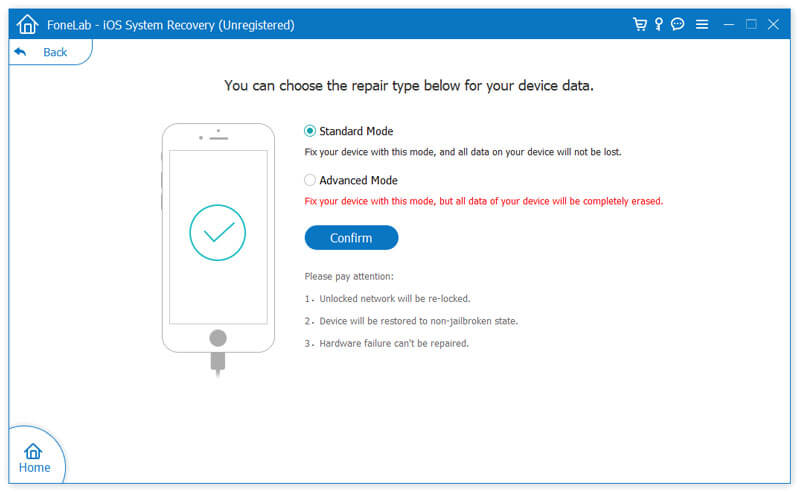
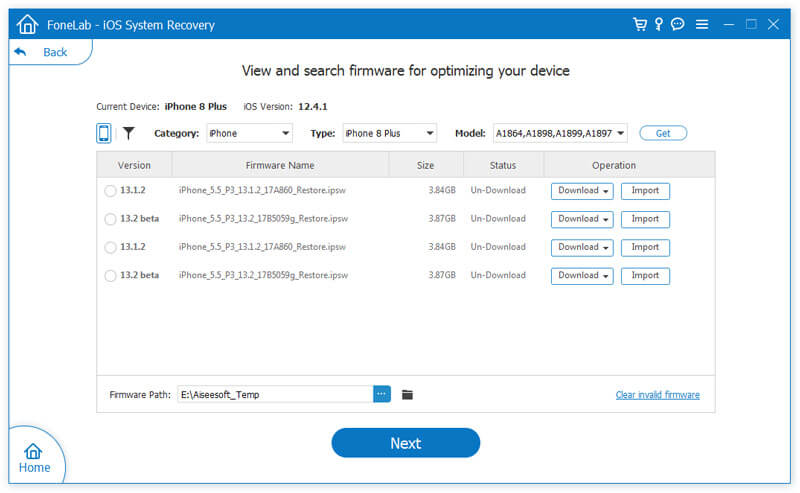
Connect your iPhone to FoneLab, then download the corresponding firmware package. After that, the software will start fixing the no-sound issue on your iPhone.
Question 1. Why is my iPhone suddenly not making any sound?
In most cases, the problem is caused by Do Not Disturb or Focus mode being enabled. When your iPhone is connected to a Bluetooth device, you may hear no sound from your iPhone speaker. Sometimes, a software glitch after an iOS update, a specific app bug, incorrect volume settings, or hardware issues may also lead to the issue.
Question 2. How to fix no sound on iPhone after iOS 26 update
Start with a device restart. Moreover, ensure your iPhone is not in Do Not Disturb mode. If that fails, force restart your iPhone or use iOS System Recovery to repair any update-related bugs.
Question 3. When should I take my iPhone to Apple for sound issues?
If you have tried all seven fixes above and still cannot bring your iPhone back to normal, or if the hardware is physically damaged, your device may need service.
Conclusion
This post shares seven efficient solutions for you to resolve the no sound on iPhone problem. Start with the quick fixes. If those methods don’t work, turn to advanced solutions.
In our testing, iOS System Recovery was the only method that worked on every device. It can accurately recognize software bugs (especially for headphone mode issues) and fix them safely.
 How to Fix iPhone Echo Problem (4 Proven Ways + iOS 26 Fix)
Is your iPhone echoing during conversations? Discover why your iPhone echoes and learn 4 simple, step-by-step solutions to fix it without data loss. Updated for iOS 26
 100% Working Solutions to Fix Unable to Load Video on iPhones and iPad
Encounter the error saying unable to load video on your iPhone or iPad? You are lucky since this article tells you the verified solutions to fix this problem.
 How to Stop Apple Music from Automatically Playing [iPhone/CarPlay]
Don’t know how to stop Apple Music from automatically playing on your iPhone or car? Here are 9 solutions and tips to help you stop Apple Music!
 Leave your comment and join our discussion
iPhone Not Working Problem
iPhone Wi-Fi Not Working iPhone Sound Not Working iPhone Blutooth Not Working iPhone Camera Not Working iPhone Touch Screen Not Working iPhone Proximity Sensor Not Working iPhone Speaker Not Working iPhone Microphone Not Working iPhone Headphone Not Working iPhone Flashlight Not Working iPhone No Sound Fix iPhone Cannot Take Photo
Fix your iOS system to normal in various issues like being stuck in DFU mode, recovery mode, headphone mode, Apple logo, etc. to normal without any data loss.
100% Secure. No Ads.
100% Secure. No Ads.

*Required field
*Please enter a valid email

