
Best for: Beginners and casual users who need an all-in-one solution to convert, split, and compress videos without quality loss.

Video Converter Ultimate
 100% Secure. No Ads.
100% Secure. No Ads.
In today's digital landscape, attention spans are shorter than ever. According to recent studies, videos under 2 minutes receive the highest engagement rates across all major platforms.
Whether you're a content creator adapting longer videos for TikTok and YouTube Shorts, a teacher creating digestible lesson segments from recorded lectures, or simply organizing family memories, knowing how to effectively split videos has become an essential digital skill. This update guide will walk you through the entire process with different solutions for different needs and skill levels.
Before diving into the "how," understanding the "why" helps you approach video splitting more strategically. The applications extend far beyond simply making files smaller.
Platform Optimization is Critical for content creators. Each social media platform has distinct requirements: TikTok thrives with 15-60 second vertical videos, Instagram Reels performs best at 15-30 seconds, YouTube Shorts favors 15-60 second clips, while LinkedIn supports slightly longer 1-3 minute professional content. A study by HubSpot found that 62% of marketers adjust video length specifically for each platform.
Content Organization matters even for personal use. Teachers separate lecture chapters, businesses create highlight reels from meetings, and families organize vacation footage. The batch processing feature in modern splitters can save hours by automating repetitive cuts.
Privacy Protection is increasingly important. When sharing excerpts from longer recordings, removing sensitive sections is essential. Unlike online tools that upload your content to external servers, desktop applications like Aiseesoft Video Editor process everything locally, ensuring complete data privacy.
Format Compatibility solves a common frustration. With footage arriving in MOV from iPhones, MP4 from Androids, AVI from older cameras, and MKV from screen recordings, a versatile splitter must handle all formats without requiring prior conversion.
Best for: Beginners and casual users who need an all-in-one solution to convert, split, and compress videos without quality loss.
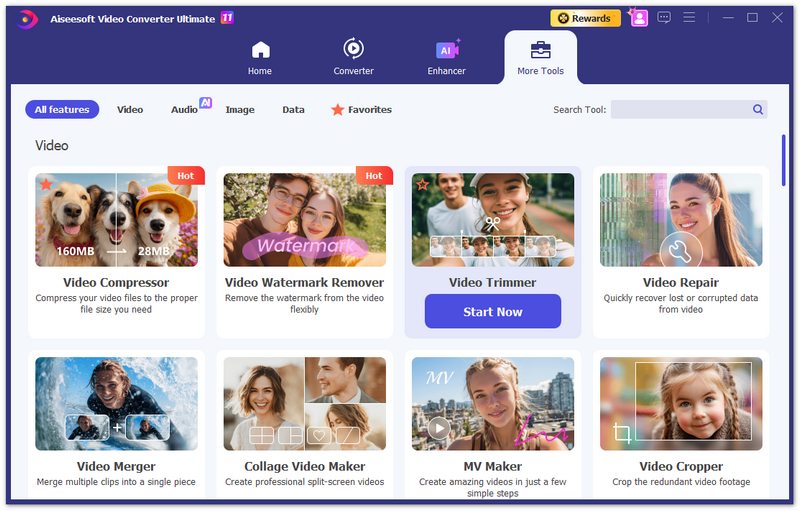
Aiseesoft Video Converter Ultimate is a robust desktop software that goes beyond simple file conversion. It features a built-in video editor that allows for precise frame-by-frame cutting, splitting a single file into multiple segments, and merging clips. It supports over 1,000 formats and utilizes hardware acceleration for fast processing.
100% Secure. No Ads.
100% Secure. No Ads.
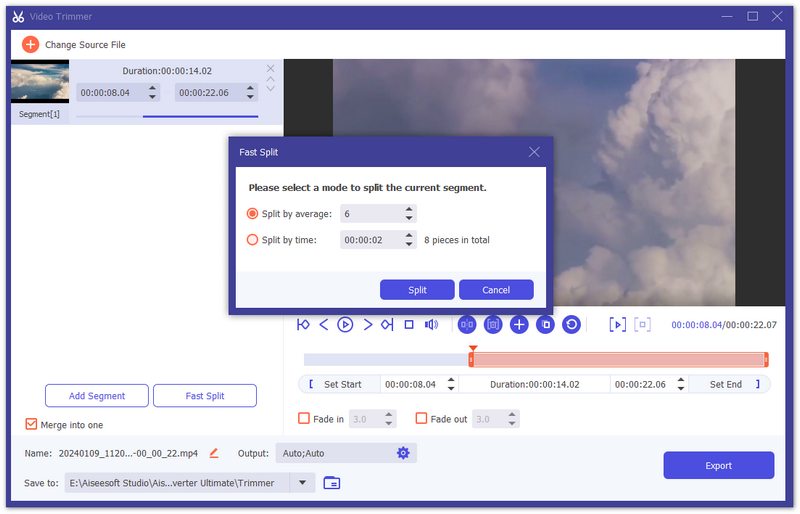
Steps to Split Video in Aiseesoft Video Converter Ultimate:
Best for: Professional editors, colorists, and creators who need industry-standard precision and advanced editing tools for free.
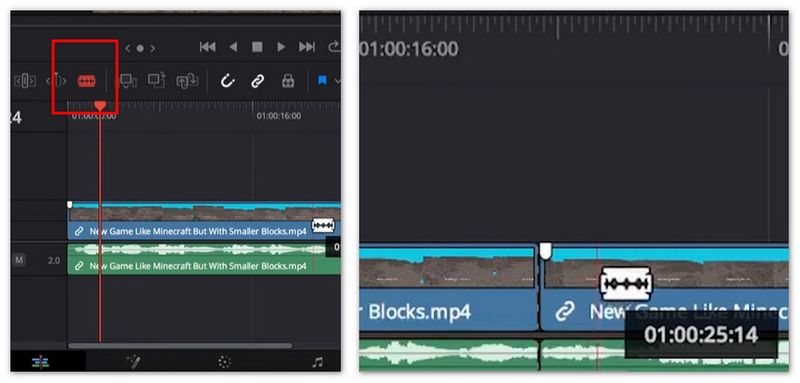
DaVinci Resolve is a professional-grade video editing software used in Hollywood productions. While complex, its "Cut" and "Edit" pages offer powerful splitting tools. The free version is incredibly feature-rich, making it the best option for users who want high-end control over their cuts.
Steps to Split Video in DaVinci Resolve:
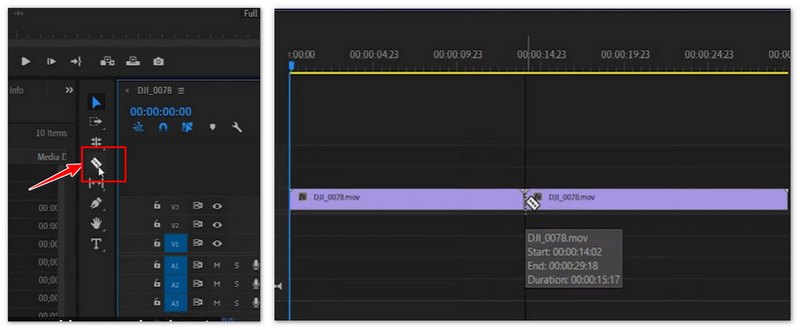
Best for: Professional video editors and content creators who are part of the Adobe ecosystem and need a versatile, layer-based timeline editor.
Premiere Pro is the industry standard for timeline-based video editing. It offers a comprehensive set of tools for cutting, arranging, and refining video content. Its integration with After Effects and Photoshop makes it ideal for complex projects requiring detailed splitting and rearranging of footage.
Steps to split a video in Adobe Premiere Pro:
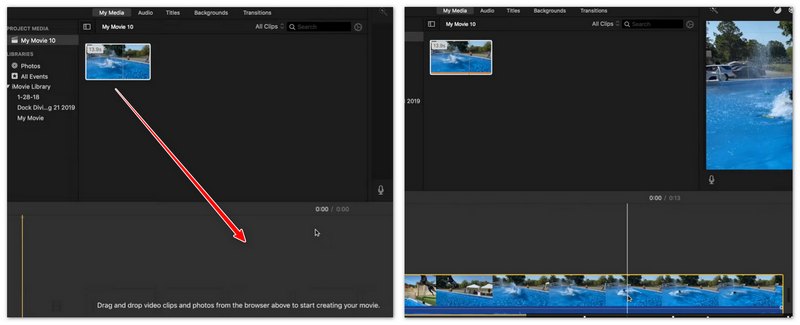
Best for: Mac, iPhone, and iPad users looking for a free, intuitive, and high-quality video editor pre-installed on their Apple devices.
iMovie is Apple's entry-level video editing software, known for its clean interface and ease of use. It is perfect for turning home videos or quick clips into polished movies. It supports 4K video editing and seamless handoff between iPhone and Mac.
Steps to Split Video Using iMovie on Mac:
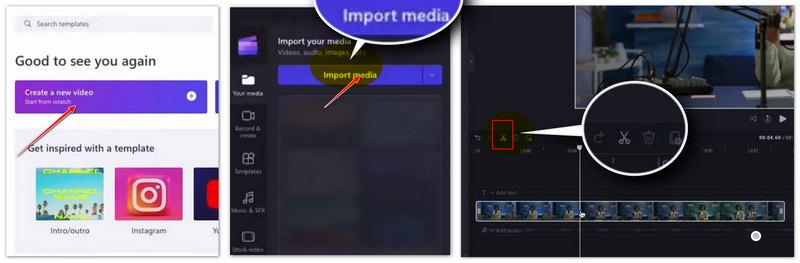
Best for: Windows 11 users and social media creators who need a quick, browser-based (or native app) editor with stock assets and templates.
Clipchamp is now the official video editor for Windows 11. It offers a user-friendly, drag-and-drop interface with cloud storage integration. It is particularly good for creating content for TikTok, Instagram, and YouTube due to its built-in templates and easy export options.
Steps to split the video in Clipchamp:
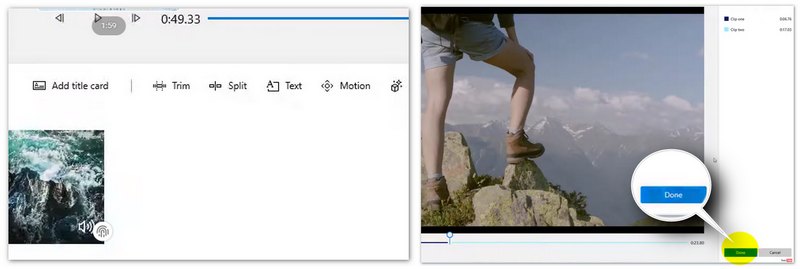
Best for: Quick trimming on mobile devices or simple cuts on older Windows systems without installing third-party software.
The native Photos apps on Windows, iOS, and Mac primarily function as viewers but include basic "Trim" tools. While they lack advanced "Split" buttons (often requiring you to "Save as New Clip" to effectively split), they are the fastest way to shorten a video on the fly. Note: Windows 11 now redirects complex edits to Clipchamp.
Steps to split video in Photos app:
Best for: Content creators, marketers, and students who need an all-in-one platform to create and polish social media shorts or collaborate on simple projects.
Kapwing is a comprehensive, cloud-based video editing studio. It goes beyond simple splitting, offering a multi-track timeline, a library of assets, and tools for adding subtitles, text, and elements. It's designed for creators who want to produce finished, polished content directly in a browser.
Here’s how to split a video with Kapwing:
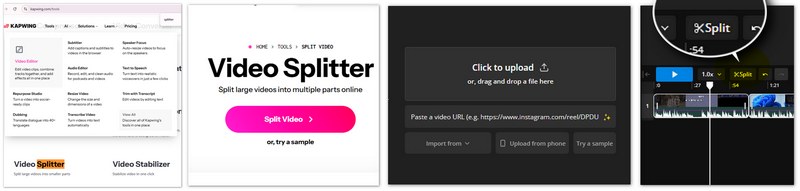
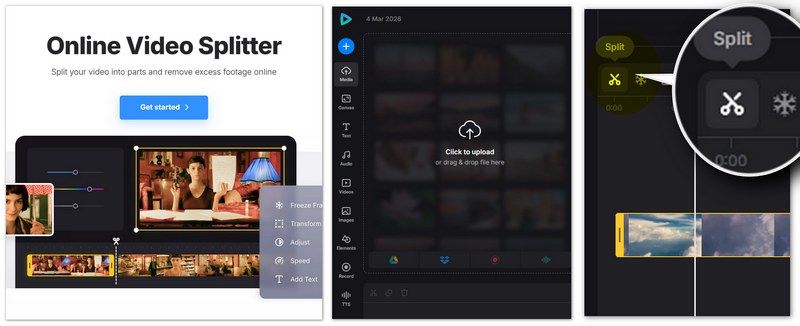
Best for: Casual users who need to perform quick, single-editing tasks (like cut, merge, compress) without a learning curve, especially on less powerful devices.
Clideo is a straightforward, user-friendly suite of single-purpose online media tools. Its interface is clean and ad-supported, guiding you through one editing task at a time with minimal complexity. It's perfect for quick, one-off jobs without any learning curve.
Detailed Steps to Split a Video in Clideo:
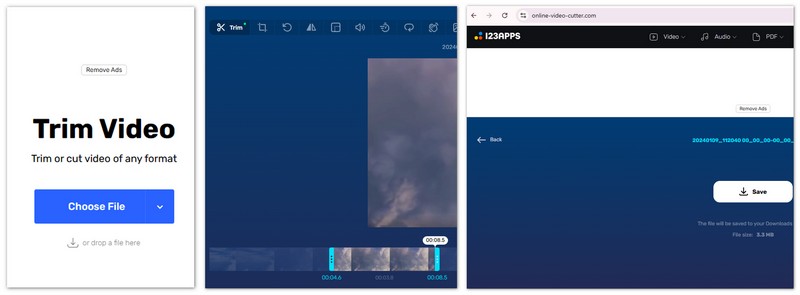
Best for: A minimalist, no-frills tool focused purely on cutting, cropping, and rotating videos.
As the name suggests, this website is a dedicated, minimalist tool for one core function: cutting video. The interface is barebones and loads quickly, with no accounts, complex timelines, or extra editing features. It's about speed and simplicity above all else.
Detailed Steps to Split a Video:
Will splitting a video reduce its quality?
No, most video splitting tools (like the ones built into Windows, Mac, or video editors) do not re-encode the video, so the original quality is preserved.
What is a keyframe, and why does it matter for splitting?
A keyframe is a frame in the video that contains complete image data. If you split at a non-keyframe, the tool may need to re-encode that part. For precise splits, some tools allow frame-accurate cutting, but that may require re-encoding.
Why does my split video have audio sync issues?
This can happen if the tool re-encodes improperly or if the original file has variable frame rates. Using a keyframe-accurate, lossless splitter can help avoid this.
Conclusion
Splitting a large video into smaller parts is no longer a task reserved for professional editors. Whether you're optimizing short-form content for TikTok and YouTube Shorts, organizing lecture recordings, or trimming family vacation footage, there’s a solution that fits your workflow and skill level. If you want speed, format flexibility, and batch processing, desktop tools like Aiseesoft Video Converter Ultimate provide an all-in-one experience with minimal quality loss.
100% Secure. No Ads.
100% Secure. No Ads.
For high-end, frame-accurate control, professional editors such as DaVinci Resolve and Adobe Premiere Pro deliver industry-standard precision. Prefer not to install software? Built-in tools like iMovie, Clipchamp, and the Microsoft Photos app make quick trimming accessible to everyone. Meanwhile, online splitters such as Kapwing, Clideo, and Online-Video-Cutter.com offer browser-based convenience for fast, one-time edits.
 Top 20 Free Video Makers with Music and Pictures You Should Know
How to make videos with music files and pictures in excellent quality? Here are the top 15 free video makers for different platforms you should know of 2021.
 5 Best Free Video Enhancers (Online & PC) [2026 Review]
Compare top free video enhancers like CapCut, Media.io, and Picwand. Fix blurry videos, upscale to 4K, and remove noise. See the pros, cons, and best AI desktop alternatives.
 A Full Guide to Fix iPhone to Android Video Quality with Easy Methods
iPhone videos can sometimes be blurry on Android. Check our post to discover the best way to restore video quality when transferring from iPhone to Android.
 Leave your comment and join our discussion
Video Editing

Video Converter Ultimate is excellent video converter, editor and enhancer to convert, enhance and edit videos and music in 1000 formats and more.
100% Secure. No Ads.
100% Secure. No Ads.

*Required field
*Please enter a valid email
