Whether you have an iPhone, iPad or iPod touch, it is important to take regular backups. Apple makes this process very easy with its iCloud service. However, sometimes, if you just want to download iCloud photos backup to PC for viewing, or download contacts from iCloud for backup in future use, the process is not simple. And iCloud is exactly the way to back up your iPhone, but it fails to keep data for you forever, because it has limited free space. If you want to back up more iPhone data to iCloud on PC, then you have to pay for more storage space, $20 for 10 GB per year. Otherwise, you have to delete your iCloud backup to embrace new added backup on iCloud. Under such circumstances, you must be eager to know how to download backup from iCloud and clear up iCloud for more space. In this article, you will find the answer.
Before downloading iCloud backup, you must be sure you have made iCloud backup. Here are the simple steps to direct you how to make iOS devices (iPhone, iPad and iPod) backup to iCloud. You need to keep your iPhone connect Wi-Fi at first.
On your iPhone, choose "Settings" > "iCloud"> "Storage & Backup".
Turn on iCloud Backup and click "Back Up Now". The data in your iPhone will be backed up into the iCloud account.
iCloud works well for users, and you can access some synced data from the iCloud website or through iCloud for Windows.
However, iCloud only allows you to view certain types of data, such as photos, contacts, notes, and emails. It does not allow you to directly preview the detailed contents of an iCloud backup file or download the full backup to your computer. Therefore, if you want to manually download some files stored in iCloud, you need to use the iCloud website. See the steps below.
For example, if you want to download photos from iCloud, click “Photos”, find the photo you want, and then click “Download” in the top menu. In this way, you can preview and download iCloud photos to your PC. However, you often need to download them one by one, which can be inconvenient if you have a large number of photos.
If you want to download contacts, notes, or emails from iCloud to your computer, you need to open each item individually and export or copy the information. This process can be time-consuming.
In addition, some data types such as apps, messages, and certain backup contents cannot be directly accessed or downloaded from the iCloud website.
For the above method of downloading backup from iCloud is disabled for you, so we suggest you the second way here, with a iCloud downloader like Aiseesoft iPhone Data Recovery. This program is the fastest iCloud backup downloading software, which makes it a cinch to download iCloud contacts , messages, Apps, music, photos, etc. Here we provide the detailed instruction of how to use it to download iCloud photos and contacts to PC. For other data you want to download form iCloud, you can do it in the same way.
 100% Secure. No Ads.
100% Secure. No Ads.
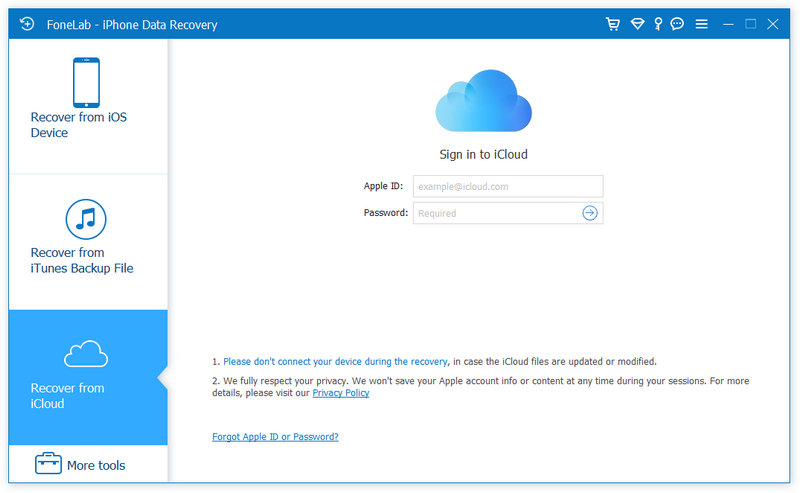
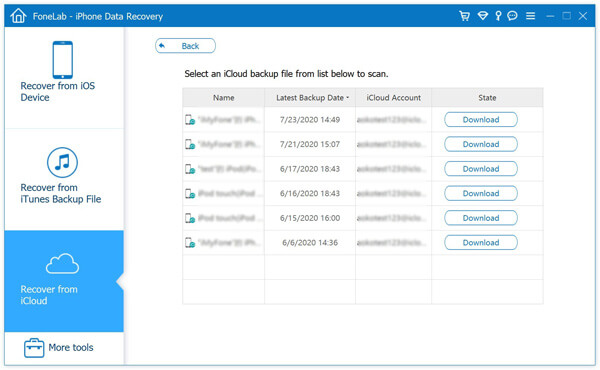
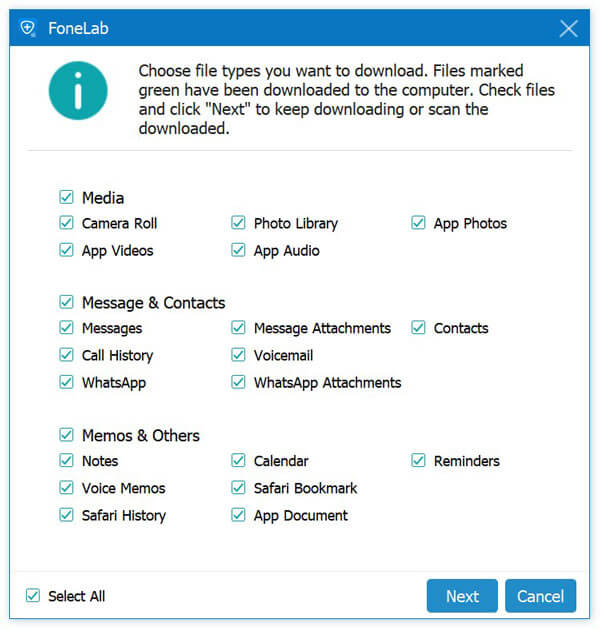
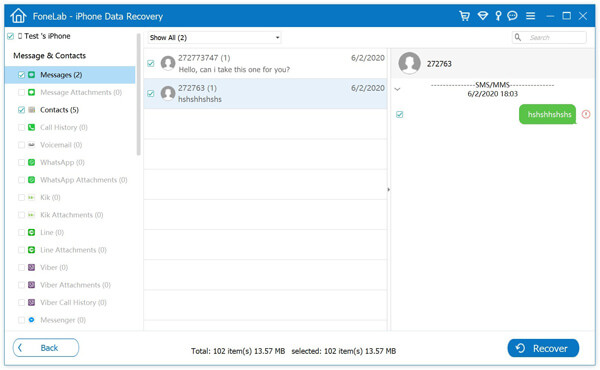
Compared with the first method, iCloud Downloader works better to download iCloud backup for PC. More than download iCloud photos, video, music, etc., it helps to restore contacts from iCloud with simple steps. If you lost data on your iPhone, iPad or iPod, you can use it to recover deleted files.
You can learn the steps from the video below:

If you need to free up more storage space in iCloud, you can delete old iCloud backups. Removing unnecessary backups can help you regain more storage for new data.
Follow the steps below to delete an iCloud backup on your iPhone:
After deleting old backups, you will have more available storage space for new iCloud backups.
Some users also prefer keeping an additional backup on their computer for easier access and extra safety. In the following sections, we will introduce more ways to back up your iPhone data.
Can you download an iCloud backup directly?
No. iCloud does not allow users to directly download a full backup file. You can only restore it to an iOS device.
How do I download photos from iCloud to PC?
You can download photos from the iCloud website or use iCloud for Windows to sync them to your computer.
Can I view iCloud backup files?
Normally you cannot view the detailed contents of an iCloud backup without using a specialized tool.
Conclusion
This guide explained how to back up your iPhone, download data from iCloud, and clear old backups to free up storage space. While iCloud is convenient for syncing and backing up data, it does not allow users to directly download full backup files or easily manage large amounts of data.
Therefore, if you want to access specific files such as photos, contacts, or messages from an iCloud backup, using a professional tool can be a more efficient solution. At the same time, keeping an extra backup on your computer can help you better protect and manage your important iOS data.
 Delete iCloud Backups from iPhone/PC/Mac to Free up Space
Deleting the iCloud backup can help you free up much space on your iCloud. Read this article and learn about how to delete iCloud backup and manage your iCloud storage.
 Three Ways to Restore Contacts from iCloud
Wonder how to restore the deleted or lost iPhone contacts from iCloud? This post will provide three methods to retrieve contacts from iCloud.
 How to Access iCloud Drive Photos and Other Files from Any Device
How do I access my icloud? Want to access icloud photos? This guide shows you the ways to access your iCloud.
 Leave your comment and join our discussion
iCloud Backup
1.9 iCloud Backup Could Not Be Completed
1.10 Cannot Restore from iCloud Backup
1.11 iCloud Backup Not Showing Up
The best iPhone data recovery software ever, allowing users to safely recover lost iPhone/iPad/iPod data from iOS device, iTunes/iCloud backup.
100% Secure. No Ads.
100% Secure. No Ads.

*Required field
*Please enter a valid email

