
Aiseesoft Screen Recorder
 100% Secure. No Ads.
100% Secure. No Ads.
This guide will show you how to record team meetings easily and effectively. Microsoft Teams is a popular cloud-based collaboration tool used for online meetings, classes, and group discussions. It allows users to record meetings and group calls so they can review them later or share them with others when needed.
However, many users still have questions about the recording feature, such as who can start a recording, whether participants are notified, and how the process actually works. In this article, we’ll explain everything in detail and show you the best ways to record Teams meetings with or without the built-in feature.
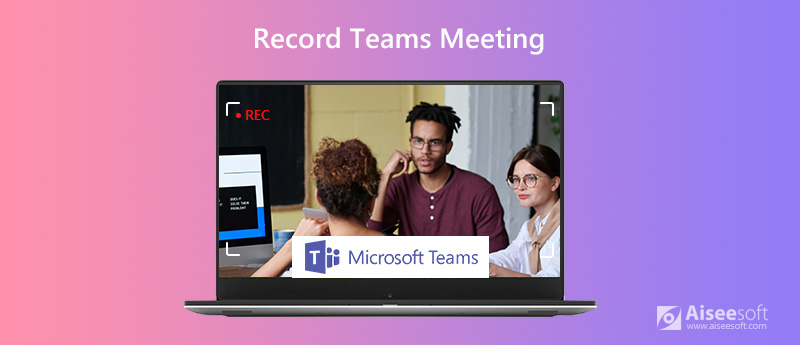
Before recording a Teams meeting, you should know some rules:
1. Not everyone in the meeting can record it. Only the meeting organizer or a person from the same organization has such a privilege.
2. The admin can control the recording ability of each participant. If a user is disabled, he or she cannot record a meeting.
3. The recording length maximum is four hours.
4. Once you start recording a Teams meeting, other members will get a notification.
5. The recording feature is not available in the Microsoft Teams free plan.
If you meet the rule, follow the steps below to start recording a meeting in Microsoft Teams.

The recording will stop automatically if the last person leaves the meeting.
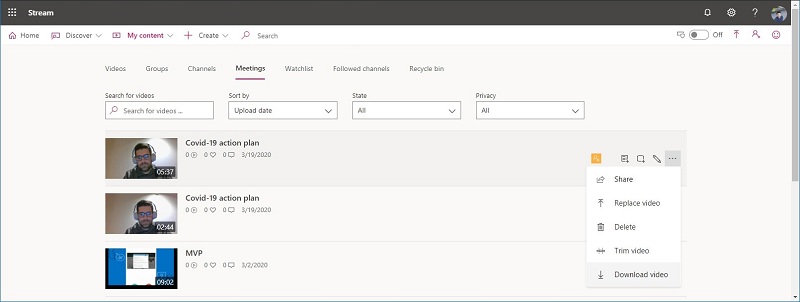
1. If your organization still uses Microsoft Stream, open the recording in Microsoft Stream and download it from the portal.
2. The recording is saved to SharePoint if it is a channel meeting. The recording links are available for seven days in the channel conversation.
3. For other types of meetings, it will be saved to OneDrive, and you can download the recording from your OneDrive.
Only the host of the meeting can download the recording. Other participants can only view it online.
Can you break the rule and record a meeting in Microsoft Teams as you wish? Aiseesoft Screen Recorder is the answer.
Downloads
Aiseesoft Screen Recorder
100% Secure. No Ads.
100% Secure. No Ads.
How to Record a Teams Meeting Secretly
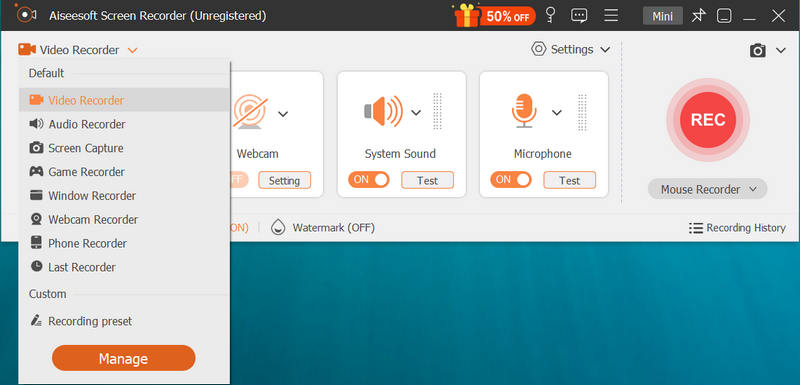
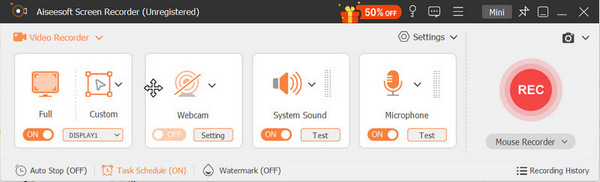
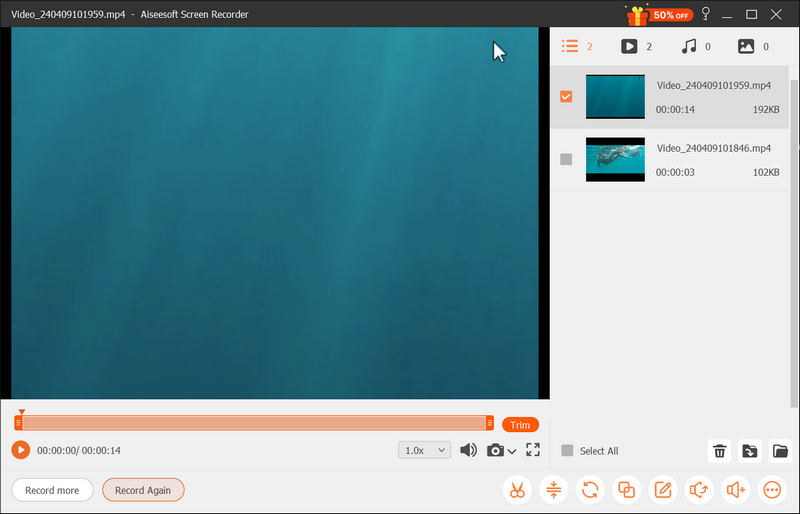
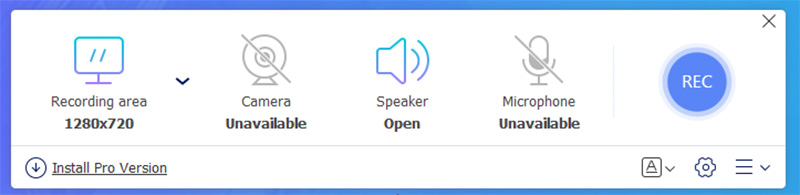
Sometimes installing a software recorder is inconvenient, or you only need to record one meeting in Teams. Your needs might be satisfied by Aiseesoft Free Online Screen Recorder. It is a simple way for users who are searching for how to record team meetings on Mac or Windows without downloading or installing any desktop application.
Main Features
How to Record a Teams Meeting Online

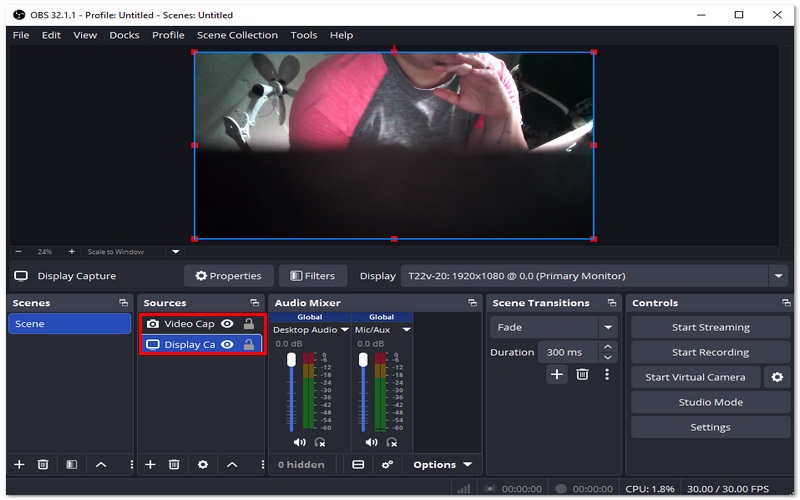
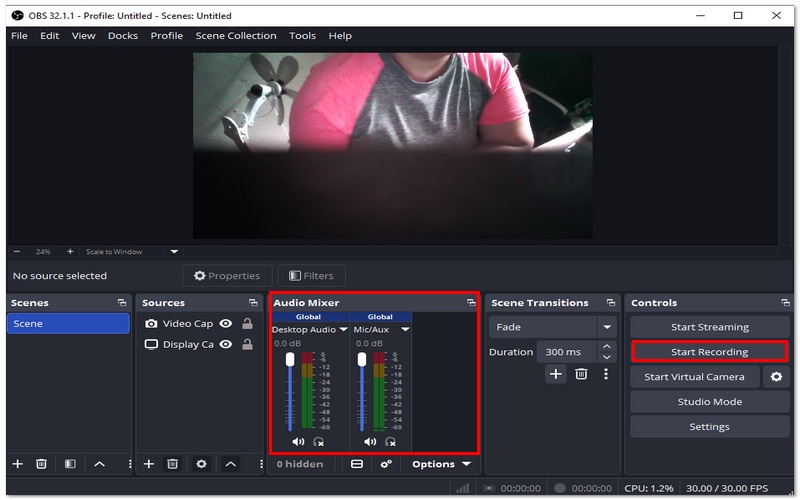
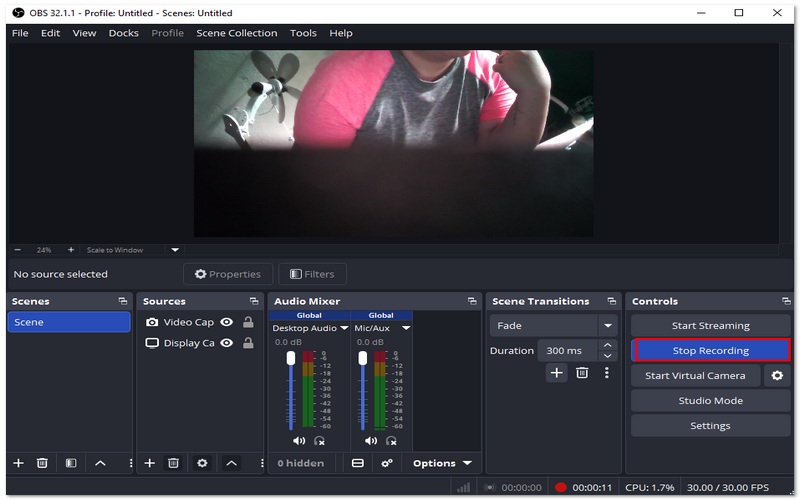
Steps to Record Teams Meeting Using OBS Studio
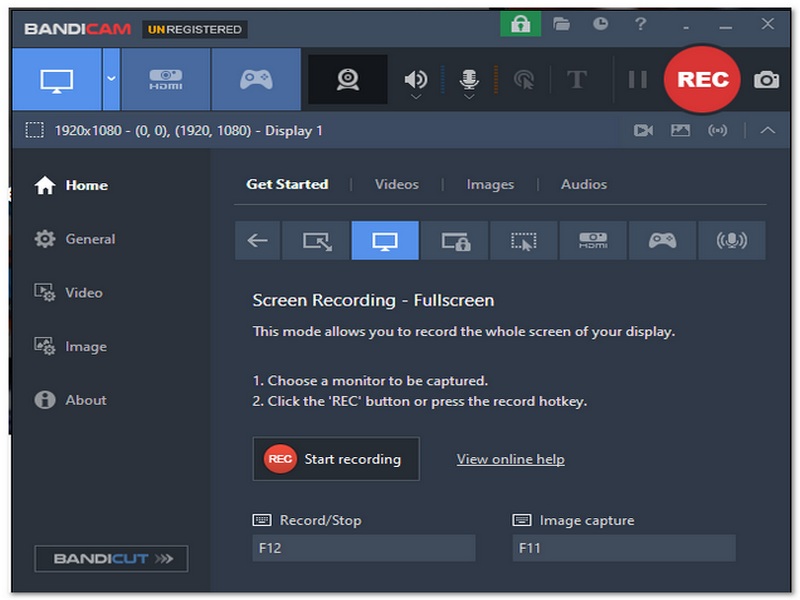
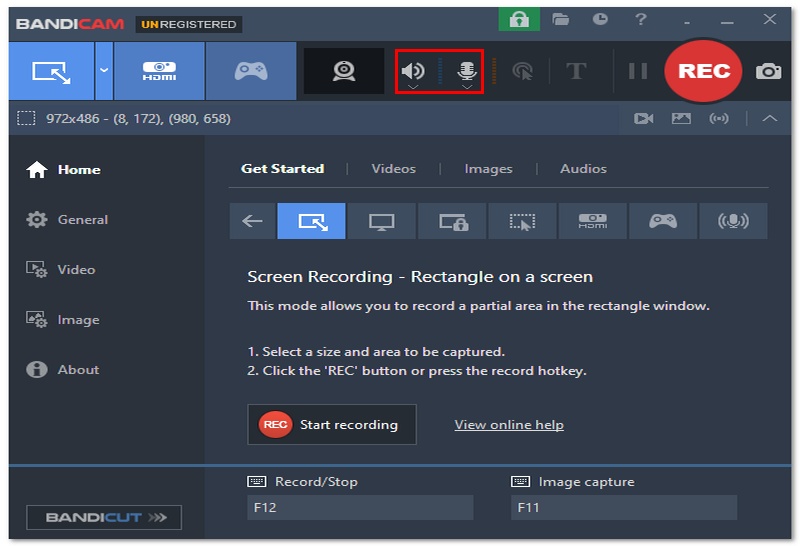
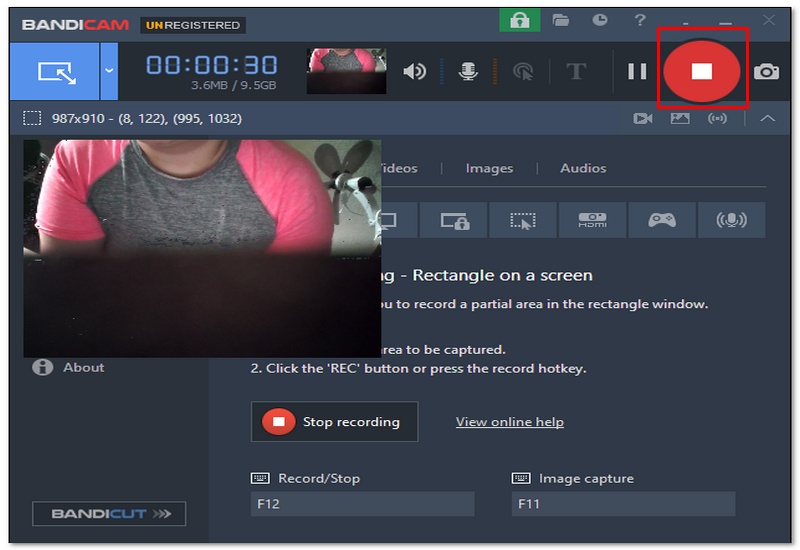
Bandicam is a pretty minimal screen recording tool for Windows, which means it doesn't use lots of resources while working. Plus, it enables you to record meetings on Microsoft Teams with both high-quality video and audio. Among other things, it is recognized for its uncomplicated installation and good performance, which means it is highly suitable for those who want to merely record without any fuss.
Steps to Record Teams Meeting Using Bandicam
Can Teams detect meeting recordings?
If you use the built-in feature, Teams will record the meeting and tell everyone involved. For third-party recorders, it does not have such an ability.
Do Teams know if you screenshot?
Generally speaking, teams do not know if you take screenshots on your computer. However, it is difficult to screenshot animated meeting screens.
Where is the recording saved in Teams?
Since 2021 Q1, Microsoft Teams won't save meeting recordings to Stream. Instead, the channel meeting will be stored in SharePoint, and the chat meeting will go to the OneDrive of the starter.
Why can’t I record a Teams meeting?
Recording may be disabled if you are not the meeting organizer, your admin has restricted the feature, or you are using a free/personal account with limited permissions.
Can I record a Teams meeting on mobile?
Yes, but only if the organizer enables recording. Mobile users can start or view recordings, but advanced recording options are limited compared to desktop.
Conclusion
After learning about multiple effective ways to capture Microsoft Teams meetings, you now have a good idea about recording in different contexts. Whether you’re using Windows or searching for how to record a Teams meeting on Mac or Windows, you can choose the method that fits your needs. If you encounter any other issues with Microsoft Teams, feel free to leave your questions in the comments below.
 How to Set a Zoom Meeting | 2025 Guide for Seamless Virtual Discussion
Want to host a successful Zoom meeting? Here is the guide you need to follow as we teach you how to set up a Zoom meeting and the best settings to use in meetings.
 How to Share Screen on Zoom on Laptops and Mobile Phones
Can I share screen on Zoom with audio? How do you allow others to share screen on Zoom? This post tells how to share your screen on Zoom on different devices.
 3 Efficient Ways to Uninstall Zoom on Mac Completely and Safety
Are you worried about the privacy violation issue of Zoom? Click here to learn how to uninstall Zoom on Mac completely and remove the web server to prevent reactivating.
 Leave your comment and join our discussion
Record Meeting
Zoho Meeting Recorder Clickmeeting Record a Conference Record BlueJeans Meetings Record AnyMeeting Events Best Free Conference Call Service Record on Freeconferencecall Record Lync Meeting and Calls Convert G2M to MP4 Record Video for Google Classroom Record a Session in BigBlueButton Record Robin Meeting Room Record Meetings on Samepage Record a Video Call or Meeting on Lifesize Record Amazon Chime Meeting Record Teams Meeting
Aiseesoft Screen Recorder is the best screen recording software to capture any activity like online videos, webcam calls, game on Windows/Mac.
100% Secure. No Ads.
100% Secure. No Ads.

*Required field
*Please enter a valid email

