
Aiseesoft Screen Recorder
 100% Secure. No Ads.
100% Secure. No Ads.
Ready to turn your reactions into viral hits? Whether you’re reacting to a legendary artist’s new movie trailer or a trending short film, making a professional-looking reaction video shouldn't be a technical nightmare. You don't just need to combine clips; you need to master the art of the Side-by-Side layout and Picture-in-Picture (PiP) effects to keep your audience engaged.
In this guide, we’ll show you the simplest way to trim your best moments, sync your audio perfectly, and create a high-quality reaction video that stands out on YouTube. Let’s dive into the best tips and tricks to get your channel growing!

To make your reaction video stand out, choose a viral video topic that resonates with your audience. Whether it's a trending music video, a funny viral meme, or a popular gaming clip, selecting the right topic is crucial. To find a "goldmine" topic, use these four strategies:
Check Trending Tabs: Look at the YouTube Trending page and TikTok Creative Center to see what’s exploding in real-time.
Follow Big Names: Reacting to a new release from a well-known artist or a major movie trailer (like the latest Marvel or Disney teasers) is a proven way to ride the search traffic.
Use Keyword Tools: See what people are asking about. If a video has millions of views but few people are "explaining" or "reacting" to it yet, that is your gap.
Focus on High-Emotion Content: The best reaction videos come from clips that provoke strong feelings—whether it's shock, laughter, or even disagreement.
When it comes to recording your reaction video, selecting the right software can make all the difference in video quality and ease of use. Below are three great options:
| Method/Tool | Best For | Key Feature | Rating |
| Aiseesoft Screen Recorder | All-in-One Capture | Aiseesoft Screen Recorder is an excellent tool for making reaction videos, especially if you're looking for simplicity and stability. It allows you to record your screen, webcam, and audio simultaneously, perfect for creating reaction videos. It's beginner-friendly and offers high-quality recording without lag. | ★★★★★ |
| OBS Studio | Live Streamers | OBS Studio is a more advanced tool that gives you full control over your recording setup. It's free and open-source, ideal for gaming and live streaming reactions. With OBS, you can create custom scenes, add overlays, and adjust audio sources to match your needs. | ★★★★☆ |
| ReactionCam | Mobile Users | If you're recording on a mobile device, ReactionCam is a fantastic app for capturing your face and reactions to videos. It's simple and convenient for quick edits, making it a great choice for TikTok or Instagram creators who prefer mobile recording. | ★★★★☆ |
All in all, Aiseesoft Screen Recorder is the top recommendation for most creators because it solves the biggest headache in reaction videos: Audio-Video Sync. Unlike basic recorders that can lag when playing high-definition movie trailers, Aiseesoft uses hardware acceleration to keep your facecam and the movie perfectly aligned. It offers a dedicated "Video Recorder" mode that captures system sound (the movie) and your microphone (your voice) on separate tracks. And you don't need to be a tech expert to set up a Picture-in-Picture (PiP) layout; it’s ready to go in two clicks.
100% Secure. No Ads.
100% Secure. No Ads.
100% Secure. No Ads.
100% Secure. No Ads.
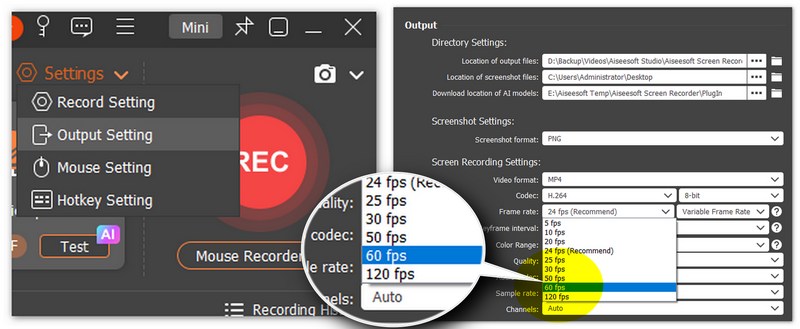
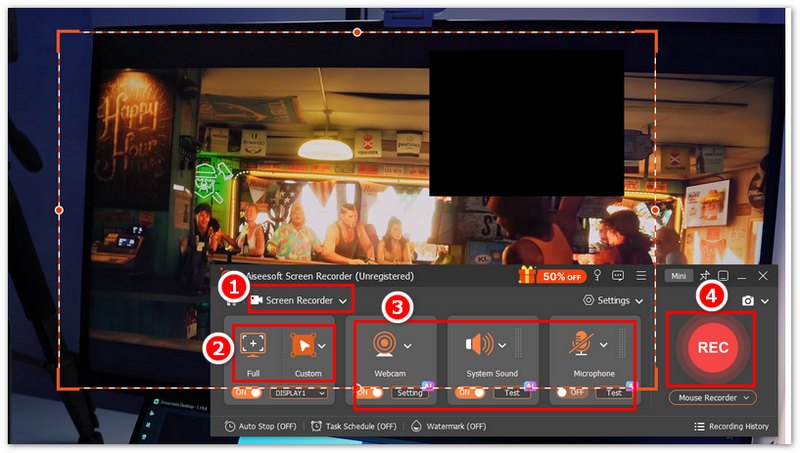
After recording your reaction video, it’s time to edit and enhance it. Here are the basic editing steps to make your video more engaging, and all the editing tricks can be done with Aiseesoft Video Converter Ultimate (You can download it with the button below):
100% Secure. No Ads.
100% Secure. No Ads.
1. Trim Unnecessary Footage: Use editing tools to cut out long pauses or remove unwanted parts of the video to keep it flowing smoothly.
2. Add Text and Annotations: Add subtitles, captions or text overlays to emphasize key moments or add commentary. This helps clarify your reactions and keeps the audience engaged.
3. Insert Stickers or Emojis: Use fun stickers or emojis to highlight your reactions, adding a playful touch to the video.
4. Adjust Audio: Balance your voice with the background video sound. Make sure your commentary is clear and easy to hear.
5. Apply Basic Effects: Use simple video effects, like transitions between clips or slight color adjustments, to enhance the visual appeal of your video.
6. Export Your Video: Once editing is complete, export your video in the desired resolution and format (1080p for YouTube/TikTok).
Once your reaction video is edited and ready, it’s time to upload it to YouTube or TikTok. Here’s how to optimize it for better visibility:
1. Optimize Your Title: Make sure your title includes keywords like “reaction video,” “viral video reaction,” and the video you’re reacting to (e.g., “Funny Reaction to [Video Title]”).
2. Write a Compelling Description: Include relevant keywords and a brief explanation of your video. Add a CTA, such as “Like, comment, and subscribe!”
3. Use Relevant Tags: Add both broad and specific tags, like “reaction video,” “viral video reaction,” and the video’s title, to help your video appear in search results.
4. Create an Engaging Thumbnail: Design a custom thumbnail that grabs attention and highlights the best part of your reaction.
5. Post at the Right Time: Upload when your audience is most active. On YouTube, aim for weekday afternoons; on TikTok, evenings tend to work best.
What is a Reaction Video?
Just as the name of the reaction video, it is a video record for an individual or group of people watching, and giving reactions to videos belonging to others. Benny Fine & Rafi Fine first introduces and makes the reaction videos for YouTube. Now, YouTube has an independent channel for this.
How to Prepare and Shoot the Sources for Reaction Video?
Besides the video clips to react, what else should you prepare to make a reaction video, you might also need a video camera, microphone for video recording, background music, and even the advanced video editing software. Of course, you can also prepare a nice and clean place for recording the react videos.
What are the Best Apps to Make Reaction Videos on iPhone and Android?
If it is too complicated to make reaction videos on iPhones and Android phones with advanced settings, you can simply take advantage of some reaction video apps, such as Reaction Cam for iOS and Quick Reaction Video Maker for Android.
Conclusion
Creating a reaction video is an exciting way to engage with trending content, but it requires the right tools and techniques. By choosing a viral topic, using reliable recording software like Aiseesoft Screen Recorder, and optimizing your video with editing tools, you can craft professional-looking videos that capture your audience’s attention. Uploading with optimized titles, descriptions, and tags will help boost visibility on platforms like YouTube and TikTok. With practice and consistency, you’ll be able to produce high-quality reaction videos that stand out and grow your online presence.
 Easiest Methods to Transfer Pictures from Android Phone to Computer
How to transfer photos from Android phone to computer? This article introduces two methods to download photos from Android phone to computer.
 The Best Way to Make a Video with Music and Pictures
When you need a tool to make a video with music and pictures, you can learn the best way from this article. We will introduce the best Slideshow Maker software to you.
 How to Make a Vivid Instagram Story with Photo and Video Collage
When you need to make a stunning picture and video collage for Instagram, you can find the Instagram video collage app to tell your story in a vivid way from the article.
 Leave your comment and join our discussion
Make Split-screen Video
Make a Video Collage on TikTok Put Multiple Videos in One Screen Split Screen Video Make a Split-Screen Video Video Collage Maker Make a Split Screen Video in Movavi iPhoto Collage Make a Video Collage Split Screen in Premiere Pro Best Split Screen Video Editor Best Side-by-side Video Apps Make Reaction Videos Create Picture in Picture Videos Put Two Videos Side by Side
Aiseesoft Screen Recorder is the best screen recording software to capture any activity like online videos, webcam calls, game on Windows/Mac.
100% Secure. No Ads.
100% Secure. No Ads.

*Required field
*Please enter a valid email

