Aiseesoft iKnockin - iPhone Unlocker
 100% Secure. No Ads.
100% Secure. No Ads.
Screen Time locks are meant to help manage your device usage, but what happens when you forget the passcode or get stuck on a used iPhone or iPad that still has restrictions enabled? It’s a common issue for parents, students, and owners of secondhand devices. The good news? You don’t always have to pay for a fix. In this article, we’ll show you how to use a free screen time unlocker to bypass the lock and take back control of your device. We’ll go over 4 no-cost methods, explain how each one works, and even weigh the pros and cons. Plus, if none of the free tools work for your situation, we’ll recommend a powerful backup option that delivers results fast.

How We Tested These Free Screen Time Unlockers
We tested Screen Time unlock methods using iPhone 12/14/15 across iOS 16–18 Beta, covering passcode, app limits, parental controls, and Downtime cases. We evaluated success rate, iOS compatibility, data safety, usability, and time cost.
Results: legacy tools may fail on iOS 18+, iCloud methods are stable but limited, while dedicated tools deliver the highest success rate and consistency.
If you're stuck trying to get past Screen Time restrictions and don't want to spend money on premium tools, you don’t need to worry. There are several screen time unlock free methods through some reliable tools for iPhone/iPad (iOS) users. Although these may not work for every case or the latest iOS version, they are worth trying first before using paid methods. Below, we will go through 4 commonly used free methods which include Pinfinder, iTunes/Finder, iCloud, and 3uTools. Each will have simple steps, the reasons you might choose them, and the limitations to expect.
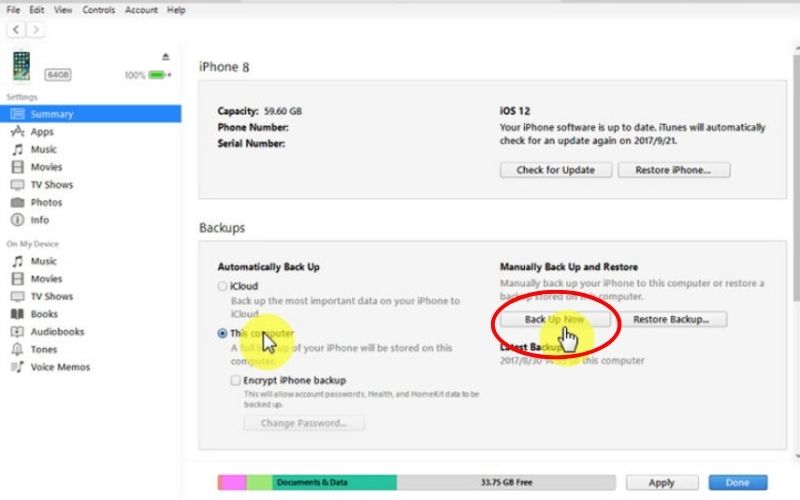
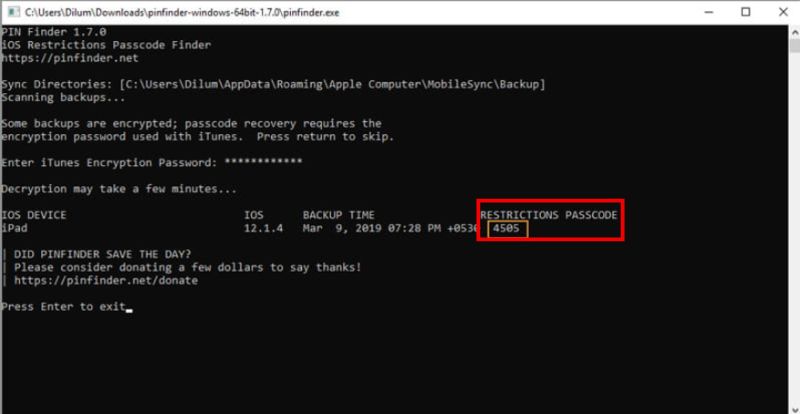
If you own an older iPhone or iPad running iOS 7 to iOS 12, Pinfinder is one of the best tools to unlock screen time passcode free. It's a simple, free software that helps recover forgotten Screen Time (previously Restrictions) passcodes from an encrypted iTunes backup. No technical expertise is required. Just run the program and get your code in seconds.
Steps to Use Pinfinder
Why Choose Pinfinder
Why Not Choose Pinfinder
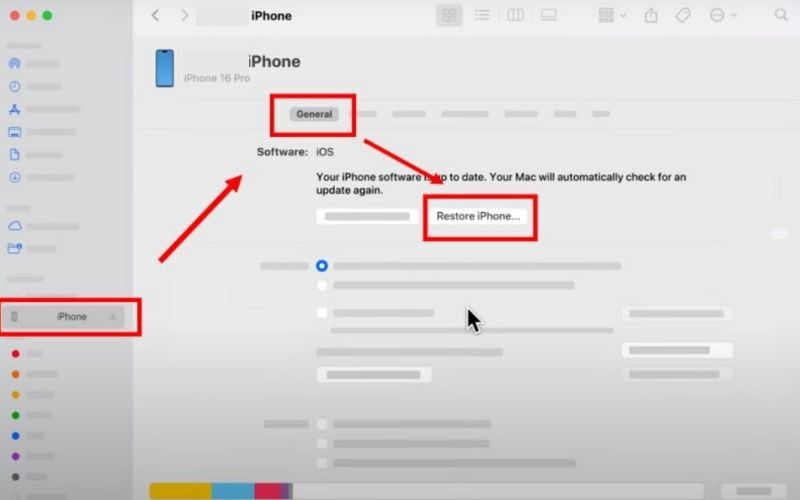
If you’re looking for a no-cost way to reset your Screen Time passcode and don’t mind wiping your device, iTunes (for Windows/macOS Mojave and below) or Finder (for macOS Catalina and above) can serve as a basic iPhone screen time unlocker free. This procedure involves restoring your iPhone to its factory state and setting it up from scratch, which removes the Screen Time lock. However, please note that all content and settings will be erased.
Steps to Use iTunes/Finder
Why Choose iTunes/Finder
Why Not Choose iTunes/Finder
Though iCloud it is not a dedicated Screen Time unlocking method, it can be used to erase a device remotely, which may remove Screen Time restrictions in some cases. It is a completely online method to unlock a screen time passcode for free, although it may not work the same for everyone. Any third-party online activity should be approached with caution.

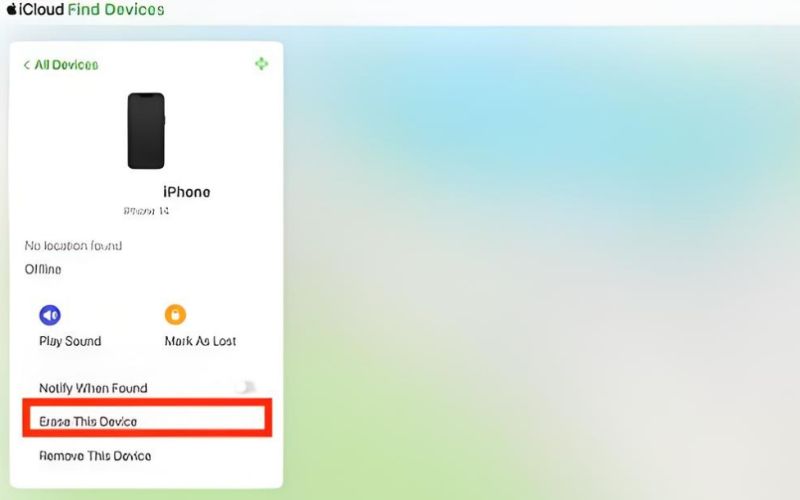
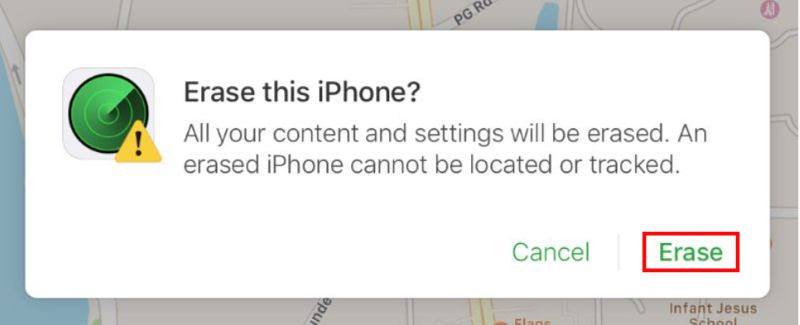
Why Choose the iCloud site
Why Not Choose the iCloud site
3uTools is a free Windows-based iOS device management tool that helps users to recover Screen Time passcodes when users forget them. Instead of directly unlocking the device, 3uTools works by creating and analyzing an encrypted device backup, in which it attempts to extract the Screen Time passcode from the stored system data, and then the user can manually use the recovered passcode to unlock or modify Screen Time settings on the iPhone to unlock screen time.
Steps to Use 3uTools (For iOS 7 to iOS 11 Devices)
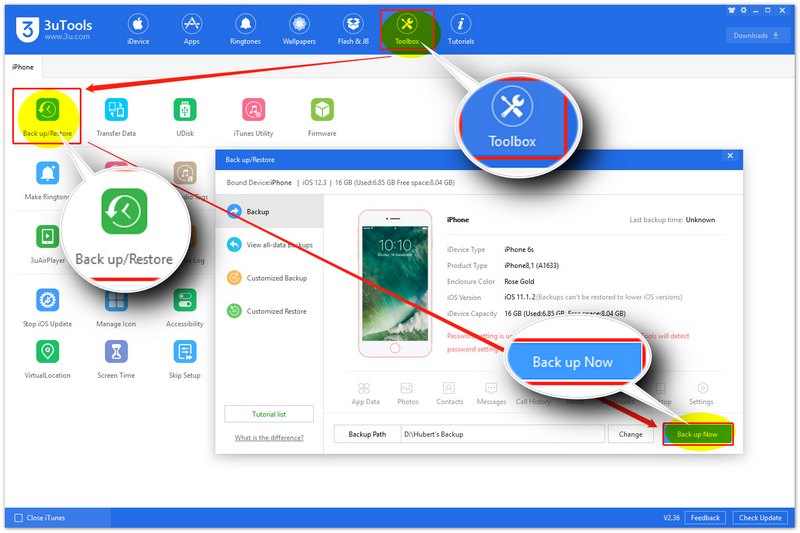
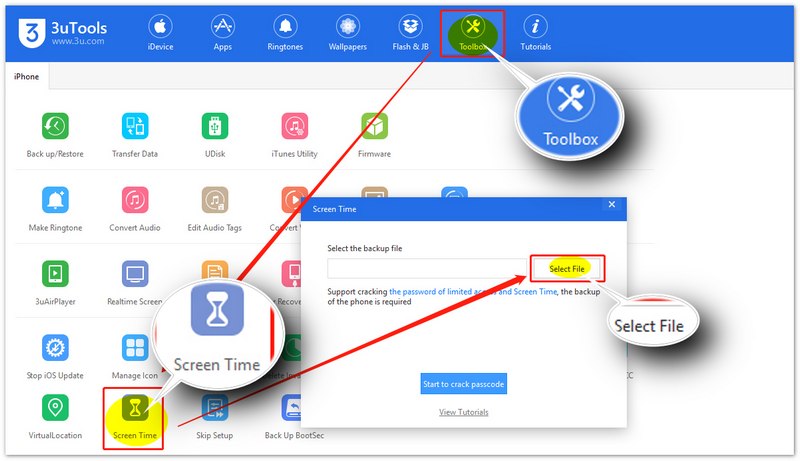
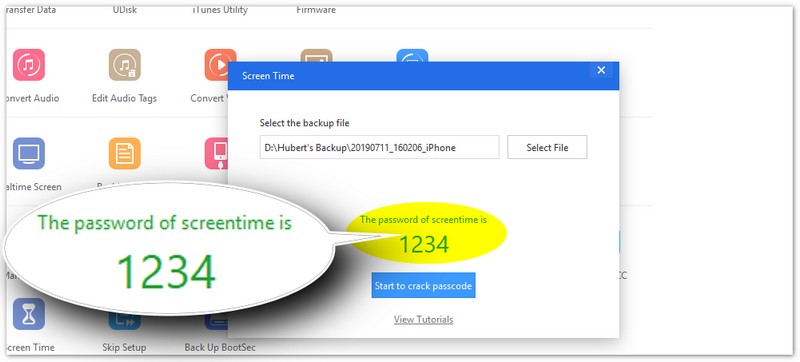
Steps to Use 3uTools (For For iOS 11 and Later)
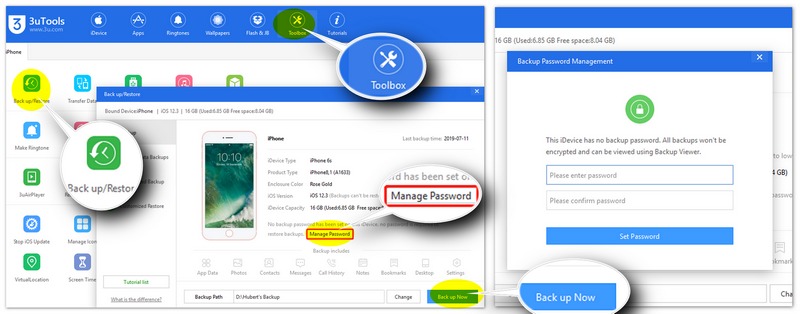
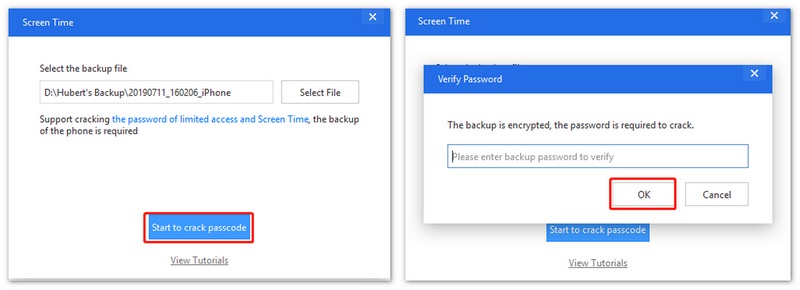
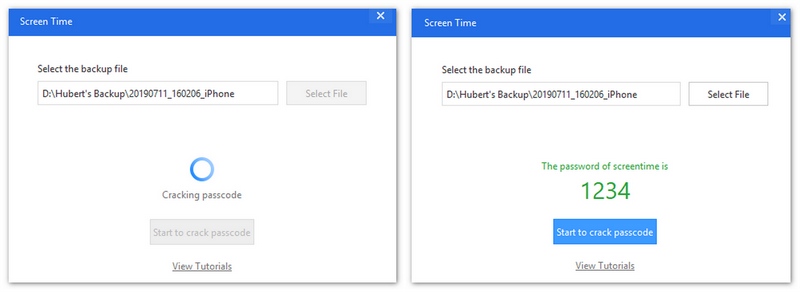
After retrieving the password, you can turn off screen time on iOS with your password.
Why Choose 3uTools
Why Not Choose 3uTools
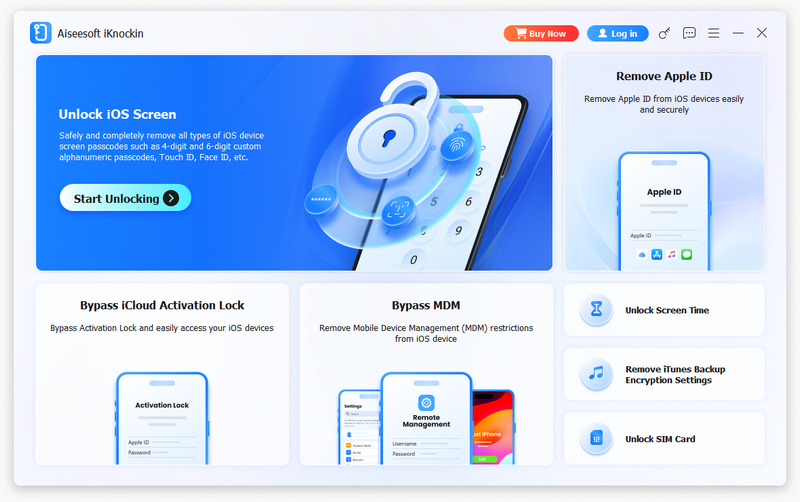
If the free tools did not work for your device, or you want a guaranteed solution with wider iOS support, your best bet is Aiseesoft iKnockin - iPhone Unlocker. This tool is not a basic tool. It is professional, safe, and powerful to remove various locks, including the Screen Time passcode on your iPhone, with minimal risk of data loss depending on the situation.

Downloads
Best Screen Time Unlocker without Password
100% Secure. No Ads.
100% Secure. No Ads.
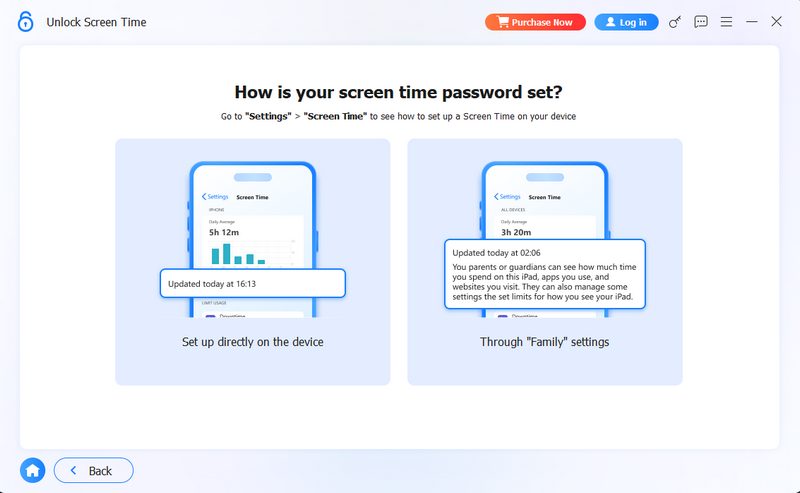
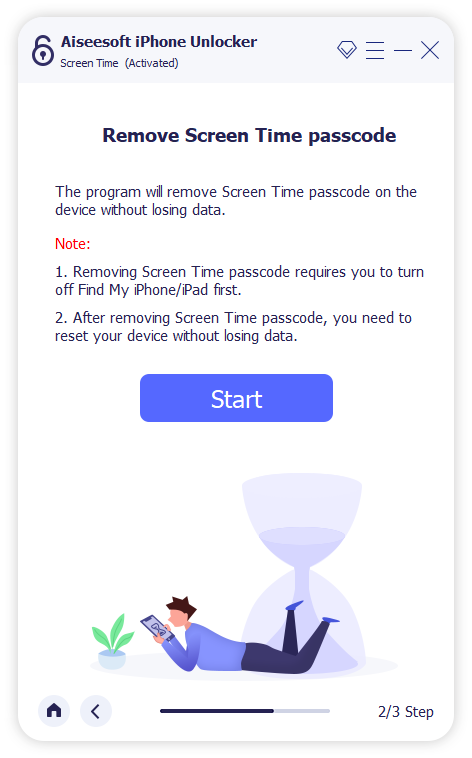
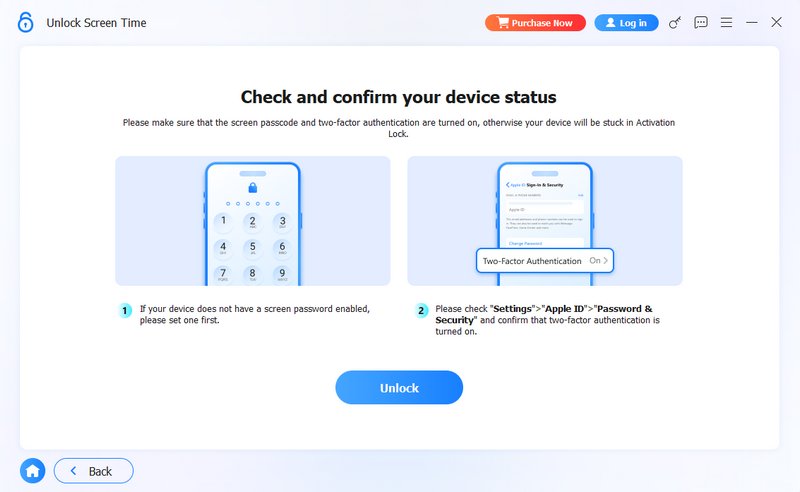
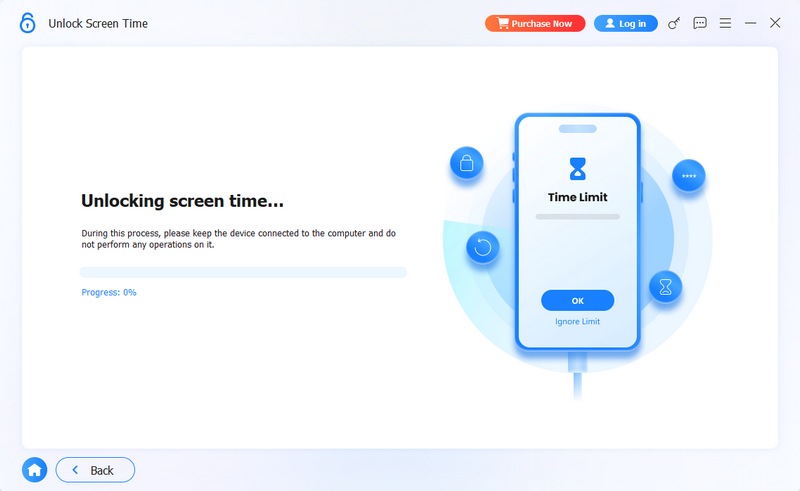
How to Use Aiseesoft iKnockin - iPhone Unlocker to Remove Screen Time Passcode:
1) iTunes must be installed on your computer, and make sure it is updated to the latest version.
2) Find My iPhone/iPad must be disabled before removing the Screen Time passcode.
3) After removal, you may need to set up the device again without data loss depending on the situation.
100% Secure. No Ads.
100% Secure. No Ads.
What’s the most reliable free method for unlocking screen time?
While free options like Pinfinder work in certain cases, they’re limited by iOS compatibility. For a higher success rate, many users prefer Aiseesoft iKnockin - iPhone Unlocker.
Can I remove the Screen Time passcode if I don’t remember my Apple ID?
No, bypassing Screen Time and managing restrictions tied to your iCloud account typically requires the Apple ID associated with your account. Some advanced tools may help, but they are not free.
Will free Screen Time removers work after multiple failed attempts?
Yes, but it depends on the tool. For example, Pinfinder uses your backup and doesn’t rely on the number of attempts. However, an iTunes/Finder reset might be needed if the device is locked out.
Do these free Screen Time unlock methods work on iOS 18 or iOS 19?
Most free Screen Time unlock methods still work on older iOS versions (iOS 14–16), but their success rate decreases on iOS 17 and later due to Apple’s security updates. For iOS 18 and upcoming iOS 19, some tools (like legacy bypass utilities) may no longer function properly. In these cases, users often need updated tools designed specifically for the latest iOS architecture.
Conclusion
Unlocking Screen Time restrictions doesn’t have to be difficult or expensive. With options like Pinfinder, iTunes/Finder, 3uTools, and iCloud, you can try a screen time unlock free solution that fits your needs. However, for those who want a more reliable and higher success rate, using a professional tool like Aiseesoft iKnockin - iPhone Unlocker is highly recommended.
100% Secure. No Ads.
100% Secure. No Ads.
Select the method that best suits your situation and regain full access to your device in minutes.
 How to Unlock iPad Passcode Without Computer (iCloud, App, Tips)
Learn how to unlock your iPad passcode without a computer using iCloud, the Find My app, or support services. Here are four methods for regaining access.
 2 Easy Ways to Reset Screen Time Passcode [Solved]
How to reset Screen Time passcode if you forgot it? Is there any simple way to directly change the Screen Time passcode on iPhone 7/8/X/XR/XS/11/12 without computer? This post tells 2 simple and effective methods to help you reset the Screen Time passcode.
 3 Effective Solutions to Remove Apple ID Without Password
Can I remove the previous owner's Apple ID without a password? How do you delete an old Apple ID without a password? Learn to erase Apple ID without a passcode.
 Leave your comment and join our discussion
Screen Time Removal
Unlock Screen Time
Unlock iOS Screen
Bypass iOS Activation Lock
To fix iPhone screen locked, wiping password function can help you a lot. And you also can clear Apple ID or Screen Time password easily.
100% Secure. No Ads.
100% Secure. No Ads.

*Required field
*Please enter a valid email

