
Best for: Easy and fast recording for everyone

Best 8K Screen Recorder for PC
 100% Secure. No Ads.
100% Secure. No Ads.
In 2026, recording both System Audio and Mic Audio will become a fundamental requirement, whether for producing high-quality online course videos, recording important remote meetings, or capturing exciting moments in games.
Although both macOS and Windows come with basic recording tools, achieving a perfect integration of "internal playback" and "external recording" often requires advanced skills or professional software. This guide will provide you with a detailed introduction to three mainstream solutions: from Aiseesoft Screen Recorder designed specifically for professional screen recording, to Audacity, an open-source audio processing tool, to QuickTime Player native to Mac, helping you easily handle computer recording.
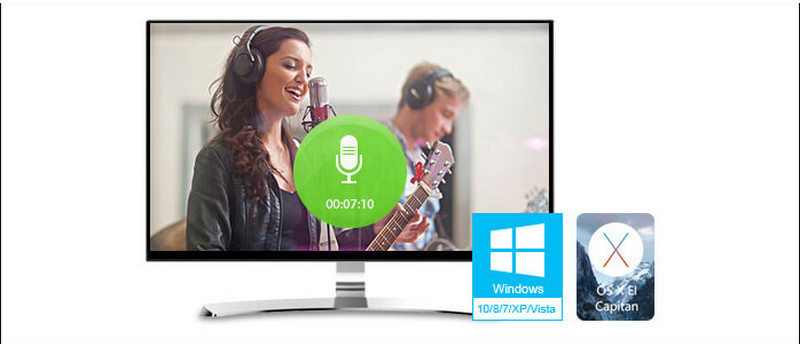
In various scenarios, we need a way to record audio on Mac or PC computers, especially capturing internal and external audio simultaneously. For example:
• Teaching and demonstration: When recording tutorials, both microphone explanations and capturing background music or software prompt sounds played on the computer are required.
• Content creation: Podcasters and bloggers need to simultaneously capture the voices of connected guests (system sound) and their own commentary (microphone).
• Remote conference archiving: Fully record the speeches of all parties in the video conference to ensure that important information is not missed.
Best for: Easy and fast recording for everyone
Here we sincerely recommend a professional audio recorder to help you capture audio on PC. Whether it is streaming audio, system audio or internet audio, this audio recording software - Screen Recorder, can capture them with high sound quality.
Moreover, it can work as a powerful screen video recorder to record online video or any activity happened on your computer. With this powerful screen capturing functions, you can record your favorite movie and music as long as you want.
Downloads
100% Secure. No Ads.
100% Secure. No Ads.
Now let's see how to record voice on PC with Screen Recorder.
Double click on the download button above to free download, install and run this powerful audio capture tool on your computer. When you enter the main interface, choose the "Audio Recorder" option.
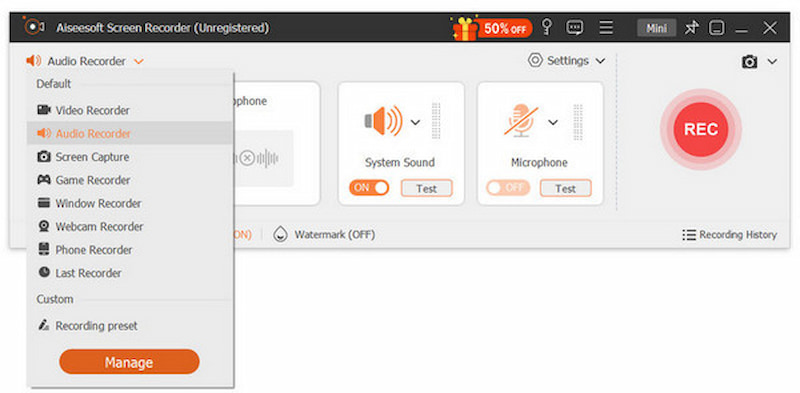
You can choose record "System Sound" or "Microphone". If you select "System Sound", play any movie or music you want to capture, then adjust the red border of this audio recording software to frame your audio image. And click "REC" to start capturing audio.
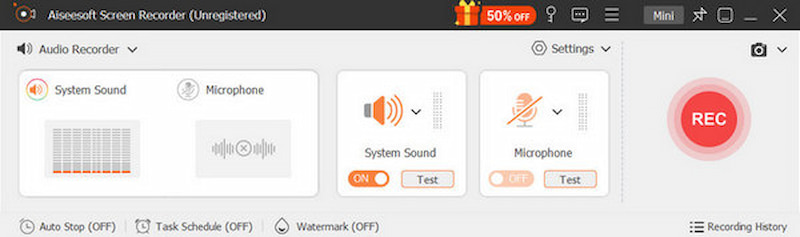
• We need to tell you that "Digital Audio(S/PDIF) (High Definition Audio Device)" can have different names due to different computers. This HD Audio Recorder for PC shows the name of your system microphone here.
• If you choose "Digital Audio(S/PDIF) (High Definition Audio Device)", you can just turn off "System Audio" by clicking the button. Also, you can choose them both if you want to record GoToMeeting, or want to use it as Skypy Recorder to capture all conversations both from your friends and you. But we suggest you not to do that when you want to capture music online, as there will be noisy sounds from your system and microphone.
• When capturing your voice from microphone, you need to plug the male end of the jack splitter in the audio output port of the computer (often colored green). And insert one end of the loopback cable into the jack splitter and other end into the line-in port on the computer (often colored blue). Finally, plug your microphone jack into the other female port of the splitter.
Tap the stop button to stop recording. In the pop-up previewing window, you can easily and then save your recordings.
The above tools show you how to record audio on Windows computer and Mac. If you want to record sound outside, then you can refer to: top sound recorders.
You can learn the detailed steps about how to record audio from the video below:


With the recommended audio recorder, you can handily capture sound on your Windows PC. As you can see from above, it also offers a Mac version. So you can also rely on it to capture any sound on Mac. It guarantees you a smooth audio recording experience and high-quality output audio file.
Best for: Professional audio editing and post-production
Lots of people have more advanced requirement, they want to capture their voice step by step or record streaming audio from their computer and internet on Mac, so just try Audacity! Audacity is a free and open-source sound recorder to record, edit, and convert sound. So, how to record audio with Audacity on Mac or PC? You will not miss this by reading the article below.
Press the red button and it will automatically recognize your system microphone to grab your voice. While recording, you can also pause recording.
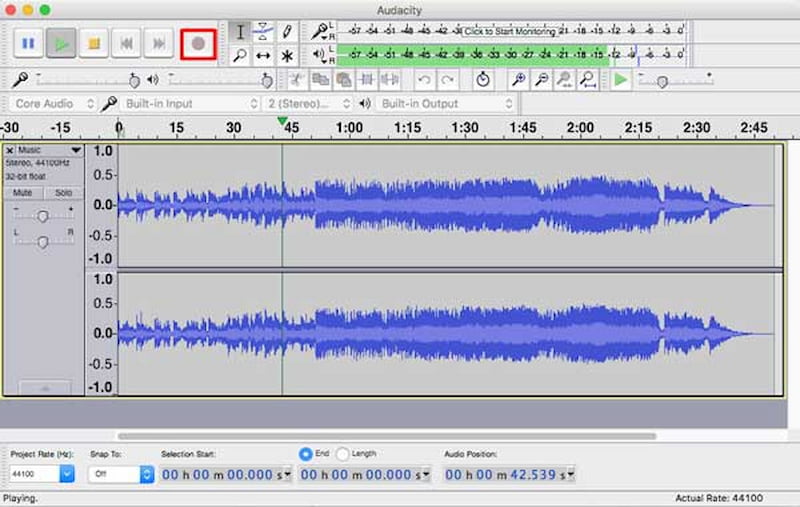
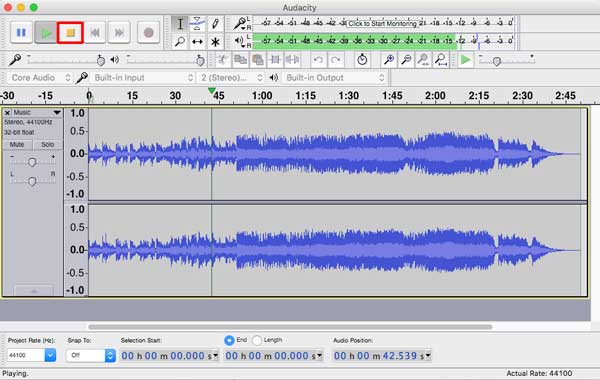
Click the stop button to stop recording. And you enable to playback your own sound as you like. Then you can cut, copy, and paste your audio. In addition, you can adjust audio peaks and remove noise in "Effect-Amplification" or "Noise Removal".
Click "File > Export" to save your audio as MP3/WAV format by your choosing.
Before you save audio files as MP3 format, the plugin "Lame" needs to be installed. Just tap "Edit > Preferences > Libraries", click "Locate" for checking that the "Location Lame" shown here is the installed path of LAME.
Expect for recording audio though microphone, you are also allowed to record streaming audio and sound from your computer.
Just open Audacity and set the recording input as "Built-in Input". Then play any media or music file on your Mac or websites, and begin music recording. You can learn more about it on Audacity Website.
Best for: Just recording internal audio for Mac users
As QuickTime can capture sound as you want, it allows you to make some ringtones for music enjoyments, leave a voice message/note, record a conversation, or record audio due to other reasons. Following the steps below, you will find recording audio is an easy and funny thing.
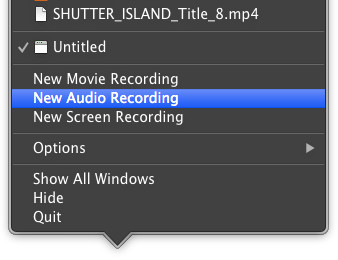
After click "New Audio Recording", there shows one simple interface. You can click the red button to record sound from the microphone.
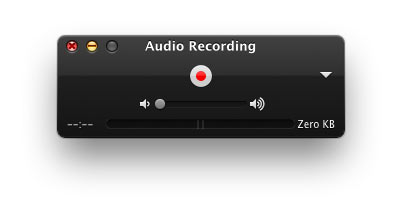
Note: You can select "Built-in Microphone" and quality in the pull-down menu.
If you want to stop the audio recording on Mac, just click the red button again. After that, tap "File" at the top menu, and choose "Export" to save your voice file as MOV format.
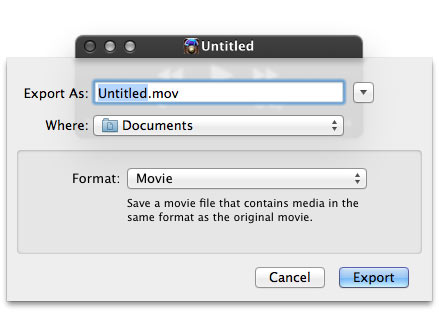
The recorded sound file can be M4A file, a high-quality audio format, You can play it on your Mac/Windows computer, iPhone/iPad/iPod, and Android devices. What's more, you have the chance to trim your audio files with QuickTime. See, QuickTime Player can be the easy audio recording software for Mac.
If you want to record computer audio on Mac without Soundflower, you can read: 7 Ways to Record Internal Audio on Mac [Mac Sequoia Supported]
Does screen recording on Mac record audio as well?
By default, only microphone input is recorded, not system internal sounds. When using the shortcut Shift + Command + 5 or QuickTime Player for screen recording, click "Options" to access microphone settings.
What is the best way to record audio on a Mac?
It depends. If you only want to record microphone sound on Mac, QuickTime Player is free and convenient to use. However, if you need to capture internal audio or both, Aiseesoft Screen Recorder is a great way to meet various audio-recording needs.
How can I record internal audio on a Mac?
Although QuickTime can only record micro, you can record internal audio on Mac via QuickTime Player + BlackHole. But the setup is complex for casual users. Or, use the professional third-party software like Aiseesoft Screen Recorder, which is easy and efficient.
Conclusion
We have talked about how to capture sound on Mac/PC in this post. Several great audio recording tools are introduced to help you get the audio recorded. Whether you want to record audio on Mac or Windows PC, you can find suitable audio recorder from this page. Leave us a message if you still have any puzzle.
 5 Ways to Rotate a Video on Windows 10/8/7 and Mac
How to rotate a video on Windows 10/8/7 and Mac? This post shows 5 best ways to help you easily rotate/flip a video on computer.
 How to Record System Audio on Mac (Big Sur/Catalina/Mojave …)
Read and get 3 easy ways to record system audio on Mac with or without soundflower. Here you can quickly record internal audio on all Mac operating systems.
 Best MP3 to MIDI Converter to Convert MP3 to MIDI
Want to convert MP3 to MIDI? This article introduces several best ways for MP3 to MIDI conversion on Mac or Windows computer.
 Leave your comment and join our discussion
Record Audio
Record Voice Greeting for Jive
Record Voice Recordings on Sansa Fuze

Aiseesoft Screen Recorder is the best screen recording software to capture any activity like online videos, webcam calls, game on Windows/Mac.
100% Secure. No Ads.
100% Secure. No Ads.

*Required field
*Please enter a valid email
