As an Android user, I always think that it is very easy to move photos, music videos, etc. between an Android phone and a computer. But have you ever thought about those valuable contacts that you save in your Android phone? Have you ever moved contacts from your Android phone to a computer? Do you regularly back up your Android contacts? My answer is no. Indeed, contacts are very important to us, but on many occasions, we neglect the fact that they should be kept safe.
At this point, Google is kind enough to offer syncing Android contacts to Google with a Google account. This will ease your data management and restoration in case of need, particularly by dealing with how to back up contacts on Android to Google in a proper and secure way.
Keep reading this article to get the secret: How does Google sync Android Contacts?
Exporting your address book to your Google account is a straightforward and reliable way of protecting your precious data. After deciding Android syncs all contacts to Google, your phonebook will be automatically uploaded to the cloud, making it accessible to you anytime and anywhere.
If the phone gets lost or breaks down, contacts stay safe and can be recovered right away. The data remains protected even after a reset, since logging into the Google account retrieves everything instantly.
Besides, it is very useful for transferring contacts between different devices. For example, if you get a new Android phone or a totally different phone, syncing enables you to bring all your contacts with you without having to copy them one by one.
On top of that, Google also aids in efficiently organizing and managing contacts. You can make changes, consolidate duplicates, and get to your contact list even through different devices such as tablets or computers.
In brief, integrating Android contacts with Google provides an assurance of the safety of your data, ease of accessibility, and keeps them continuously refreshed.
Kindly note: before you transfer phone contacts to Google, you must be sure you have a Google account. If you forgot your Google password, recover Google password.
Syncing contacts directly on your Android device is the easiest and fastest way to keep your data backed up. Once enabled, your contacts will automatically sync with your Google account in real time, no extra tools needed. This method is ideal if you want to back up all contacts to Google with minimal effort.
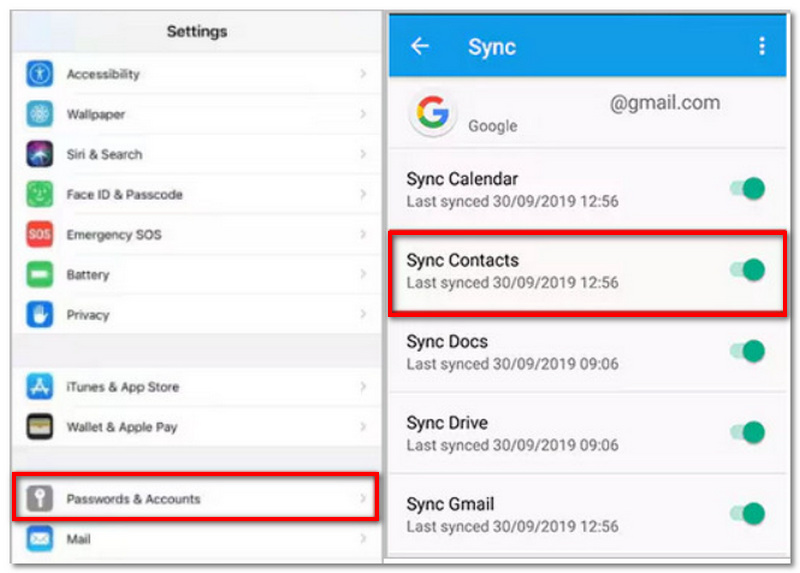
The contacts stay safe and linked to the Google account once setup finishes. Still, if one drops the phone or shifts to another device, logging back in gets one all the data quickly. In practice, Gmail recovery handles lost access and brings back synced contacts when needed.
If you want to go the manual way, it is possible to export your contacts through a USB cable and then upload them to your Google account. This method comes in handy when the auto sync is not functioning or you desire to have a backup copy offline. Besides, this is also a handy way of Android backup contacts to Google with the help of your PC.
If you don’t have one yet, go to your Contacts app → Settings → Export → Save as .vcf file.
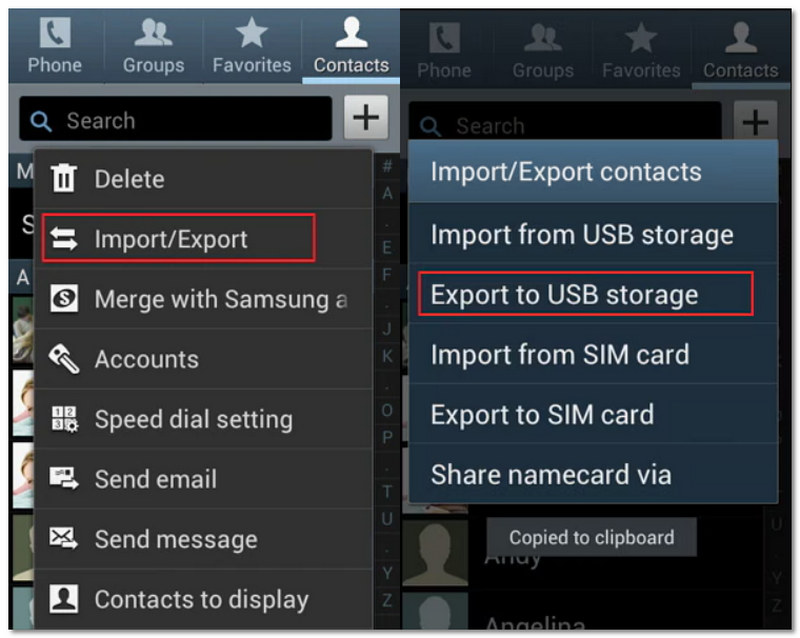
This method ensures your contacts are safely stored in Google, even if direct syncing on your device is unavailable.
Aiseesoft FoneLab for Android is definitely a good option for those looking for reliable and flexible backup and protection of their contacts. It can not only get back lost data but also back up contacts and other important files before they are synced to the Google account. That way, if the phone has sync problems or gets data during the Android backup contacts to Google account operation, the user will still have a safe copy of contacts.
 100% Secure. No Ads.
100% Secure. No Ads.
Steps to Back Up Contacts Using FoneLab
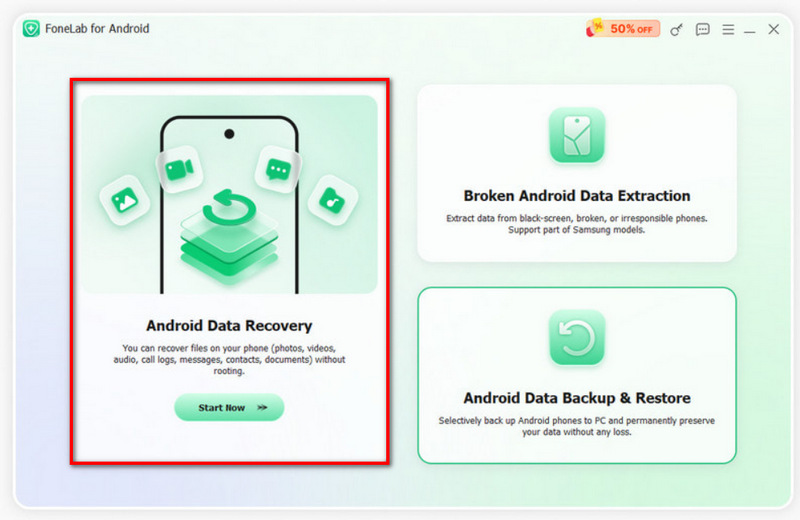
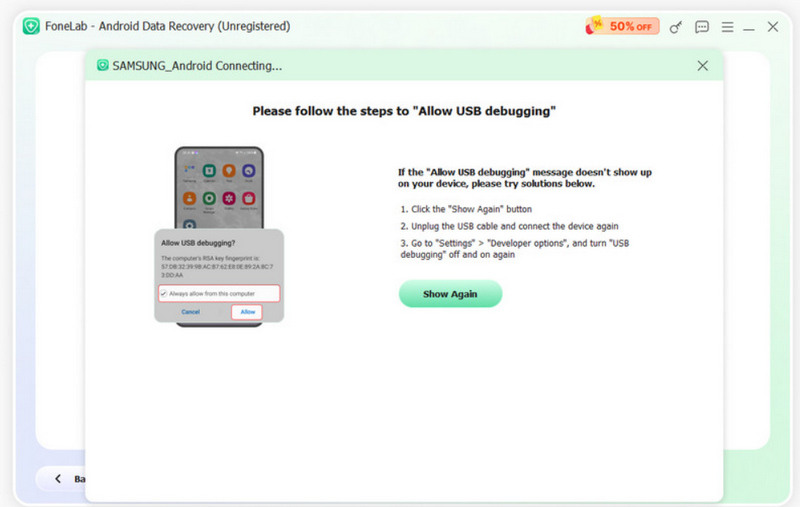
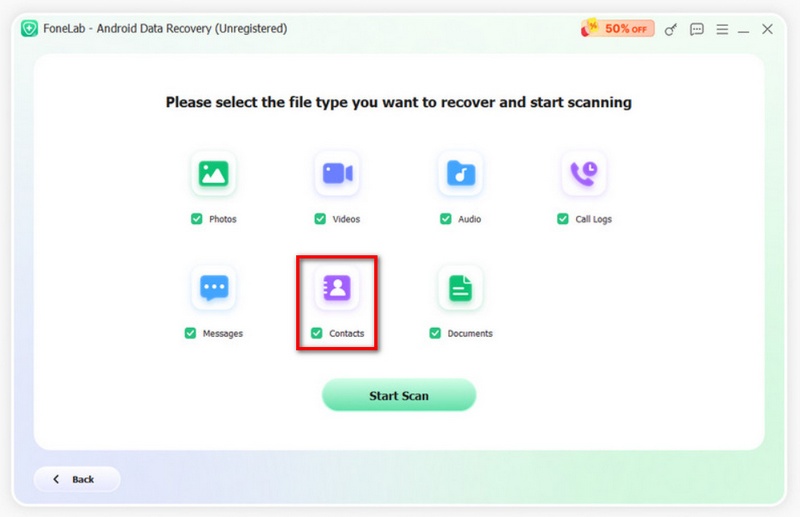
This method gives you full control over your data and ensures your contacts are safely backed up before syncing, making it a dependable solution for managing important information.
Why are some of my contacts not syncing to Google?
Generally, it is the case that contacts are saved to your phone storage or SIM card instead of your Google account. Be sure that your contacts are saved under your Google account and that sync is turned on in settings.
Will syncing contacts to Google remove duplicates?
No, syncing alone won’t remove duplicates. However, you can use Google Contacts’ Merge & Fix feature to clean up duplicate entries after syncing.
Can I access my synced contacts on other devices?
Yes, once synced, you can access your contacts on any device by signing in to your Google account, including tablets and computers.
Conclusion
Backing up contacts to Google is an easy yet very important method for protecting your data. You can rely on automatic synchronization or manual backup and in case of need, you will be able to get your contacts back without a problem. By following this guide, you will be able to back up all contacts to Google on Android without a doubt and prevent the loss of your important data.
 Best 5 Methods to Transfer Contacts from Android to iPhone
Want to transfer contacts from Android to your iPhone? This article offers 5 practical solutions to move contacts from Samsung to iPhone 16/15/14/13/12/11/8/7/6/SE.
 How to Recover Deleted Contacts on Android Phone
How to recover and get back lost or deleted contacts? Here we introduce several ways to recover contacts on your Android phone in easiest way.
 [Guide] 3 Quick Ways to Backup Contacts on Your Android Phone
A contact backup of Android will prevent you contacts from permanent loss. This article is going to show you how to backup contacts from Android.
 Leave your comment and join our discussion
The best Android Data Recovery software to recover deleted files like SMS, contacts, call logs, documents, etc. from Android phone/SD card/tablet on Windows/Mac.
100% Secure. No Ads.
100% Secure. No Ads.

*Required field
*Please enter a valid email

