
Aiseesoft Screen Recorder
 100% Secure. No Ads.
100% Secure. No Ads.
Recording Teams meetings is pretty necessary, whether for reference, documentation, training, or other reasons. However, you may notice that Microsoft has shifted how and where Teams stores video recordings. You fail to find that all-important download button after leaving a Teams meeting. How to download a Teams meeting recording?
This guide will tell you where your recordings live, who has the rights to save them, and how to download meeting recordings from Teams as MP4.
The short answer is: Yes. The ability to download a Teams recording depends heavily on your role in the meeting and the meeting type. Microsoft Teams has replaced the classic Microsoft Stream with OneDrive and SharePoint for recording storage. Correspondingly, downloading a Teams recording is now tied to file-sharing permissions.
By default, only the meeting organizers and co-organizers can download Teams recordings. The meeting organizers often have full rights to view, edit, download, and share the recording. Moreover, co-organizers have the same editing and downloading permissions as the primary organizer.
You may wonder if you can download a recording if you are only a guest.
Generally, you don’t get any access to the recording if you joined from outside the organization. If you want to download a recording, you must ask the organizer for a shareable link.
To download a Teams recording file, you need to know where it is saved. The storage location depends on where the meeting was hosted.
If the meeting was a common calendar invite or a group chat, the Teams recording will be stored in the organizer’s personal OneDrive (Recordings folder).
If the meeting was hosted inside a specific Teams Channel, the recorded meeting will be saved to the SharePoint site. You can locate it from a Recordings folder inside the channel’s Files tab.
This section shares four ways to download a Teams meeting recording. You can select a suitable method based on your access level.
Open Microsoft Teams and click the Chat tab on the left-hand sidebar.
Browse your list and choose the specific chat related to the meeting. When you locate the meeting recap tile, hover over the recording file, click the three dots (More options) next to it, and then choose Download. Your meeting recording will be saved as an MP4 file.
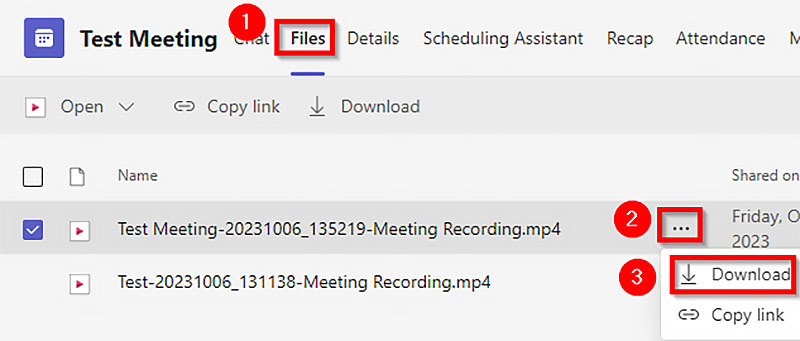
As mentioned, you can also go to OneDrive or SharePoint to search for the recording. As the organizer, you can log in to your Microsoft 365 account on a browser and open the OneDrive app.
Look for the Recordings folder and open it. When you find the specific meeting file you want to save, click the three-dot icon and select Download.
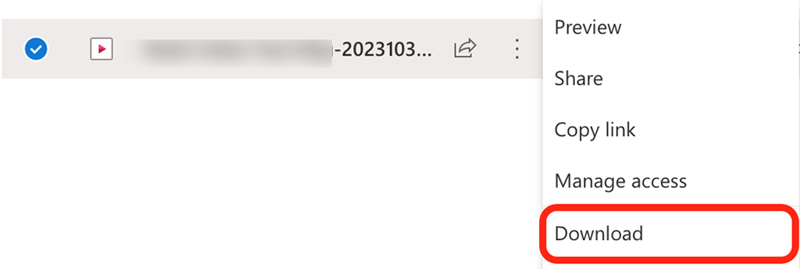
If your meeting was held in a dedicated Team Channel, you need to look for the recorded video from the shared files space for that specific team.
Open Microsoft Teams and click the Teams icon on the left.
Go to the specific Team and then choose the Channel where the meeting was hosted.
You will see a Files tab at the top of the channel. Click it to display the Recordings folder. You can find and download your meeting recording inside the folder.
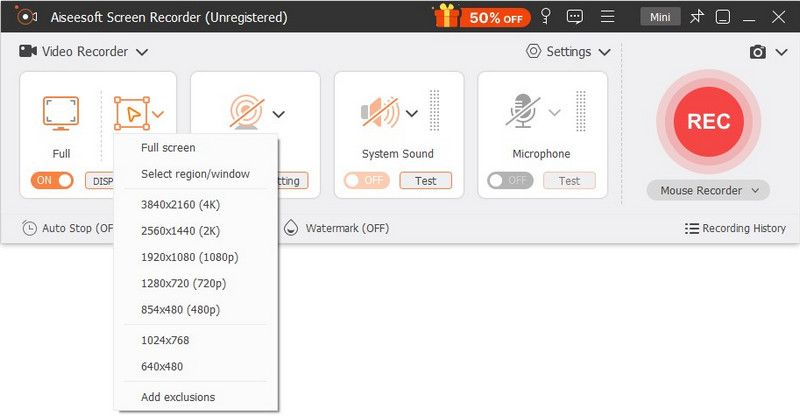
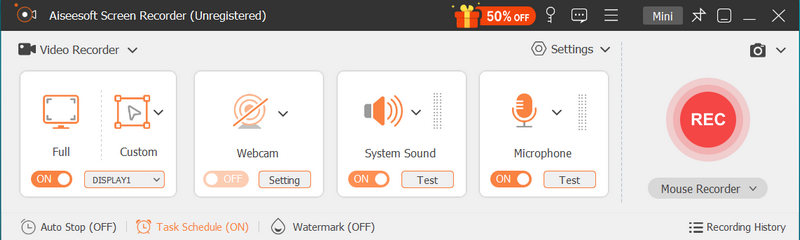
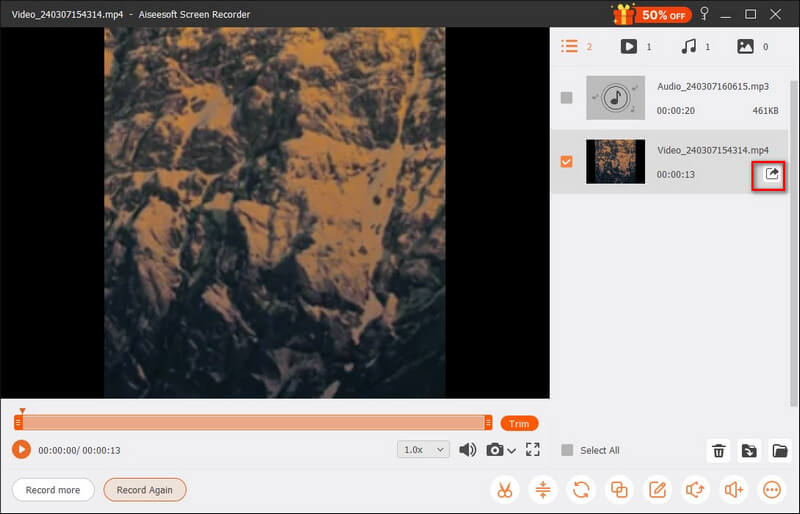
What if you are just a guest/participant and the organizer didn’t give you download rights? If they only give you view access, you can use a high-quality local capture tool like Aiseesoft Screen Recorder to save the Teams recording.
The software can capture the Teams meeting while viewing it on your computer. Actually, you can use it to record a meeting directly when you join. Aiseesoft allows you to record Teams meetings without needing administrative permissions.
100% Secure. No Ads.
100% Secure. No Ads.
Question 1. Why can’t I download a Teams meeting recording as a participant?
It's common to be able to view the Teams meeting recording but not download it. You don’t have a dedicated download option to do that. The truth is that you may only have View Only permissions. You should contact the organizer to get the Can Edit permission in OneDrive.
Question 2. Are Teams meeting recordings stored forever?
Generally, the Teams meeting recordings will be stored for 120 days by default. After that, they will be moved to the recycle bin and eventually erased. If you need to keep a recording permanently, you should download it to a local hard drive or create a backup on another cloud storage.
Question 3. Can I save a Teams meeting recording to my phone?
Yes, you can open the Teams app on your phone, open the meeting chat, tap the recording card, tap the three-dot menu, and then tap Download. You can also open a web browser and navigate to OneDrive. Look for the Recordings folder and then download the target Teams meeting recording from there.
Conclusion
In this guide, you can learn 4 efficient methods for downloading a Teams meeting recording. Depending on your role in the meeting and its status (private or channel-based), select the appropriate way to save your important recording. Whether you are the organizer or a standard participant, you should ensure all your Teams meeting recordings are secure. Whatever your situation, you’d better save a local copy.
 Concrete Tutorial to Share Your Screen on Microsoft Teams Properly
If you are using Microsoft Teams, you will find our guide about how to share screen on MS Teams helpful. Following our steps and you can present your documents during a meeting.
 How to Record Google Meet on Any Device with(out) Permissions
Do you want to know how to record Google Meet on any device? Read this article to find ways to record Google Meet on iPhone, Android, Windows, or Mac.
 Top 10 Meeting Recorder Apps to Take Notes (Audio and Screen)
What is the best meeting recorder app? This post is the 2020 collection list of top 10 meeting recorder apps for PC, iPhone and Android to take notes from audio and screen recording.
 Leave your comment and join our discussion
Screenshot Tips
Screenshot in Windows Media Player Screenshot Entire Webpage Screenshot Part of Screen Screen Record instagram Story Where are Steam Screenshots Saved Screenshot a Video Screenshot Alcatel Take a Screenshot on Lenovo Take Screenshot on HP Take a Screenshot in Minecraft Take a Screenshot of Google Chrome Use Snagit Scrolling Capture to Take Full-Page Screenshot Take Screenshots Surface Pro Screenshot on HTC Screenshot on Firefox Crop a Screenshot on Mac Crop Screenshots on Windows
Aiseesoft Screen Recorder is the best screen recording software to capture any activity like online videos, webcam calls, game on Windows/Mac.
100% Secure. No Ads.
100% Secure. No Ads.

*Required field
*Please enter a valid email

