
Best 8K Screen Recorder
 100% Secure. No Ads.
100% Secure. No Ads.
If you are a game player, you cannot be unfamiliar with Roblox. It is a leading online game platform powered by players and developers. As a user-generated MMO (Massive-Multiplayer On-Line) gaming site for kids, teens, and adults, Roblox allows you to build your own virtual game world, play and share it with the public. After signing in to Roblox, you can download interesting games to your desktop, tablet, or phone.
For wonderful/meaningful moments within games, you can take a screenshot or record a video. Recording yourself playing on Roblox becomes very necessary. This article tells how to record Roblox videos, with both built-in options and third-party game recorders.
Roblox has built-in video capture features for users to take a screenshot or capture a clip with ease. This default Roblox recording way is available for free to all players on desktop and mobile devices. You are allowed to directly save a short video (up to 30 seconds) while playing within a Roblox experience.
But kindly note that Roblox’s built-in recorder may slow down your device if you type and read at the same time. So, to get a good recording quality of Roblox video, we suggest you take Roblox game recordings on your PC. Steps are as easy as the following:
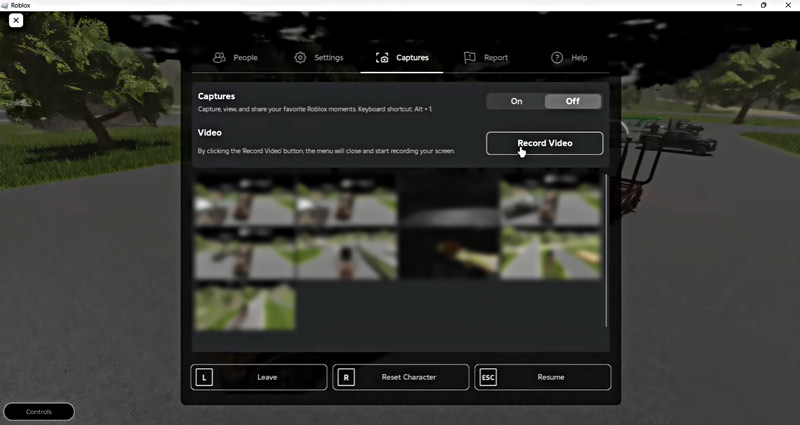
You can easily access the recorded gameplay video (saved in the WMV format) by clicking Open Folder in the notification. You can upload it to Twitch, YouTube, TikTok, or other websites for sharing directly.
This built-in Roblox recorder is very easy, right? However, it still comes with some significant drawbacks.
Considering these disadvantages of recording Roblox videos with its built-in recorder, you may search for a dedicated, professional game recorder. This section recommends the powerful Roblox recording app, Aiseesoft Screen Recorder. It enables you to record high-definition Roblox game videos with an optional recording area. Moreover, it allows you to record microphone audio to save voice chat when playing a game.
100% Secure. No Ads.
100% Secure. No Ads.
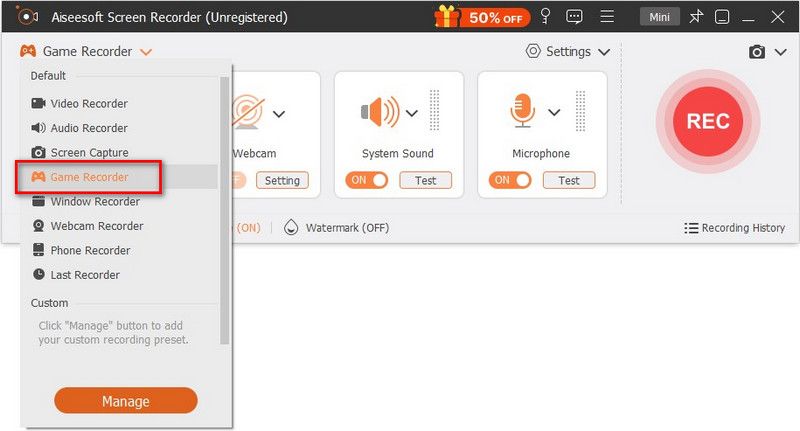
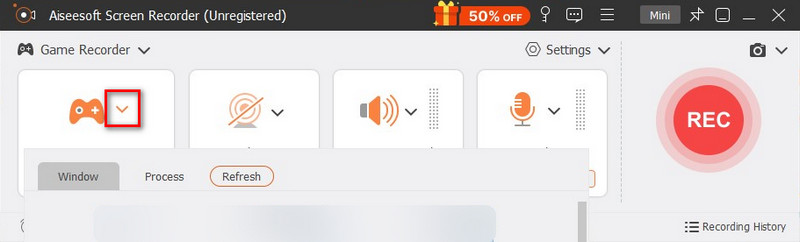
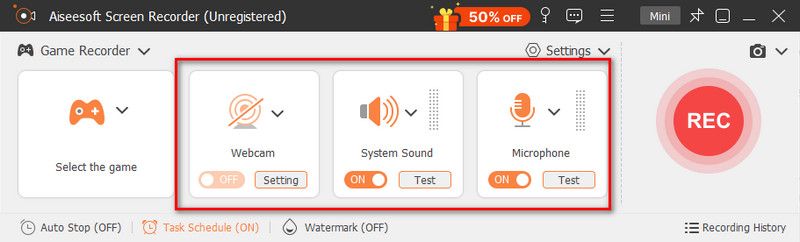
As a professional game recorder, Aiseesoft allows you to highlight your mouse cursor to show it on your screen for easy control. Better than the built-in recorder in Roblox, it lets you pause or resume the recording by pressing the hot keys. You can set the hot keys according to your preferences. Most importantly, the software enables you to capture 4K, high-quality Roblox videos with clear audio.
Apart from recording game videos, you are able to turn on system audio only to record music. Also, if you attend an important meeting, you could record it so as not to miss any critical points.
Is there a voice chat in Roblox?
Yes. Roblox on Xbox has an integrated voice chat system that allows you to chat with your friends and party members.
How to record Roblox with OBS?
Download and launch OBS Studio on your Windows computer. Open Roblox and select Settings at the bottom right section. Go to the Scenes box in the bottom-left section, and click Add to add a new entry. Then go to the Sources and click Add to add the source. Select Game Capture and check Add Existing box. In the Window dropdown, select your Roblox game. Then select Start Recording button to capture your gameplay.
How to record your voice on Roblox?
You can record your voice on Roblox with Aiseesoft Screen Recorder. Install and launch Aiseesoft Screen Recorder on your computer, and click Audio Recorder in the main interface. Enable both System Sound and Microphone options. Play the Roblox game and click REC to start recording.
Conclusion
Whether for preserving or sharing your favorite gaming moments or other reasons, you may want to record Roblox videos. Generally, you should start with the built-in recording options to capture a clip or take a screenshot. If you prefer a dedicated game recorder with more advanced functions/controls and for more professional results, turn to the recommended Aiseesoft Screen Recorder.
 How to Record Google Hangouts
Google Hangouts gives you an excellent chatting experience and you may want to record the Google Hangout to view again later. Two simple recording ways are presented here.
 5 Best Split Screen Video Editor Available to Windows 10/Mac
Feel boring about the regular videos? Here are top 5 best split screen video editors to help you create unique effects with your own videos and photos.
 2018 Best iPhone Apps & Troubleshooting
Check best iPhone apps of 2018 by popular categories (music, photo, video, social networking, etc.) as well as iPhone app troubleshooting tips.
 Leave your comment and join our discussion
Record Games
1.1 Game Capture 1.2 Game Recording Software 1.3 Video Game Recording Software 1.4 Record Diablo 3 Gameplay 1.5 Record League of Legends 1.6 Record PS3 Gameplay 1.7 Record Xbox 360 Games 1.8 Record Pokemon Game 1.9 Record Minecraft Games 1.10 Record Roblox Game 1.11 Record SWF Games 1.12 Record Gameplay on Windows 1.13 Record CSGO Gameplay 1.14 LoiLo Game Recorder 1.15 Watch and Record Replays on Fortnite 1.16 Record Overwatch Highlights 1.17 Record Gameplay on Switch 1.18 Record VR Gameplay
Aiseesoft Screen Recorder is the best screen recording software to capture any activity like online videos, webcam calls, game on Windows/Mac.
100% Secure. No Ads.
100% Secure. No Ads.

*Required field
*Please enter a valid email

