Aiseesoft Screen Recorder
 100% Secure. No Ads.
100% Secure. No Ads.
The Sony PlayStation 3 remains a beloved console even years after its release. It boasts a library of classic games that many gamers still want to play, not just for nostalgia. While playing these exclusives on PS3, many funny or meaningful moments deserve to be captured, whether for social content creators or casual gamers.
However, you may be confused if you have ever tried to plug your PS3 into a capture card. You are not allowed to record PS3 gameplay directly.
This guide explains the core reason why you cannot record gameplay on PS3 and provides three reliable methods to bypass this barrier and freely capture your gaming moments in high definition.
Gameplay recording on PS3 is quite different from that on PS4 or PS5. There is no built-in recorder for you to do that directly. What’s more, recording PS3 gameplay has a unique challenge: High-bandwidth Digital Content Protection (HDCP). The copy protection standard prevents unauthorized copying of content over HDMI cables. That’s why when you connect your PS3 with a modern capture card like an Elgato or an AverMedia, you don’t get the gameplay signal to capture.
The PS3 console enables HDCP encryption on all its HDMI outputs. When you connect your PS3 from its HDMI port to a capture card on your computer, the hardware will scramble the signal by default. Only the authenticated HDCP-compliant device can bypass this restriction. This is designed to protect movies and other copyrighted content from being recorded. The consequence is that your legitimate gameplay recordings are also blocked.
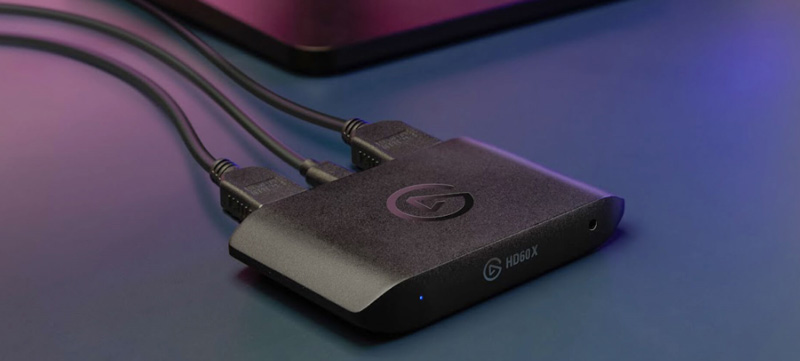
The most common PS3 gameplay recording solution is to use an HDMI splitter. Splitters can strip the HDCP signal from the video feed (PS3) to allow the signal to be sent to multiple displays. Your computer then gets the gameplay signal to capture.
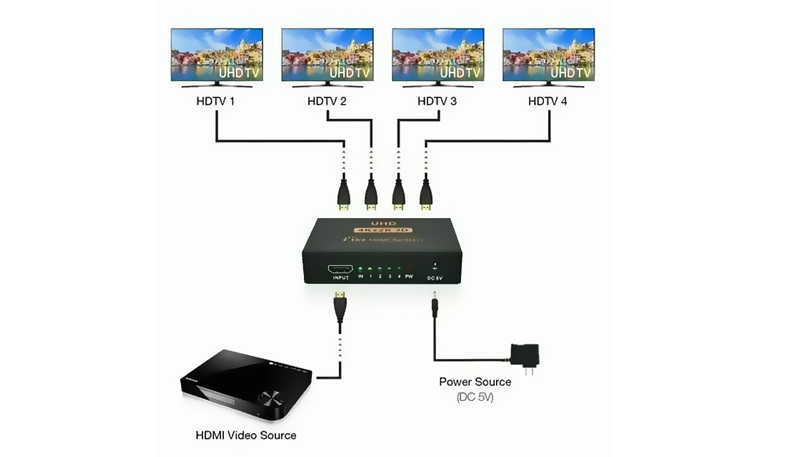
If you want a direct connection between your PS3 console and PC, you can look for a capture card that supports HDCP Bypass. In that case, you don’t need the HDMI splitter.
100% Secure. No Ads.
100% Secure. No Ads.
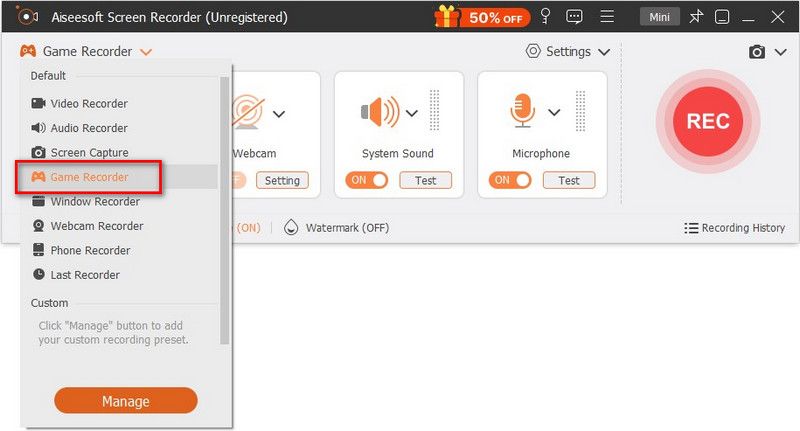
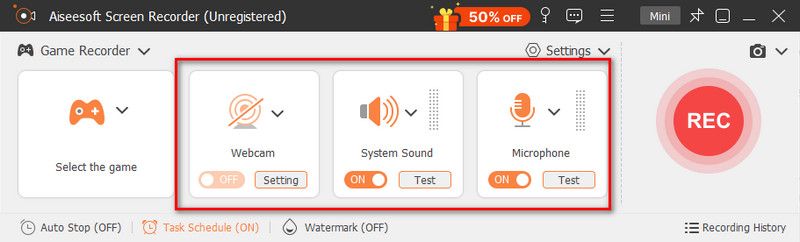
Aiseesoft Screen Recorder is specially designed to capture anything displayed on your screen up to the monitor’s source resolution, like 4K or 5K. Besides PS3, it allows you to record 4K games from PS4, PS5, Xbox, and Steam.
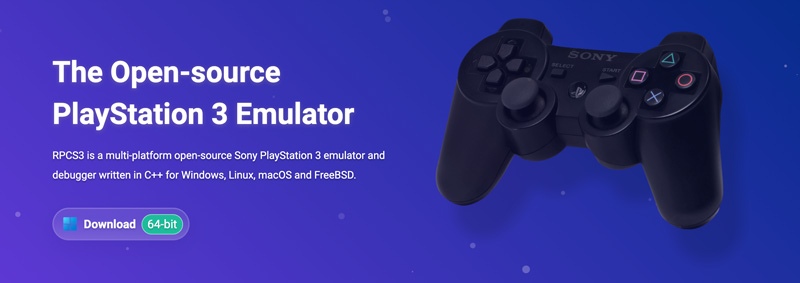
Besides the two methods above, you can rely on the RPCS3 PlayStation 3 emulator to record your PS3 gameplay.
Question 1. Does PS3 still receive updates from Sony?
Yes. The PlayStation 3 is still receiving official system updates from Sony, even though it is nearly 20 years old. In fact, PS3 just received a new Version 4.93 on March 18, 2026.
Question 2. How can I record my gameplay on Steam?
Steam has a built-in tool for quick game recordings. You can record on the Steam feature from the Steam Desktop Client. Go to Steam, choose Settings, and then Game Recording. Select your preferred recording mode.
Question 3. Is OBS game recording free?
Yes, OBS Studio is open-source and totally free. Whether for game recording, streaming, or other usages. It is 100% free with no subscriptions or hidden fees.
Conclusion
This post shares three methods to record PS3 gameplay. You can compare them and select a desired way to capture your gaming moments on the classic console. If you prefer the highest possible quality, you can start with the reputable RPCS3. It is widely used by gamers and content creators.
 The Quickest Way to Game Record on Windows 11/10 [2025]
Do you want to record your achievement or highlight moment in games? This post will guide you to record video games on Windows 11 and 10.
 [2025 Emulator Apps] Use PS3, PS4, or PS5 Emulators to Play on PC
What is the best PS3/PS4/PS5 emulator to play console games on PC? Here are the suggested apps to try with minimum requirements.
 Tips to Format a Hard Drive for PS4 Directly or Using Desktop
To format a hard drive for PS4, you will need to follow the steps we included here. Find out how to do it quickly.
 Leave your comment and join our discussion
Record Games
Game Capture Game Recording Software Video Game Recording Software Record Diablo 3 Gameplay Record League of Legends Record PS3 Gameplay Record Xbox 360 Games Record Pokemon Game Record Minecraft Games Record Roblox Game Record SWF Games Record Gameplay on Windows Record CSGO Gameplay LoiLo Game Recorder Watch and Record Replays on Fortnite Record Overwatch Highlights Record Gameplay on Switch Record VR Gameplay
Aiseesoft Screen Recorder is the best screen recording software to capture any activity like online videos, webcam calls, game on Windows/Mac.
100% Secure. No Ads.
100% Secure. No Ads.

*Required field
*Please enter a valid email

