Aiseesoft Screen Recorder
 100% Secure. No Ads.
100% Secure. No Ads.
Are you facing a situation where your Steam recording is not picking up the mic or game audio?
Steam has a built-in recording feature that lets you capture your gameplay moments directly. However, many users complained about the Steam recording no audio problem. It can be one of the most frustrating issues gamers encounter. The annoying thing is, the dead silence may easily ruin a perfect clip, either the Steam recording is missing the in-game system sound, or your microphone is.
Before we delve into specific solutions for the Steam recording no audio problem, we would like to discuss several common causes behind it.
Incorrect Steam Settings. If you set Steam to capture sound from an incorrect audio source, such as an unplugged headset or a deactivated monitor speaker, that will lead to missing sound in your Steam recording.
Outdated Audio Drivers. Sometimes, the Steam recording no audio issue is due to outdated audio drivers. Old or corrupted sound drivers on your device may prevent screen recorders from properly recording audio, especially the internal system sound.
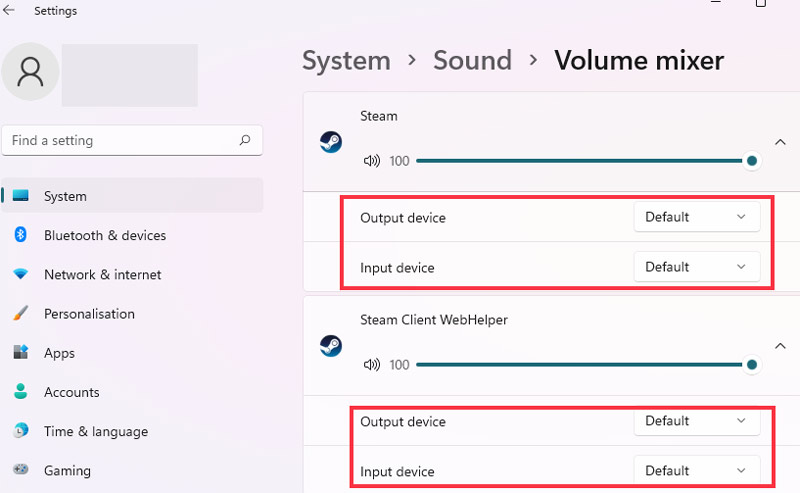
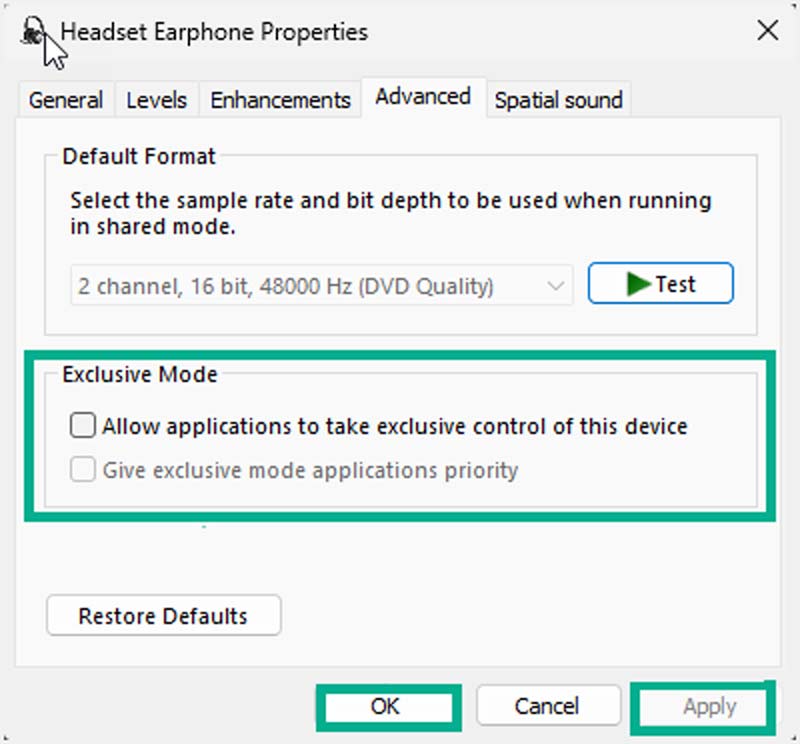
Software Conflicts. If another software is using your headset or speaker, and it is taking full control of the audio device, it may prevent Steam from capturing the audio stream. This exclusive mode conflict will cause Steam to record your gameplay with no audio.
Audio Enhancements Interfering. Some specific sound processing features or third-party equalizer software may interfere with the audio recording function in Steam.
Steam Bugs. In some cases, because of a temporary bug associated with the Steam Game Recording feature, your game recording may have no sound.
After knowing the possible reasons why your Steam audio is dropping out, you can follow the five tips below to resolve it with ease.
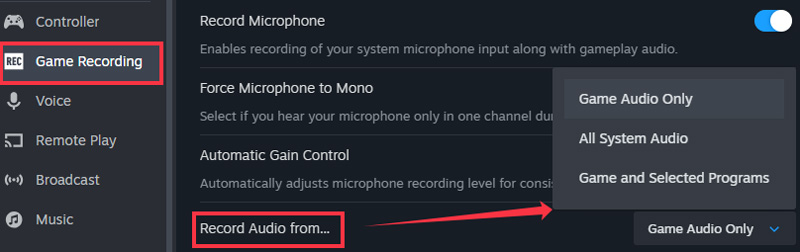
Steam generally captures whatever Windows considers the “Default” playback device by default. You should check and make sure the current headset or speakers you are using can be recognized by Steam properly.
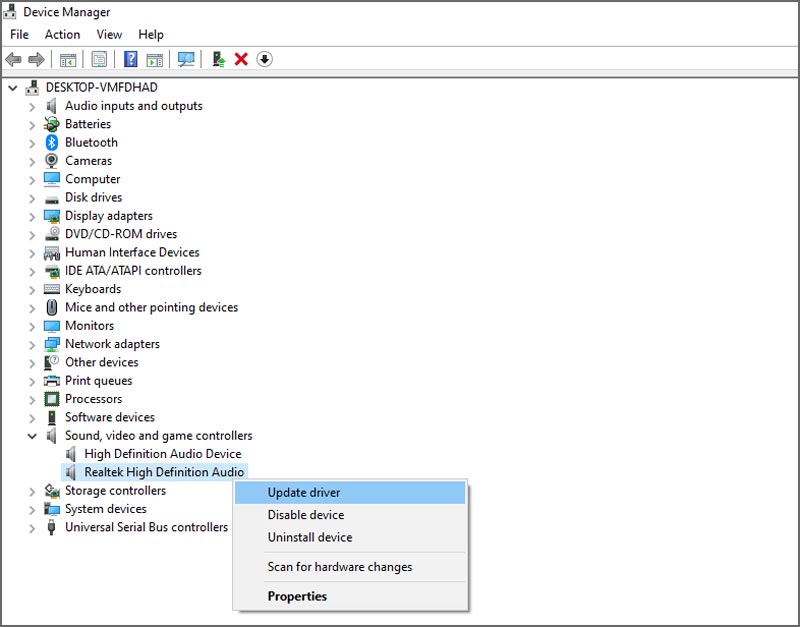
You should keep your audio drivers up to date. To do that, right-click the Start button and go to Device Manager. Right-click your primary audio device and choose Update driver.
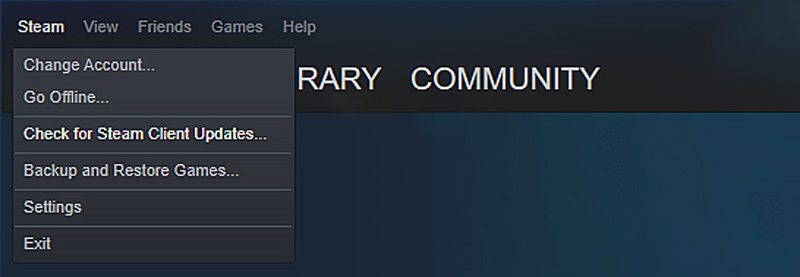
You’d better update your Steam Client. Click Steam in the upper-left corner and select Check for Steam Client Updates. Update the client if there is an available update.
Windows has built-in audio enhancements designed to make your speakers sound better. As mentioned, these enhancements may clash with recording software. If your Steam game recording has no audio, you can try disabling these enhancements and recording again.
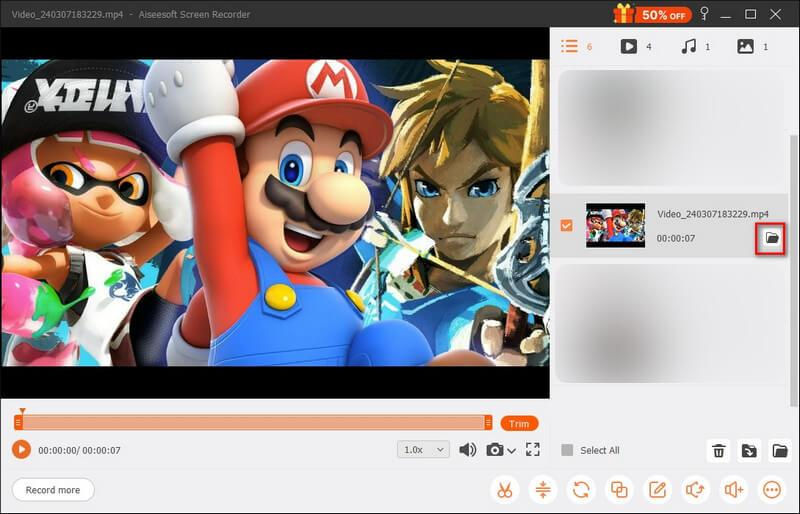
If you often need to capture your gameplay moments, especially for the whole process, you’d better turn to a dedicated, high-performance game recorder. Steam’s built-in recorder is mainly used to save short gaming clips. For most gamers, content creators, and tutorial makers, Aiseesoft Screen Recorder is always the better choice. It can capture high-resolution gaming videos up to 4K/8K with 120/144 fps or higher (according to your monitor and game source). More importantly, the recording won’t affect the gaming performance on your computer.
100% Secure. No Ads.
100% Secure. No Ads.
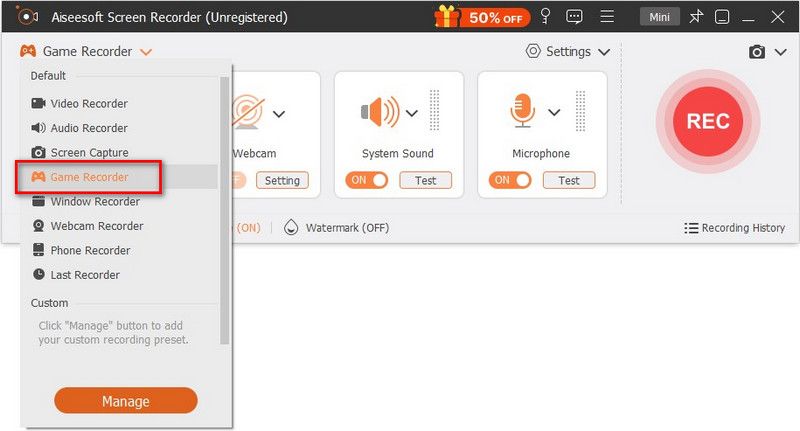
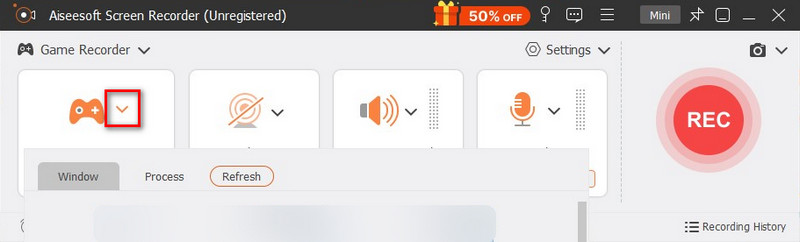
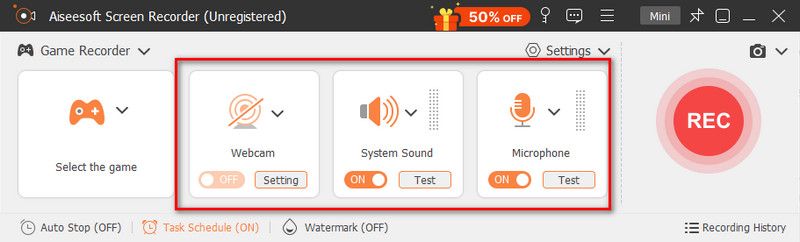
The software provides advanced functions like noise cancellation and voice enhancement. You can access and enable them from Settings.
Question 1. What is the difference between Game Audio Only and All System Audio in Steam Settings?
The Game Audio Only option will capture audio directly from the game process. The All System Audio option will record all sounds played on your computer. When you turn on All System Audio, it captures game audio, browser audio, Discord calls, Spotify, and more.
Question 2. Where are Steam game recordings saved on my computer?
By default, you can find your recorded gaming videos in a dedicated Game Recording folder. You can also change the default save location by going to Steam Settings > Game Recording. Go to the Background Recording section, look for the Folder path. If you need to change the location, click Change Folder.
Question 3. Will Steam game recording lower my FPS?
Steam uses advanced hardware encoding to minimize the gaming performance impact. If you are using a modern computer, you won’t see any difference. However, if you are playing Steam games on an older graphics card, you might notice lag and a slight dip in FPS. You can customize related video quality settings in the Steam menu, or change FPS with professional tools.
Conclusion
In most cases, you don’t have another chance to capture your unique gaming moments. That’s why encountering the Steam recording no audio issue is quite annoying. This post explains several main causes behind the problem. More importantly, you can learn five efficient methods to resolve it. If you worry about the reliability of Steam’s built-in client recorder, a dedicated game recorder like Aiseesoft is often the better choice. That ensures your gaming clips are always captured perfectly.
 Step-by-Step Tutorial: How to Play Steam Games on Phone
Can you play steam games on the phone? Whatever your answer is, keep reading to find out what you need to do and the valuable tips before gaming.
 How to Record Yourself Playing Video Games on PC, Console & Mobile
Learn how to record yourself playing video games with gameplay and facecam on PC, console, and mobile using simple step-by-step methods.
 Pick the Best Game Clipping Software from 7 Recommendations
What is the best game clipping software for low-end PCs? Which game clip recorder app should you use on a Mac? Check the 7 best game clipping software.
 Leave your comment and join our discussion
Screenshot Tips
Screenshot in Windows Media Player Screenshot Entire Webpage Screenshot Part of Screen Screen Record instagram Story Where are Steam Screenshots Saved Screenshot a Video Screenshot Alcatel Take a Screenshot on Lenovo Take Screenshot on HP Take a Screenshot in Minecraft Take a Screenshot of Google Chrome Use Snagit Scrolling Capture to Take Full-Page Screenshot Take Screenshots Surface Pro Screenshot on HTC Screenshot on Firefox Crop a Screenshot on Mac Crop Screenshots on Windows
Aiseesoft Screen Recorder is the best screen recording software to capture any activity like online videos, webcam calls, game on Windows/Mac.
100% Secure. No Ads.
100% Secure. No Ads.

*Required field
*Please enter a valid email

